Viewing entries in
Concepts

Layering PowerPoint shapes

Layering PowerPoint shapes

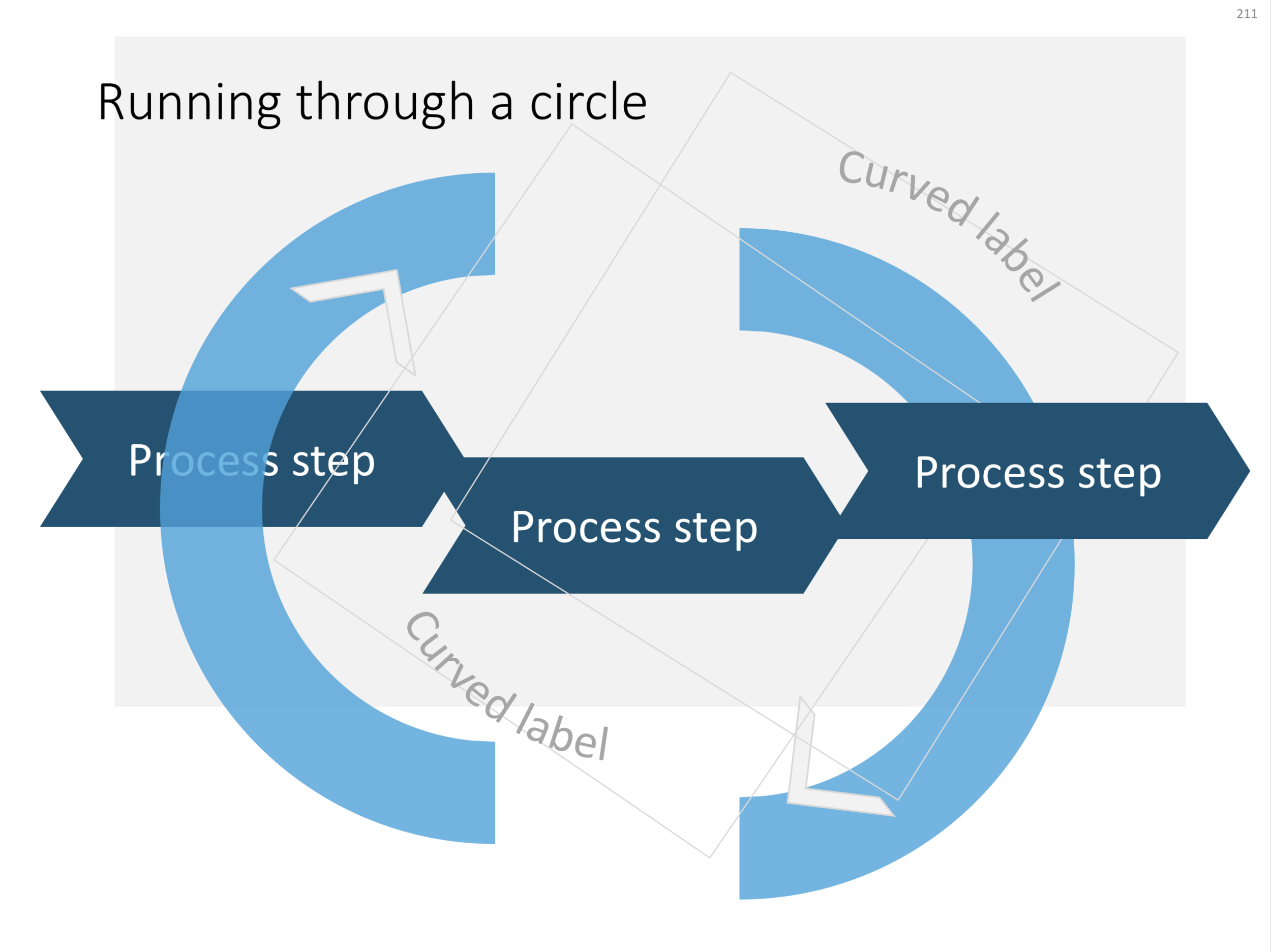
Here are some examples of PowerPoint slides that cleverly use layering to create a "woven fabric" effect. Why clever? Take the circle for example with the arrow flying through. Part of the circle needs to below the arrow, part on top. The solution? Cut the circle in half... The interwoven arrows have small square blocks in the right colours pasted in the relevant junctions, and the spiral was a bit tricky, placing small black cut outs on the junction with the blue arrow.

Click the image if you want to download the relevant slide. Alternatively, search the template store for keywords like "arrow", "downward", "circle", "process" etc. to get to charts like these.

A regular process, with a circular process around it

A regular process, with a circular process around it

"The making of"

"The making of"

Layered PowerPoint arrows give a fabric or knot type slide layout

Layered PowerPoint arrows give a fabric or knot type slide layout

A downward spiral in PowerPoint

A downward spiral in PowerPoint

Photo by Christian Perner on Unsplash

SlideMagic: a platform for magical presentations. Free student plan available. LEARN MORE
Native waterfall charts in PowerPoint for Mac

Native waterfall charts in PowerPoint for Mac

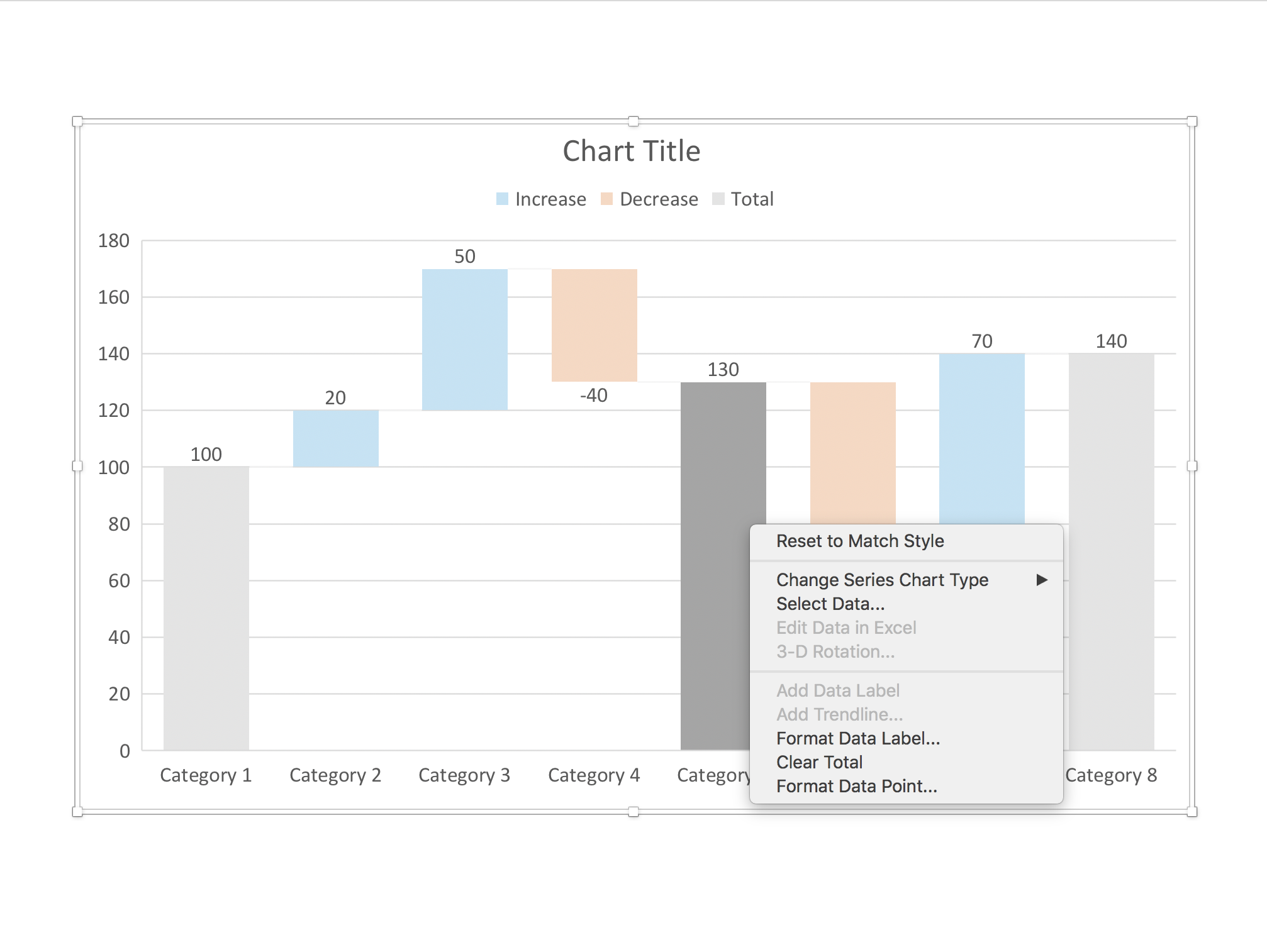
Waterfall charts have emerged in PowerPoint for Mac after a recent software update. This would be a major addition, since these types of charts are highly useful to summarise changes in data. I have shown in previous blog posts how it is possible to construct a waterfall chart starting from a regular stacked column chart, but it involves manual calculations and PowerPoint fiddling.

The new waterfall templates for PowerPoint for Mac are a step in the right direction, but things are not perfect (yet) though. For some reason, you cannot edit the data of the waterfall that gets inserted in PowerPoint, nor can you change the design of the chart. I figured out a work around:

1. Data in the standard PowerPoint for Mac waterfall chart cannot be edited ("edit data in Excel" is grey out)

1. Data in the standard PowerPoint for Mac waterfall chart cannot be edited ("edit data in Excel" is grey out)

2. The only adjustment you can make is selecting a cell, and then designating it to be a total column (or not)

2. The only adjustment you can make is selecting a cell, and then designating it to be a total column (or not)

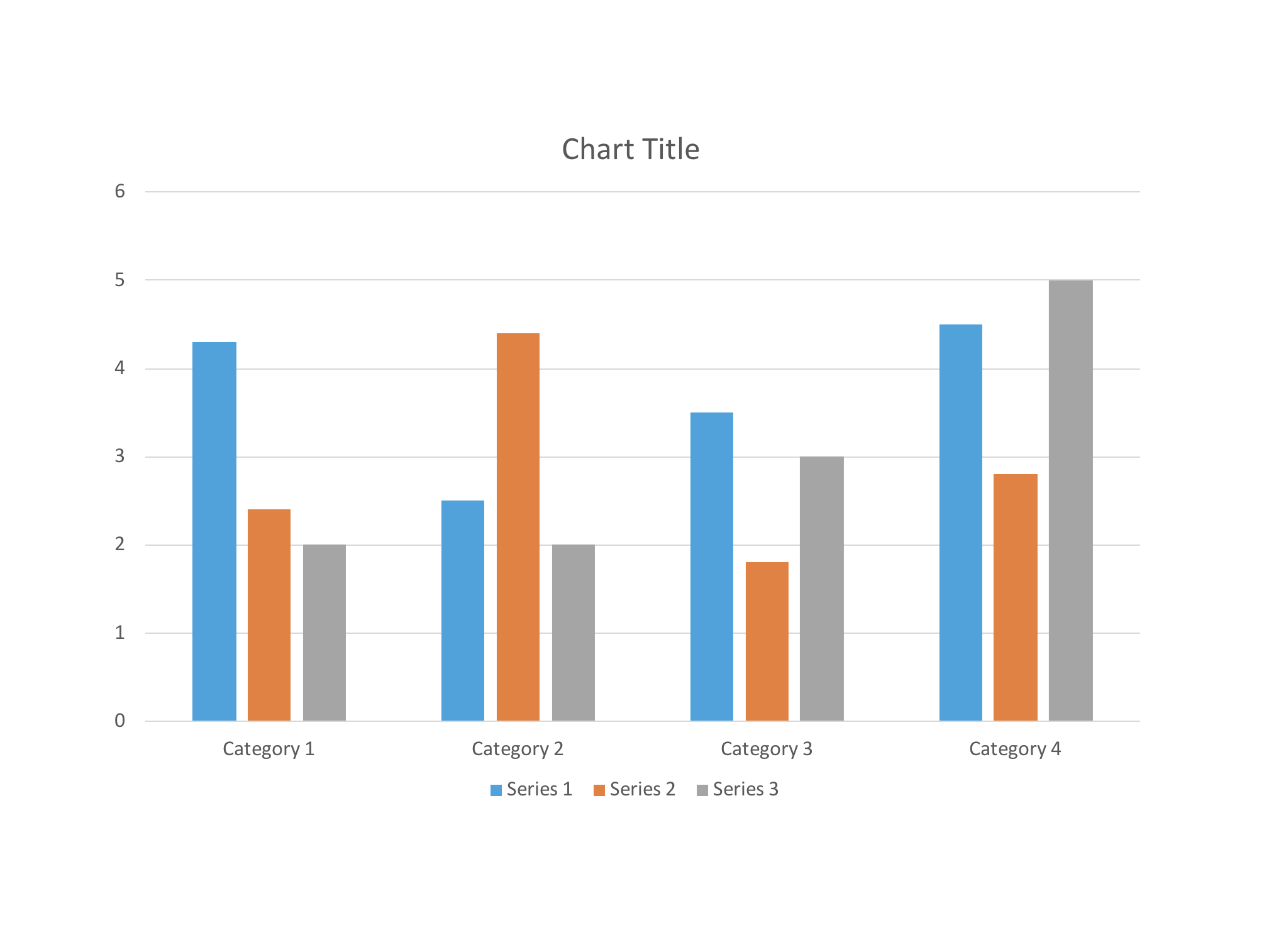
3. Work around: add a regular column chart

3. Work around: add a regular column chart

4. Make it a stacked column

4. Make it a stacked column

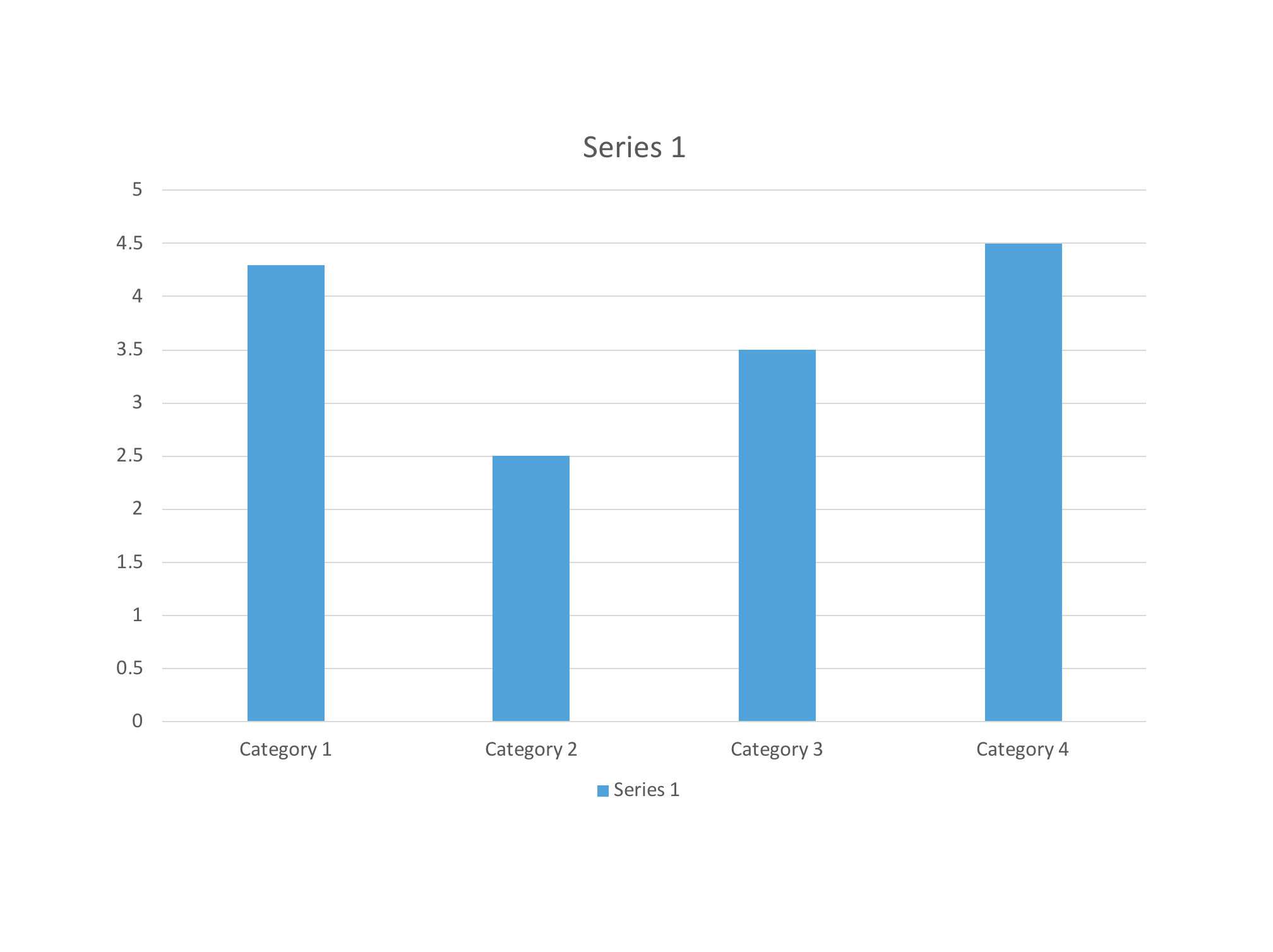
5. Delete data all but one data series

5. Delete data all but one data series

6. Add the data you need

6. Add the data you need

7. Convert the stacked bar to a waterfall

7. Convert the stacked bar to a waterfall

8. Designate the totals to be "totals"

8. Designate the totals to be "totals"

9. The final result

9. The final result

The problem is that you cannot format these chart more to make it fit in your overall design. And to change a data value, you have to convert back the chart to a stacked column chart, after which you have to re-re-convert to a waterfall and set the totals again from scratch.

I assume these are all early bugs that will eventually be ironed out. Do people have the same issue on PowerPoint for Windows? 

Here is the link to my manual waterfall chart in the template store. It requires some calculations, but once set up,  you can make it fit to your own look & feel, and changing data values should be relatively easy. As soon as Microsoft has ironed the above bugs, I will update this chart to work with the native chart engine.

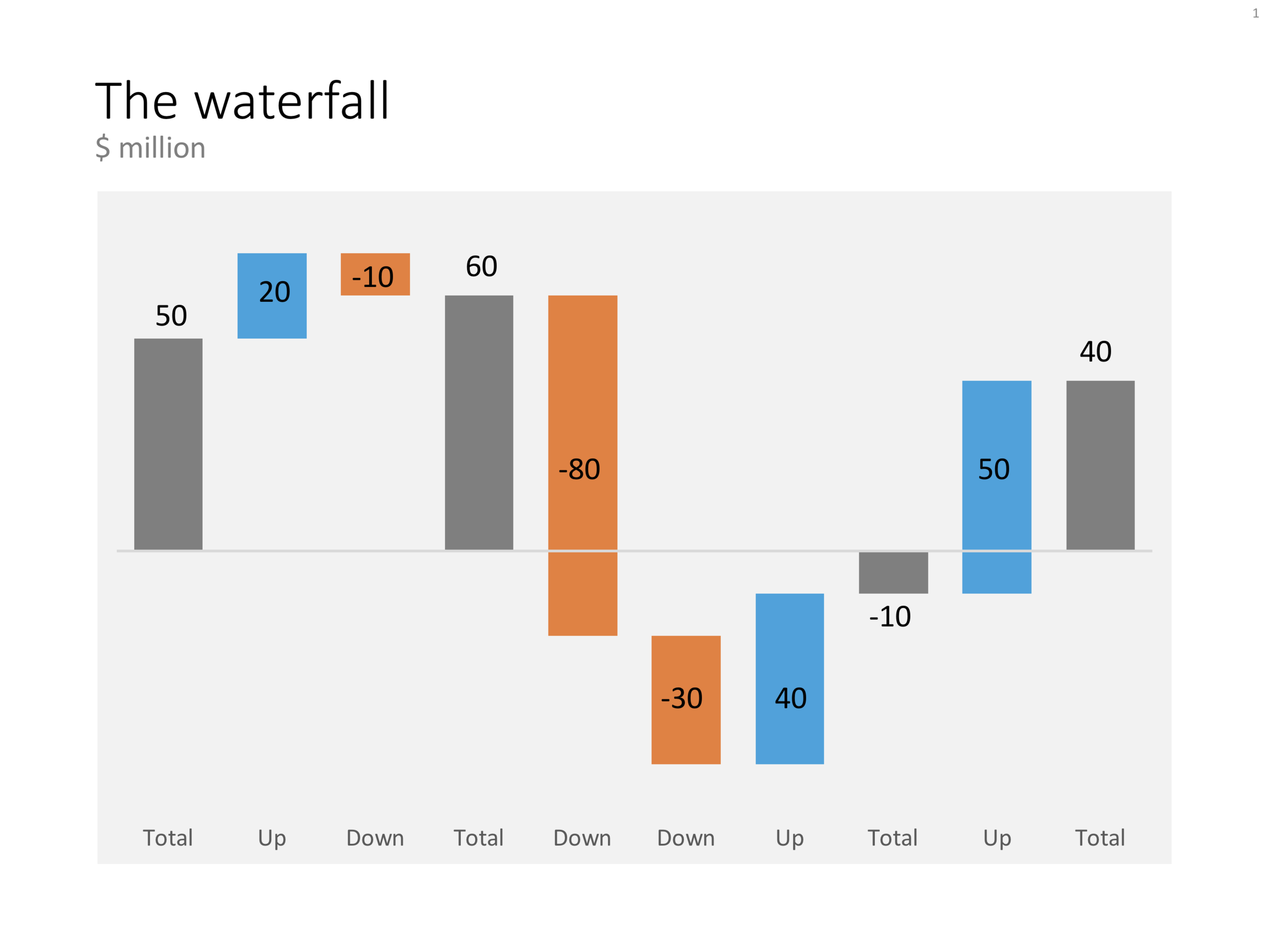
The "manual" waterfall chart in PowerPoint that can be downloaded from the template store

The "manual" waterfall chart in PowerPoint that can be downloaded from the template store

SlideMagic: a platform for magical presentations. Free student plan available. LEARN MORE
The iceberg in PowerPoint, presentation cliches

The iceberg in PowerPoint, presentation cliches

I think people are spending way too much time on creating corporate presentation documents for internal company  meetings where the objective is to get your colleagues to agree on something that needs to happen next. Not every meeting is your all company annual sales kick off.

Presentation cliches can be effective visual shortcuts to get your point across. People have seen them before, instantly connect to the concept, and you can move on. The challenge is to make your slide look decent, maybe even referring to the cliche in a tongue-in-cheek way.

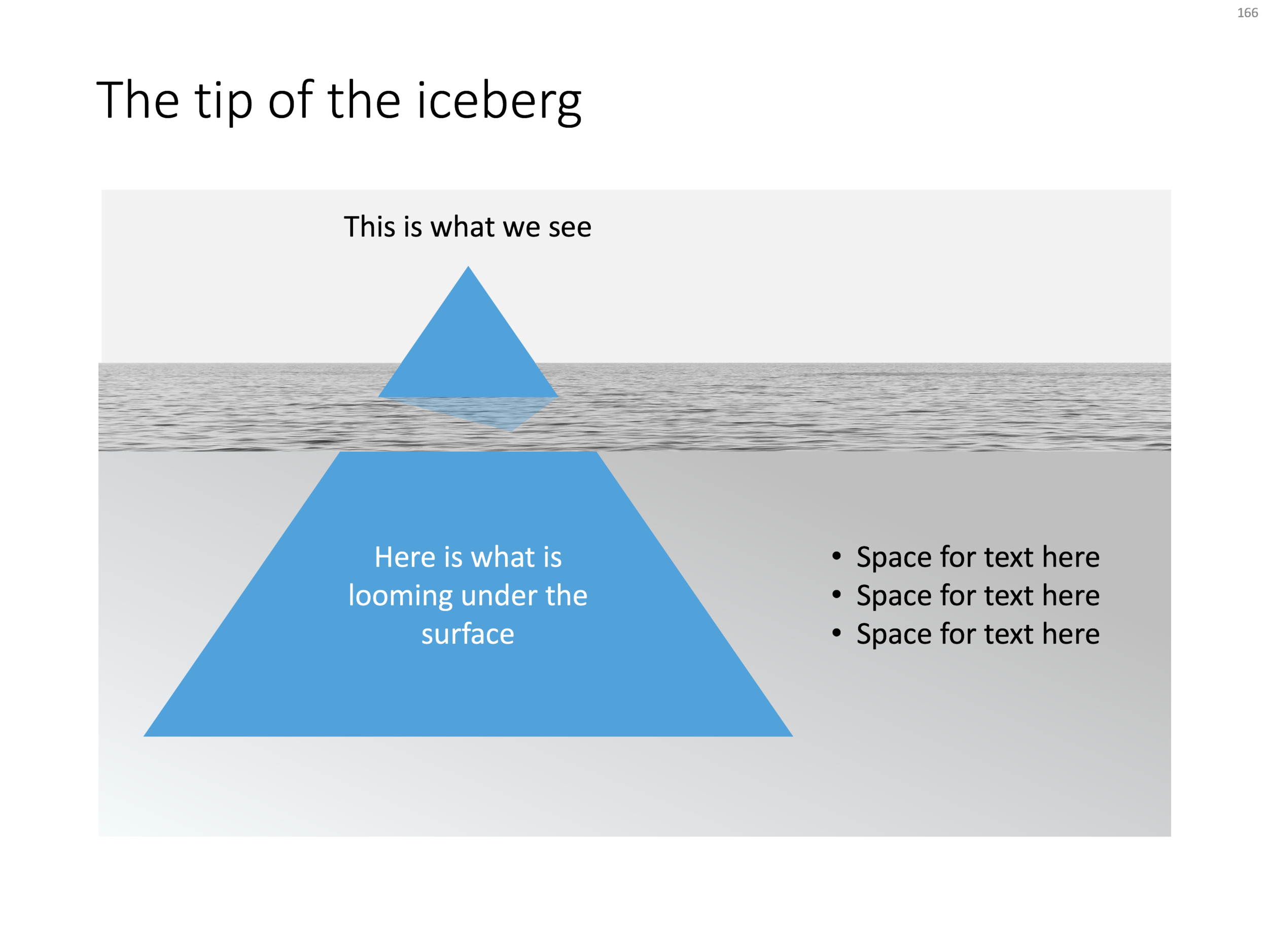
Below is what I tried to do to the infamous tip of the iceberg slide.

The tip of the iceberg presentation "classic" (or cliche?)

The tip of the iceberg presentation "classic" (or cliche?)

  • Don't try to make it look too photo realistic, but rather use an abstract simple geometrical shape, and use the presentation accent color (instead of white against a dark background)
  • Keep the slide very simple, but the depth effect is actually created with clever layering of (partly semitransparent) shapes and image crops, it took me some head scratching to figure out
  • Shift the whole composition to the side to leave some more space for text, if you need it.

All in all, this chart looks better than a boring list of bullet points that describe some looming threat you want to warn your colleagues about. Just resist the temptation to fill that empty piece of arctic ocean on the right or the crisp polar sky with text.

If you want, you can download the tip of the iceberg slide here.

Photo by paul morris on Unsplash

SlideMagic: a platform for magical presentations. Free student plan available. LEARN MORE
Quarterly performance summary: lots of different KPIs on a page

Quarterly performance summary: lots of different KPIs on a page

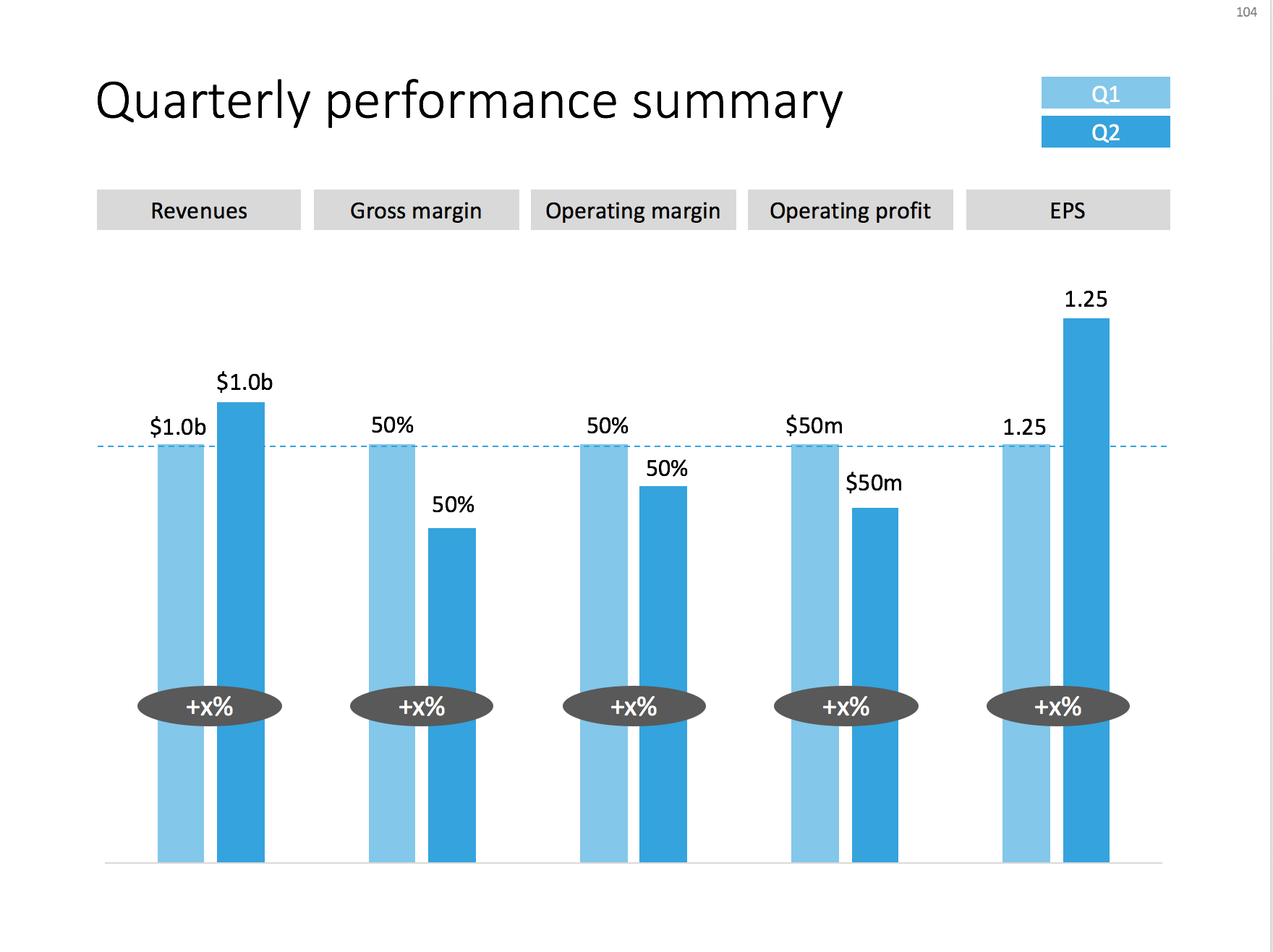
I often use the slide below in quarterly investor presentations for large corporates. How to give a quick overview of the key financials in one chart?

A chart with an overview of the main financial indicators of the last quarter

A chart with an overview of the main financial indicators of the last quarter

This chart is an example of why often a "manual" chart is much more powerful than a simple copy and paste from Excel:

  • The chart contains values that can differ vastly in range: sales can be 100s of billions of dollars, EPS can be less than a dollar. Margins are percentages, not dollars.
  • Despite this, I forced the Q1 column of each of these values to be the same. In the underlying spreadsheet, they will all say "100". The other values are calculated as a relative value compared to this 100. To accentuate this in the chart, I connected the left columns with a dotted line.
  • As a result, all labels in the chart need to be filled out by hand, the same for the growth bubbles which I placed over the columns (again a bit unusual)

You can download this KPI chart from the template store.

Photo by Sabri Tuzcu on Unsplash

SlideMagic: a platform for magical presentations. Free student plan available. LEARN MORE
How to make organization charts in PowerPoint

How to make organization charts in PowerPoint

I added the first organization chart to the template store. It is hard to design a generic template for organizations, there are so many different permutations possible. This is the reason they are still hard to create in my presentation design app, and this is probably also the reason that it is tricky to create beautiful organization diagrams from simply copying pasting a pre-fab template. Let's give it a try.

Here is the process I usually go through when designing an org chart:

  1. Make a sketch on paper, and reshuffle, re-juggle existing PowerPoint organigrams. These are made by HR people, not by designers. Often you can rearrange objects in such a way that you get a much nicer composition without changing hierarchies and relationships between people and departments
  2. Find out the horizontal layer that has most boxes in it, this will determine the size of the horizontal grid. Find the person with the longest name / role title, which will give you a clue about the maximum font size you can use.
  3. Put this layer in, and add all organization elements relevant to this layer.
  4. Make sure every object is perfectly aligned, and start putting in the PowerPoint connectors. (You will immediately see when you made a small alignment glitch, the connectors will not fit nicely)
  5. Now that the whole structure is in in place it is time to put in names and roles, and if required the FTE count of the various units (the small black bubbles in my example). 
  6. Take a step back and look at the whole structure to see whether there are opportunities to use color to make things clearer.
  7. You got your reference slide was all the info about all the people in the right places, the final step is to think what your specific slide actually really needs to say: our organization is big, or organization is flat, our organization mirrors our customer segmentation, everyone in the organization is over-stretched, our organization is basically 3 silos. Start deleting, adding, coloring things just to make that point.

Related to point 7, remember that some of the points you want to make in an organization do not always require an organization diagram. I nice photo of the lunch room can show that you have a big group of people working here for example. And, the names, lines, dotted lines, titles, are incredibly important for the people who work in the organization, for some people that title might be the reason they show up in the morning. For many outsiders however, these details are far less important. In startup organizations, the org chart changes every week, the structure is not that relevant, what is important though (for potential investors) is the caliber and experience of the people you managed to get on board. I simple team overview slide can do the trick here. You can search the template store for "team" and see whether a suitable design comes up.

Let me know if this template (you can download it here) works, or whether I should add more permutations.

A PowerPoint presentation design template for an organization chart

A PowerPoint presentation design template for an organization chart

Photo by Vincent Botta on Unsplash

SlideMagic: a platform for magical presentations. Free student plan available. LEARN MORE
System dynamics in PowerPoint

System dynamics in PowerPoint

Loops are a powerful way to visualise reinforcing trends. Electrical engineers use them and refer to them as "system dynamics". McKinsey consultants use them and call them "business dynamics".

You can use them in a presentation to support your point, but make sure you don't overcomplicate things like in the infamous US Army Spaghetti chart. Alternatively, you can use them as an analytical tool and add as much complexity as you want.

I often use some sort of loop diagram to scribble the basic story line of a presentation to make sure that I understand things myself.

When using a loop diagram in a presentation, go through different version on paper until you arrive at the most pleasing design, with the minimal amount of overlapping arrows in your spaghetti.

I have added a basic loop diagram to the template store. They are a bit tricky to make in PowerPoint, if you want all the circles and arrows to line up properly.

SlideMagic: a platform for magical presentations. Free student plan available. LEARN MORE
How to create Harvey Balls in PowerPoint

How to create Harvey Balls in PowerPoint

Harvey Balls are a repeating pattern of simple pie diagrams to score options among different access. Strategy consultants love them because it allows you to make qualitative assessments quickly. They work great on group discussion whiteboards as well: draw the empty circles and have the meeting participants colour them in.

Apparently they were invented at Booz Allen in the 1970s, which is probably why we at McKinsey referred to them as "moons".

In PowerPoint they are a bit tricky to make, in the template below I tried to make an effort. To change the values, you need to open each pie diagram and change its value, make sure that you are not moving or re-scaling any of the pie diagrams in the process.

At McKinsey, I remember always keeping a "moon" diagram somewhere in my hard drive, so I could easily re-use the various shapes (these were not Excel pie diagrams, but graphic icons that came in the four stages).

Visually, I think they are not perfect. Maybe in the early 1990s, with primitive computer graphics, Harvey balls served a purpose, but now the same effect can equally be achieved by applying different colour shadings in the background colour of the cells in your table.

As always, feel free to copy the design, or download the ready-made slide from the template store.

SlideMagic: a platform for magical presentations. Free student plan available. LEARN MORE
A multi-dimensional comparison

A multi-dimensional comparison

This chart can be your weapon of choice when you need to visualise a complex comparison: multiple options, multiple dimensions, and subtle differentiations (beyond "yes" or "no"). You can position the balls anywhere in between the extremes. When using the slide for your specific situation, it might have to go through a number of iterations. Choose the order of the dimensions in such as way, that the lest complicated line pattern emerges.
Feel free to copy the design, or download the completed slide from the SlideMagic store.

SlideMagic: a platform for magical presentations. Free student plan available. LEARN MORE
Stuck in a 15 puzzle

Stuck in a 15 puzzle

I am going back into the archive of 10 years of SlideMagic, Ideatransplant, Sticky Slides, Slides that Stick to rescue those slide concepts I discussed and put them in the SlideMagic store. Today's catch is the 15 puzzle that cannot be solved because of some roadblock. Here is the original post from 2009, and below is the slide, ready for download in the SlideMagic store.


Image of a Magic Square in the Sagrada Familia by Alexander Baxevanis on Flickr

SlideMagic: a platform for magical presentations. Free student plan available. LEARN MORE
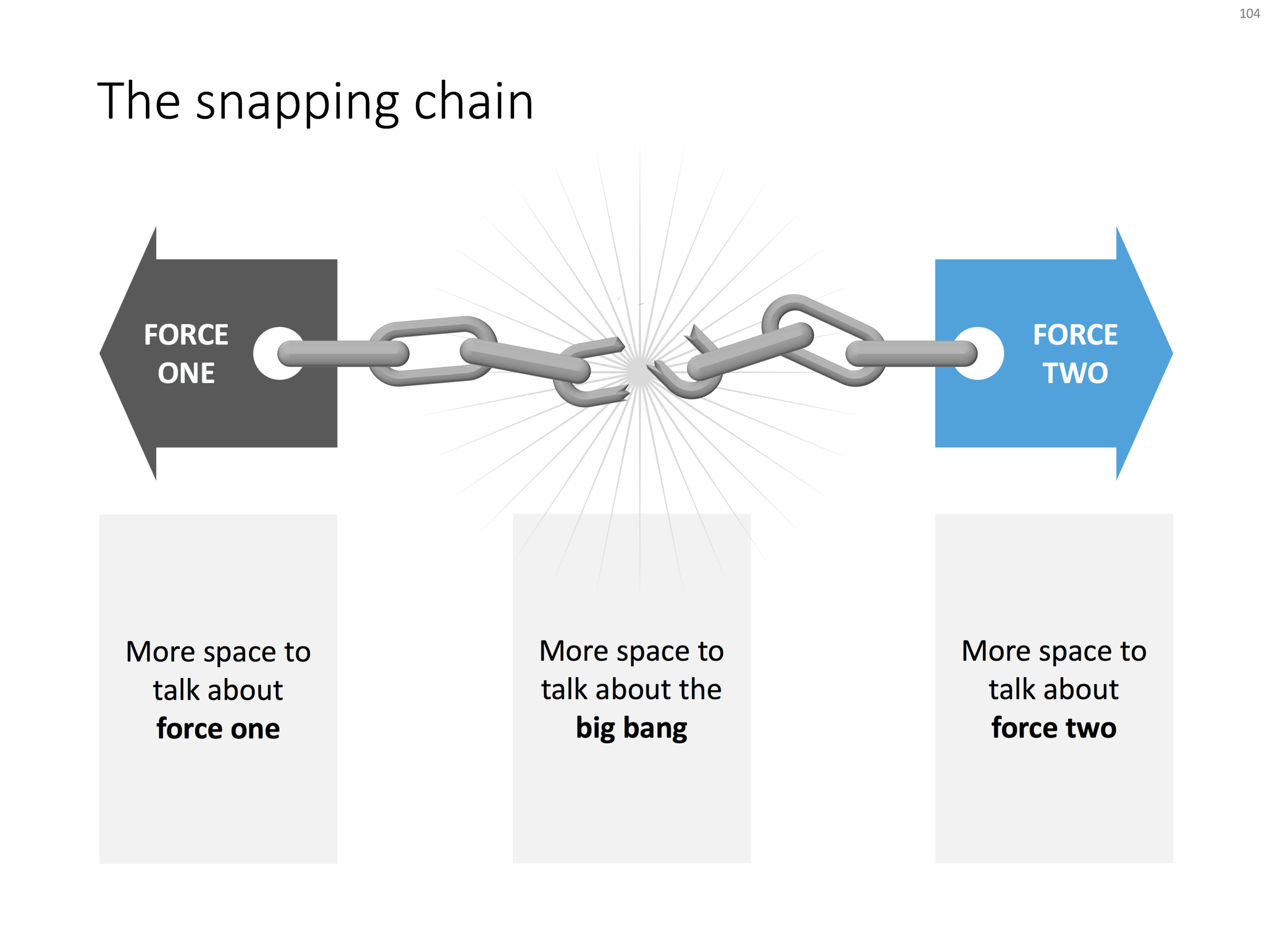
The snapping chain

The snapping chain

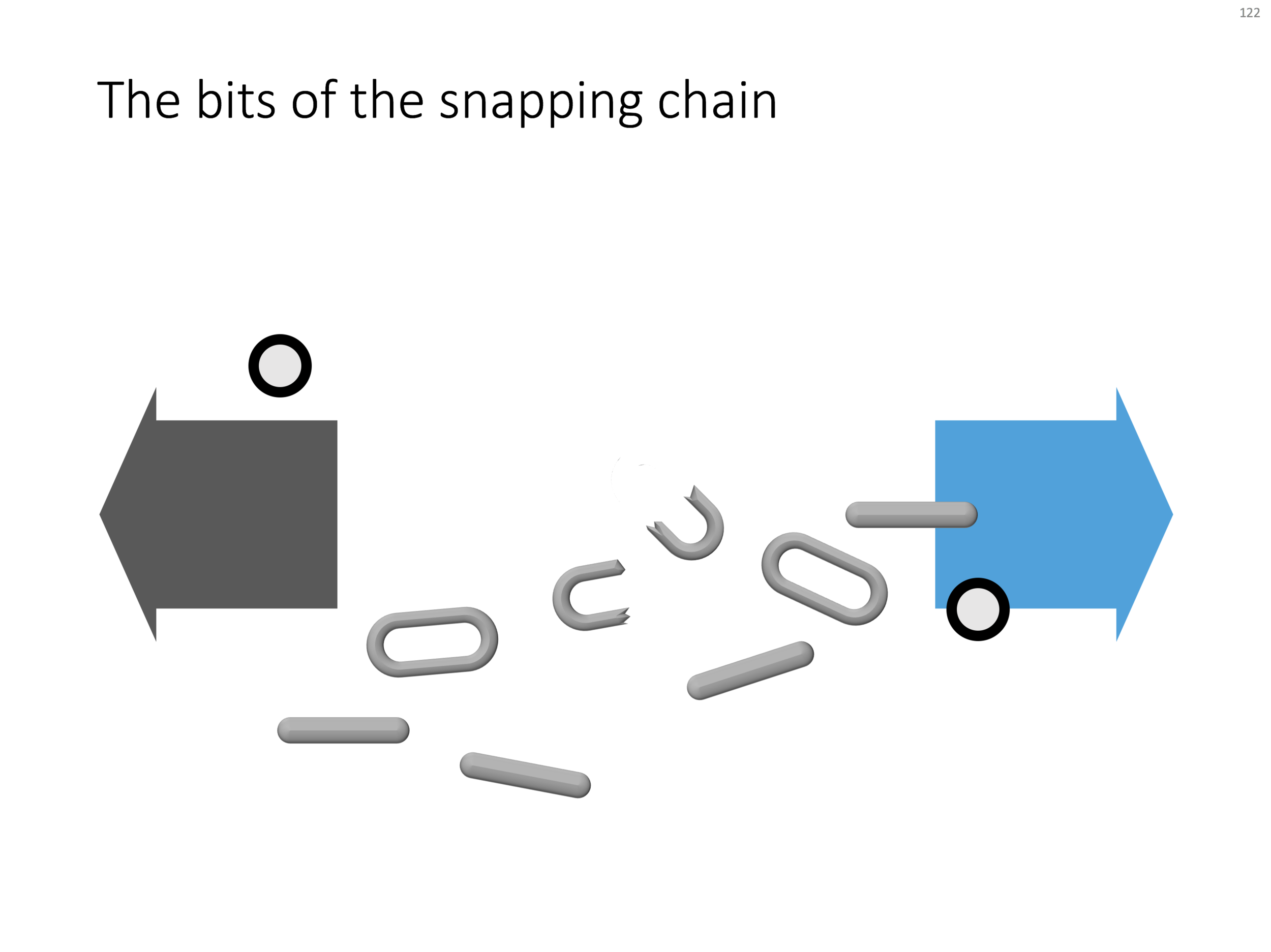
Business presentations usually rely on a few basic concepts. One of them is the snapping chain or rope, where 2 forces pulls something apart. One way to create this is with a stock image of a snapping rope or chain, but it can be hard to find one without an unhelpful 3D rotation, another approach is to create a chain from basic PowerPoint shapes.

Here is what I did

  • Take a rectangle with rounded corners
  • Increase the rounded corners until they become half circles (the small yellow dot in the shape)
  • Copy the shape, make it smaller
  • Centre the 2 shapes, subtract the smaller from the bigger
  • Apply some 3D bevel to to get the basic chain ring
  • The other chain ring is simply a rectangle with rounded corners.
  • Now, scribble a "saw" freehand shape.
  • Copy a chain ring, subtract the saw shape to get the broken ring
  • Copy this broken ring, and subtract it from another ring (to get the exact complement of the break lines)
  • Line everything up for the final composition.

You can follow these steps, or download the finished product from the template store.

Once you have your chain, "store it in a safe place", there are endless ways you could use it in future slides: multiple chains, longer chains, chains that go all around the slide :-) Here is another possible composition from the SlideMagic archive

The resulting chart is not a master piece illustration, but its unpretentious simplicity can do a decent job in an everyday business presentation. People spent too much time dealing with presentation software, and the objective of SlideMagic (the app, the store) is to help you get business concepts on a decent slide quickly and move on with more important things in life (and business).

SlideMagic: a platform for magical presentations. Free student plan available. LEARN MORE
SWOT analysis

SWOT analysis

You have been searching "SWOT" a lot in my slide template store, and got blank results. So, by popular demand, I added a SWOT slide template.

The slide is a bit too dense to put up in your next TEDTalk, but that is never the purpose of a Strengths-Weaknesses-Threats-Opportunities analysis. A SWOT is an analysis rather than a presentation tool. In my life as a strategy consultant at McKinsey, a SWOT analysis rarely solved a big strategic problem start to finish, but it is usually a great tool to get people started.

It can be especially useful in big group discussions where strategic debates can go all over the place. Putting an empty SWOT framework on a flip chart immediately calms the group down and focuses the meeting.

I expanded a bit on the traditional 2x2 (4 boxes) model: the SW, and OT boxes are now put on the side of the matrix, leaving space for 4 new boxes in the center that enable you to scribble what you are actually going to do about all these internal and external factors.

(I vividly remember that 50% of the group discussions around a SWOT whiteboard were about in which box to throw a particular thought).

Feel free to copy the design, or download the SWOT analysis ready made from the template store. You can find there more examples of strategic frameworks as well.

SlideMagic: a platform for magical presentations. Free student plan available. LEARN MORE
Turning a bar chart into a Gantt diagram

Turning a bar chart into a Gantt diagram

From bar chart to Gantt. Read in this blog post how you can turn a stacked bar chart into a Gantt diagram.

SlideMagic: a platform for magical presentations. Free student plan available. LEARN MORE
Evidence from press clippings

Evidence from press clippings

Here is a slide I often encounter in draft publications: a screen shot of a news web page, with a few words circled in the middle of the article. There are a few problems with this

SlideMagic: a platform for magical presentations. Free student plan available. LEARN MORE
Some decision charts

Some decision charts

Decision charts. I added a few slides to visualise a decision or a trade off the store: simple boxes, the same boxes over an image background, and a minimalist scale

SlideMagic: a platform for magical presentations. Free student plan available. LEARN MORE
Merging flows

Merging flows

Merging flows. Here is a chart that visualises the merging of different flows. See in the second image what components I used to build it.

SlideMagic: a platform for magical presentations. Free student plan available. LEARN MORE
Sankey diagrams in PowerPoint

Sankey diagrams in PowerPoint

Sankey diagrams in PowerPoint. Sankey diagrams are tricky to make in PowerPoint, in the absence of a standard tool, you have to DIY the diagram from individual components. See below the approach I took to recreate a Sankey diagram in PowerPoint

SlideMagic: a platform for magical presentations. Free student plan available. LEARN MORE
Popping out of the box

Popping out of the box

Popping out of the box. Unlike many designers, I actually like framing my slides, leaving white space around the edges. Stretching your picture all the way to the slide boundary looks nice on one page, but creates inconsistencies with more traditional data slides, and reduces the readability of slide titles.

SlideMagic: a platform for magical presentations. Free student plan available. LEARN MORE
Fusion chart

Fusion chart

In the 2 images below you can see how to create a "fusion chart" where lots of stuff flows into something central. In the second image, I changed the color of the white triangles to grey and drew strong border lines so you can see what shapes are involved.

UPDATE: You can now download this slide concept from the SlideMagic store

SlideMagic: a platform for magical presentations. Free student plan available. LEARN MORE
Different interpretations

Different interpretations

Here is a picture of a bill board snapped by a friend on Facebook. Venn diagrams are very useful in presentations. But there can be a catch.

There are 2 possible interpretations:

  1. Intended: we are just so much bigger than these good things
  2. Version b: our values do not really include all these good things

Have you key slides checked by a few different people, especially if they go in front of many eyes.

SlideMagic: a platform for magical presentations. Free student plan available. LEARN MORE
"Visual story telling" has become a buzzword

"Visual story telling" has become a buzzword

I noticed this Tweet the other day of buzz words that are banned in the Conrad shop:

"Visual story telling" is one of them. And I must say, there is something to it. (Yes, this is a professional presentation designer speaking). Yes, business presentations should be stories, yes business presentations should be visual. But when you find yourself in stuck in a meeting where 15 captains try to set the plot for a presentation, and you hear someone saying "let's take a step back everyone, and synthesize what we have brainstormed so far, so that we can spend the next hour doing visual story telling", you probably roll your eyes.

Buzzwords are created when you have seen useful concepts being abused too many times and visual story telling is joining the ranks of them.

SlideMagic: a platform for magical presentations. Free student plan available. LEARN MORE