Viewing entries in
Layout

SWOT analysis

SWOT analysis

You have been searching "SWOT" a lot in my slide template store, and got blank results. So, by popular demand, I added a SWOT slide template.

The slide is a bit too dense to put up in your next TEDTalk, but that is never the purpose of a Strengths-Weaknesses-Threats-Opportunities analysis. A SWOT is an analysis rather than a presentation tool. In my life as a strategy consultant at McKinsey, a SWOT analysis rarely solved a big strategic problem start to finish, but it is usually a great tool to get people started.

It can be especially useful in big group discussions where strategic debates can go all over the place. Putting an empty SWOT framework on a flip chart immediately calms the group down and focuses the meeting.

I expanded a bit on the traditional 2x2 (4 boxes) model: the SW, and OT boxes are now put on the side of the matrix, leaving space for 4 new boxes in the center that enable you to scribble what you are actually going to do about all these internal and external factors.

(I vividly remember that 50% of the group discussions around a SWOT whiteboard were about in which box to throw a particular thought).

Feel free to copy the design, or download the SWOT analysis ready made from the template store. You can find there more examples of strategic frameworks as well.

SlideMagic: a platform for magical presentations. Free student plan available. LEARN MORE
Presenting your team

Presenting your team

Presenting your team. Team slides are tricky: there is so much to tell when you have 3 people with a 20 year career. Where to start?

SlideMagic: a platform for magical presentations. Free student plan available. LEARN MORE
Turning a bar chart into a Gantt diagram

Turning a bar chart into a Gantt diagram

From bar chart to Gantt. Read in this blog post how you can turn a stacked bar chart into a Gantt diagram.

SlideMagic: a platform for magical presentations. Free student plan available. LEARN MORE
Evidence from press clippings

Evidence from press clippings

Here is a slide I often encounter in draft publications: a screen shot of a news web page, with a few words circled in the middle of the article. There are a few problems with this

SlideMagic: a platform for magical presentations. Free student plan available. LEARN MORE
Using perspective in PowerPoint

Using perspective in PowerPoint

How to create a 3D perspective in PowerPoint. Most of the time, 3D is not required in business presentations. But sometimes, it is. See how to position objects on a 3D canvas in this post.

SlideMagic: a platform for magical presentations. Free student plan available. LEARN MORE
How to present the competition

How to present the competition

How to present the competition. The best slide to talk about competition of your product or company depends on your specific market. I will take you through a number of common slide layouts.

SlideMagic: a platform for magical presentations. Free student plan available. LEARN MORE
App demo slides

App demo slides

App demo slides. Doing a live app demo in a 20 minute pitch meeting is risky, the technology might go wrong, and probably more than half the time you spent in a 2 minute app demo could be things that are not really interesting: logging in etc. Instead, I usually prepare a series of screen shots with big explanation bubbles in my presentations.

SlideMagic: a platform for magical presentations. Free student plan available. LEARN MORE
Spacing objects on a circle

Spacing objects on a circle

Spacing objects on a circle. It can be tricky to distribute text bubbles evenly on a circle. To make it easier, you can put a temporary shape inside the circle like in the example below. Delete it after your bubble chart is complete.

SlideMagic: a platform for magical presentations. Free student plan available. LEARN MORE
Mixed cluster and stack charts

Mixed cluster and stack charts

On a few occasions, I had to use a combination of a cluster and a stack chart. This chart is not available as a standard option in PowerPoint. Here is how to make it:

  • Create a regular stacked column chart
  • Set the gap width to 0
  • Blank out the data where you want the gap between the years to be
  • Manually add labels for each of the years

You can create one yourself using the above ingredients, or you can download the one I made in the SlideMagic template store:

SlideMagic: a platform for magical presentations. Free student plan available. LEARN MORE
2 ways to stretch objects in PowerPoint

2 ways to stretch objects in PowerPoint

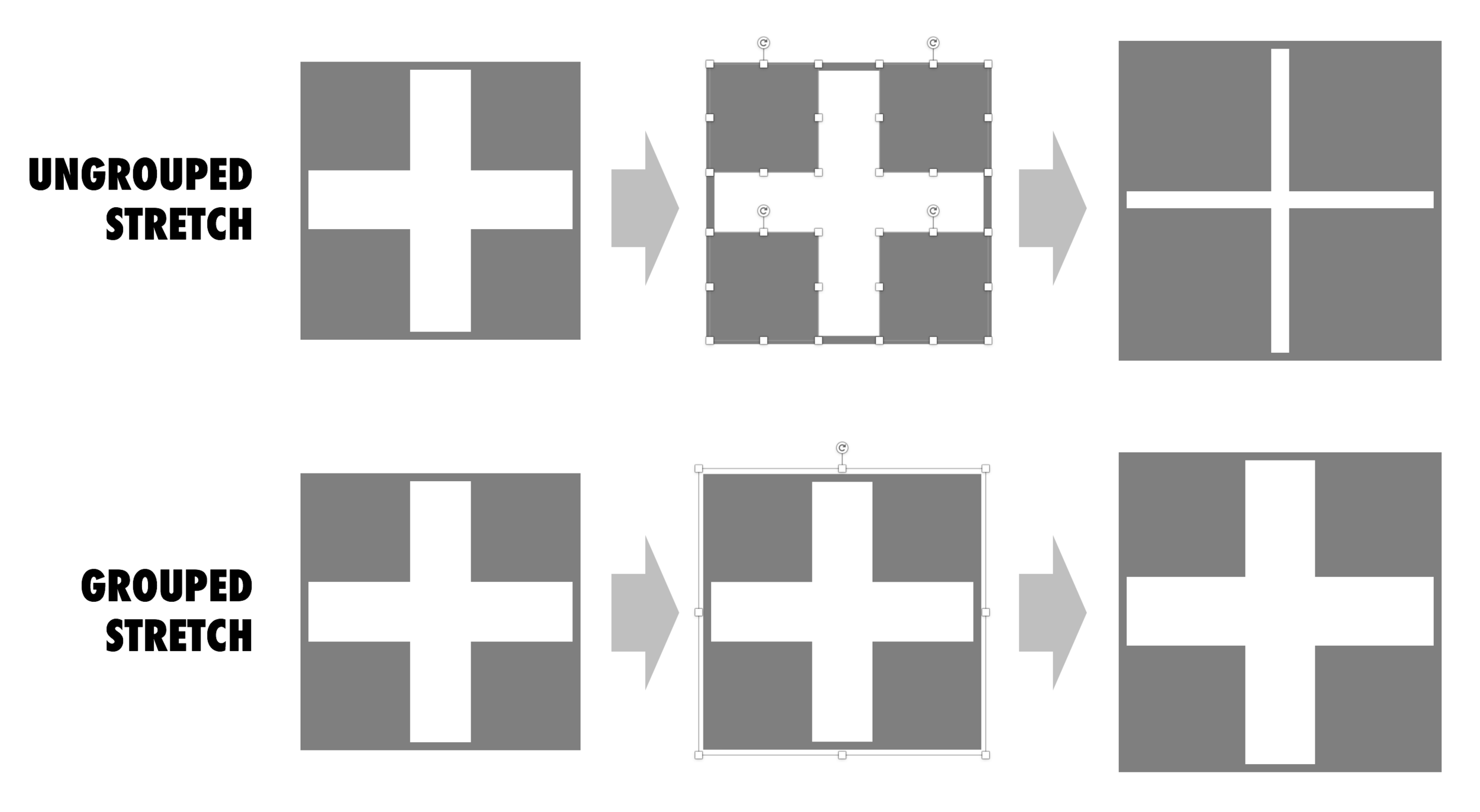
Use these 2 ways of stretching objects in PowerPoint to your advantage. One will make objects closer together, the other maintains the spacing between them. I never paid much attention to this in the first 2 decades of presentation design, but after noticing it, it has proven very useful over the past weeks. Better late than never.

Screenshot 2017-10-18 09.15.46.png

SlideMagic: a platform for magical presentations. Free student plan available. LEARN MORE
Digital car instrument clusters

Digital car instrument clusters

I had the opportunity to drive a BMW the other day with al all digital instrument display panel. Car manufacturers have something to learn about design. The display tried really hard to look like an analogue one, reflections, depth effects, glow edges, gradients. The whole thing feels very PowerPoint 2007 / Windows 7 / Nokia to me.

Also, a digital display opens up the possibility to re-arrange how the smaller data elements are displayed (kms, fuel tank, etc. etc.), but BMW did not (yet) do that.

Car instrument panels are up for a big shake up. I think the answer is not displays that mimic analog gear, plus eliminating buttons and replace them with touch screens and menu diving. Instead, I would opt for a beautiful, minimal display of essential information, and actually, very high quality, regular "analogue" buttons.

It affects not only the user/driver experience today, but also whether cars will eventually turn into a classic or not. To make the parallel with electronics, old gear from the 1960s / 1970s can still look/work beautiful, while designs from the 1980s and 1990s with low res/poor digital interfaces look cheap and ugly. Digital displays that look advanced today, will be totally obsolete in 5 years from now.

We will see what happens.

SlideMagic: a platform for magical presentations. Free student plan available. LEARN MORE
Slideuments and graphics designers

Slideuments and graphics designers

Many designers with excellent skills in web and/or print design somehow cannot deploy their talent very well in PowerPoint/business presentations. I have been thinking hard about why this could be.

The key challenge I think is the tight relationship with content and design. In print/web the design of a page does not really change that much if the content changes (it is still a block of text, an image, and an icon that fit in the same overall grid). In a business presentation, everything goes upside down when your competitor analysis needs to include 3 instead of 2 dimensions.

The second reason is - I think - that both people who write presentations and designers who polish them, stick to the conventional slide format: title across the top, list of bullets.

Now here is an interesting experiment for a 100% graphics designer who is not allowed or does not have the knowledge to touch any of the content (the classical print graphics designer situation). Assuming the presentation is a slideument (meant for reading rather than presenting).

Hand over the material in a word processor, as a long text file rather than a partly finished PowerPoint presentation. Now give the designer total freedom to present this material in any form she wants, even in any software she wants, using any page layout she wants.

Changes are you might get a pretty good lucking slideument by taking "PowerPoint" and its familiar layout out of the equation.


Image via WikiPedia

SlideMagic: a platform for magical presentations. Free student plan available. LEARN MORE
Useful busy slides

Useful busy slides

Increasingly, presentation meetings are about discussing a proposal for investment or a product sale, rather than confronting an audience with an idea for the very first time. People have gotten the basic idea in material they saw beforehand.

So, there is a new role for busy slides, meant for pondering on a desktop screen.

A number of things can make slides busy:

  • Too many topics/ideas to cover
  • Lots of filler/buzzwords that inflate a simple point into a paragraph of prose
  • Complex relationships, dependencies, architectures, pricing models

The first two are a no-go, even for presentations that are meant for reading. The third option however, can be useful. In many cases, it is virtually impossible to visualize a complex timeline or network in a series of slides with pretty pictures and one word on them.

Some guidelines how to design these useful slides crammed with content:

  • Think about every word/label you type, can it be shorter, and if so, will we save an entire line?
  • Grid, grid, grid: make sure everything lines up with everything where ever possible, this will make the composition calmer on the eye
  • Hierarchy: create multiple layers of insight, big bold ones that catch the eye immediately, smaller subtle one for the reader who has more time
  • Use color to connect items

Image via WikiPedia

SlideMagic: a platform for magical presentations. Free student plan available. LEARN MORE
4:3 or 16:9?

4:3 or 16:9?

"What, it is 2017 and you design a deck in 4:3 format?", I got these questions a few times. Here are the pros and cons of both formats.

A 16:9 or widescreen aspect ratio will give you a nice image on an LCD conference room monitor or desktop/laptop screen with the black bars on the left and right

A 4:3 aspect ratio will look better on projectors, which are still used in many larger presentation rooms. Also: 4:3 looks better when decks are printed, a habit that is still very common in the financial services industry where people like to take notes, look in detail at data tables, (and probably want to take an opportunity to quickly flick ahead if the presenter is slow/boring).

And personally, I like the design freedom of a more even design canvas (4:3) better than the wide screen version, which forces me to make horizontally stretched slide designs. (A cheat: put the headline across a number of lines to the left of the slide and use the imaginary 4:3 canvas to the right of it for your slide content.

So, here you have it. I don't think 4:3 is old fashioned for presentations (it is for movies), it just depends on the most likely presentation context you expect.

In my presentation app SlideMagic, I used a 4:3 canvas, but use the extra horizontal space of a 16:9 screen to add your "explanation boxes" that you can slide in and out. When set to "out", the presentation becomes 16:9 with a more detailed description of the slide in case you send the document ahead of a meeting and the recipient will open/read it without you being there to explain it.


Image via WikiPedia

SlideMagic: a platform for magical presentations. Free student plan available. LEARN MORE
My standard page layout

My standard page layout

The empty template in my presentation app SlideMagic uses pretty much the same layout as my bespoke work in PowerPoint/Keynote for clients:

Big slide headline that can run over 2 lines (I like elaborate titles, similar to newspaper headings), without any graphical elements (lines, banners, logos)

  • Small logo in the bottom right, I compromise here and give in to most companies insisting that the audience should be reminded to whom they are listening on every page. Many clients want to move that logo left, which creates a graphical imbalance: the bottom right logo balances the weight of the left-aligned title in the top left. Also, a logo at the left creates problems with footnotes.

SlideMagic: a platform for magical presentations. Free student plan available. LEARN MORE
Small changes

Small changes

Design is hard because there are many small decisions that lead to a great-looking page. Everyone knows the concepts: white space, big images, good-looking fonts, but even with that knowledge it is hard to get it right. Pretty much like composing music: everyone can master music theory or playing an instrument with a little effort, very few can compose master pieces.

Very often, I email a deck back to a client at the end of a project and say "I might a few very small changes, you probably won't notice them". But, these small changes added up can make a big difference to a layout.

So what is it I do in the final stages of a presentation design project? It is hard to capture.

The main thing I think is completely stepping away from the actual content, i.e. the text that is written in boxes. Instead I see black/light grey patterns of characters, boxes in different shapes and colors. Almost "squinting" at the page and making adjustments until this "cubist painting" looks right in terms of proportions and balance.

Most of the times, it work but yes, there are pages where even me as a professional simply cannot get it right. 


Image via WikiPedia

SlideMagic: a platform for magical presentations. Free student plan available. LEARN MORE
Frame guide lines

Frame guide lines

In PowerPoint, you have to option to display drawing guides that help you align objects on a slide. A common application is to have some sort of frame around your slide to make sure that you have the same margin around all your slides in a presentation.

I find these frames very useful, but there is a small issue you need to watch out for, when making compositions, my brain actually assumes that the dotted lines are part of the slide, and I start positioning objects accordingly. When you switch of the frames, or look at the slide in presentation mode, the whole balance looks wrong somehow.

So: always check your slide compositions with those drawing guides disabled.

PS. In my presentation design app SlideMagic, there is no need for drawing guides, since you are forced (kindly), to use a predetermined grid. Try it out!

SlideMagic: a platform for magical presentations. Free student plan available. LEARN MORE
The bullet points are your starting point

The bullet points are your starting point

Most finished slides show a list of bullet points as the final design, they are the finished product.

Instead, consider them the starting point. Ignore that guilty feeling of writing bullets, ignore the worry about a poor slide. Write all out, re-write it, write it again, and again. Take a step back:

  • Is this actually what I want to say? If not go back to step 0
  • Do I pad too much, can I cut fluff, buzzwords?
  • Do I write too little, can a layman understand what I mean?
  • Do I say something 2x? If so, delete one
  • Is one point a sub point of another one?
  • Are all points equally important?
  • Do I combine 2 important points into one?
  • Do I make 2 completely different points, if so split the slide
  • What is the basic structure of my story: a contrast, a ranking, a cause-effect, a trend, a missing puzzle piece, best of both worlds, an overlap?

After this process you should have a razor sharp list of "what should go in", plus a good understanding of the structure, the "verb" of the slide. Now create a composition solely based on that info. 

When you insert a new slide in my presentation app SlideMagic, you are presented with a number of slide templates which are not put in randomly, I thought about every single one of them pretty hard. These are the usual "visual verbs" I encounter. Try using them as the basis for your next slide design.

SlideMagic: a platform for magical presentations. Free student plan available. LEARN MORE
Where visuals are crucial

Where visuals are crucial

If I sit down with a client, in almost all cases, the pitch of a company comes out fine verbally. People know how to tell their story. The order might not be perfect, there are some repetitions, here and there one of my questions needs to be clarified, but all in all, in 30 minutes we got a pretty good understanding of what is happening.

My work is to translate that story into visuals. And given the above, there are different types of slides.

Some slides are absolutely crucial to understanding the pitch. These are the ones that people are opening their laptops for, and pull up page 37:

  • Screen shots and images of applications/products, in many cases it is actually unclear what the product does. This is specifically the case in internet applications, or medical devices where a picture of the actual product explains a lot.
  • Data visualization that emphasizes how big something really is compared to something else, how fast things are growing or declining. Visuals do a much better job here than spoken word
  • Complicated relationships, competitive positionings, IT architectures. These cases require a map on which both brains can sync to disentangle these complex structures.

Other slides are mere backup for the spoken word. They help to make the story more powerful, but are not essential: large photographs of metaphors (endless road, squeezed orange, confused customer) or simple text charts that support the flow of the story.

The purpose of the last group of charts is 1) to give your company a professional look & feel, and 2) make it possible for people to read/digest the story without you being present.

SlideMagic: a platform for magical presentations. Free student plan available. LEARN MORE
Chart hygiene

Chart hygiene

Here are some slide make over suggestions for messy PowerPoint presentations that do not require any changes to content. They fix basic graphical hygiene:

  • Make sure all slides use the same slide master template: titles, page numbers, logos (if you want to use them), all sit in the same place
  • Find/replace fonts: make sure all fonts in a deck are the same
  • Create a frame of guides in the master slide and make sure all slide content fits inside the frame on each slide
  • Apply a consistent color scheme to all the slides
  • Eliminate italics
  • Make sure that characters in the same box, paragraph have the same font size (huge differences are OK, but very small size differences do not look good)
  • Un-stretch photos with the wrong aspect ratio
  • Align and distribute slide elements where ever you can
  • Play with line breaks and font size to avoid orphan words on a second line
  • Remove multiple, overlapping "confidential" labels and page numbers from pages
  • Draw a shape, set proper colors and fonts, and make it the default shape, delete the shape, repeat for a text box and a line

That was presentation make-over V0.1, the content might be bad, the layouts could be poor, but it will look organized.

If you have been working in my presentation app SlideMagic, you will have noticed that is almost impossible to make the mistakes I am correcting in the above.

SlideMagic: a platform for magical presentations. Free student plan available. LEARN MORE