Viewing entries in
Software

Thoughts on user interfaces

Thoughts on user interfaces

As I am making progress with my presentation design app SlideMagic, I spend a lot of time thinking about user interfaces (UI) for office applications.

Part of the reason that it is so hard to wean people of Microsoft Office applications is that they have gotten used to the mouse/click/dropdown user interface. Spreadsheets, word processors (who uses them still?) and presentation design software all basically have that same UI.

The drop down UI started out pretty simple. File, edit, help menus. Over the years ribbons and tool bars have complicated things. Most people now use a fraction of the functionality that is available to them. As soon as a program does not have that familiar dropdown UI, people are in trouble. I had a hard time understanding the new Adobe Acrobat UI. It is beautifully simple, but it takes time to figure out how to do very basic operations (zooming in and out, combining multiple files into one, rotating mixed up pages of a scan).

Over the past years, user have gotten to know a second UI: the mobile device. The solution for office apps is super simple functionality that draws heavily on icons, UI elements that we have learned from mobile devices.

See how it can work in SlideMagic.

SlideMagic: a platform for magical presentations. Free student plan available. LEARN MORE
How to format a spreadsheet

How to format a spreadsheet

A few simple rules to keep your spreadsheet readable and error-free.

  • Use one set of column headings through the entire worksheet and freeze the panes to the top of the sheet. If you need a completely different table, create a new worksheet in your workbook
  • Avoid using too many colours, use shades of grey instead
  • Round data by dividing by thousands, millions so that they are readable. Round to 1-2 digits behind the comma. Excel will continue to calculate things with the highest precision, even if you do not see it
  • No underlines, italics, but use bold, uppercase, and bold upper case
  • Use long, descriptive row headings
  • Write your formulas top down, a lower row depends on a result that was calculated the line above. Keep formulas as simple as possible. A spreadsheet is a form of computer code: it should be readable the week after you created it. One formula with 15 cell references is the equivalent of code spaghetti.
  • Add totals where ever you can to check for formula errors and to keep things readable. The brain often memorises a number quicker than a description (35.4 instead of "North Africa sales 2014 H1")
  • If you need to source data out of a "data dump" keep that data in a separate worksheet and pull the numbers via links into your analysis. It creates a nice clean separation between your data source and the analysis, and makes it possible to over write your source data with new information and have the analysis updated instantly (always double check)

SlideMagic: a platform for magical presentations. Free student plan available. LEARN MORE
SlideMagic versus PowerPoint

SlideMagic versus PowerPoint

Some interesting feedback from SlideMagic beta testers:

  • I promised some SlideMagic beta testers to convert the presentation to PowerPoint in the end (there is not yet an automated feature that does that), and it is encouraging to see that these users are postponing that conversion again and again. 
  • For some clients I quickly re-do a short presentation in SlideMagic. Client response: the SlideMagic one looks better, why can't you do that in PowerPoint? Answer 1): SlideMagic uses a pretty font, not Arial, and 2) the corporate PowerPoint template has a slightly less elegant composition of the slide (position of titles, margins etc.)
  • Some clients want the templates that ship with SlideMagic in PowerPoint. After sending them, there are issues with modifying the template in PowerPoint, adjustments that take a second in SlideMagic
  • Some users ask where you can upload PowerPoint slides to convert them instantly to SlideMagic, that will not be possible I am afraid.

Most users are hesitant to switch because 1) it requires changing 20 years of presentation design habits, and 2) yes I admit, SlideMagic had a few bugs that need sorting out. As we make progress with the app, that second excuse becomes less relevant. SlideMagic is slowly reaching the production release.

If you have not tried SlideMagic, you should, Try it here.


SlideMagic: a platform for magical presentations. Free student plan available. LEARN MORE
SlideMagic as a sketch board

SlideMagic as a sketch board

Some of you out there are probably still afraid of using a new presentation design tool that is still in beta for live presentations. Here is another way to get started: use SlideMagic as your sketch board.

Many of you use bullet points to sketch out the content of a presentation. Maybe in a word processor, maybe in PowerPoint. The problem is that once you have iterated those bullets and everyone agrees to them, it is hard to turn those lists into visual designs.

Here is where SlideMagic could come in handy. It is very easy to set up charts that are not lists: a quick table, a quick contrast between two options, a quick 2x2. Jot your ideas down, and if you set your accent colour and logo, the whole sketch board will probably look better than a finished end product in PowerPoint.

Use SlideMagic to form your first ideas of your presentation, until the moment has arrived when you "have to" translate the designs to PowerPoint or Keynote. You can of course, but I think many of you will find that it is much easier to stick to SlideMagic after trying a few pages.  


Art: an unfinished painting by William Berryman, created between 1808 and 1816

SlideMagic: a platform for magical presentations. Free student plan available. LEARN MORE
Designing presentations for print

Designing presentations for print

In some industry sectors, especially financial services, people still insist on printing the presentation slides and handing out booklets at the start of the meeting. You can have groups of 10-20 people sitting around a conference table flicking through pages.

It is great for taking notes, analysing detailed financials, but it is not that great for a close connection between speaker and audience, and that last minute typo in the name of the CEO cannot be corrected once on paper.

Sometimes you have to pick your battles and if print is the way to go, think about these issues when starting the design of your slides. The bottom line, get a slide to look good on paper on day 1 of the design project, not at 3AM the night before the meeting.

  • Colours appear different on screen than on paper, especially on cheaper, older, or almost-out-of-toner printers. Bright blue can turn into faded grey, lively orange can become girly pink, subtle grey shadings turn into bright white, just to name a few potential problems.
  • Hole punchers for binding machines require extra space at the top of your page, test it.
  • Dark back grounds empty toner cartridges and make make the fingers of your audience black.
  • You can get away with low res images on a 15 year old VGA overhead projector, on paper though, you will get caught. Use high resolution images.
  • A monitor frame, or the light rectangle on a projection screen provide an implicit frame for your slide. Paper should do the same in theory, but A4/letter/4:3 and other issues makes it highly unpredictable how your slides are scaled on paper. In the worst case you might have draw a tiny grey line around your slides to anchor things (yes really).

Professional print designers will laugh at all this, this is design 101, and these issues have long been solved with Adobe InDesign, and printer driver software. A whole industry has been built around this, you are unlikely to see page scaling issues in your print newspaper. The problem is, these designs are hard to maintain/change in a corporate environment.

The one good thing about print though is that it shows that your slides are as fresh as the croissants in the bakery down stairs if the pages are still warm from the printer. A compliment I got many times in my previous life as a management consultant.


Art: Vincent van Gogh, The Bakery in Noordstraat

SlideMagic: a platform for magical presentations. Free student plan available. LEARN MORE
Hopefully Microsoft reads this: small change to PPT 2016

Hopefully Microsoft reads this: small change to PPT 2016

I have been working with the PowerPoint 2016 preview for a while now, and overall my feedback is very positive (see my PowerPoint 2016 review here). 

There is one small thing that keeps me going back to PowerPoint 2011 though: the ability to customise the toolbar at the top of the screen. My set up has not really changed since this blog post from 2008. When working in PowerPoint I constantly need to access buttons that align/distribute/crop/flip and send objects to the back (and the drop shadow button to kill drop shadows). With my custom toolbar, I basically circumvented the majority of the PowerPoint user interface and created my own.

Hopefully Microsoft will include this feature in the final release of PowerPoint 2016.


Image credit: Kate on Flickr

SlideMagic: a platform for magical presentations. Free student plan available. LEARN MORE
PowerPoint template weirdness

PowerPoint template weirdness

A technical post about PowerPoint templates today.

When you copy the slides of one PowerPoint presentation into another one, the copied slides get formatted according to the template of the presentation your are copying in. Colours and fonts get adjusted. But the most surprising things happen with text placeholders.

The template I typically use is pretty simple: a blank page with text placeholders for the slide title and footnote to make sure they are anchored in a consistent place across slides. Now the strange thing happens. Because the footnote is the only text placeholder available, PowerPoint starts copying text into the footnote.

To accommodate clients who want to use my template after the presentation design project is over, I now add a plain text box to my template slides. Here is the key thing, make sure that plain text box is the first text place holder you create, that's where copied text will go. (In other words, remove the footnote, put the text box in, recreate the footnote place holder after that).


If you often experience problems with inconsistent formatting of presentations and the issues with copying slides across you will appreciate the way I designed my presentation app SlideMagic (sign up for the beta here).

  • One slide layout grid for all presentations, everything lines up perfectly, always
  • No need for template programming
  • It is not possible to corrupt a template and having it slowly propagate throughout your company
  • Changing the look & feel of a presentation is easy: change your logo and accent colour and you are done (including bar and column charts, try that in PowerPoint)

Art: The Storm on the Sea of Galilee, 1633. The painting is still missing after the robbery from the Isabella Stewart Gardner Museum in 1990.

SlideMagic: a platform for magical presentations. Free student plan available. LEARN MORE
Photoshop alternatives?

Photoshop alternatives?

Adobe is moving to a subscription pricing model for its major software products (Photoshop, InDesign, Illustrator, etc.). I signed up for a $20 or so monthly introduction offer but then forgot that I got upgraded to around $55 charge after one year. This is probably good value if you use many Adobe products, and use them frequently.

As a presentation designer, I fall in between the typical user segments. Here is how I use Adobe products:

  • Acrobat:
    • Stitching together multiple PDFs into one
    • Reducing file sizes of image-heavy PDF files
  • Photoshop:
    • Removing backgrounds from images
    • Compressing, re-sizing large image files
    • Putting text on blank 3D objects
  • Illustrator: opening, selecting groups, re-coloring of stock vector files before saving them as PNGs.

Is there a combination of alternative software packages that could do these basic functions?

Some responses to an earlier tweet:


Art: Typesetter at the Enschede printing factory (was located behind the St. Bavochurch) in 1884, painting by the American artist Charles Frederic Ulrich.

SlideMagic: a platform for magical presentations. Free student plan available. LEARN MORE
New SlideMagic video tutorials

New SlideMagic video tutorials

I am in the process of creating a library of video tutorials for SlideMagic. Here are the first three, you can expand them to full screen size for more detail.


From the 3x3 grid to a basic slide composition


How to clone a template


How to import individual slides from another presentation/template


Art: William Merritt Chase, A Friendly Call, 1895.

SlideMagic: a platform for magical presentations. Free student plan available. LEARN MORE
Adding structure to text

Adding structure to text

Sentences or titles never have the same length, so putting them on a page without some form of framing makes the whole slide look unbalanced. My solution: a light grey background  creates a box that gives structure to the text. You can also use images to reinforce the slide's grid layout. Many people use an outline, a frame around text for the same purpose. I think a light box fill looks a lot better.  

The light grey box is one of the key structuring elements in my presentation design app SlideMagic. Traditional presentation design software is not very well set up to changing grids of text boxes and images. Try doing it in PowerPoint, then try to do the same thing in SlideMagic.


Art: Piet Mondriaan, Broadway Boogie Woogie, 1942

SlideMagic: a platform for magical presentations. Free student plan available. LEARN MORE
Makeover of the Buffer pitch deck that landed them $500k

Makeover of the Buffer pitch deck that landed them $500k

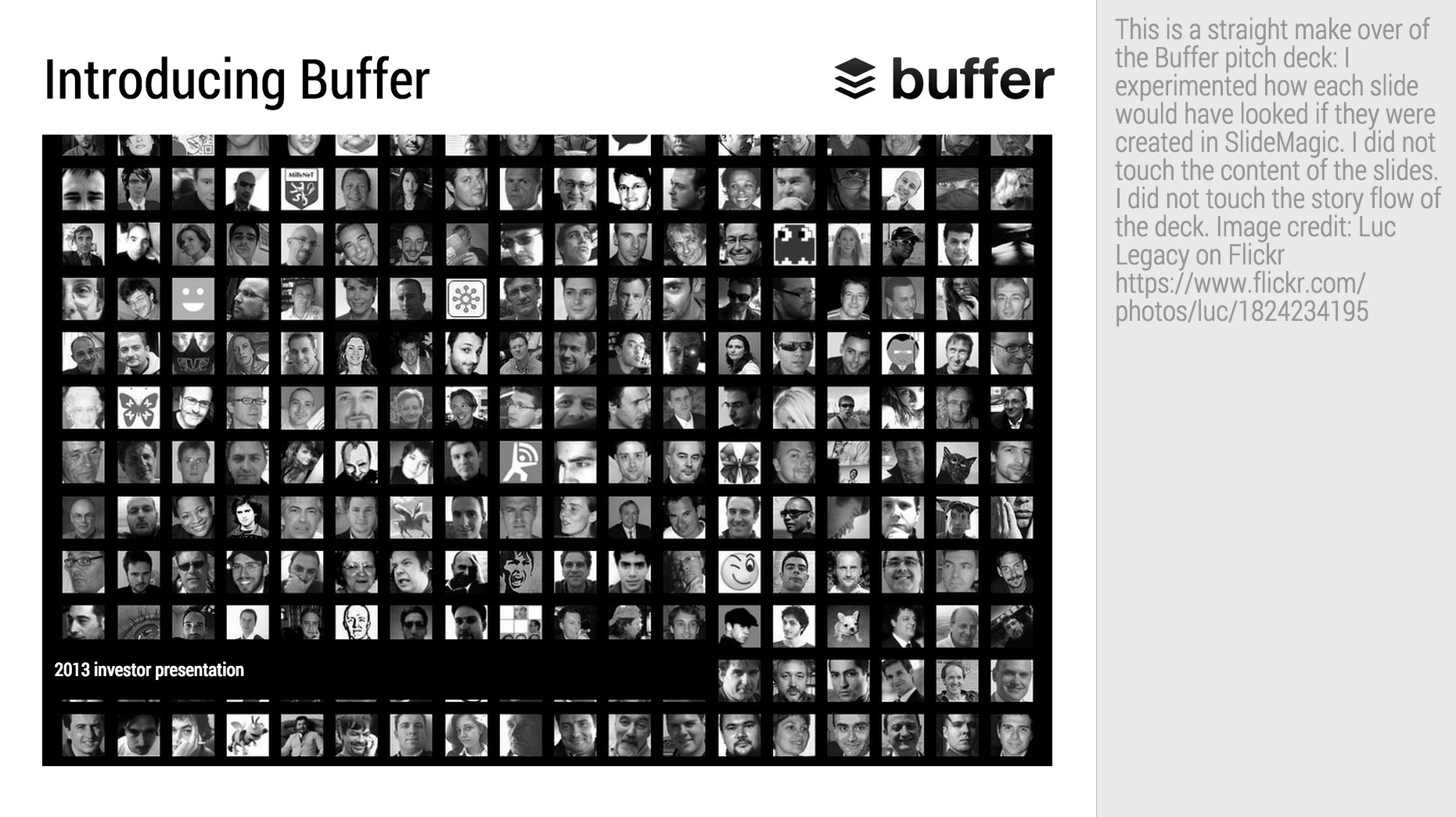
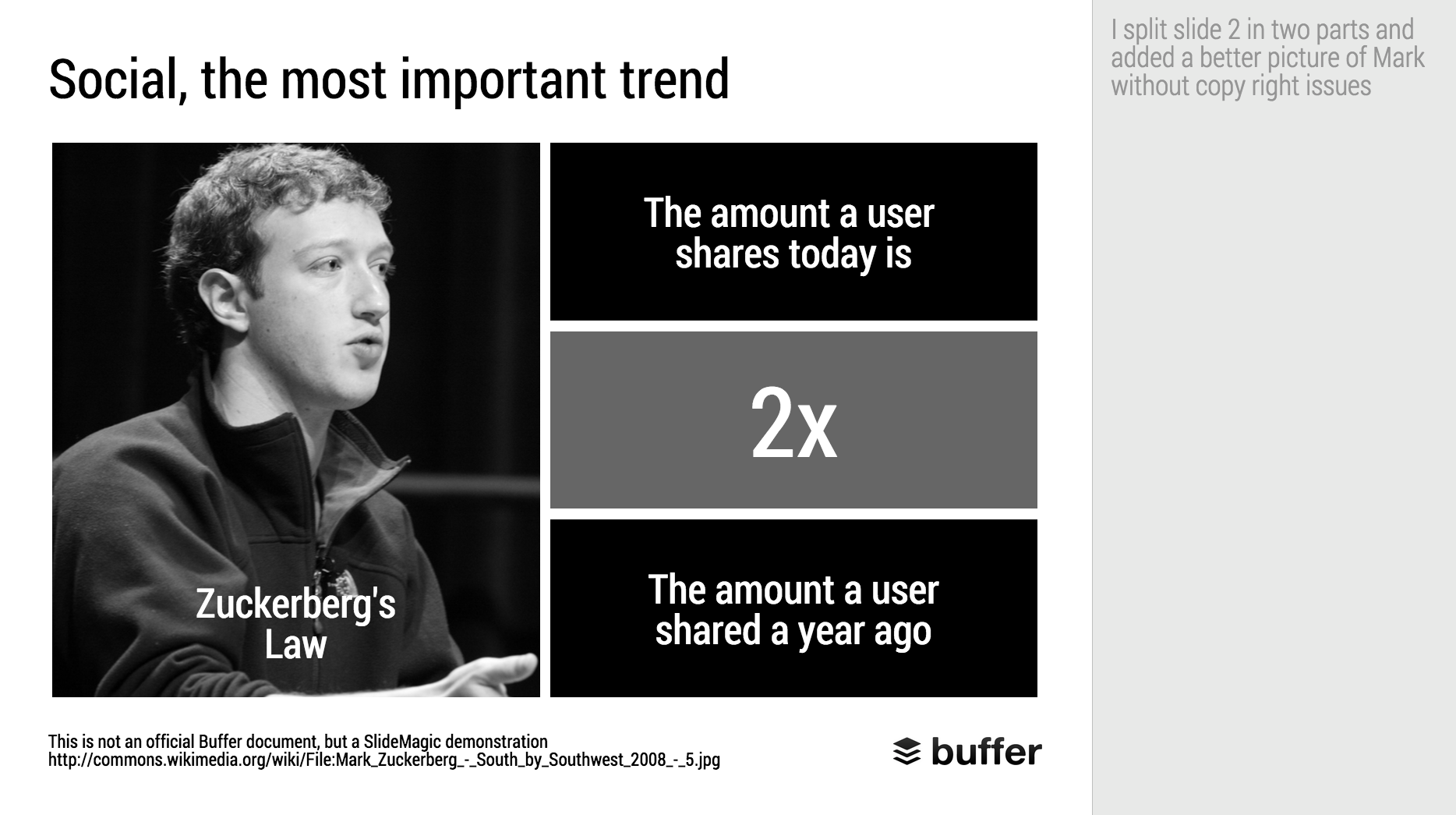
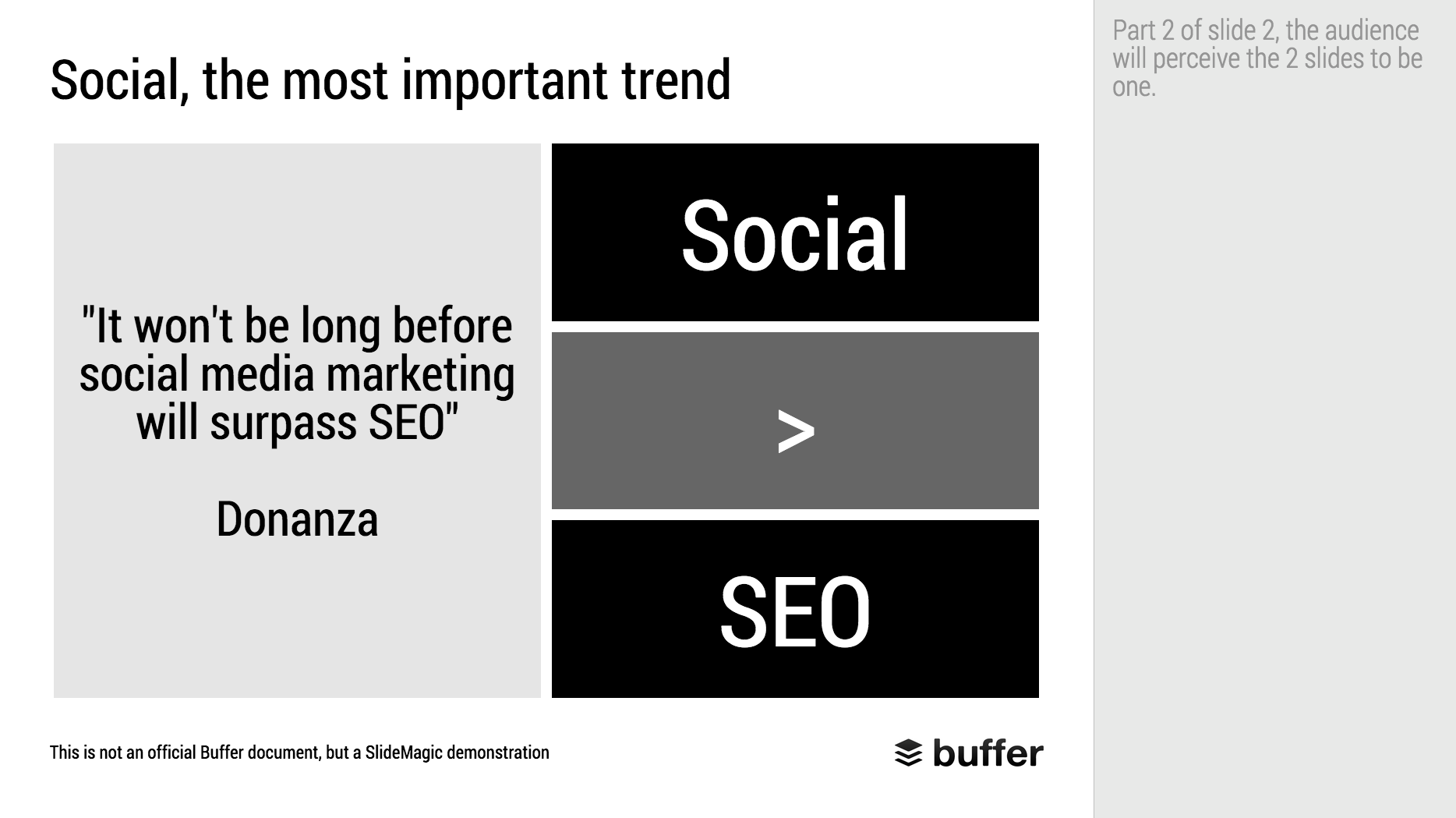
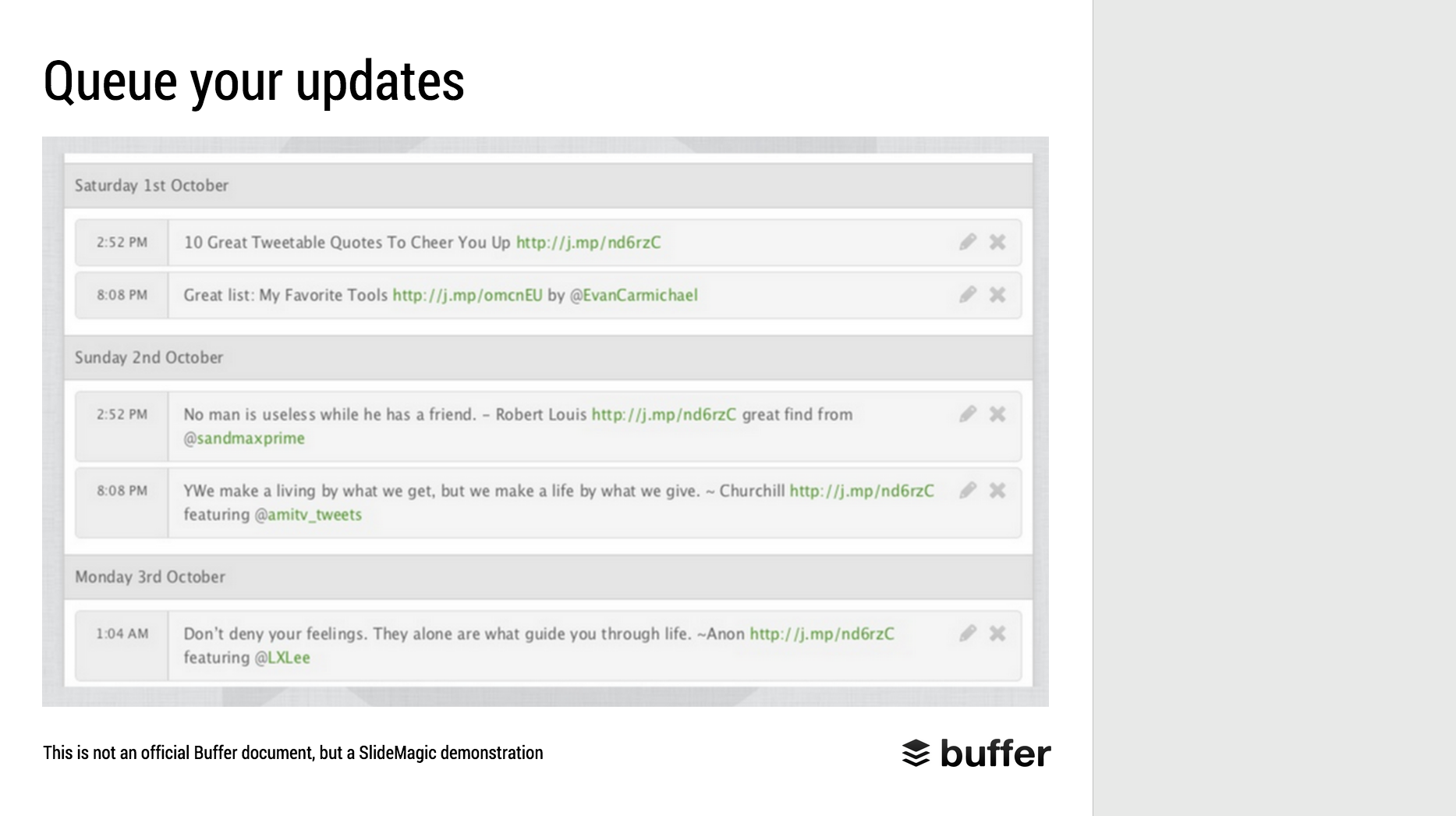
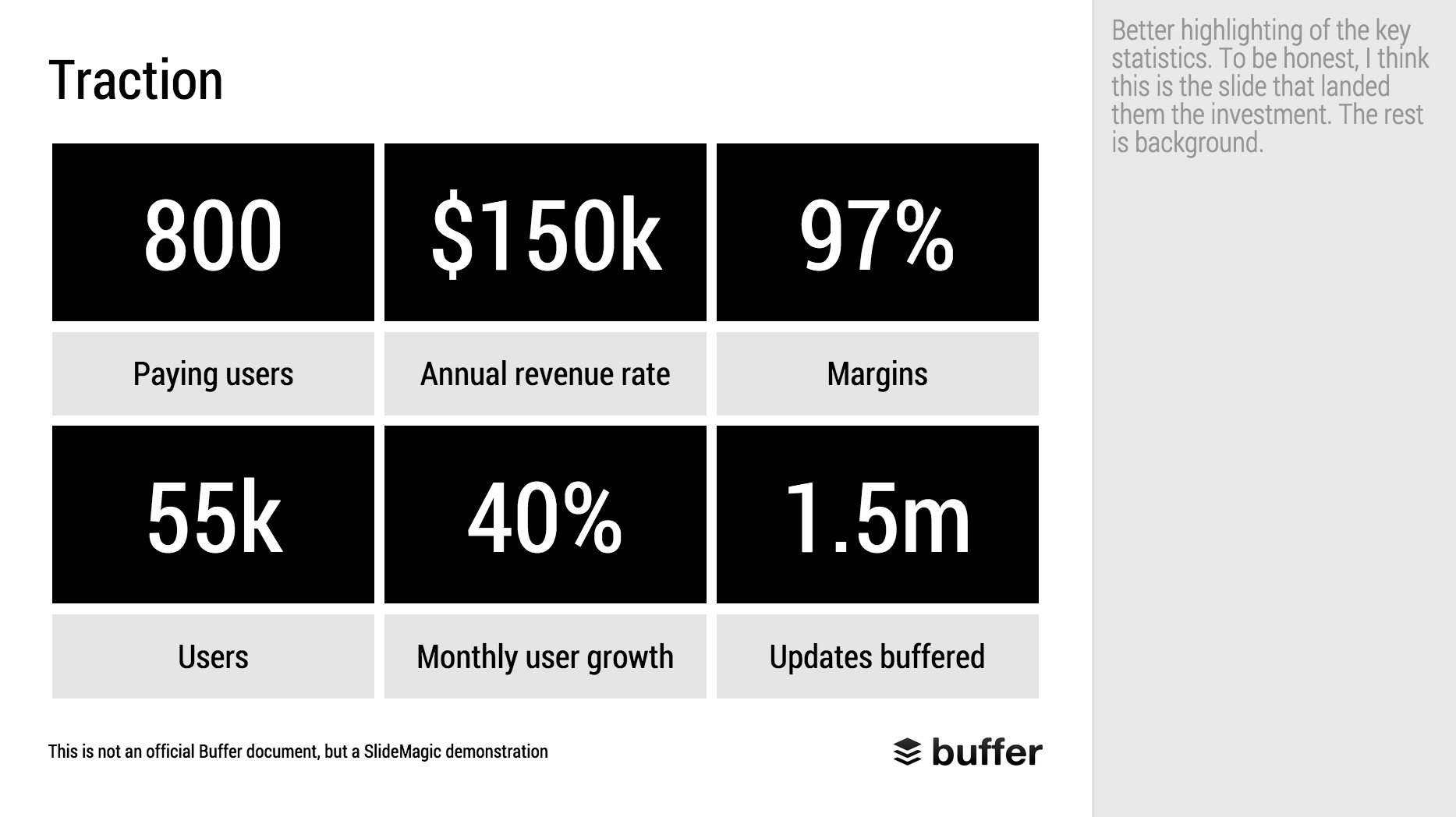
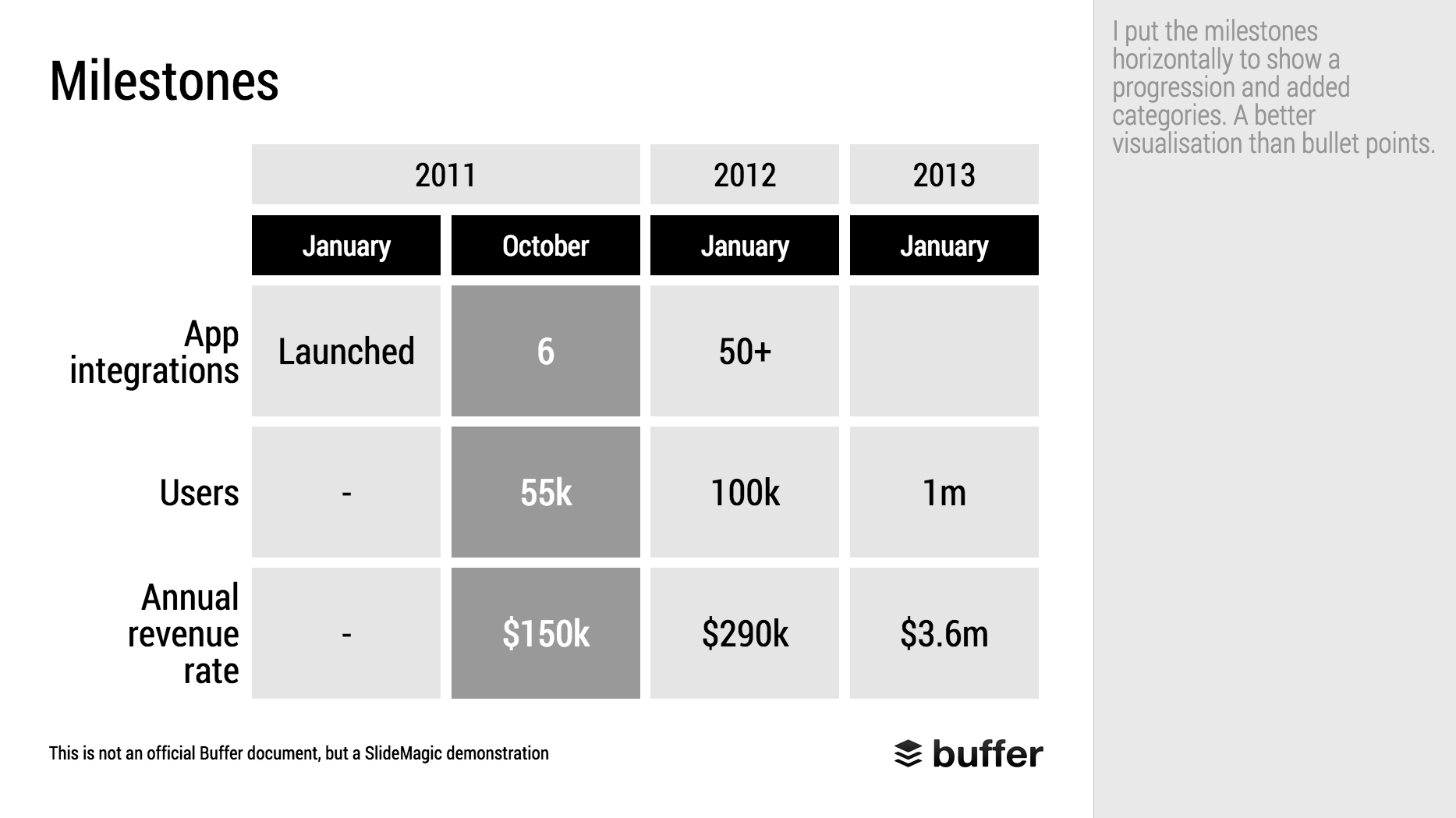
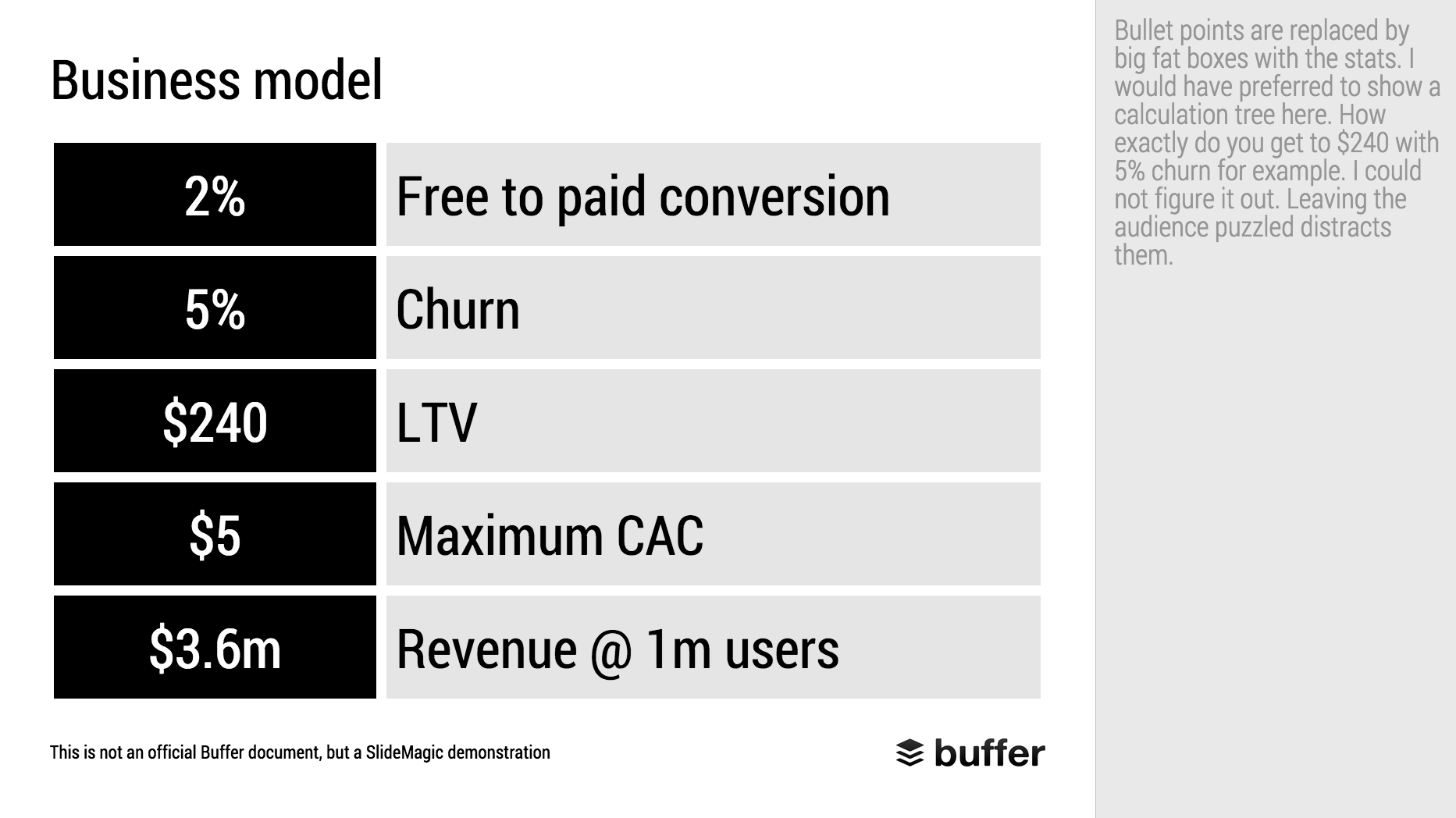
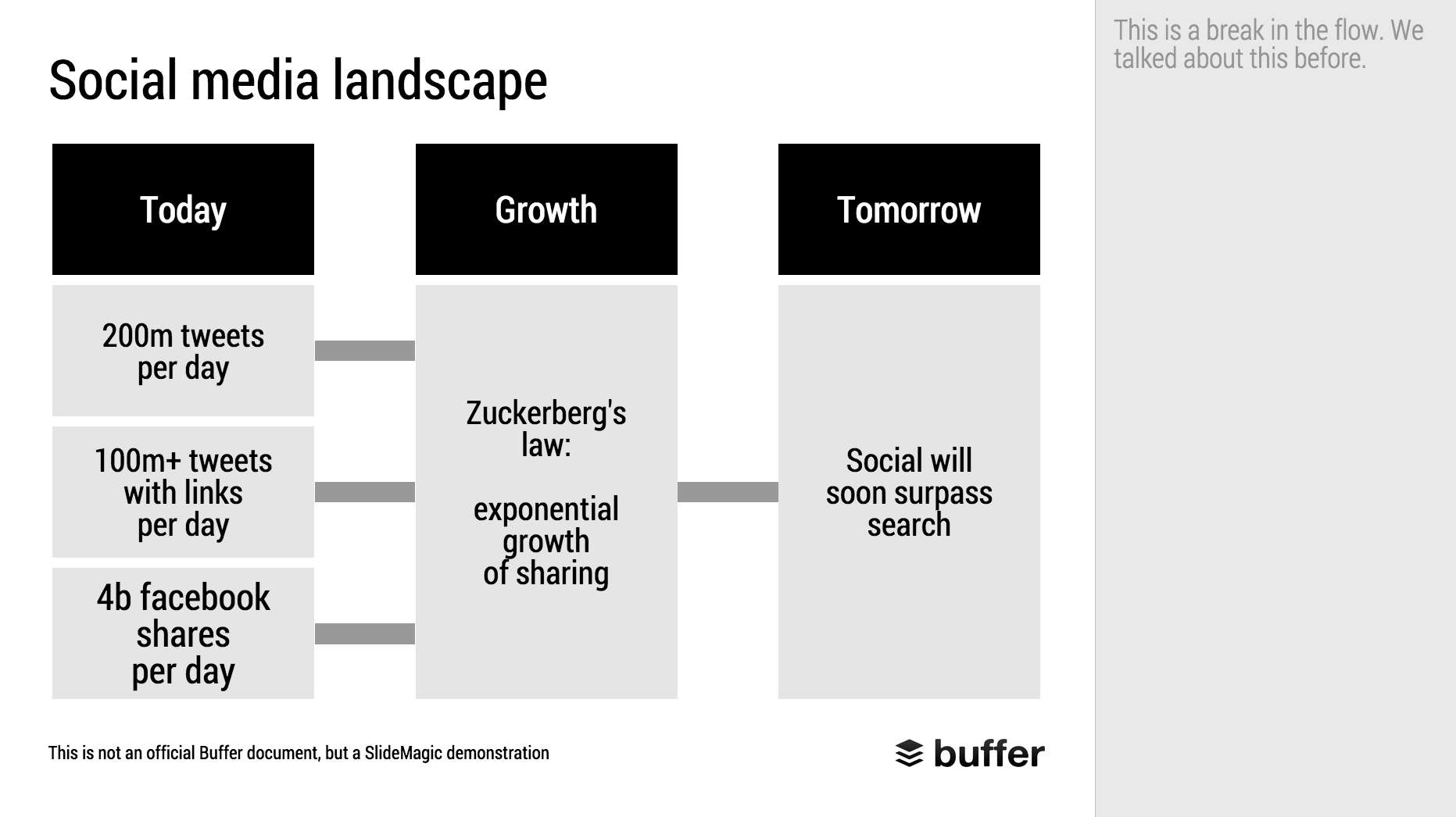
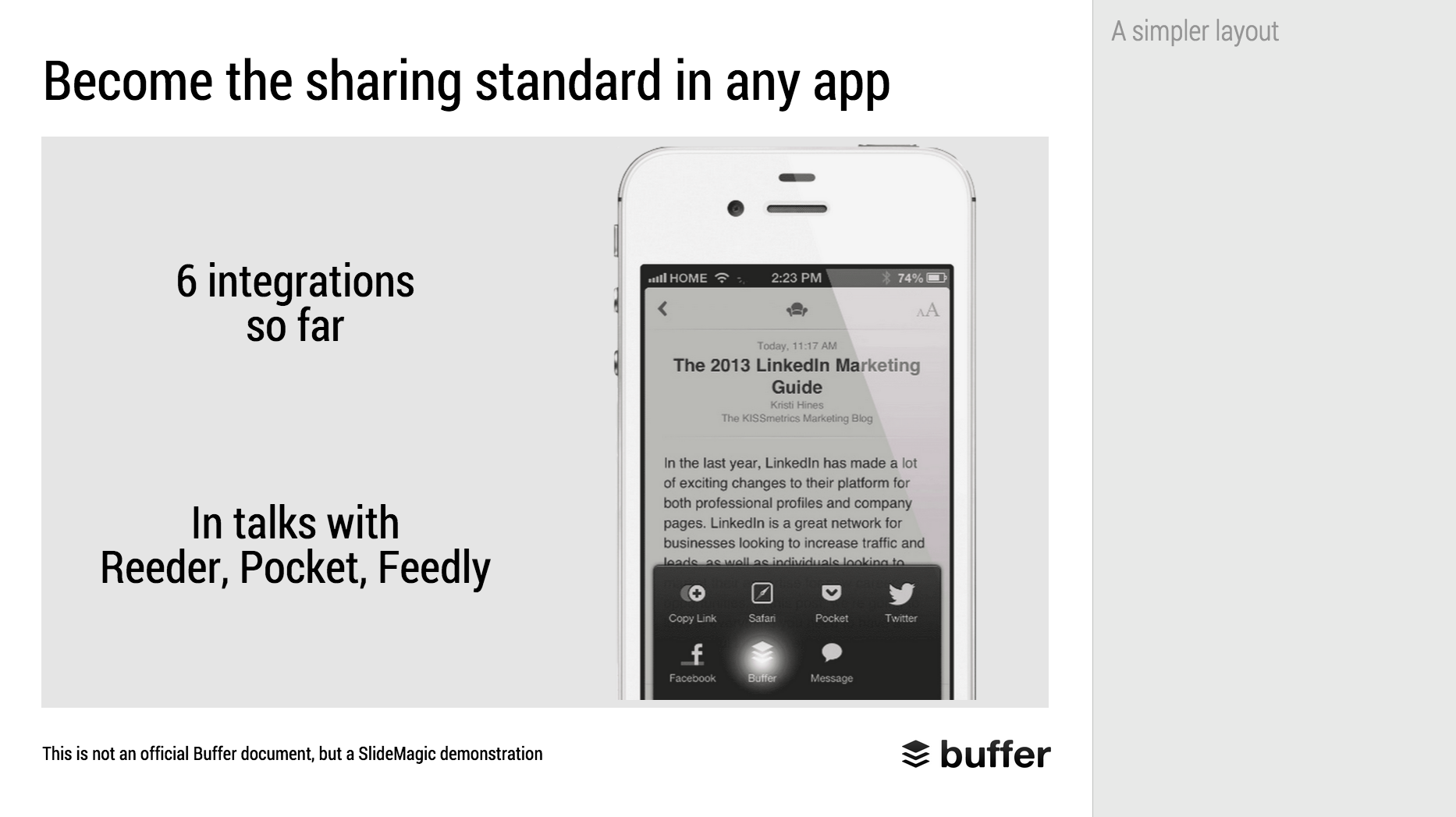
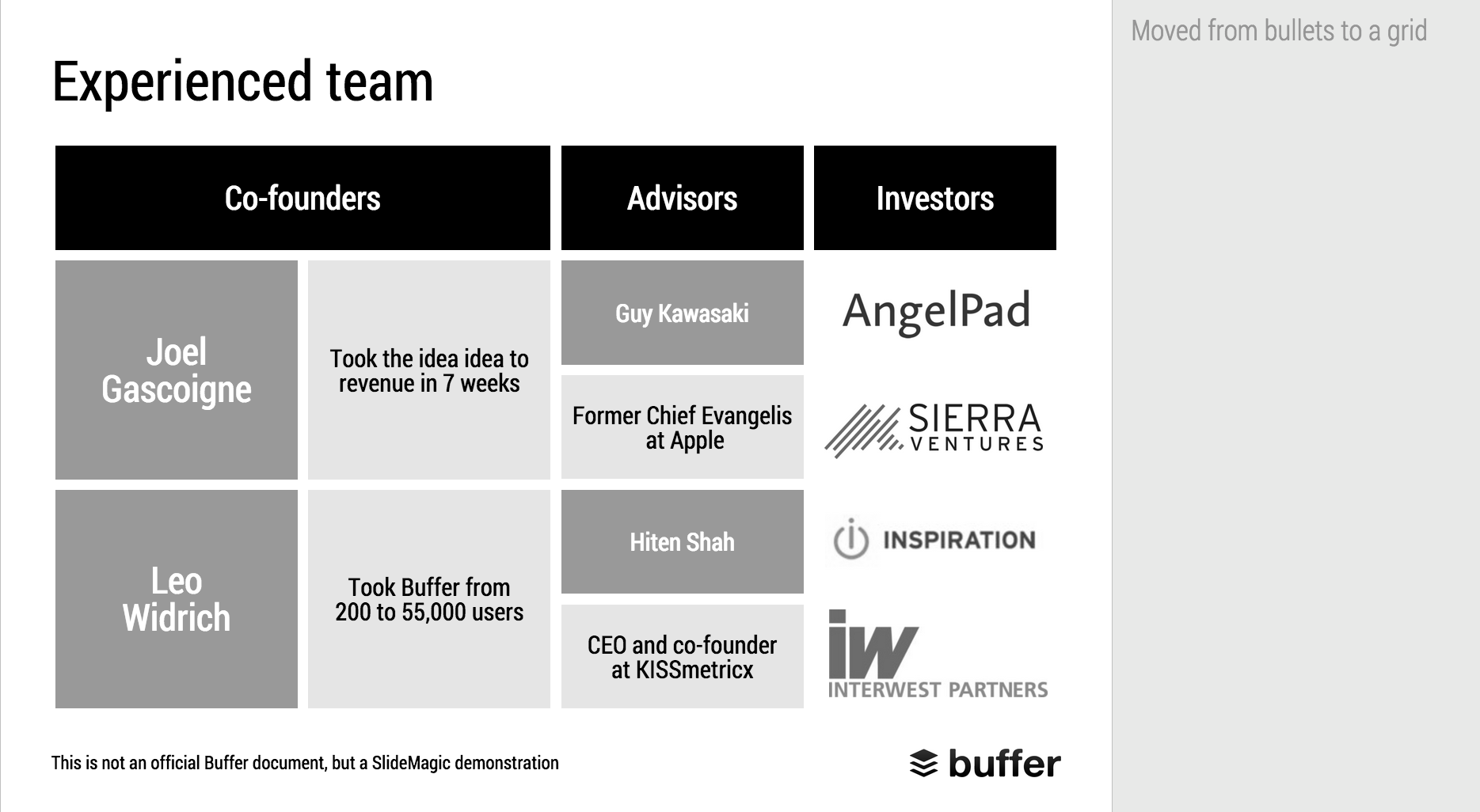
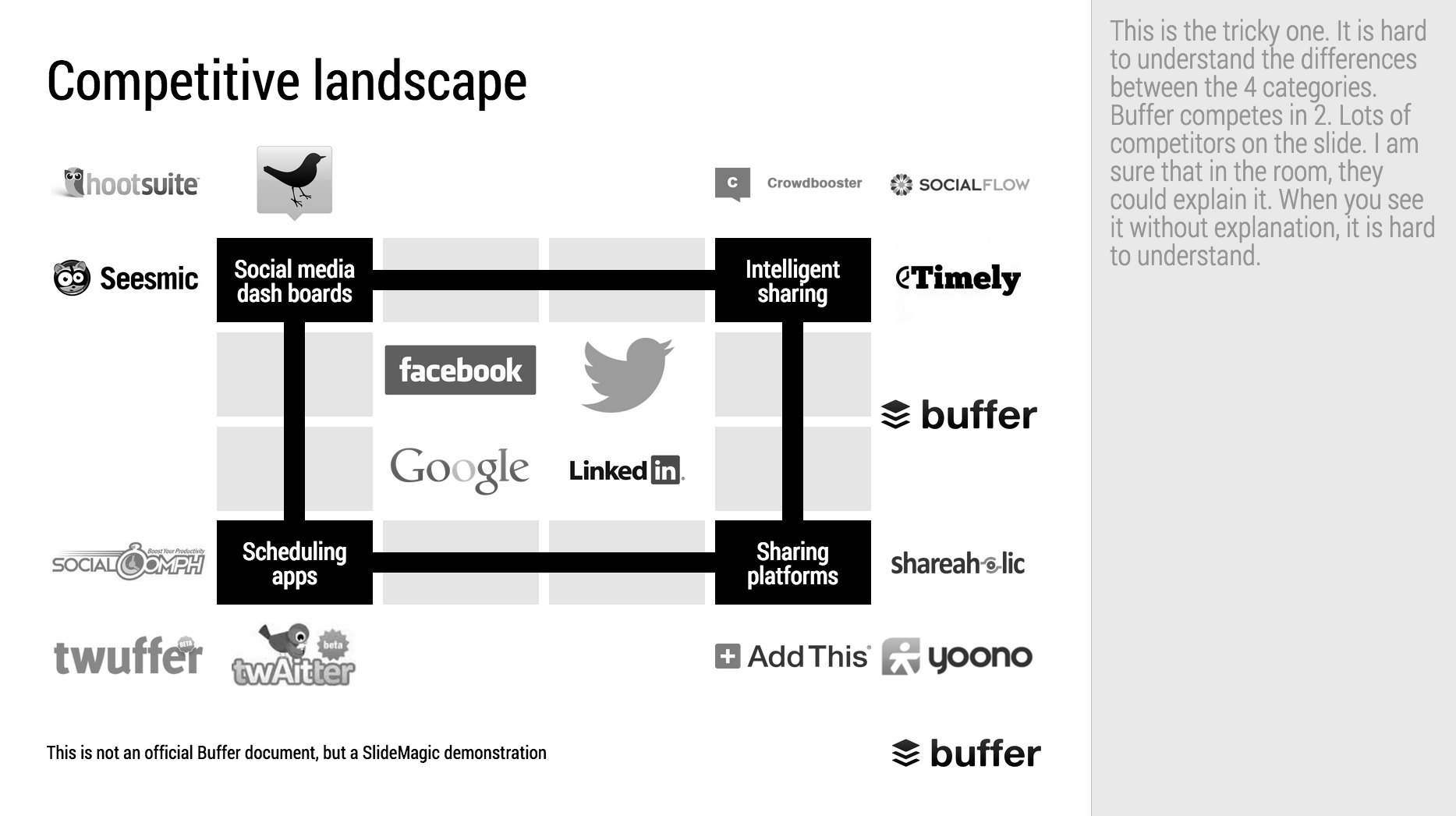
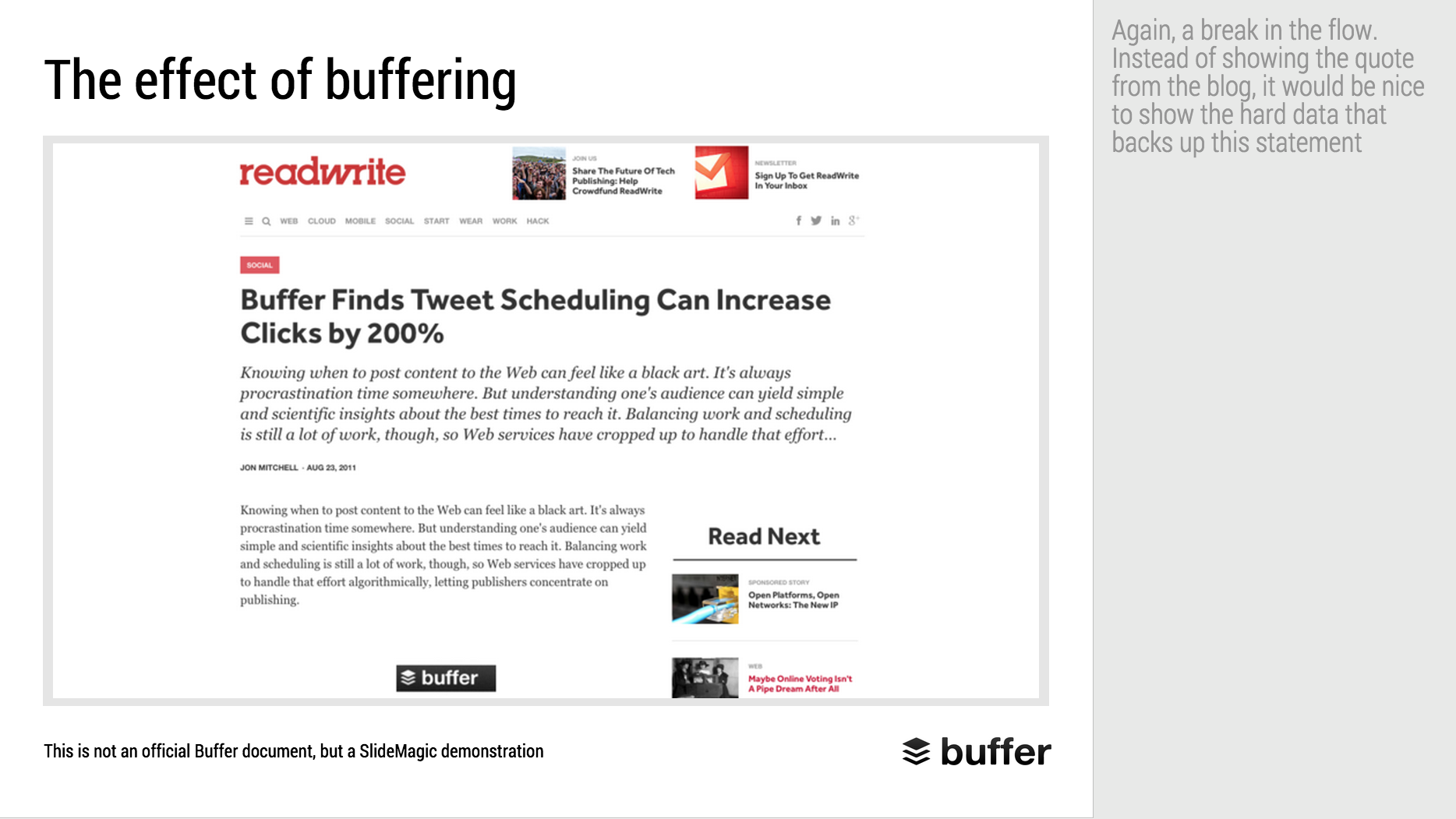
When Googling for examples of VC pitch decks, the on that Buffer used to raise $500k in 2013 ranks high. I decided to give it the SlideMagic treatment: how would the deck have looked when the slides would have been created in SlideMagic.

  • I changed the slide design to fit SlideMagic
  • I did not change the slide content
  • I did not change the story flow

I have a few comments on the slides that I have put in the SlideMagic explanation boxes.

Here is the original:

Here is the same deck in SlideMagic. You can clone this presentation to your own SlideMagic account by clicking this link and use some of the slide concepts in your own presentations. I have also added this presentation as a template in SlideMagic's template library.

Art: Johann Zoffany paints a group of Englishmen in Rome for the Grand Tour, united only by their wealth and love of art; unlike most conversation pieces, this was not a commissioned work


SlideMagic: a platform for magical presentations. Free student plan available. LEARN MORE
SlideMagic bugs fixed

SlideMagic bugs fixed

Presentation software needs to be absolutely bug free. Unlike a social media mobile app, where you can wait with grazing your news feed for a few hours, the presentation app needs to be ready for that critical 20 minute slot for the all-or-nothing presentation.

That is the reason I am keeping SlideMagic still in beta as I iron out all possible glitches. Here are some we fixed recently. If one of these caused you to stop using the app, give it another try.

  • Fixed: small (but annoying) differences in font size rendering between what you see in PDF and what you see on screen, causing words to drop to the next line when you don't want them to.
  • Fixed: erratic font size behaviour when rapidly increasing or decreasing font sizes
  • Fixed: enabling multi-edit of cells to manage colours, font sizes of more than one cell in one go.
  • Fixed: no need to leave and re-enter the shape format menu to work on another cell
  • Fixed: Windows/Firefox UI freezes
  • Fixed: story mode drag and drop issues

SlideMagic is moving closer to production stability.

B.t.w, I updated the SlideMagic marketing site yesterday, making the positioning plain and simple: it is easy to make business presentations. Easy, that's it. Also made the images a bit more daring.


Art: Scène d'été, or Summer Scene, is an oil on canvas painting by Frédéric Bazille, completed in 1869

SlideMagic: a platform for magical presentations. Free student plan available. LEARN MORE
SlideMagic example

SlideMagic example

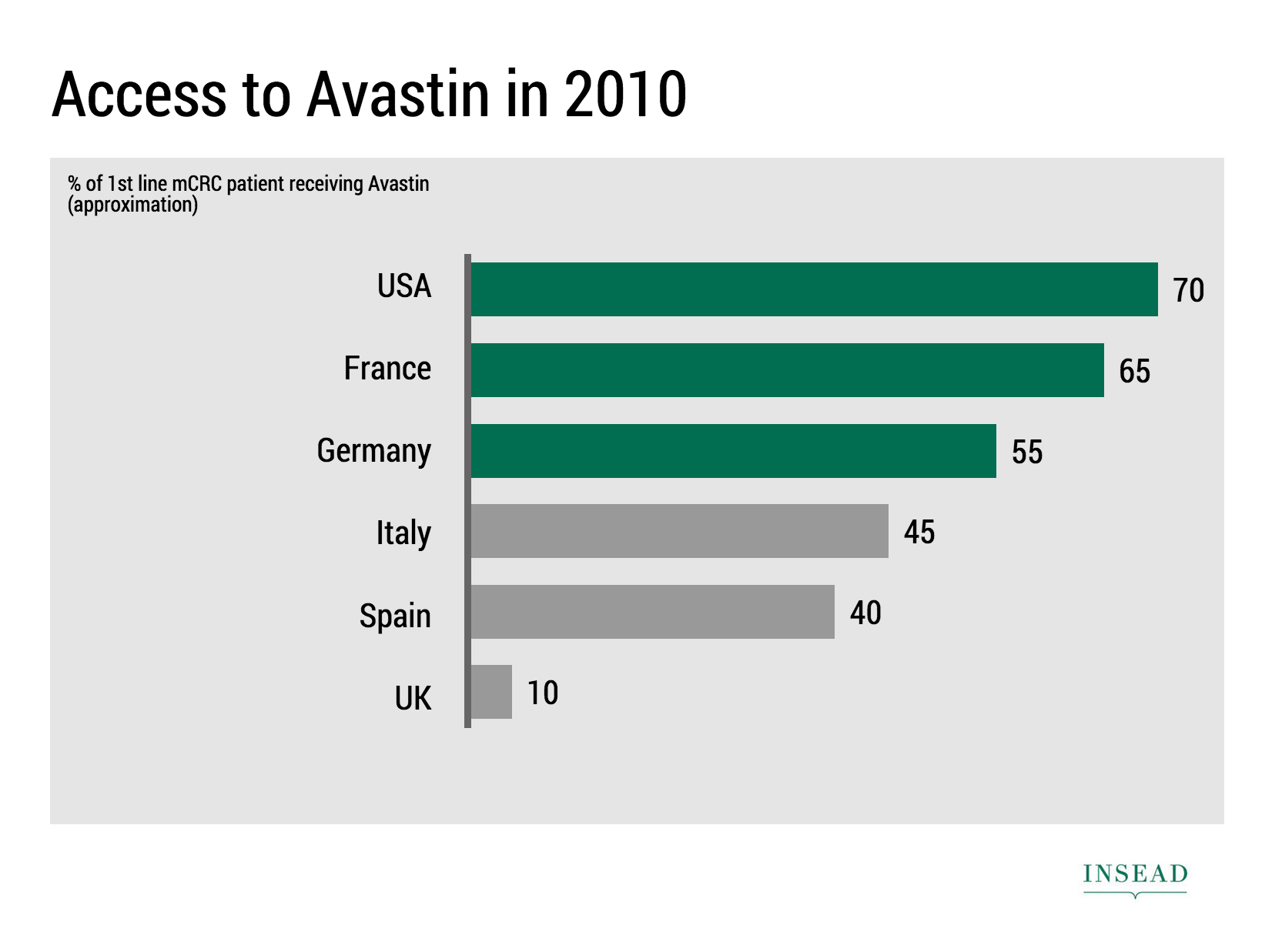
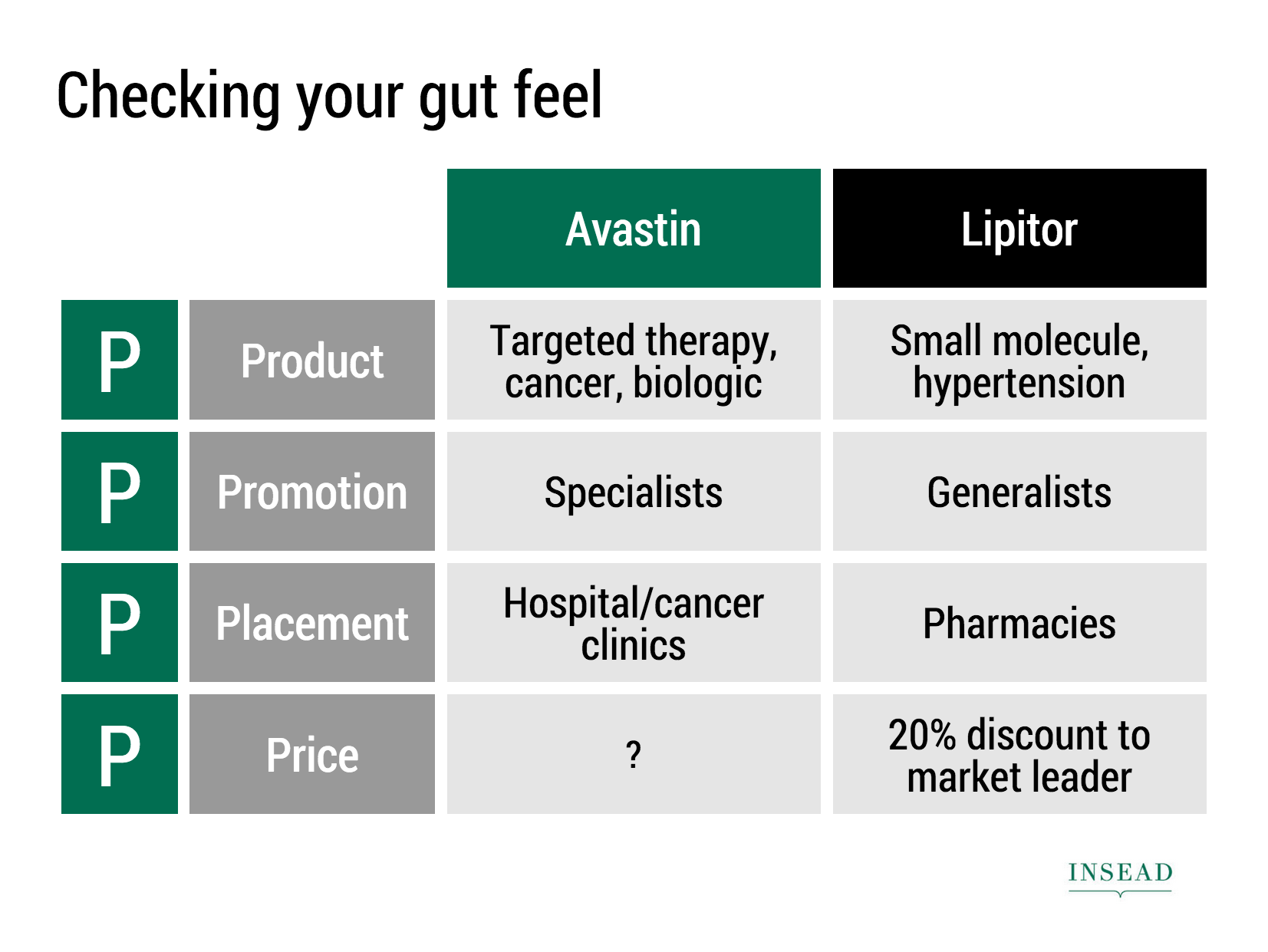
Ramzi Mrad is entrepreneur in residence at INSEAD and used SlideMagic prepare his presentation of business case: how Roche Pharmaceuticals set the price for its Avastin cancer drug in Europe. This type of presentation is exactly how I envisioned SlideMagic being used. Without any professional support, a layman designer can come up with something pretty decent. You can see his presentation here.


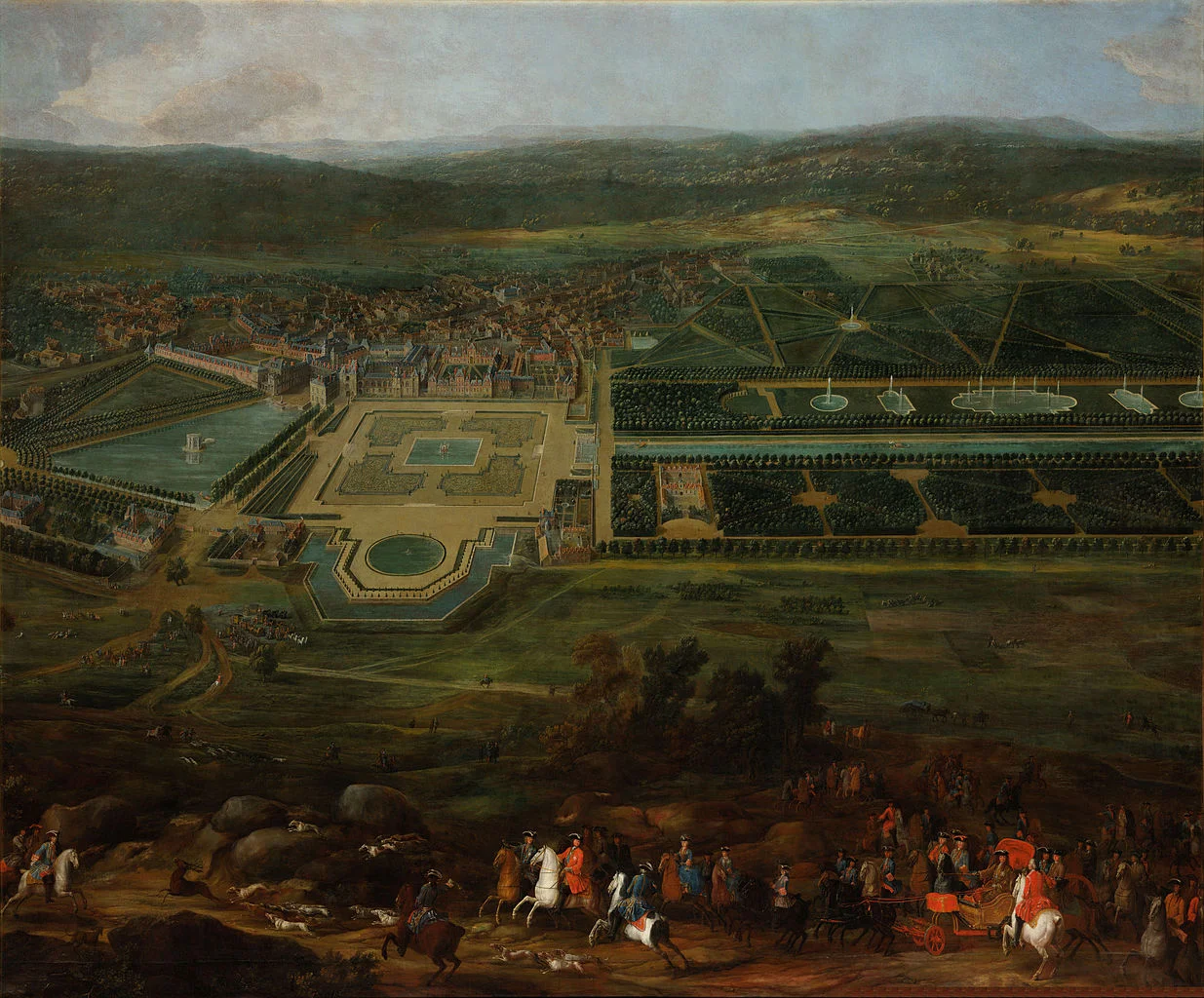
Art: Pierre-Denis Martin (1663–1742), Vue du Château de Fontainebleau (1718-1723)


SlideMagic: a platform for magical presentations. Free student plan available. LEARN MORE
Little productivity hacks in SlideMagic

Little productivity hacks in SlideMagic

Recently, I have focussed most of the development work for SlideMagic on improving the workflow. It is the small differences that can make a big difference. Here are two features that you might not have discovered yet:

You can select multiple boxes and edit their design (colours, font size, etc.) at the same time. Great for creating tables quickly or clean up inconsistent font sizes.

In the shape change menu you can tackle multiple shapes in one go. Click another shape and you can adjust its perimeter as well without leaving and re-entering the menu.

You can give SlideMagic a try yourself, the beta version is free to use. Sign up here.


Art: Rabbits by Johann Georg Seitz, subscribe to this blog, follow on Twitter

SlideMagic: a platform for magical presentations. Free student plan available. LEARN MORE
New PowerPoint 2016 for Mac can beat Keynote

New PowerPoint 2016 for Mac can beat Keynote

The preview of the new Microsoft Office 2016 is out (finally) and I have installed it on my production machine letting it do all my presentation design work for clients. (You can download the Office 2016 preview here)

  • It looks beautiful. PowerPoint 2016 for Mac looks exactly the same as PowerPoint 2013 for Windows. A calm flat user interface. Working in a beautiful software environment always encourages you to create beautiful presentations.
  • The whole interface feels faster, snappier, and smoother, somehow. This is especially true for Excel. The current version of Excel for Mac has a highly annoying latency when entering data in cells. 
  • Subtle changes to the default colours and fonts. Gone are the boring olive greens of the old PowerPoint colour scheme. Calibri light looks great on Retina displays. Gone are the default gradients and drop shadows. Gone are the tick marks in data charts.
  • The commenting infrastructure is nice for collaboration with other people
  • Full integration with OneDrive cloud storage (if Microsoft has guts they should add Dropbox as well, and maybe even Google Drive).
  • Now PowerPoint gives suggested snap lines to place objects, automatically distributing and aligning things on your screen. 
  • The grid behaves more normal with a centimeter ruler. If you accidentally move a grid line (yes, this still happens) it is easy to move it back to the right position. 
  • Now text and shape backgrounds have the exact same colour rendering, an annoying bug in PowerPoint 2011, where despite selecting the same RGB value, colours on text and shapes would render differently.

There are a few important things that are missing:

  • The ability to customise the toolbar at the top (here is where I put my align and distribute buttons for example) (this was possible in PowerPoint 2011)
  • It is still not possible to embed fonts with a presentation saved in PowerPoint for Mac (it works on the Windows version)

I think PowerPoint 2016 is so good that it has gained the edge over Apple Keynote. Recent user interface changes in Keynote have made the workflow a bit slower. You need to navigate around too many menus to do basic things such as colour changes. Keynote looks nice and clean, but this organised UI comes at the expense of usability.

But before PowerPoint can take the trophy, some bugs that are still in the preview need to be ironed out. I am confident that Microsoft will be able to do this over the next few months until the official release. Here wo go:

  • Font rendering: The software UI looks clean and crisp, but the presentation fonts look a bit fuzzy. In Excel, there is an inconsistency of fonts across the spreadsheet. It looks fine towards the top and bottom of the screen, but not in the middle. 
 
Fuzzy fonts on the slide (not in the software user interface)
 
Screenshot 2015-03-12 09.59.56.png
  • The colour picking is not completely fool proof, especially when you want to use it define new theme colours for your presentation
  • There are frequent crashes, save your work
  • Font variations to not come through as in PowerPoint 2011. For the Apple Helvetica font, the bold condensed variant does not pop up for example

But hey, you are developing a PowerPoint killer?

Correct (and therefore my review is biased), I think that PowerPoint and Keynote have too many features, and leave too much design freedom to a layman designer. The result: boring bullet point presentations. My presentation app SlideMagic is trying to address these issues. But that is a separate discussion.

UPDATE: This post was corrected, shape booleans are still present in PowerPoint 2016


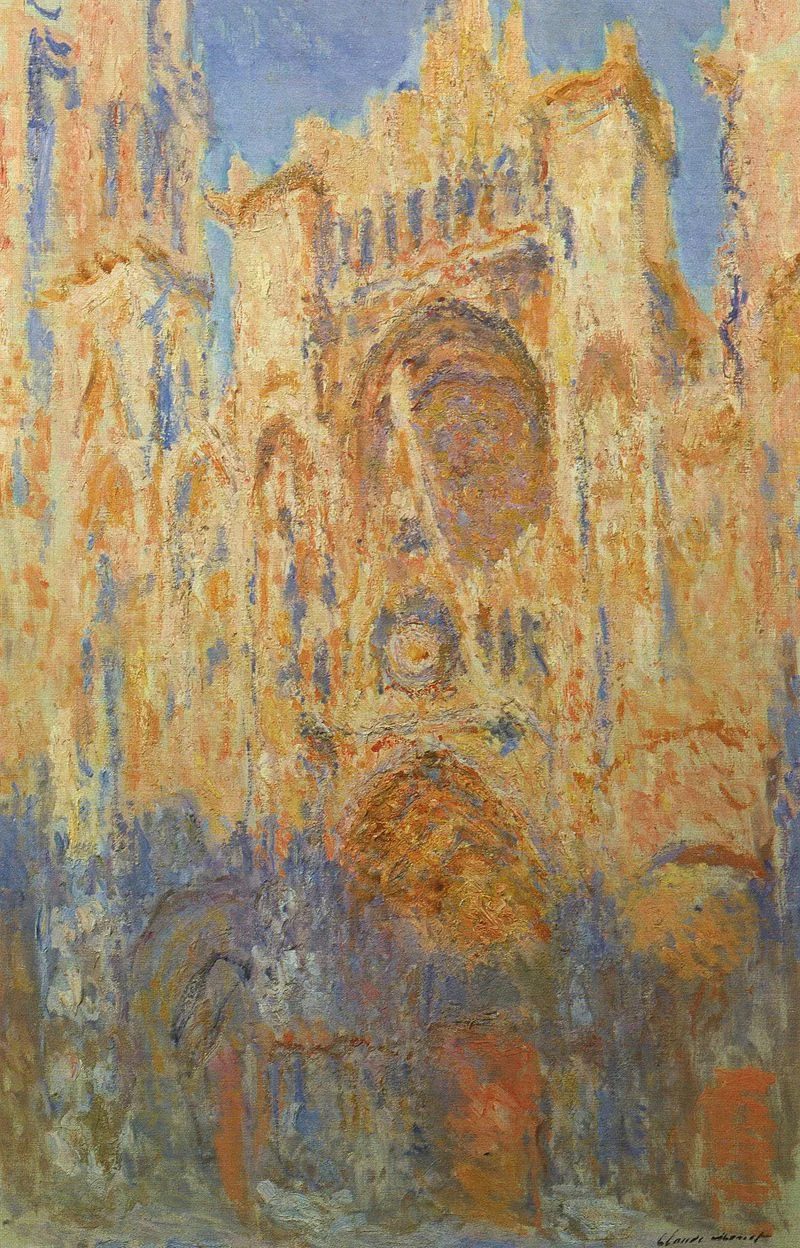
Art: Claude Monet, Rouen Cathedral, Facade (sunset), harmonie in gold and blue 1892-1894 Musée Marmottan Monet Paris, France. Sign up for SlideMagic, subscribe to this blog, follow me on Twitter

SlideMagic: a platform for magical presentations. Free student plan available. LEARN MORE
Rediscovering Evernote

Rediscovering Evernote

I was an early user of Evernote on a PC (a couple of years ago) and used it to organise bookmarks for reading later. Then I stopped using it for some reason until recently. Not as a bookmarking service, but to organise life across multiple devices. It has specific advantages over bookmarking sites, Dropbox/Box/iCloud/Google Drive, online presentation apps

  • My demo presentations. It is easy to maintain and access a folder with all my demo decks ready and up to date on all my devices. This is the folder that I set to sync/download to my devices so it is available without internet connectivity. I have run pitches on my iPhone to potential clients.
  • On the go note taking. Away from the office it is hard to capture stuff and not lose it. I use the Penultimate hand writing app for iPad that gets synced into Evernote. Evernote itself has notes screen where you can jot down quick thoughts (an idea for a blog post for example). The Evernote scan app (Scannable) is perfect for capturing receipts, doodles, and white boards. It is actually faster to search through hand written notes than typed ones.
  • Screenshots have become a big part of my design workflow. I just can't be bothered to convert between different image file formats. Skitch, the Evernote screen shot app has a very used cross hair few that the standard Mac function is missing.

I did not get paid a single $ for writing this (unfortunately).


Art: The Elephant Celebes by Max Ernst. Oil on canvas. 125.4 x 107.9 cm. Tate Gallery, London
Subscribe to this blog, follow me on Twitter

SlideMagic: a platform for magical presentations. Free student plan available. LEARN MORE
Your requests for SlideMagic templates

Your requests for SlideMagic templates

I am keen to make the templates in presentation software SlideMagic as useful as possible. Let me know if you have specific requests for templates and/or story flows that I should include. Two conditions for this free presentation design help:

  • You do not get angry with me when I could not find the time to work on your request and prioritised another template 
  • The result of your request will be publicly available for everyone to use, so strip it of any specific/confidential information

Send your requests to jan at slidemagic dot com, start with TEMPLATE PLEASE in the subject line.


Art: Henri Matisse, The Open Window, 1905
Subscribe to this blog, follow me on Twitter

SlideMagic: a platform for magical presentations. Free student plan available. LEARN MORE
The future of the PC

The future of the PC

Technology analyst Ben Evans was pondering the next possible revolution in computing platforms: the PC, the smartphone. This triggered me to give my thoughts about the future of the desktop or laptop computer (I will call them PC). I posted a quick comment, but will elaborate here a bit more.

It is important to separate device from the usage setting. There will always be a need for a creative, focussed work environment to capture your ideas. I do not think that we will ever witness the moment where we can do serious design work on the go on a small device. Creative means, focus, concentration, and an organised clutter free spacious environment.

No, smartphones and tables (current screen sizes) are not going to be the dominant platform for design work (that is why I am launching SlideMagic for bigger screens first).

Having said that, the PC as we know it could totally change. Design work requires some form of big visual interface, and some form of human-machine interaction. What is in between can be completely different from the form factor that we know today.

Technology might advance to such a level that all PC-type processing power, storage requirements, and power supply can easily fit in a smart phone-sized device. And I think that is the future. Everyone carries one piece of hardware with them that contains these functions, but also serves as a wrapper for our security credentials.

Screens could evolve drastically (remember that touch screens were the big driver behind the smartphone revolution). We could see very large tablet style devices for design work. But maybe e-ink technology will enable the creating of super thin, super light, paper-like foldable screens The same is true for keyboards and mouse controllers. Maybe that same screen can spread out in front of you and creates a combined input device and visual screen for your work?

Screen innovation should go along software user interface innovation. Many of today's productivity tools are still based on old working practices. Mouse-based drawing, type writer-style keyboards. 

SlideMagic is already working to innovate the user interface. Now the screens need to follow suit.


Art: Georges de la Tour, The Cheat, 1630

Click here to subscribe to this blog

SlideMagic: a platform for magical presentations. Free student plan available. LEARN MORE
SlideMagic is not Software

SlideMagic is not Software

I tend to look at it as a new business communication design language. When you give people simple building blocks they end up doing great things with it. Look at Lego. Look at Twitter. Constraints actually drive creativity.

I can see the confirmation that it works in the behaviour beta users. Advanced designers who are looking for the most advanced features miss certain functionality (but hey, check out that automatic light to dark background conversion). Some people are confused by the user interface which is radically different (read much more simple) than PowerPoint. But the user who makes a first effort to go through the dip and actually makes a presentation for real is hooked.

I could have written a book, created a training program, but I thought I would never get the reach that a web based tool could give. Hence the presentation design app SlideMagic.

So the ambition is not to remove PowerPoint from corporate desktops, it is bigger than that. The ambition is to change the way people talk to each other in business.

Art: Rene Magritte, La trahison des images, 1928–29, Image credit: Nad Renrel on Flickr.

Click here to subscribe to the blog

SlideMagic: a platform for magical presentations. Free student plan available. LEARN MORE
Designing presentations for retina displays

Designing presentations for retina displays

Typographers had big debates when Apple launched the first iPads and iPhones with retina displays ("Retina" is the marketing name for a screen with such a high pixel density that your eyes cannot see individual pixels anymore). Retina displays are obviously different from low resolution screens, but - as the typographers discovered - are also different from paper/print.

I now see similar issues with large retina monitors. A traditional PowerPoint presentation with an Arial or Calibri font looks somehow off. You need lighter, thinner, crisper fonts. Macs have Helvetica light installed, but Windows machines not. Drop shadows look "dirty". Outlines around boxes look too heavy.

My guess is that Microsoft will fix the font issue in upcoming releases of Windows and Office products. But, if we fix the issue for computer screens, we are still left with this huge install base of crappy VGA overhead projectors in corporate conference rooms that never get replaced...

If you are working on a really important, one off, presentation find out about the screen you are going to present on and test your design. 


SlideMagic: a platform for magical presentations. Free student plan available. LEARN MORE