
5 ways to present on iPad

I am switching my own introduction presentation to iPad/iPhone, leaving my laptop home as a I go to meetings and instead bringing a small iOS to VGA converter cable with me (Airplaying the presentation to a big screen only works in my own office for the moment). I would recommend this to anyone who constantly needs to have her pitch/sales presentation ready to go.

As a result, I am trying all possible ways to view slides on my iPad. Only Keynote users have a perfect solution (Keynote), if you use other formats it is still compromising. In my case for example, I need PowerPoint to show example presentations that I designed a while ago. And a second complication is that I use a few custom fonts...

So here are your options, I use Dropbox to sync my files, it is still a lot more convenient than iCloud.
  1. Keynote to Keynote.  Straightforward and simple. Download in Dropbox, tick open in Keynote and you are all set. When you are in presenter mode, you get a preview of the next slide on your iPad, while the audience just sees the current slide on the projector. Only works with standard fonts that are installed on the iPad. 
  2. PowerPoint to Keynote. This works surprisingly well (if you use standard fonts). Download the PowerPoint file in Dropbox, tap open in Keynote and you have a file which is 95% OK. However, I am a perfectionist, and the 5% needs to be right as well. 
  3. SlideShark is iPad app specifically designed for presenting slides. You can upload PowerPoint files to their server, or tap a dropbox or email link and tell the iPad to open the file in SlideShark. The interface is nice, with the option to move randomly between slide tiles (which the audience cannot see) to break the lineair flow of a deck. SlideShark preserves animations in your slide. Using a special font requires a request to SlideShark technical support to install it in the data center. Unlike Keynote, SlideShark does not support the standard Apple fonts (such as Helvetica) SlideShark is not yet retina-optimized I think, the image looks slightly hazy on my screen, but I am sure an update will follow soon. The app has still some childhood diseases at the moment but it could be a clear winner in the future as the team there seems to working hard to make it work among larger competitors who are less focussed iPad presenting (i.e., Microsoft).
  4. PDF to Adobe Reader for iPad. Convert your PowerPoint file to PDF on your desktop, download it via Dropbox and select to open it in Adobe's Reader app (free). Fonts come out perfectly. The display is crystal clear, and the Adobe Reader app for iPad has a good full screen mode (unlike other document readers). Obviously PDF does not support animations
  5. PowerPoint to Adobe CreatePDF for iPad. The Adobe CreatePDF app works reasonably well for me (I do not understand all the 1-star ratings on iTunes), but (and it is a big but), only if you use standard fonts (and are willing to invest $10) and your deck does not have animations.
If you use Airplay to present from an iPhone or iPad into Apple TV, make sure to adjust your auto-lock settings (settings/general/autolock) to prevent the screen from going blank after a minute of inactivity.
Wrapping up: if you need to present from an iPad a lot, go 100% Keynote, if you can live without custom fonts, take SlideShark, for everyone else improvise with Adobe Reader for iPad. I am sure this post has to be re-written in a couple of weeks from now. Things are moving fast.

What are your experiences?

SlideMagic: a platform for magical presentations. Free student plan available. LEARN MORE

iPad sales app in practice?

I just got contacted by a journalist who is doing an article about the iPad as a sales tool, integrating the functions of a presentation platform and a catalogue/ordering system. I came up with iRep as an example. Do any of you know any other applications, and even better examples of companies that use this in the field?

SlideMagic: a platform for magical presentations. Free student plan available. LEARN MORE
Visualizing 6 million

Visualizing 6 million

Today is Holocaust Remembrance day in Israel and the country will come to a standstill for 2 minutes to think of those who lost their lives. Here is a small presentation I designed to try to put the number 6 million in perspective.

Remembering 6 million Holocaust victims

View more

PowerPoint

from

Idea Transplant

SlideMagic: a platform for magical presentations. Free student plan available. LEARN MORE
Searching Instagram images

Stock images sites are full of images that are not real (post from 2008). Images from Flickr with a creative commons license are a great alternative. But recently Instagram is taking over as a great source of images. The site searchinstagram.com allows you to search images on a desktop (Instagram is a mobile-only application). If you want to use an image in your presentation, you need to send the person who took it a message, because she owns all the rights to material posted on Intagram.

Instagram is the new Flickr.

SlideMagic: a platform for magical presentations. Free student plan available. LEARN MORE
Fixing standard data charts

Standard data charts in PowerPoint and Excel look ugly. Here is how I usually fix them. A raw screencast with som uhs and ohs, I am still experimenting with the software to see whether I can make these videos more often.


SlideMagic: a platform for magical presentations. Free student plan available. LEARN MORE
Should you conform?

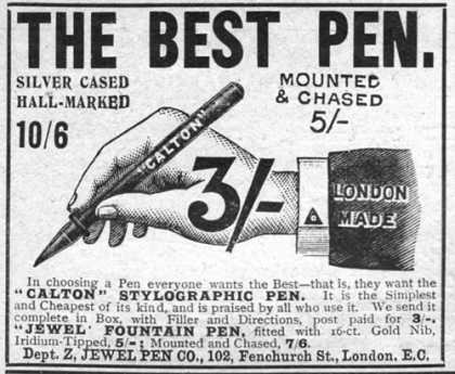
Early last century, there was a common practice in advertising: “This is what an ad should look like.”. Think about this when your boss tells you: “This is what a presentation should look like.” in response to your effort to do it in a different way.


For more of these wonderful vintage ads, visit vintageadbrowser.com

SlideMagic: a platform for magical presentations. Free student plan available. LEARN MORE

Office 14.2 for Mac available

Mac OSX Lion full screen view is now supported. I have not been using full screen view on my Mac much because Microsoft Office did not support it, so I could not switch over my entire workflow. I will give it another try now. Details of the update are here.

UPDATE: Full screen mode does not really work with multiple monitors... Well it works, but leaves the 2 other screens I have blank. So I will use full screen mode only when traveling with my laptop. Hopefully this gets fixed in a future Lion update.

SlideMagic: a platform for magical presentations. Free student plan available. LEARN MORE

Stop screaming

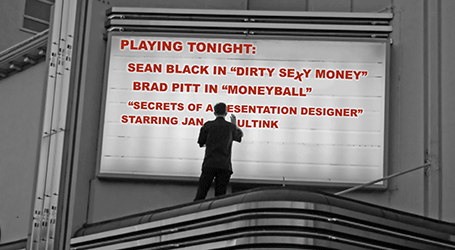
If you want to make a point, SCREAMING it in all caps, using aggressive colors and fill your message with explanation points will not make your argument more convincing!!!!!!!!!

SlideMagic: a platform for magical presentations. Free student plan available. LEARN MORE
Look at these synergies!

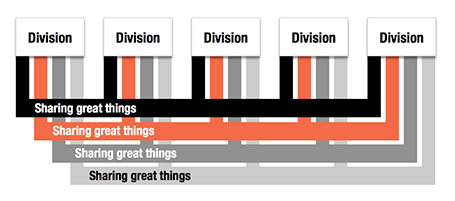
Here is an alternative to a circle-like composition of a holding company and its subsidiaries.

SlideMagic: a platform for magical presentations. Free student plan available. LEARN MORE

Billboards

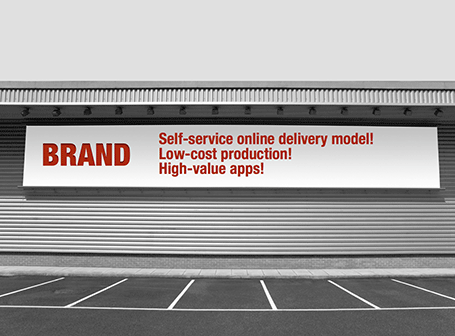
Maybe a bit overused, I still applied the billboard concept in a number of presentations recently.


SlideMagic: a platform for magical presentations. Free student plan available. LEARN MORE

Paper, an iPad drawing app

I would love to use hand drawn graphics in my presentation, but I never got to drawing and sketching on a computer. Any tools without a direct screen feedback loop (the mouse, drawing pads, and even the Wacom Inkling) simply do not work for me, and I think a screen like this are very expensive and generate additional clutter in my workspace.

The iPad could solve this, because it has a touch-sensitive screen. As a result, hundreds of drawing apps have popped up in the app store. Drawing apps are different from note take apps. The latter require wrist protection, a good way to organize notes. Drawing apps require brushes, color, pens. Like with writing apps, most drawing apps come loaded with features that just confuse me.


Hence, I was happy to discover Paper by 53, a minimalist drawing app (one of the readers pointed it out to me in a my recent review of iPad note taking apps). Paper just cut down the drawing tools to the bare essentials, and the result is actually good I think. The app is free, but this version comes with one drawing tool: the ink pencil, if you want to get a pencil, a marker, a pen and a paint brush (water colors) it will set you back $8 in in-app purchases.

The pencil is the tool I actually use most. There is a big drawing problem with the iPad screen: it is not pressure sensitive, and varying stroke width is the key feature what makes writing with an ink pen so great. Paper solved this with adjusting the stroke with depending on your speed as you move the pen over the screen. More confident, fast strokes, will appear bolder. (The pen tool works the other way around, moving it slowly creates heavy ink, moving it fast produces a thin line). I love the simple cartoon style sketches that this app produces, and I am looking out for a first client situation where I can try out a cartoon-style presentation (like the one below) for real.

SlideMagic: a platform for magical presentations. Free student plan available. LEARN MORE

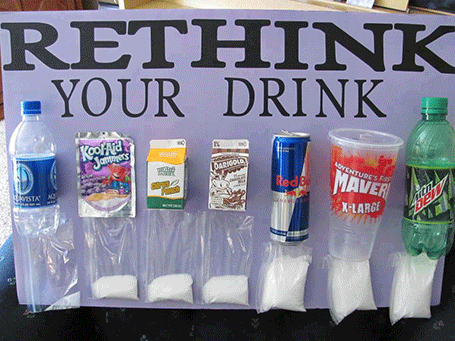
Sugary drinks

This photo posted by Carolyn McDowell is much more powerful than a bar charts with the sugar content of soft drinks

SlideMagic: a platform for magical presentations. Free student plan available. LEARN MORE

2 versions -> disaster

It always seems tempting to have 2 (or more) versions of a deck. One for sending, one for presenting live, one short one, one long one, one for printing. Ideally, this is the right solution, but in practice, you always forget to transfer changes from version to the next. I prefer to keep one master file with all slides inside, and chop out the ones I do not need right before I present, email, etc.

The exception is probably a high-profile keynote that merits a file on its own, but for day to day business presentations, keep one deck.

SlideMagic: a platform for magical presentations. Free student plan available. LEARN MORE

Songza - music while working

If you work alone in a room (or are willing to use headphones) you can lighten up your design work with some nice music in the background. I have made a complete u-turn on this, starting off with requiring library-like silence to concentrate.

Not all music is suitable for work. Dominant lyrics, or tunes that stick in your head do not work. Music that is so slow that it puts you to sleep is also not ideal. Audio advertising make your office feel like a car repair shop. And the worst of all, repetition is annoying (“hey here is that same sone again for the fifth time”).

The repetition argument pretty much kills the traditional CD option, and even your personal iTunes library will be exhausted soon. Most of all, your personal music purchases of the past are unlikely to be suited for work music.

Internet streaming apps are the solution. Spotify is great, but it requires you to find the right (long) playlist that fits your work requirements. And that is difficult. Pandora is another solution. The genre or artist radio stations are good, but also here you run out of new music. After playing the cool jazz radio station for 2 days you start recognizing the songs.

So, the app I love is Songza. It has far less choice in terms of songs, but it has a treasure of playlists for any occasion you can think of, including work: acoustic, jazz, electronic. Unlike Pandora, the songs are curated by human experts rather than automatic algorithms.

Note that these services will not work in all countries around the world (unfortunately).

Which music services do you use?

SlideMagic: a platform for magical presentations. Free student plan available. LEARN MORE

Slides from my Munich talk

They are a bit out of context without the verbal explanation, but here are the slides I used during my presentation in Munich. I am trying out the platform of my client SalesCrunch as an alternative to SlideShare.

SlideMagic: a platform for magical presentations. Free student plan available. LEARN MORE

Paperless creativity - iPad calculators

I am continuing my experiment to create a completely paperless creative workflow to increase my mobility. Until now, I had to settle in my creative corner, have my pencils around, have my paper around, before I could get in the mood to do serious design work. I reviewed note taking apps here, now it is the turn of calculators.

Whenever I design a presentation, I almost always have a calculator open on my desk. I design all my data charts by hand, the old fashioned way, doing the final step completely analogue to make sure that resulting slide is really the very best to convey the specific message I want to get across. The calculator is used to calculate the % breakdowns, and to do the final check whether the whole thing adds up. Small calculation errors can distract the audience and undermine the credibility of your analytical work. (I she cannot get the numbers in the chart to add up, what about the underlying spreadsheets?)

So, over the past decades I have used the famous HP 12C as my sole calculator. First in hardware form, then as an app on my iPhone. Since spreadsheets arrived in the early 1990s, I have no need anymore for sophisticated NPV calculations on a calculator. I was simply used to the user interface of the machine, to such an extend that I replaced it for about EUR 100 with a new one a few years ago.

The iPhone HP 12C works, but is not perfectly convenient. I always fiddle with the landscape-only orientation, and the buttons are a bit too small to be convenient. So the iPad solves at the least the button size issue. Like note taking apps, there are an infinite amount of calculator apps available for the iPad (including the build in one).

I found only one that has an absolutely essential feature for the paperless creative workflow: a small electronic piece of paper to scribble notes. Hence, my preference goes out to Calculator HD for iPad. Just a shame that it does not have the Polish notation I got used to on my HP 12C...

A more serious shortcoming though is the inability to work with powers of ten in the basic note pad model. It is hard to tell those billions and millions apart. Does anyone have a better recommendation?

SlideMagic: a platform for magical presentations. Free student plan available. LEARN MORE

Smaller presentation, smaller budget?

I often get this question when discussing a new project with a client. Can we cut costs by cutting slides? For slide make-over, the answer is yes. Cost and the number of slides have a lineair relationship. For my bespoke presentation design work there is not that much correlation. Why? The hardest part of the presentation design work is coming up with the idea, the concept. Once you have got your head around that, it does not really matter if you need a few more slides or not. So, the answer you get for this question tells you something about the sort of designer you are talking to.

SlideMagic: a platform for magical presentations. Free student plan available. LEARN MORE

Review: iPad note taking

Handwritten notes are very important in presentation design. I use 2 kinds:
  1. A very small note book with a beautiful leather cover to take meeting notes
  2. The back pages of old print out for slide design (I take more pages out than I add, the pile is shrinking fast)
For writing I use my favorite pencil: the Lamy 2000 (review).

Let’s look at application 1 first: meeting notes

Although I love my luxury micro note book, there is a big problem with analogue note taking: finding stuff. Since you write sequentially, and often use poor handwriting, it is hard to access notes that are part of a specific project (I can have more than 10 things going on at the same time).

Digital note taking on an iPad can solve this: simply create a note book for every project.

The key problem is the iPad-hand interface. Steve Jobs always was against using a styles, he correctly reminded us that we have 10 of them already. That is true for navigation, but not for writing large pieces of text (fast). The biggest problem is seeing what you do. Big fingers are getting in the way of your eyes, leading to illegible scribbles. And after a while you get tired of holding your finger straight. So there is no escaping from a style.

An iPad stylus needs to have a fat tip with a soft surface, mirroring the texture of a human finger. The resulting line can still be highly thin though, getting drawn at the center of impact of the soft tip. To show this effect, see fashion designer Karl Lagerfeld sketch drawings live on stage during the LeWeb 2011 conference in Paris last year (skip to 19:50).


At the moment, I am using the Cosmonaut, but I think it is too fat for my personal taste, and I do not like the plastic/rubber grip. I am curious to find one that enables you to see what you write using glass, but it comes at a price according to these iPad stylus reviews.

Back to the iPad apps. I installed and tried a bunch of them: Notability, Notes Plus, Note Taker HD, and Penultimate. Penultimate is by far the simplest one, and that is exactly the reason I like it best.

First of all the hand writing works best (at least for a left-handed person writing with a Cosmonaut. Other apps use a combination of text typing and handwriting, or have more sophisticated interfaces for handwriting (a magnifying glass that allows you to write big, but the words get stored smaller). But I think this is not the point of handwriting notes: you scribble, you draw, you write, you sketch. Hand writing is fast because it is visual, not organized, and you can use your own short cuts and abbreviations. Adding a cluttered user interface full of advanced features misses the point.

It is amusing to see that handwriting on the iPad makes you go back to that handwriting style you learned as a six-year old, when the teacher made sure you did not have to lift the pen from the paper in a word. I half-forgot how to use that technique.

The other thing to get used to is that as you write in very big fonts on your iPad, people sitting around you are likely to be able to read your notes (if your hand-writing is decent). So your note-taking privacy is pretty much gone, no more comments about how boring the meeting is...

Penultimate misses a lot of features that I do not need, but it should put in one: the ability to create folders and organize notebooks. Also, I wonder how much storage all these notes will take up. I am not sure whether each page gets stored as a full HD PNG image, these will be especially large for the new iPad retina display. And finally, it would be nice to be able to at least read my notes on my iPhone without having to go through Dropbox.

In short, Penultimate is my favorite for meeting notes.

Now about slide sketches (application 2). I will try over the coming weeks to use my note taking app. It has the advantage of a good eraser, so I do not need to use 5 sheets of paper for one slide design, and I can keep the designs organized.

A few months ago I reviewed the Wacom Inkling, a tool that enables you to store sketches made with a regular pen digitally. I voted with my feet, and I have not found myself using it very much. I guess the disconnect between drawing and seeing the actual result electronically makes it hard to integrate it into my workflow.

Do you have experience with handwriting and note taking apps?

SlideMagic: a platform for magical presentations. Free student plan available. LEARN MORE

Tables as grids for logo pages

Organizing a messy page full of logos into an neat grid can be a pain. Most of the time, I use a simple PowerPoint table to do this. Figure out the required number of rows and columns, draw a table, reformat to a white background with very thin grey separator lines. Now you can plop in the logos in the right position, and best of all, if you have to insert/delete rows/columns, the grid gets adjusted in a second.

(An earlier post about designing good logo pages)

SlideMagic: a platform for magical presentations. Free student plan available. LEARN MORE

Video in a webinar?

The big problem in webinars and web meetings is the upload bandwidth. If you are running the presentation live from your computer, then the speed at which attendees can download your high-res images, video, or animations is the speed of your upload connection which in most cases will not be much more than 1Mbps. Download speeds are much higher (I have gone up to 50Mbps recently).

 The solution for this would be to upload the bandwidth-heavy content beforehand to a server, and only use your live upload connection for the audiotrack. Some web meeting solutions such as SalesCrunch (disclosure, a client) allow you to upload presentations beforehand. But video does not work (yet). Do any of you know a solution or a workaround that allows me to use video in a live webinar?

P.S. An earlier post about how I use an iPad to log in as a participant to monitor what my audience is seeing during a webinar.

SlideMagic: a platform for magical presentations. Free student plan available. LEARN MORE