Viewing entries in
Software

It takes too much time...

It takes too much time...

Some new users of my presentation app SlideMagic complain that you cannot import any existing PowerPoint presentations, you have to start from scratch to design your pitch. "This will take me too much time!"

There are 2 reasons why SlideMagic does not import PowerPoint presentations (export is OK though):

  1. Technical: SlideMagic uses a very strict slide layout, which simply cannot be matched (automatically) to the wide variety of PowerPoint designs
  2. Behavioural: SlideMagic aims to make corporate communication simpler and less time consuming. The fact that it takes too much time to re-create a PowerPoint presentation one-for-one in SlideMagic probably says something about your presentation. SlideMagic has excellent tools and templates to take your message and show it in simpler form.

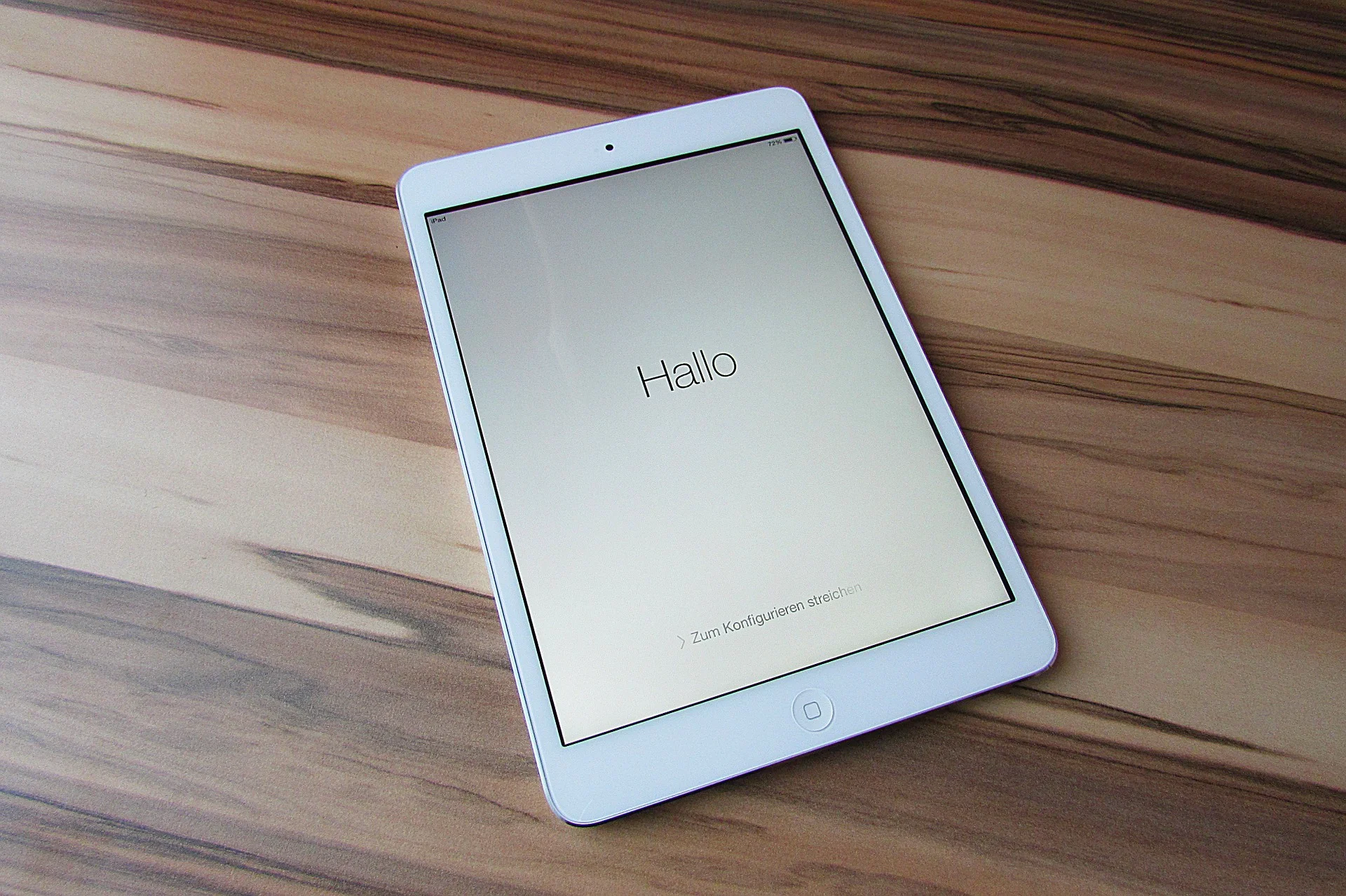
If you really need to import that one complex PowerPoint slide, you can always use a screen shot and import it as an image.


Image by Alexandre Duret-Lutz on Flickr


SlideMagic: a platform for magical presentations. Free student plan available. LEARN MORE
On stage, it does not matter anymore which software you used

On stage, it does not matter anymore which software you used

On Quora, I see questions like which presentation software did [company X] use at [event Y]. For the audience there is no difference. The same simple, good slide can be made in PowerPoint, Keynote, Google Slides, and Adobe InDesign. The exception is probably Prezi and its complex zooming capabilities.

The process that got you there makes a big difference though. How easy is it set up a basic presentation template (colours, fonts, positions of titles, page numbers, aspect ratio), how is it to create a basic slide layout other than a list of bullets, how easy is it to align items properly on a grid, how easy is to create basic data charts, how easy is it to keep everything consistent page after page, how easy is it to do basic image manipulation (cropping and repositioning).

Either the audience cannot tell in which program the presentation was made and you were either a design pro or have made a huge effort to master the software. Or, the audience can spot your software instantly (most likely PowerPoint), which means that you did not get much further than the standard slide template.

(A secret: you can get away with taking design short cuts in my presentation app SlideMagic and no one will notice).


Edgar Degas, Rehearsal on stage, 1874

SlideMagic: a platform for magical presentations. Free student plan available. LEARN MORE
Corporate language simplification is next

Corporate language simplification is next

A lot of the progress of humanity boils down to improving and simplifying communication. There were huge wins when we figured out how to speak and coordinate hunting strategies, learned how to read/write/print books, speak long distance instead of taking the ocean liner, video, etc. etc.

More subtle improvements happened as well. Clear, simple language impacts the premium/position that bosses, priests, doctors, lawyers, politicians, can command. Long-winded corporate memos and formal letters made way for informal emails and now messaging to get to the point, quickly.

What we lose in style, we gain in efficiency and clarity. Gone are the beautifully hand-written letters without grammatical errors. Now we have the universal "business English" with a tiny vocabulary, full of mistakes, and pronunciation can be whatever you see fit. The English might not be perfect, or sophisticated, its meaning is crystal clear.

The same happens to corporate language. Management consultants took a first stab at making memoranda logical and structured. The exhibits in these documents slowly become more important than the written words themselves. And now presentation software/slides has become the main language in which we do business.

We need a crisp, simple, visual language to get a business concept across. Everyone can understand it, everyone can use it. That's what I am trying to do in the presentation app SlideMagic.


Art: Pieter Breugel the Elder, The Tower of Bable, 1563

SlideMagic: a platform for magical presentations. Free student plan available. LEARN MORE
The broken Apple Keynote interface, is it me?

The broken Apple Keynote interface, is it me?

I have now created many, many client presentations in Apple Keynote. And most of the clients who request a presentation in Keynote rather than PowerPoint are proud that they are willing to use more design-oriented products. For many years, Apple Keynote was ahead of PowerPoint: a cleaner user interface, cleaner templates, those alignment guides that pop up when you want to position an object. And in addition, you were using the same product that Steve Jobs, the master presenter, was using for his slides.

With the latest release of PowerPoint, I think both applications are at par. With each one of them, you can create both beautiful presentations, and horrible decks full of bullet point slides.

The workflow of Keynote though makes me scratch my head. While more complicated tasks are taken care of very well, it is the basic functions such as changing fill colours, font colours, aligning, that drives me crazy. Too many clicks, and I am always looking where to click. Initially I though it was me, but after month and months of trying things are still not getting better.

PowerPoint has a more cluttered interface but after some time working with it your eyes look on locations/icons and you instantly click without having to think. The solution for both programs is clear: create space for one user customisable tool bar. PowerPoint for Mac had one, but it disappeared with the 2016 update, Keynote needs one.

The above partly informed the design of my own presentation design app SlideMagic. You actually need very few functions to create beautiful charts. Most reviews of software tools are still 1990 style: a comparison of features. What you really should be measuring is how fast/easy it is to get a decent end product. Hopefully Microsoft and Apple are not reading this post, so SlideMagic can keep its competitive advantage!


Image of an A380 cockpit from Wikipedia

SlideMagic: a platform for magical presentations. Free student plan available. LEARN MORE
Microsoft Excel versus Google Sheets

Microsoft Excel versus Google Sheets

In spreadsheets, I have now moved from Microsoft Excel to Google Sheets as my favourite app.

  • It is faster to fire up quickly for a small calculation doodle
  • It also snappier in use to do the basic things, entering data and moving around
  • It has some neat functions (like automatically cutting up a string and putting all words, numbers in subsequent columns)
  • While I don't believe in online collaboration of presentations, for models it is actually useful that all the people in the team have access to the laters numbers 24/7
  • Filing and naming of presentation documents is usually pretty organised. With spreadsheets however, I always lose that calculation I did, and the Google search function is really helpful here.

Part of this might be rooted in the way I use spreadsheets: basic functions only, even for the biggest models. I "grew up" with Lotus 123 and early on in my McKinsey career realised that errors in a valuation model can make a difference of billions of dollars. A simple model is far easier to debug because it allows you to see every step in the calculation.

SlideMagic: a platform for magical presentations. Free student plan available. LEARN MORE
Example PowerPoint conversions

Example PowerPoint conversions

Many of you are requesting PowerPoint conversions of the templates that ship with SlideMagic. You will see that the conversion works nicely, but that it is inconvenient to make structural slide edits in the PowerPoint version of the file, doing them in SlideMagic is much easier.

If you want to check out how converted SlideMagic presentations look, I have put the files all in this shared Google Drive folder.

SlideMagic: a platform for magical presentations. Free student plan available. LEARN MORE
Combining tables and data charts

Combining tables and data charts

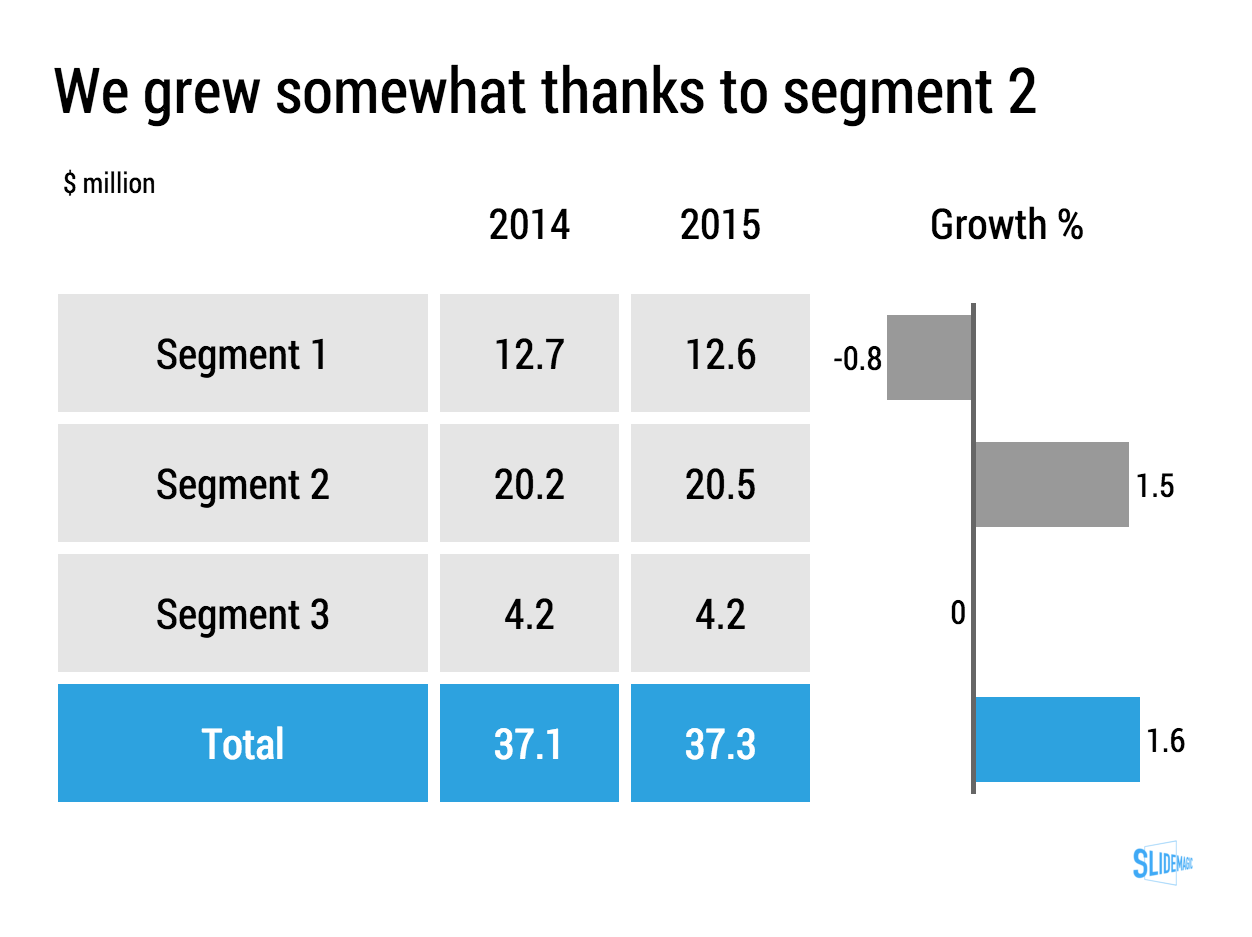
Lining up a data chart and a table in PowerPoint or Keynote is very tricky. And that is a shame, because it is one of the most useful compositions to present data. Just tables, and you cannot really see the trends. Just data charts, and it all becomes cluttered.

I took the data from an earlier blog post and quickly turned it into a combined table/data chart. You can clone the slides I create in presentation app SlideMagic into your own SlideMagic account by clicking this link.

Screenshot 2015-11-29 11.37.34.png


SlideMagic: a platform for magical presentations. Free student plan available. LEARN MORE
The user is always right

The user is always right

Sometimes I get the strangest support questions by users of my presentation app SlideMagic. Obviously, the user did not explore the help pages, or did not try out all the menu options, or did not understand the philosophy behind SlideMagic. Initially, I felt like pointing that out. Now I figured out that it is my problem, not the user's.

User interface is entering an interesting phase. Mobile/tablet apps all look very cute but it is often incredibly difficult to find the most obvious functions. Desktop/laptop applications have become so bloated that obvious functions are hard to find, or are still in places "because they have always been there for the past 10 years" to serve the large install base of users. Every time I set up a new presentation, or create a new slide in PowerPoint I find myself doing a large number of repeat clicks (by now at incredible speed) that basically do very simple things (creating and aligning a grid of boxes for example).

I keep on trying to get it right.


Art: Vladimir Makovsky, Teacher Visiting a Village, 1897

SlideMagic: a platform for magical presentations. Free student plan available. LEARN MORE
Convert SlideMagic presentations to PowerPoint

Convert SlideMagic presentations to PowerPoint

Many people have asked for this feature. I might have found a partially automated solution for this. Partially means, slides are converted automatically, but the overall workflow is still manual.

Before I start investing a lot of resources (time and money) in developing a fully automated solution, I want to test demand. Soon, I will be adding a "PowerPoint" button to SlideMagic, but in the interim, you can email to (ppt at slidemagic dot com) an editable link of your presentation (generate it via the SHARE menu in SlideMagic) and we will send you back a PowerPoint file.

It is important to send the link using the SHARE function, nobody but you can open the links in your browser for privacy/security reasons.

Make sure that you have the Roboto Condensed font installed on your machine. It is a free font provided by Google

  1. Exit PowerPoint
  2. Go to the Roboto Condensed download page
  3. Tick the 400 and 700 boxes
  4. Download using the "arrow down" icon at the top right
  5. Double click the downloaded files to install the fonts
  6. Re-open PowerPoint

Roboto Condensed cannot be installed on iOS devices. If you want to edit your converted SlideMagic presentation in PowerPoint for iOS consider replacing the Roboto Condensed font for Helvetica Neue Condensed. Here is how to swap fonts across an entire presentation on a Mac. But hey, SlideMagic runs pretty well in Safari on iPad, no need to convert to PowerPoint for this.

Some disclaimers:

  • It is a partially manual solution, please be patient, delivery can be instant or take some time.
  • A human will open your presentation, we are nice people and unlikely to read it all in detail and/or post things on the Internet though. Still some corporate compliance regulations might have an issue with this
  • There might be glitches in the quality of the conversion, if so, we would like to hear about them.

You will see that the end result looks pretty decent and small text edits work great, but - and this is the reason I created SlideMagic - if you want to make fundamental edits to a SlideMagic slide in PowerPoint you will hit the limitations of PowerPoint. For example, adding a row or column to your grid and getting everything to line up nicely is a small operation. I suspect you will quickly go back into SlideMagic, do the edit there, and convert again. Hopefully, in the end you will just forget about the conversion and stay inside SlideMagic.

So, hopefully the option of converting your SlideMagic presentation to PowerPoint will give you increased confidence to try it out, there is nothing to lose, you can always fall back to good old PowerPoint.

Not a SlideMagic user yet? Sign up here.


SlideMagic: a platform for magical presentations. Free student plan available. LEARN MORE
Presentations on mobile devices - taking stock

Presentations on mobile devices - taking stock

Five years after the iPad launch let's take a step back and see what is actually happening in the world of presentation software and the use of mobile devices. My observations are based on the people I see around me everyday: startup employees (mostly mid 30s to 40s) and staff in big corporates (a bit older).

  • Designing. Apple has made a big inroad in terms of hardware, but it is still PowerPoint that runs on a laptop machine that is the preferred set up to create slides. I have not encountered anyone who uses a mobile device to do this. Apple Keynote is pretty much still a niche application.
  • Frankensteining / finding stuff. Cloud-based file systems can be confusing to use. I still do not understand exactly what happens when Keynote on iPad tells me it is converting a regular Keynote file. In practice, the file system that everyone is using is.... the email inbox and sent box. People with gmail can find stuff faster than Outlook users.
  • Viewing. Yes, more and more, people use their mobile devices to view a presentation. And it is not the iPad, a tablet, it is the mobile phone, where people squint to see what is in the slides. These are investors looking at a pitch deck, these are managers/superiors proving input on a slide. Think about it, this might be a more important audience for your slides than the ones sitting in conference room.
  • Emergency edits. Still laptop, although a tablet could work here, few people use it in a corporate setting.
  • Coffee chat, 1 on 1. Mostly laptop, I see fewer iPad/tablets than I saw 1-2 years ago.
  • Conference room. Laptop. The crappy VGA projector is being replaced by crappy LCD screens. Presentations that look beautiful on your retina display, look absolutely horrible on an LCD screen with poor resolution and overly bright settings. (Test, test, test). Advanced meeting rooms now allow you to airplay your presentations into the screen. People use their laptops to do this, not their mobile devices.
  • Big keynote. Conference laptop with a memory stick plugged in.

So what is really changing? People are viewing decks on mobile phones, especially busy people that might not be overly motivated to see your pitch (investors in round 0 of the due diligence process for example).

Presentation gurus like me used to discourage dense bullet points because you can't (too small) and don't want (too boring) to read them in the back row. Now it is a bit more subtle. You can't read small text on a mobile screen. But, more and more desks are read without a presenter being present and you actually need some text to explain things properly.

In SlideMagic, I encourage big, bold, but extremely simple designs (that will come through nicely on a mobile device), plus I left space on the side for a regular explanation paragraph.


Image on WikiPedia


SlideMagic: a platform for magical presentations. Free student plan available. LEARN MORE
How to recover lost PowerPoint 2016 files after a crash

How to recover lost PowerPoint 2016 files after a crash

Note: this blog post discusses PowerPoint 2016 for Mac.

PowerPoint 2016 is great, but it still crashes left right and centre, all the time. Autorecovery does not always work, and when you forgot to hit SAVE every 5 minutes in the heat of a presentation design project, you are stuck.

The good news: you can often recover data, even when PowerPoint thinks it is lost.

PowerPoint autosaves your files in the background, without your realising it. Make sure you have switched this on, you can set the save interval in PowerPoint settings:

Normally after a crash, PowerPoint will automatically restart and present you with the last file that was auto saved. Normally... If not, try the following.

  • In the Mac finder window, open the "Go" drop down, press ALT, to show the LIBRARY folder and click it.
  • Once in Library, go to  Containers > com.microsoft.Powerpoint > Data > Library > Preferences > AutoRecovery
  • Have a look at the files there and spot a file with a "_autorecover" ending to its name, taking into account the time it was saved.
  • Copy this file just to make sure
  • Rename this copied file with the ".pptm" extension at the end. Ignore all warnings you are presented with.
  • Double click the file and cross your fingers

There is no 100% guarantee this will work, but it is worth a try

One more tip: as soon as you see the small "spiral of death" spinning across the PowerPoint screen develop the instant reaction to take a screen shot of the application. If you are lucky and you grab the slide sorter window, you have captured a miniature icon of all your slides, which should save a lot of time recreating them. Worst case, you just got the thumbnails on the left of your screen that are in the regular slide editing window.

My presentation design tool SlideMagic is a PowerPoint alternative that does not work with files in the classical way. Things get saved into the cloud instantly. Feel free to try it out.


Art: Letters "Whaam" inspired by Roy Lichentstein

SlideMagic: a platform for magical presentations. Free student plan available. LEARN MORE
SlideMagic on iPad

SlideMagic on iPad

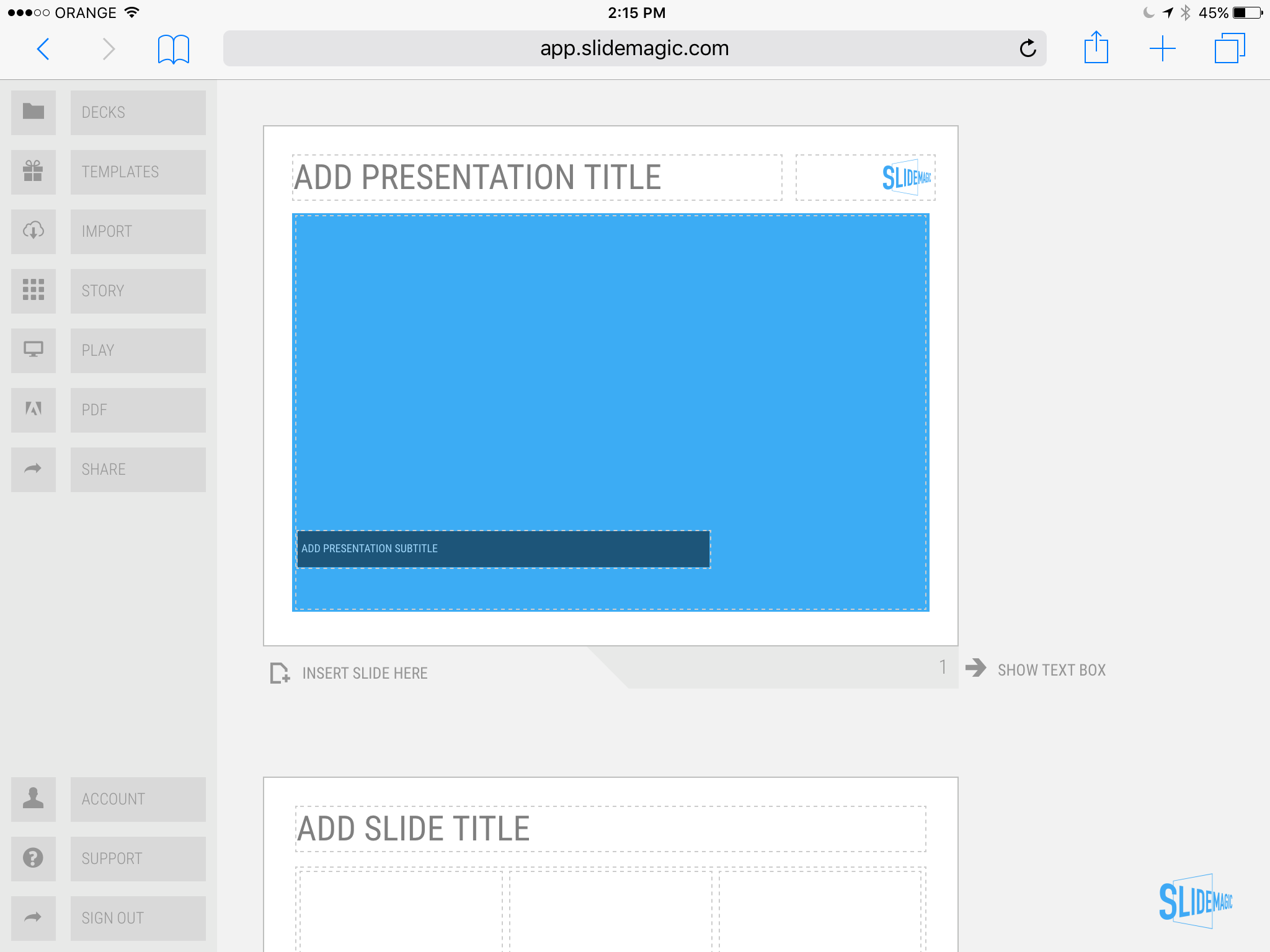
I have never been a big believer in focussed and productive presentation design on tablets, but presenting documents (mostly in 1-on-1 meetings) and making last minutes edits are important on mobile devices.

We are not making tablets a design priority, but have deployed some changes to the code that makes SlideMagic run pretty smoothly on an iPad (iPhone is still not optimal). Try it out and report back any bugs. Android tablet users, let me know what happens (I have not tried things out there yet).

With the large iPad Pro coming out later this year, there could be a brighter future for SlideMagic on iPad given the very simple menu structure we use.

Screen shot of SlideMagic on my iPad Mini 2

Screen shot of SlideMagic on my iPad Mini 2

SlideMagic: a platform for magical presentations. Free student plan available. LEARN MORE
Thoughts on user interfaces

Thoughts on user interfaces

As I am making progress with my presentation design app SlideMagic, I spend a lot of time thinking about user interfaces (UI) for office applications.

Part of the reason that it is so hard to wean people of Microsoft Office applications is that they have gotten used to the mouse/click/dropdown user interface. Spreadsheets, word processors (who uses them still?) and presentation design software all basically have that same UI.

The drop down UI started out pretty simple. File, edit, help menus. Over the years ribbons and tool bars have complicated things. Most people now use a fraction of the functionality that is available to them. As soon as a program does not have that familiar dropdown UI, people are in trouble. I had a hard time understanding the new Adobe Acrobat UI. It is beautifully simple, but it takes time to figure out how to do very basic operations (zooming in and out, combining multiple files into one, rotating mixed up pages of a scan).

Over the past years, user have gotten to know a second UI: the mobile device. The solution for office apps is super simple functionality that draws heavily on icons, UI elements that we have learned from mobile devices.

See how it can work in SlideMagic.

SlideMagic: a platform for magical presentations. Free student plan available. LEARN MORE
How to format a spreadsheet

How to format a spreadsheet

A few simple rules to keep your spreadsheet readable and error-free.

  • Use one set of column headings through the entire worksheet and freeze the panes to the top of the sheet. If you need a completely different table, create a new worksheet in your workbook
  • Avoid using too many colours, use shades of grey instead
  • Round data by dividing by thousands, millions so that they are readable. Round to 1-2 digits behind the comma. Excel will continue to calculate things with the highest precision, even if you do not see it
  • No underlines, italics, but use bold, uppercase, and bold upper case
  • Use long, descriptive row headings
  • Write your formulas top down, a lower row depends on a result that was calculated the line above. Keep formulas as simple as possible. A spreadsheet is a form of computer code: it should be readable the week after you created it. One formula with 15 cell references is the equivalent of code spaghetti.
  • Add totals where ever you can to check for formula errors and to keep things readable. The brain often memorises a number quicker than a description (35.4 instead of "North Africa sales 2014 H1")
  • If you need to source data out of a "data dump" keep that data in a separate worksheet and pull the numbers via links into your analysis. It creates a nice clean separation between your data source and the analysis, and makes it possible to over write your source data with new information and have the analysis updated instantly (always double check)

SlideMagic: a platform for magical presentations. Free student plan available. LEARN MORE
SlideMagic versus PowerPoint

SlideMagic versus PowerPoint

Some interesting feedback from SlideMagic beta testers:

  • I promised some SlideMagic beta testers to convert the presentation to PowerPoint in the end (there is not yet an automated feature that does that), and it is encouraging to see that these users are postponing that conversion again and again. 
  • For some clients I quickly re-do a short presentation in SlideMagic. Client response: the SlideMagic one looks better, why can't you do that in PowerPoint? Answer 1): SlideMagic uses a pretty font, not Arial, and 2) the corporate PowerPoint template has a slightly less elegant composition of the slide (position of titles, margins etc.)
  • Some clients want the templates that ship with SlideMagic in PowerPoint. After sending them, there are issues with modifying the template in PowerPoint, adjustments that take a second in SlideMagic
  • Some users ask where you can upload PowerPoint slides to convert them instantly to SlideMagic, that will not be possible I am afraid.

Most users are hesitant to switch because 1) it requires changing 20 years of presentation design habits, and 2) yes I admit, SlideMagic had a few bugs that need sorting out. As we make progress with the app, that second excuse becomes less relevant. SlideMagic is slowly reaching the production release.

If you have not tried SlideMagic, you should, Try it here.


SlideMagic: a platform for magical presentations. Free student plan available. LEARN MORE
SlideMagic as a sketch board

SlideMagic as a sketch board

Some of you out there are probably still afraid of using a new presentation design tool that is still in beta for live presentations. Here is another way to get started: use SlideMagic as your sketch board.

Many of you use bullet points to sketch out the content of a presentation. Maybe in a word processor, maybe in PowerPoint. The problem is that once you have iterated those bullets and everyone agrees to them, it is hard to turn those lists into visual designs.

Here is where SlideMagic could come in handy. It is very easy to set up charts that are not lists: a quick table, a quick contrast between two options, a quick 2x2. Jot your ideas down, and if you set your accent colour and logo, the whole sketch board will probably look better than a finished end product in PowerPoint.

Use SlideMagic to form your first ideas of your presentation, until the moment has arrived when you "have to" translate the designs to PowerPoint or Keynote. You can of course, but I think many of you will find that it is much easier to stick to SlideMagic after trying a few pages.  


Art: an unfinished painting by William Berryman, created between 1808 and 1816

SlideMagic: a platform for magical presentations. Free student plan available. LEARN MORE
Designing presentations for print

Designing presentations for print

In some industry sectors, especially financial services, people still insist on printing the presentation slides and handing out booklets at the start of the meeting. You can have groups of 10-20 people sitting around a conference table flicking through pages.

It is great for taking notes, analysing detailed financials, but it is not that great for a close connection between speaker and audience, and that last minute typo in the name of the CEO cannot be corrected once on paper.

Sometimes you have to pick your battles and if print is the way to go, think about these issues when starting the design of your slides. The bottom line, get a slide to look good on paper on day 1 of the design project, not at 3AM the night before the meeting.

  • Colours appear different on screen than on paper, especially on cheaper, older, or almost-out-of-toner printers. Bright blue can turn into faded grey, lively orange can become girly pink, subtle grey shadings turn into bright white, just to name a few potential problems.
  • Hole punchers for binding machines require extra space at the top of your page, test it.
  • Dark back grounds empty toner cartridges and make make the fingers of your audience black.
  • You can get away with low res images on a 15 year old VGA overhead projector, on paper though, you will get caught. Use high resolution images.
  • A monitor frame, or the light rectangle on a projection screen provide an implicit frame for your slide. Paper should do the same in theory, but A4/letter/4:3 and other issues makes it highly unpredictable how your slides are scaled on paper. In the worst case you might have draw a tiny grey line around your slides to anchor things (yes really).

Professional print designers will laugh at all this, this is design 101, and these issues have long been solved with Adobe InDesign, and printer driver software. A whole industry has been built around this, you are unlikely to see page scaling issues in your print newspaper. The problem is, these designs are hard to maintain/change in a corporate environment.

The one good thing about print though is that it shows that your slides are as fresh as the croissants in the bakery down stairs if the pages are still warm from the printer. A compliment I got many times in my previous life as a management consultant.


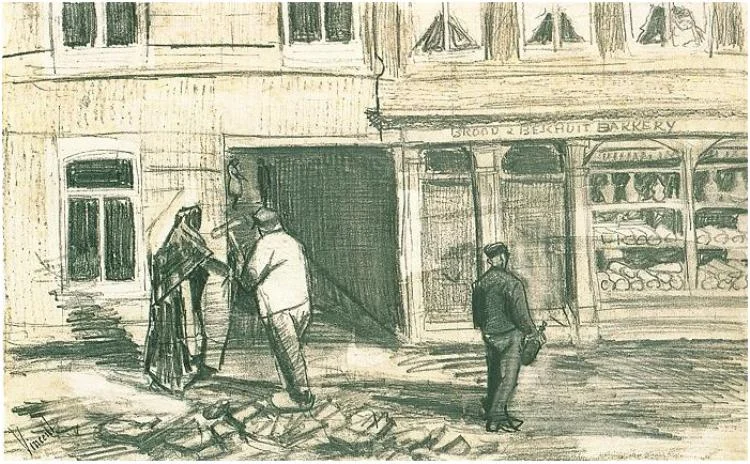
Art: Vincent van Gogh, The Bakery in Noordstraat

SlideMagic: a platform for magical presentations. Free student plan available. LEARN MORE
Hopefully Microsoft reads this: small change to PPT 2016

Hopefully Microsoft reads this: small change to PPT 2016

I have been working with the PowerPoint 2016 preview for a while now, and overall my feedback is very positive (see my PowerPoint 2016 review here). 

There is one small thing that keeps me going back to PowerPoint 2011 though: the ability to customise the toolbar at the top of the screen. My set up has not really changed since this blog post from 2008. When working in PowerPoint I constantly need to access buttons that align/distribute/crop/flip and send objects to the back (and the drop shadow button to kill drop shadows). With my custom toolbar, I basically circumvented the majority of the PowerPoint user interface and created my own.

Hopefully Microsoft will include this feature in the final release of PowerPoint 2016.


Image credit: Kate on Flickr

SlideMagic: a platform for magical presentations. Free student plan available. LEARN MORE
PowerPoint template weirdness

PowerPoint template weirdness

A technical post about PowerPoint templates today.

When you copy the slides of one PowerPoint presentation into another one, the copied slides get formatted according to the template of the presentation your are copying in. Colours and fonts get adjusted. But the most surprising things happen with text placeholders.

The template I typically use is pretty simple: a blank page with text placeholders for the slide title and footnote to make sure they are anchored in a consistent place across slides. Now the strange thing happens. Because the footnote is the only text placeholder available, PowerPoint starts copying text into the footnote.

To accommodate clients who want to use my template after the presentation design project is over, I now add a plain text box to my template slides. Here is the key thing, make sure that plain text box is the first text place holder you create, that's where copied text will go. (In other words, remove the footnote, put the text box in, recreate the footnote place holder after that).


If you often experience problems with inconsistent formatting of presentations and the issues with copying slides across you will appreciate the way I designed my presentation app SlideMagic (sign up for the beta here).

  • One slide layout grid for all presentations, everything lines up perfectly, always
  • No need for template programming
  • It is not possible to corrupt a template and having it slowly propagate throughout your company
  • Changing the look & feel of a presentation is easy: change your logo and accent colour and you are done (including bar and column charts, try that in PowerPoint)

Art: The Storm on the Sea of Galilee, 1633. The painting is still missing after the robbery from the Isabella Stewart Gardner Museum in 1990.

SlideMagic: a platform for magical presentations. Free student plan available. LEARN MORE
Photoshop alternatives?

Photoshop alternatives?

Adobe is moving to a subscription pricing model for its major software products (Photoshop, InDesign, Illustrator, etc.). I signed up for a $20 or so monthly introduction offer but then forgot that I got upgraded to around $55 charge after one year. This is probably good value if you use many Adobe products, and use them frequently.

As a presentation designer, I fall in between the typical user segments. Here is how I use Adobe products:

  • Acrobat:
    • Stitching together multiple PDFs into one
    • Reducing file sizes of image-heavy PDF files
  • Photoshop:
    • Removing backgrounds from images
    • Compressing, re-sizing large image files
    • Putting text on blank 3D objects
  • Illustrator: opening, selecting groups, re-coloring of stock vector files before saving them as PNGs.

Is there a combination of alternative software packages that could do these basic functions?

Some responses to an earlier tweet:


Art: Typesetter at the Enschede printing factory (was located behind the St. Bavochurch) in 1884, painting by the American artist Charles Frederic Ulrich.

SlideMagic: a platform for magical presentations. Free student plan available. LEARN MORE