Viewing entries in
Software

SlideMagic and generative AI update

SlideMagic and generative AI update

I am continuing to experiment with OpenAI to see how it can help us make presentation design easier. Generative AI feels a lot like the early days of the Internet in the end of the 1990s. People did not really see that “Internet” was not really a unified tool that could do wonders for business, but rather a description for hundreds of different applications and use cases that happen to rely on a web browser.

The same is true for generative AI now. I don’t think that I will come up with the ultimate AI-based presentation tool overnight that can read your thoughts and deliver the slides at the press of a button. Instead, I will try to release bite-size features that can make the life of a presentation designer easier.

And some of these might not even be very clever. Anyone can go to ChatGPT and get it to produce some presentation skeletons or summaries of text. But there are ways to make prompting of the engine better for presentations. You can save a lot of time by having a user interface straight into SlideMagic, and most importantly, it saves a lot of time when SlideMagic creates the slides for you (in .magic and/or .pptx). The latter has nothing to do with AI, but rather improving the slide generation engine that I already built.

Watch this space.

SlideMagic: a platform for magical presentations. Free student plan available. LEARN MORE
Why does it look like PowerPoint?

Why does it look like PowerPoint?

It is often quick and easy to use PowerPoint to draw a diagram. No need to install and learn new specialized software. A few boxes, lines, a screenshot, and you are done. But why the result totally obvious a PowerPoint slide, even if you are not using the program to present your visual?

Over the past years (decades for some) we have become so used to seeing PowerPoint slides with the built-in fonts, standard color palettes, that most people will recognize it instantly. But when your end product is a screenshot, you don’t have to worry about things like font compatibility and presentation templates.

  • Change colors and fonts to match the document you are working in

  • Let go of the restrictions of the aspect ratios for a slide (4:3, 16:9) and pick something that is appropriate for your diagram.

SlideMagic: a platform for magical presentations. Free student plan available. LEARN MORE
Prompting...

Prompting...

I have been experimenting extensively with prompting ChatGPT for the use in presentations. In a sense, I am glad that I did not raise huge amounts of money a few years ago in order to build features that now more or less come out in a few minutes.

Still there is a difference in “hacking” some quick results in a demo and having a stable product that can be used in the front line of presentation design.

These features have all to do with the automatic generation of layouts and story lines. Further out in the future though, there might be other applications that can replace the slide deck as the central tool to pitch ideas.

SlideMagic: a platform for magical presentations. Free student plan available. LEARN MORE
This presentation tool is not a presentation tool

This presentation tool is not a presentation tool

PowerPoint, Google Slides are presentation tools that most of the time are actually not used as presentation tools. Rather people use them as a visual collaboration tool. The organization chart that needs to go into the deck forces the issue: it is time to agree on where the boxes sit and which lines (dotted or straight) go between them. The tiny footnote is essential to agree the strategy for the North America entry strategy etc.

The visual character of these programs makes them more useful to do this than word processors. Online collaboration adds another option to manage multiple pens in one document. Comments give a system to manage todo lists.

SlideMagic on the other hand is a presentation tool.

Image credit: Jay Cross on Flickr

SlideMagic: a platform for magical presentations. Free student plan available. LEARN MORE
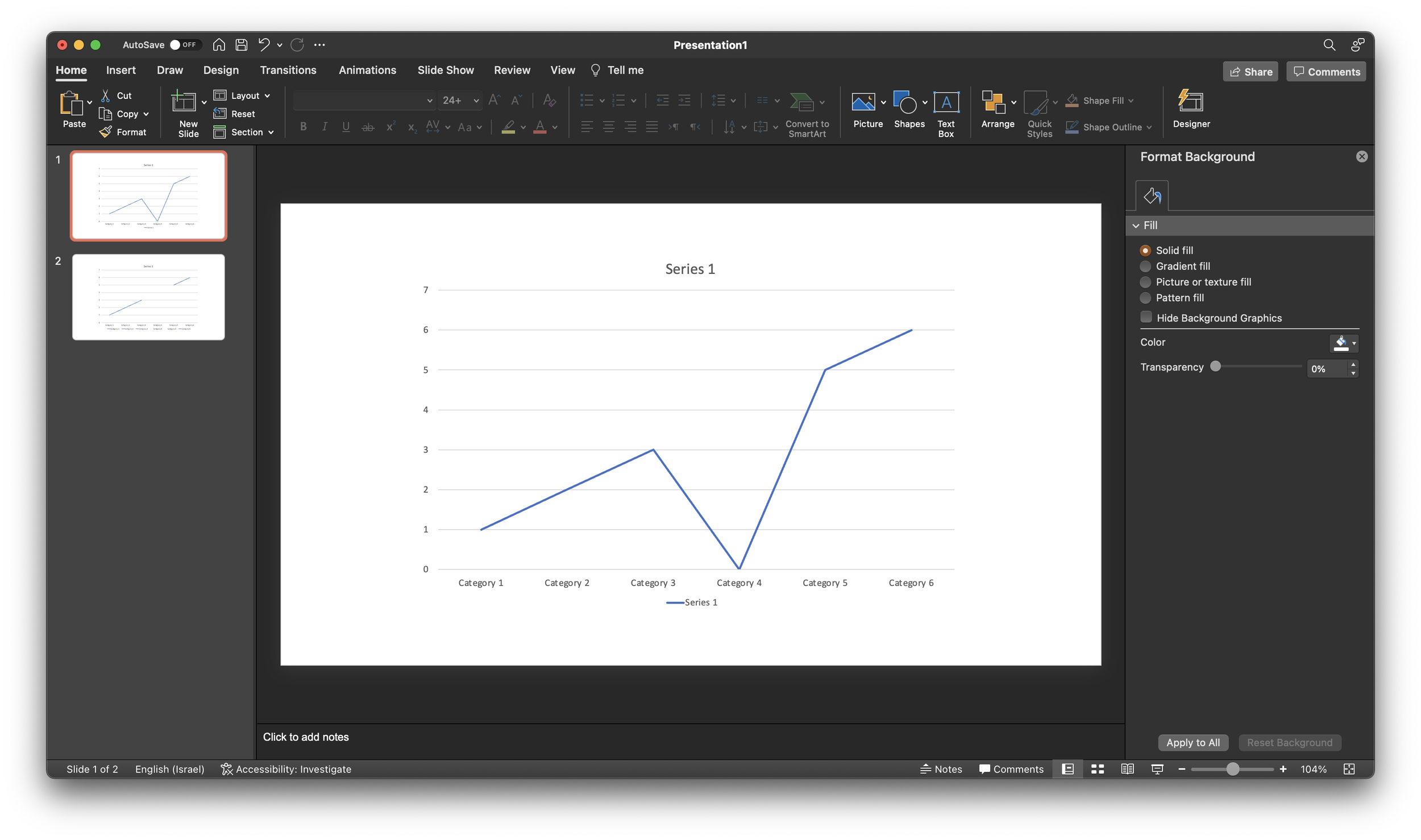
Taking out a point in a line graph in PowerPoint

Taking out a point in a line graph in PowerPoint

A PowerPoint post today, why not… Someone showed me a little trick to remove a point in a line graph. Useful when you have one year with missing data, and simply interpolating the value between the 2 neighbors would be bending the truth. Putting a zero leaves an odd line (see below).

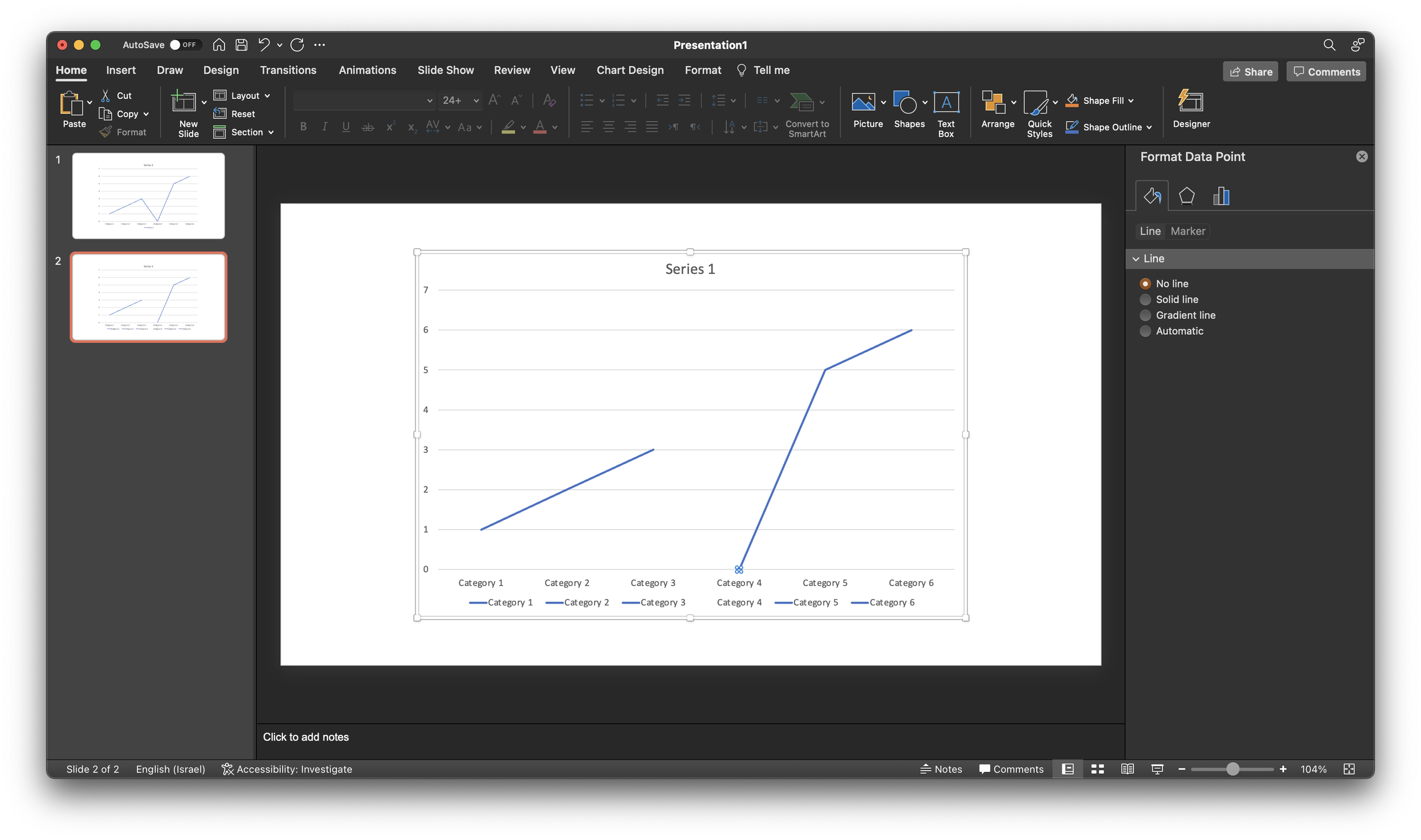
If you select the data point, (not the data series), and go into format data point and the paint bucket, you can set the line to “no line” (see below).

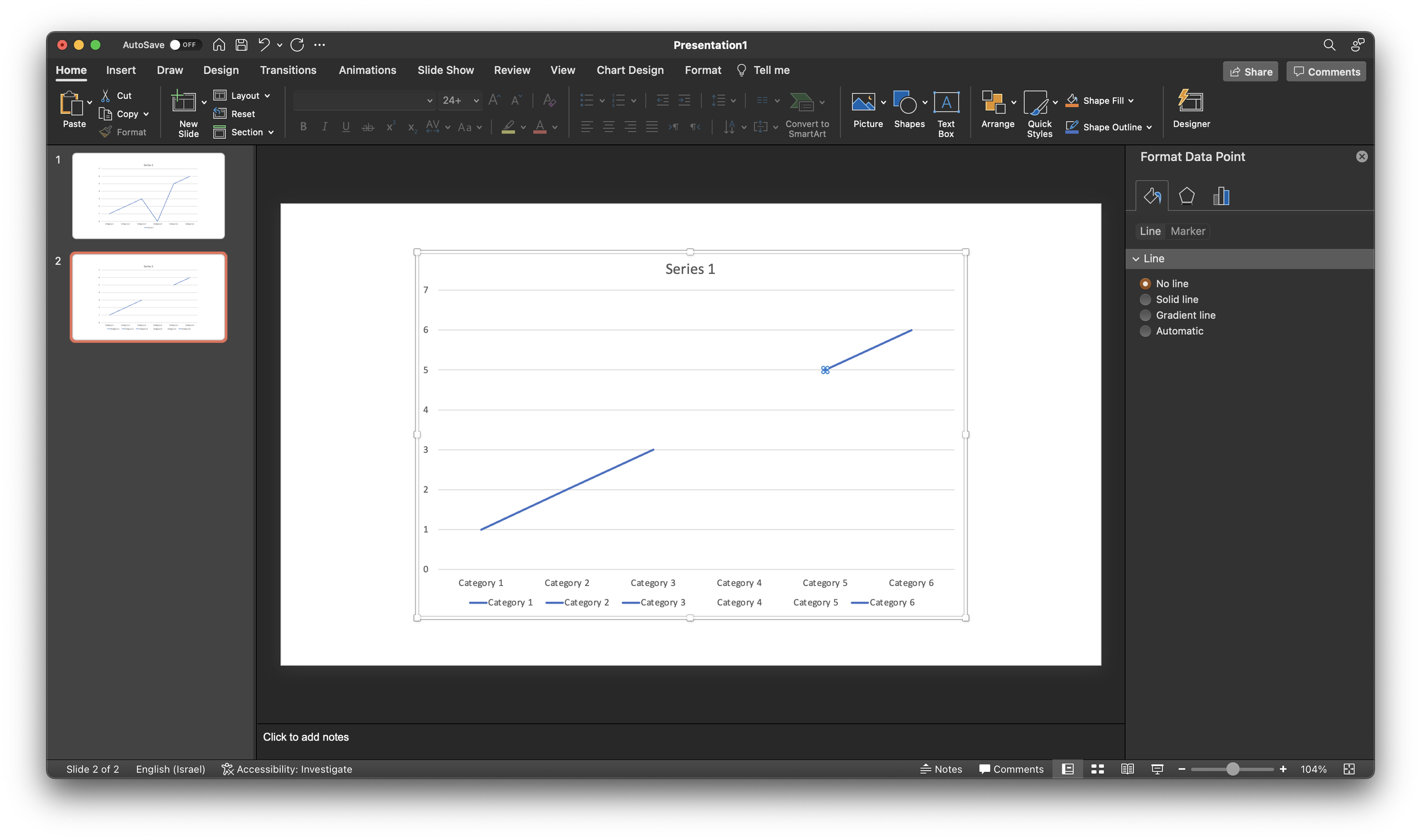
Repeat the process for the neighbor to the right (see below).

As a result, some weird things are happening to the data series labels though. Also, this standard PowerPont/Excel chart is far from presentable in your slide deck. An alternative approach in SlideMagic? Put in a column chart with a zero column value.

SlideMagic: a platform for magical presentations. Free student plan available. LEARN MORE
Football charts in SlideMagic

Football charts in SlideMagic

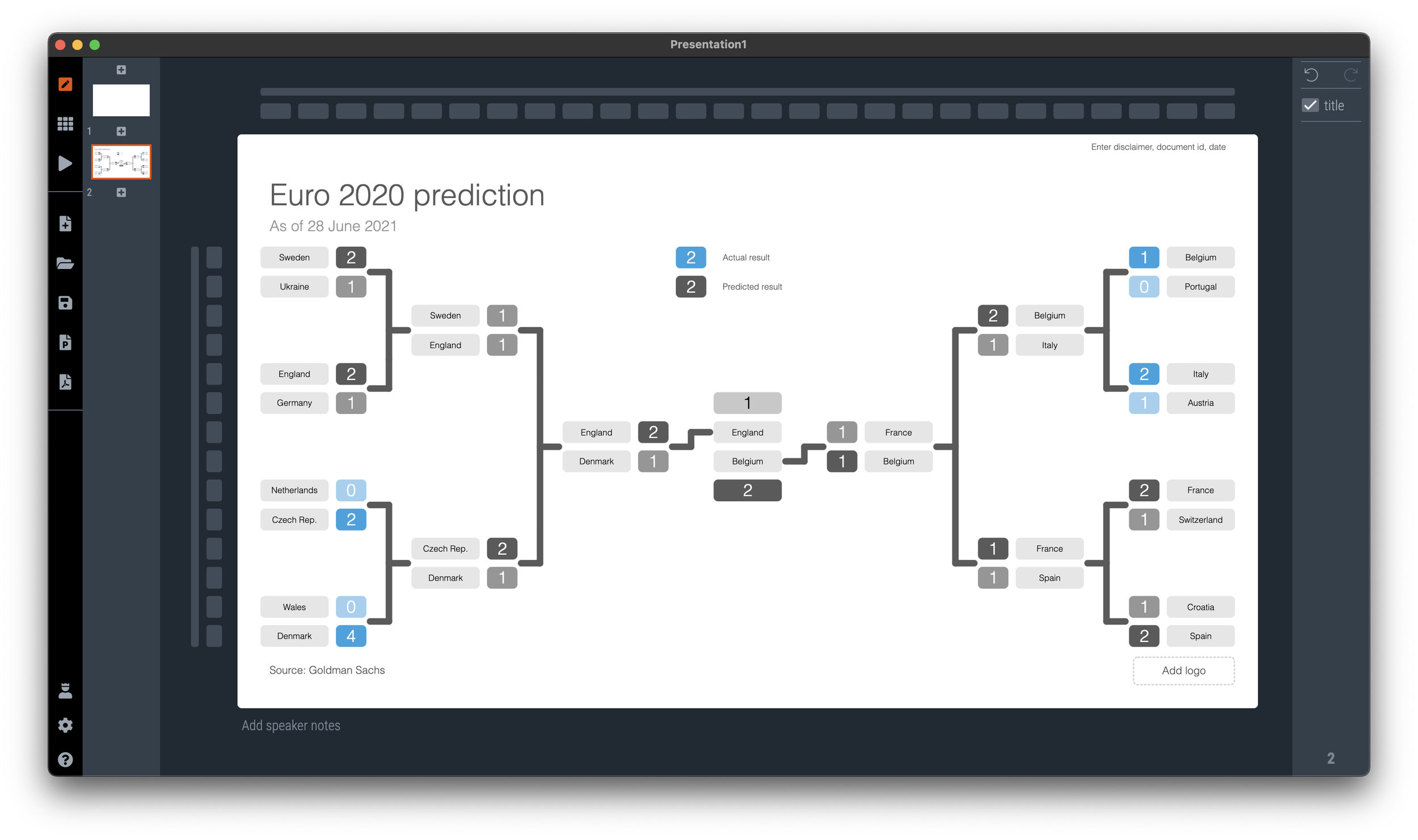
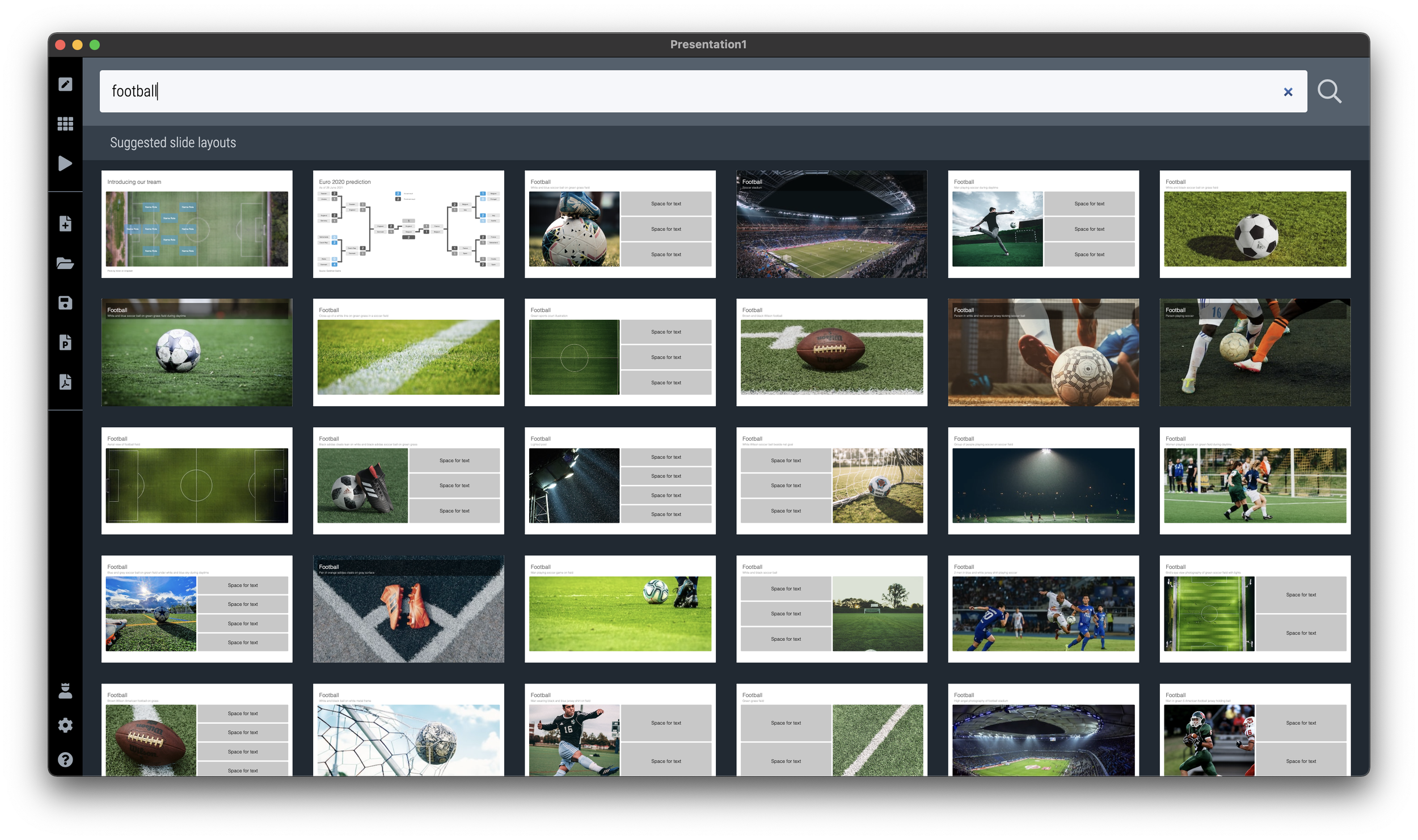
If you need to plot the progress of your team in the FIFA World Cup, SlideMagic is there to help you. There are a number of football charts in the library, including a tree where you can add teams in the knock out race to the final (see below).

Simply search for football in the SlideMagic app and the charts will show up (see below).

SlideMagic Pro users can convert these slides to PowerPoint or PDF. Free student plan available

SlideMagic: a platform for magical presentations. Free student plan available. LEARN MORE
Fixed slide titles

Fixed slide titles

PowerPoint slide templates originate from the 1980s. “Slides” would mainly be data charts: graphs and tables to show information. At the top of these pages would be a descriptive title (Economic output in the EU), and the subtitle would give the unit of measurement ($ billion).

Slide templates evolved. Business school professors and management consultants invented frameworks, more conceptual slide layouts, and people started using presentation software to layout their entire story on the big screen, often in bullet points. Descriptive titles became messages.

In most cases the title stayed. Every slide always has a title at the top. But this layout does not always work. People started adding a big arrow, with another big message next to it to make sure that the audience gets the point (it is spelled out 2x on the slide).

Titles take up valuable screen real estate, especially on widescreen 16x9 layouts. They make the chart body space even longer, more stretched. A loooong sentence in small font across a 16x9 slide can be hard to read.

I have become more flexible when it comes to titles. Data charts still have them. But other slide layouts might have none, instead, just an image, or a big text box somewhere else on the page. Or a message that is actually a few paragraphs long, on the side of the slide.

In SlideMagic, you can instantly change the layout of slides, and switch the fixed title on or off. It is time to let go of the obligatory title. See the the examples below. (If you are reading this as an email blog update, you might have to click through to the original post to see).

No title at all

Big box of text

SlideMagic’s side title view

Traditional title and subtitle

The message in a SlideMagic explanation box

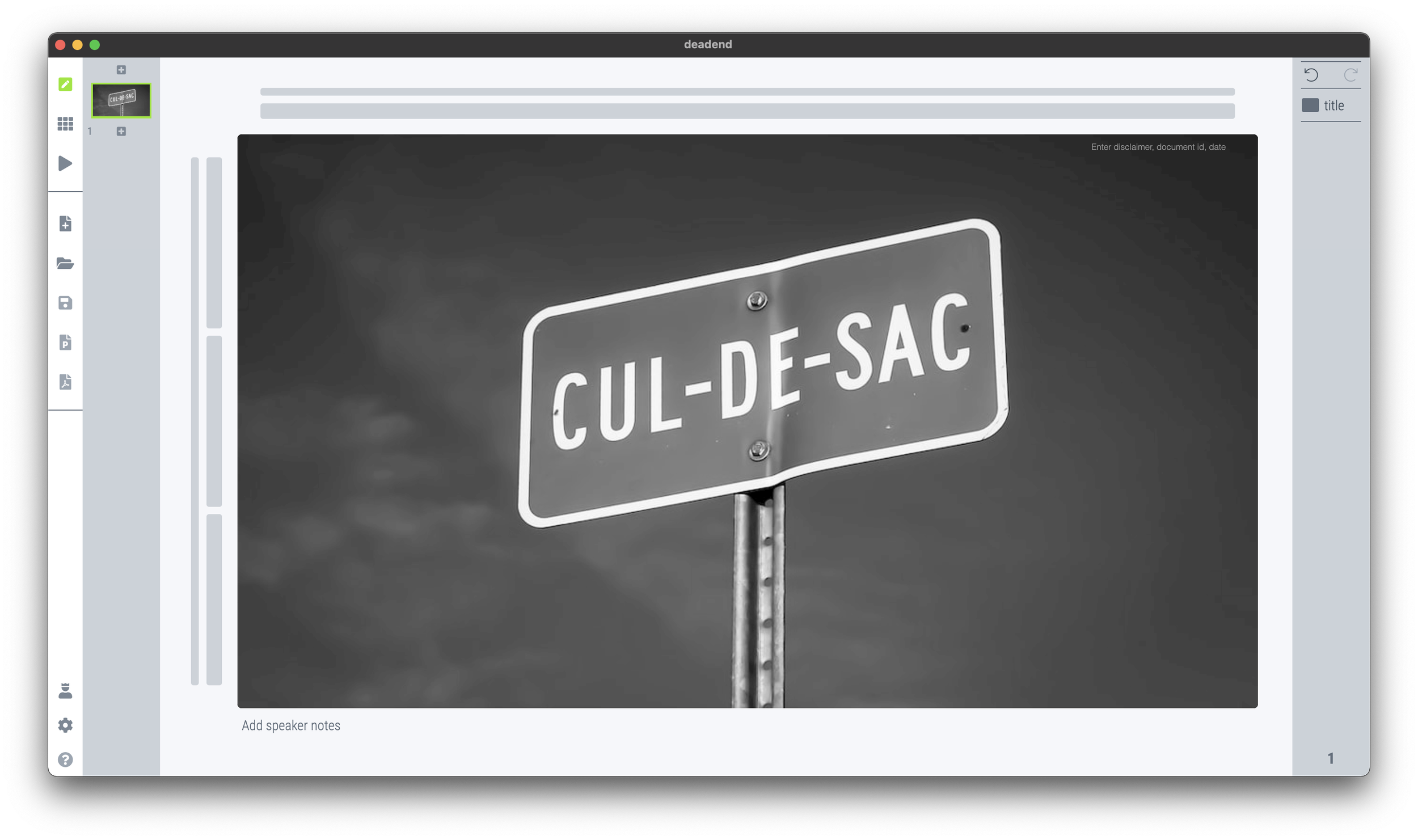
I have added this slide to the SlideMagic slide library, so you can use it in your own presentation. Simply search for “dead end” in the app and it will show up. Pro users can convert this slide to PowerPoint or PDF.

SlideMagic: a platform for magical presentations. Free student plan available. LEARN MORE
Side panels in separator slides

Side panels in separator slides

The slide panel is a way to add the story of the slide in a few paragraphs, so people can understand things if you are not there to present. It is important to keep the text in this box as text, resist the temptation to create bullet points, or short messages which will compete with the slide design.

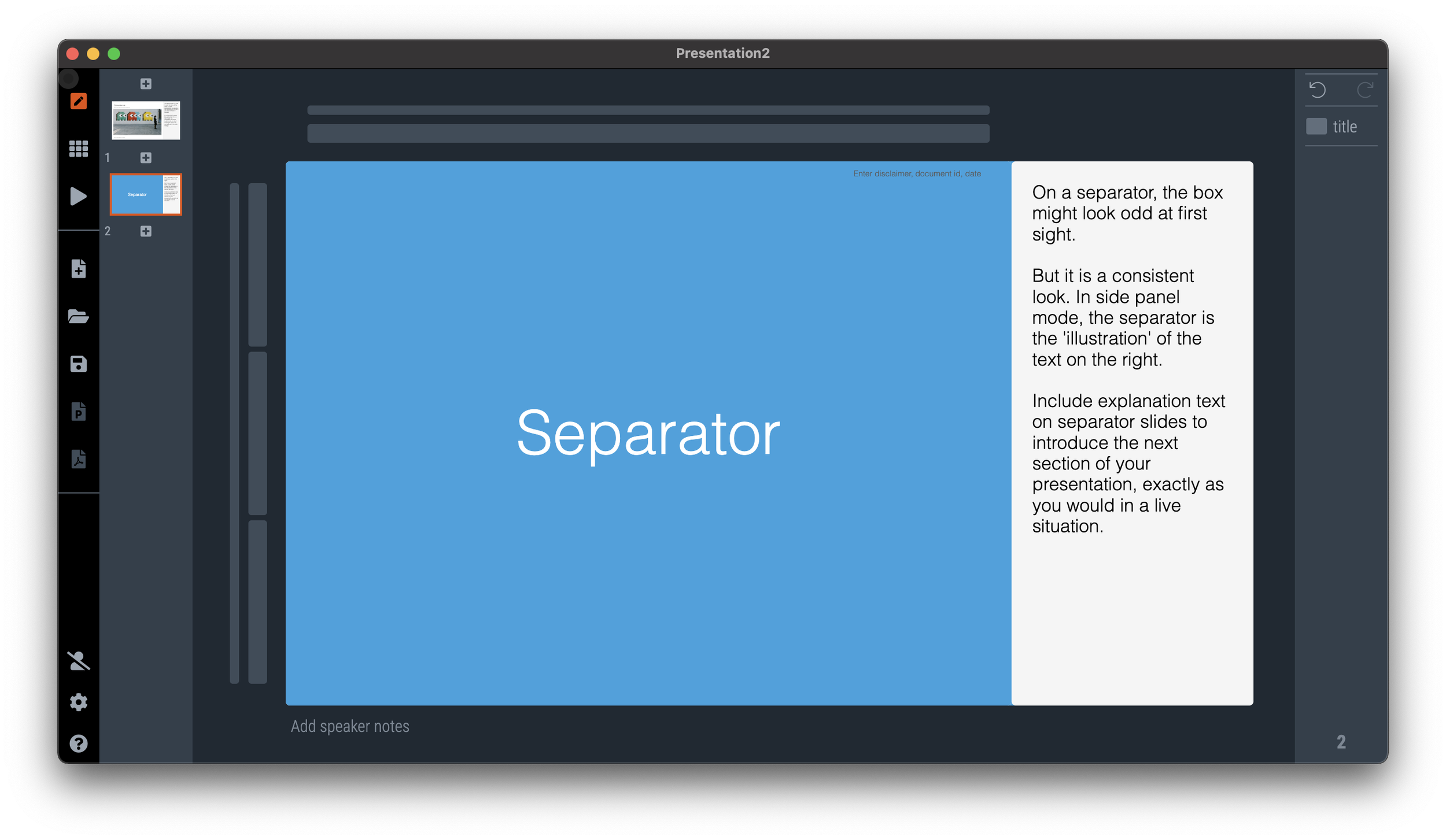
On a separator, the box might look odd at first sight. But it is a consistent look. In side panel mode, the separator is the 'illustration' of the text on the right. Include explanation text on separator slides to introduce the next section of your presentation, exactly as you would in a live situation.

See the example below:

If you switch to another view mode, the side panel will disappear, but the app keeps the text, so you can switch them back on at a later stage.

SlideMagic: a platform for magical presentations. Free student plan available. LEARN MORE
Agario-style

Agario-style

This amazing visualization shows the history of Europe and the coming and going of various empires in the style of the Agario video game, where bubbles collide and merge.

This video was made using Adobe After Effects. In theory you could do something like this in PowerPoint: a slide for every year with animations and then loop the whole thing. It is a lot of work though.

SlideMagic: a platform for magical presentations. Free student plan available. LEARN MORE
SlideMagic 2.6.41

SlideMagic 2.6.41

A new version of SlideMagic is deployed, and should automatically install. This version includes security patches, and a slightly less strong background color difference between the main slide and the explanation box view.

The explanation box is one of 4 views of SlideMagic:

  1. Narrow 4 x 3 aspect ratio

  2. Wide 16 x9 aspect ratio

  3. Title on the side

  4. Explanation box view, which creates space for an extra text box where you can enter a few paragraphs to explain a slide in case you send the deck without being present yourself.

The text in the side panel stays saved in the file even if you go to another view, so you can decide when you want to show it, and when to hide (for example in a live presentation).

SlideMagic: a platform for magical presentations. Free student plan available. LEARN MORE
Skipping the presenter mode

Skipping the presenter mode

Presentation software like PowerPoint or SlideMagic have 2 modes: one for slide editing, and one for showing the presentation to an audience. In video calls, I often see the presenter leaving the presentation in edit mode. The slide is visible, but with all the edit controls around, plus grid lines and other markings. On the side is a list of thumbnails of all the slides in the presentation. For the presenter, this can be handy. She knows the deck in and out and can quickly jump around the slides.

For the audience it is confusing.

  • The slide in edit mode looks unfinished.

  • Often the thumbnails on the left are so big that you could actually read them, distracting attention away from the main slide.

In SlideMagic, presentation view creates 2 separate windows: one for the slide to be shown to the audience, one with the controls for the presenter. So in Zoom, or other video conference tools, you can share just the slide, while staying in full control of the presentation in a window that is not visible to the audience.

SlideMagic: a platform for magical presentations. Free student plan available. LEARN MORE
Windows on Mac 2022

Windows on Mac 2022

Another software-related post after my computer swap. SlideMagic is an app that runs both on Mac OSX and Windows machines, so I need a Windows computer to compile and build the software (luckily from one code base). Some observations:

  • Desktop operating systems are very mature pieces of software, and sliding more and more in the background. On my old Mac, I did not even bother to upgrade to Monterrey as of now, because of compatibility issues of some very old music production software that I use. Having used Monterrey for a week now, I still hardly notice the difference.

  • I used the opportunity to upgrade to Windows 11. Windows is now totally at par with the Mac when it comes to look and feel. The whole experience looks great and works well.

  • On Macs with an Intel chip, I would install Windows using Bootcamp. Starting the machine with Windows would leave no trace of anything Mac: you are working on a pure Intel-based Windows machine. Now that Apple switches to different chips, I have opted again for a virtual machine. Windows 11 runs nicely inside a window alongside my Mac software. It is easy to exchange files, very quick going back and forth between the systems, and most importantly, it is easy to adjust the hard disk space your Windows machine takes on your Mac, nothing is set in stone.

  • More and more software is written like SlideMagic, one code base creates identical looking apps for both Windows and Mac.

  • With the differences in software / UI disappearing, the main differentiator between Mac and Windows is actually the hardware: build quality, design, and most importantly the quality of the screen. Macs are usually great, but in the world of Windows, there is a huge range of machines, from really poor/cheap to fantastic/expensive.

It is amusing to read earlier posts on the same topic, some of them going back for more than a decade.

SlideMagic: a platform for magical presentations. Free student plan available. LEARN MORE
My other project...

My other project...

Over the past year I have been working on another project together with my co-founder Anat Naschitz (my partner in life as well). This week we are quietly revealing things to the public: 9xchange is a marketplace for molecules. There are a lot of molecules on the shelves of pharmaceutical companies, biotechs, and academic institutions that never get turned into drugs. It takes a lot of effort, and requires you to reveal your pipeline strategy to start selling these assets to players who could use them. 9xchange is going to make that easier.,

I have not spent a huge amount of effort on the design of the landing page, most energy went into coding a secure B2B marketplace (a much bigger technical challenge than the SlideMagic app). But I like the graphical language which is very different from most corporate websites. Have a look here. The messaging of the front page is likely to change as we interact more with users.

Membership of 9xchange is still by invitation only at the moment. Contact me if you work and/or invest in the healthcare industry and would like to try it out.

This project does not mean the end of SlideMagic, which will continue to be developed, don’t worry,.

SlideMagic: a platform for magical presentations. Free student plan available. LEARN MORE
AI in presentation design

AI in presentation design

AI is making an entry in office applications. See this article with a funding announcement for a company. The idea is to analyse human computer input (text, clicks) and try to automate routine tasks (think booking a flight, making a quarterly financial report).

What about presentation design?

Artificial Intelligence is a very generic buzz word, and we need to be highly specific when talking about its application in any area. What the technology does is analyse vast amounts of inputs and outputs and then reverse engineer their relations without “understanding” anything of the underlying thought process that a human would go through.

I can see one type of presentation design that could be subject to automation, the 1-on-1 slide makeover. There are many designers, design agencies out there that take your slides, do not edit their content at all, but simply make them look prettier:

  • Align and distribute layouts

  • Fix inconsistent fonts and colors

  • Change font sizes

  • Etc. etc.

Feeding thousands of before and afters will ultimately lead to a computer system that could do this automatically.

They key to slide design is though to have the courage to start editing in the content. Rephrase text. Break up slides into multiple layouts. Remove table columns. Round up numbers. Change the type of graph. Etc. etc. And that is at slide level, in most cases deeper surgery is required: a reflow of the whole story line.

SlideMagic: a platform for magical presentations. Free student plan available. LEARN MORE
Vintage presentation software

Vintage presentation software

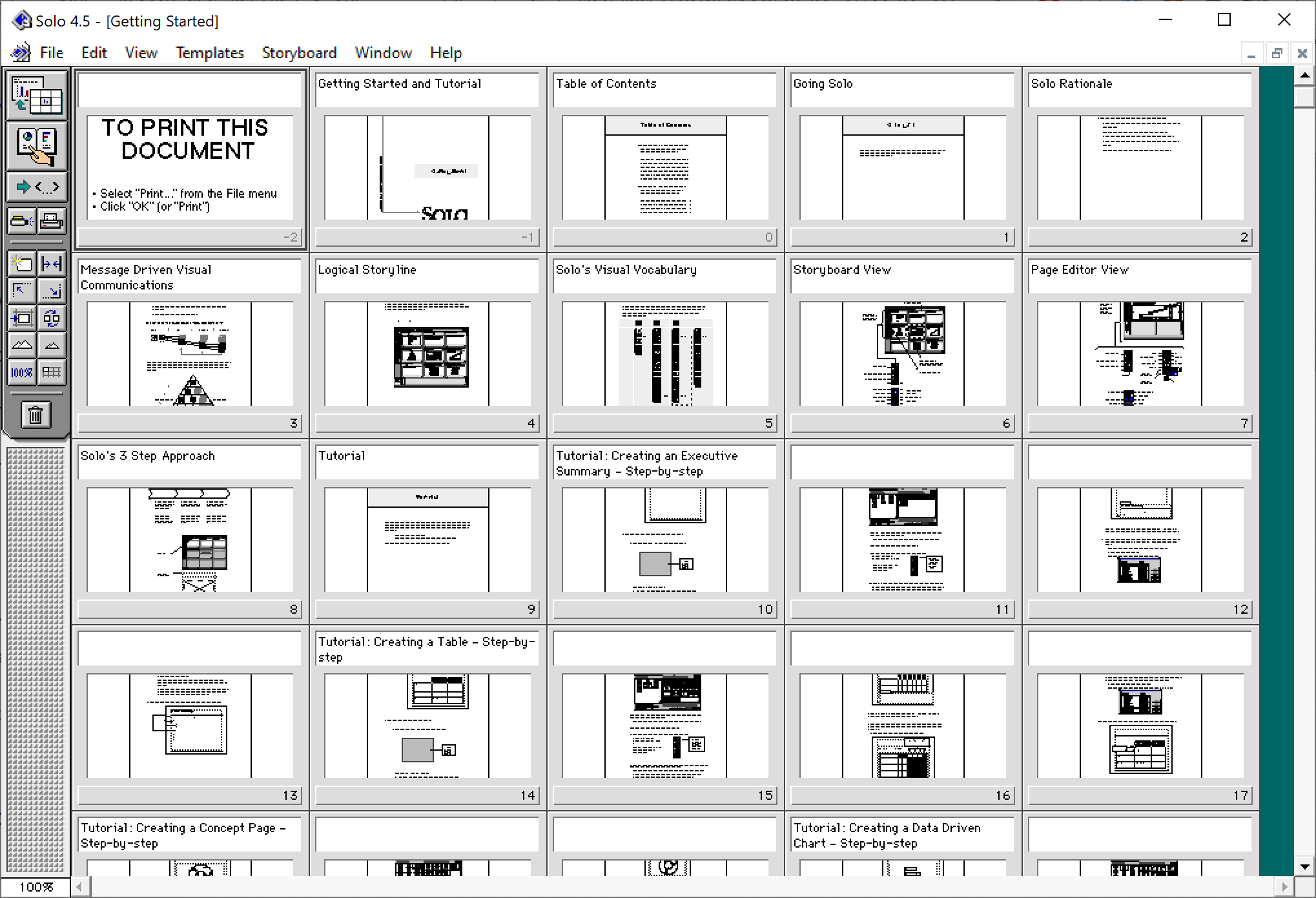
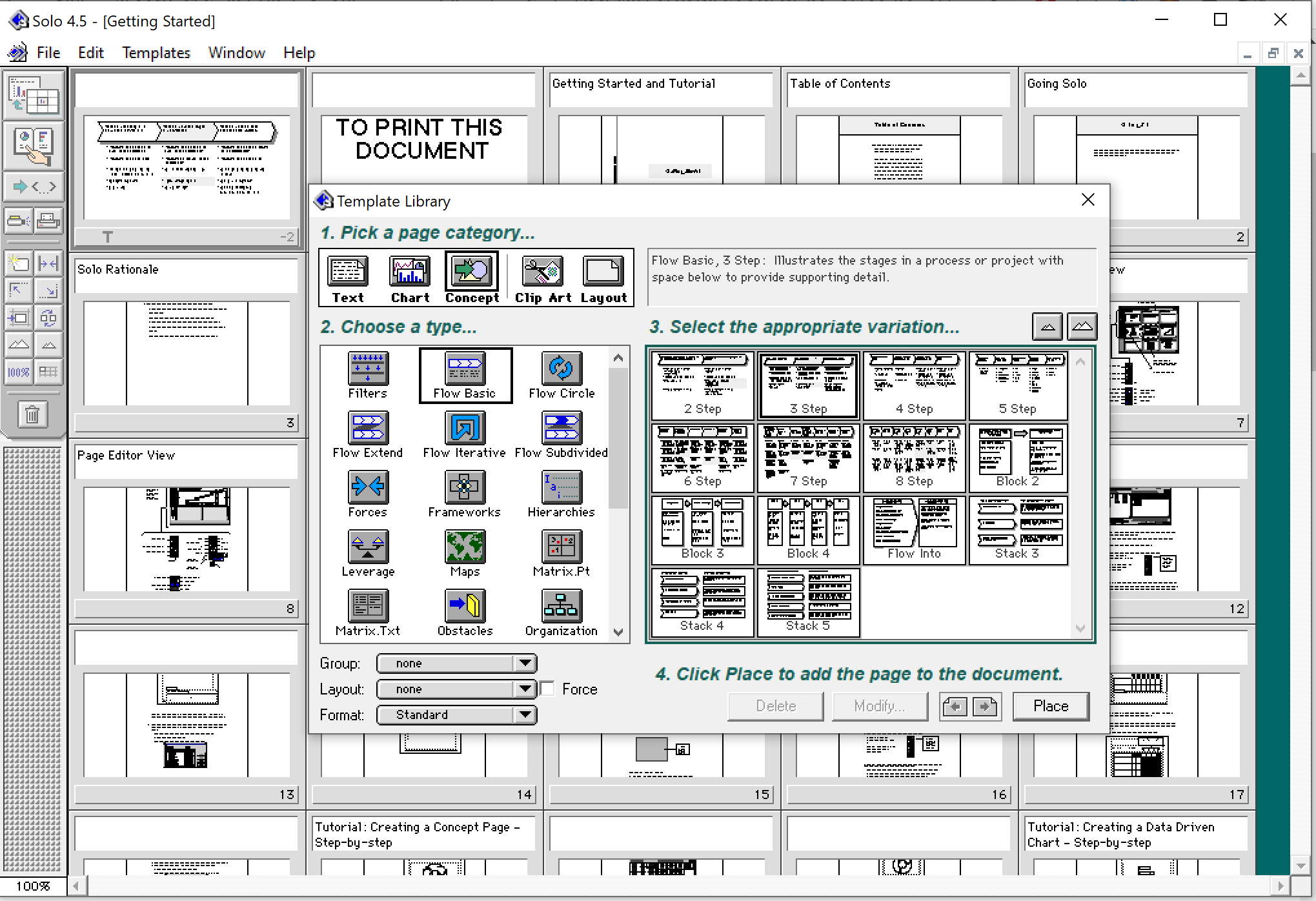
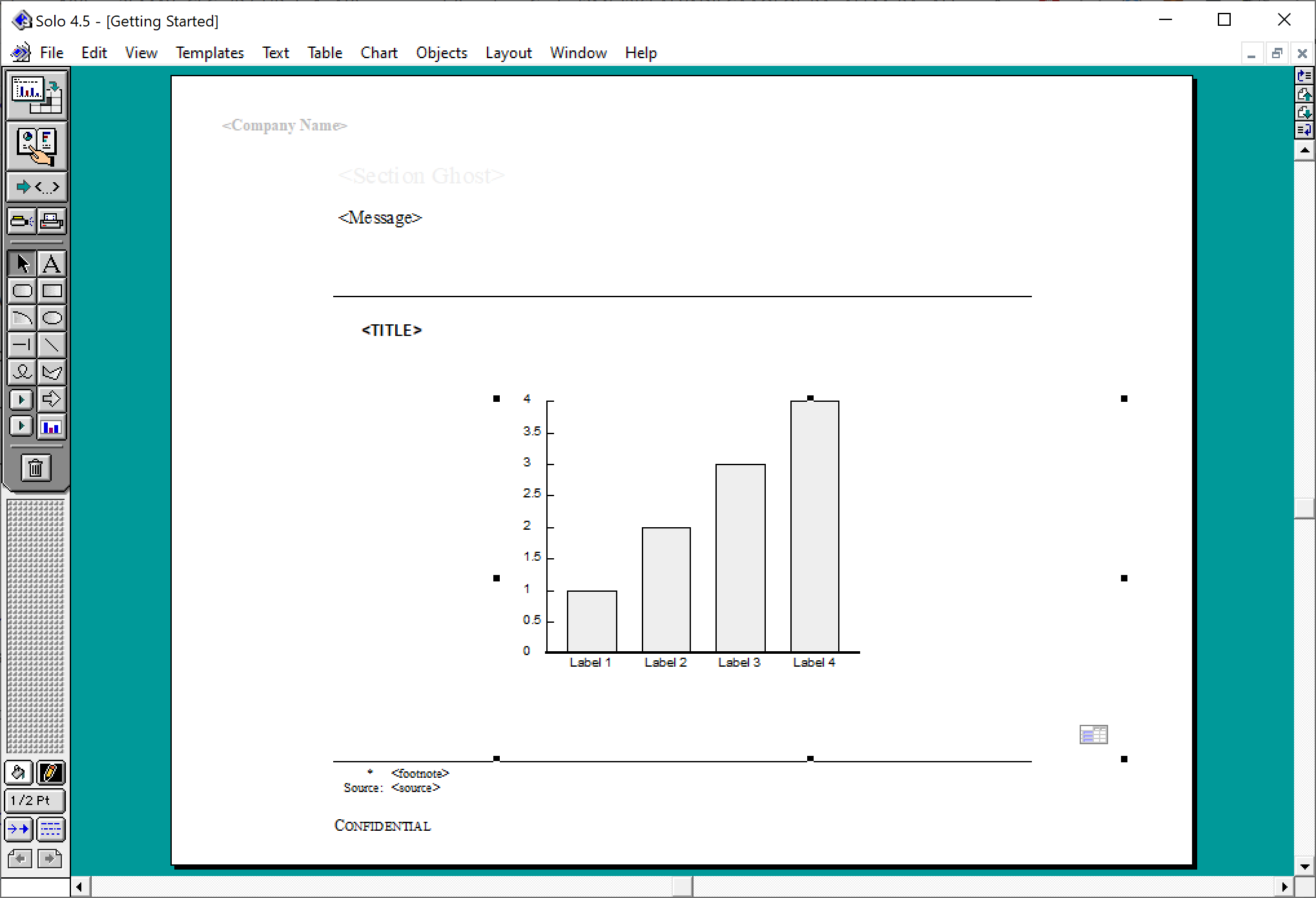
At McKinsey in the 1990s, we used ‘Solo’ presentation software to make slides. It was far ahead of its time (before PowerPoint became the standard). It had a very advanced template engine that enabled you to recreate charts in the McKinsey style. The software required some skill, and charts were usually created by professional graphics designers who took hand-drawn charts as an input. Back then, Solo would run on Macs only. Which was the reason that McKinsey issued Macbooks to their staff at the end of the 1990s, so that consultants could edit (and create) their own slides if they had to.

Ultimately PowerPoint was the end of Solo. Not because of its capabilities, but because McKinsey’s clients would have this installed on their machines, and these clients wanted to edit slides themselves. And with the advent of PowerPoint, the slide format became less consistent in McKinsey. (Both the result of a less sophisticated template library, and the reduced influence of professional graphics designers to create the slides).

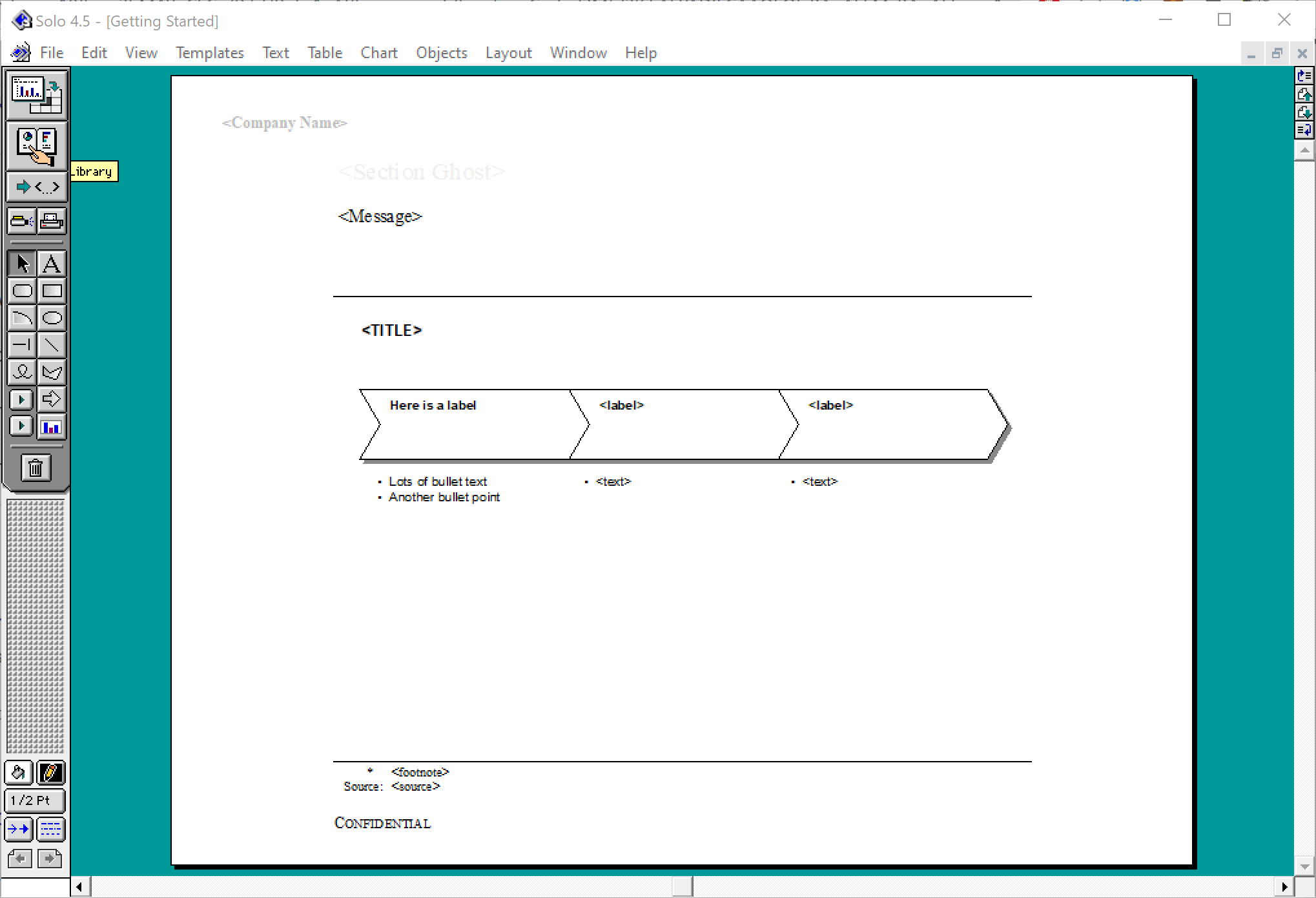
I checked this morning, and Solo is still around, here is the web site: https://www.axoninc.com/. Support has ended in 2020 though. I tried installing the demo on Mac, but failed. The PowerPC engine no longer works. It does work on Windows 10 though, but I had to click a button 587 times because the license of the trial version expired 587 days ago (on 7 February 2022). Those clicks were rewarded with some good memories though, I have added some screen shots.

SlideMagic: a platform for magical presentations. Free student plan available. LEARN MORE
Eyeball the thumbnails

Eyeball the thumbnails

The thumbnail strip to the left of most presentation software is not only useful for switching to other slides, it also is a good feedback mechanism for slide layouts. It is like sitting in the back row of a big auditorium, or viewing the slide in a small preview window on a Zoom call.

SlideMagic: a platform for magical presentations. Free student plan available. LEARN MORE
Dynamic layouts

Dynamic layouts

For my next venture, I am actually getting into a lot of “slide” design work: displaying financial data in a web browser with totally unpredictable screen sizes and screen aspect ratios. This problem has been solved for traditional web sites with text and pictures. (That is pictures where you do not really care how they are cropped).

For financial information, this is not the case. Spreadsheet-like tables that look good both on a 27” widescreen monitor and a smartphone screen, for example. All this layout work is not the core of what this venture will be about, but I am learning a ton that can feed back into SlideMagic. And vice versa, the SlideMagic chart engine, could take data from this new system and create presentations pretty much on the fly.

To be continued.

SlideMagic: a platform for magical presentations. Free student plan available. LEARN MORE
Office automation

Office automation

Automation is likely to take out a large share of middle-level jobs in the economy. Gardners, hairdressers, etc. will always be needed. Top scientists, managers, creatives, probably will not be automated anytime soon. In between, it is a different story.

“Automation” has made its inroad in the workplace as well. Most visibly in the area of storage and filing. But also in the way we work. Think of the amount of people that were employed typing up formal documents and memos, planning meetings, arranging phone calls. Back in the 1990s, running analysis on your business required armies of analysts, often sourced from external consulting firms (I was one of them).

The same trend is happening in presentations. Back in the 1990s, we would discuss interim project results using hand drawn charts, that then would be produced by professional graphics designers into a final document. The production of such a document could take weeks, where the sole focus was one communication, and the underlying analysis barely moved.

Bit by bit, the professional designers were replaced by analysts skipping the hand drawn charts and making them directly on their computers. Analysts first, followed by more senior staff. Every meeting now looked like a final presentation.

The trend will continue. “Presentations” will become simpler and quicker to make. In 10 years we will look back and remember the days when we used to spend so much time trying to put a complicated slide deck together for a simple decision.

SlideMagic is here to help.

SlideMagic: a platform for magical presentations. Free student plan available. LEARN MORE
Different levels in presentation templates

Different levels in presentation templates

A “presentation template” is usually a PowerPoint file that new employees receive on their first they of work. There is more to a presentation template I think.

  1. Your corporate visual communication style/culture

    • Consulting firms: lots of complicated diagrams and frameworks, meant for solving a problem rather than presenting

    • Investment banks: dense text and tables with graphs, meant for reading rather than presenting

    • Consumer goods company: product packaging shots and bullets

    • University: list of bullets

    • Etc. etc.

  2. The actual software file that holds the basis layouts, logo, and colours (this is the one you get on the first day of your employment)

  3. Running versions of important presentation documents that get constantly updated and tweaked

    • Sales presentations, each for a different lead or a different customer segment

    • Quarterly results presentations with - well - different quarterly results

    • Strategic planning presentations, each one for a different product group

    • Etc. etc.

Most of the day-to-day presentation work in companies is in step 3, the tweaking of existing documents to update it for the latest sales meeting or board meeting. These presentations are in fact the “templates”, not the empty file.

In most presentation design software the tweaking of an existing slide is tricky and over time a slide degrades after many iterations where users insert the wrong fonts, colours, and trip up a decent slide layout that worked for 5 boxes, but not for 6. (“Template rot”).

The above is true for both existing corporate presentations and shiny new templates purchased online. The latter look amazing fresh off the press, but it shows when a non-designer tried to fit it to her needs.

With SlideMagic we are trying to fix this. Make it easy to create decent looking presentations from scratch, but even more importantly, make it super easy to tweak this presentations, keeping everything aligned on an brand.

By fixing step 2 and 3, we hope to fix step 1 as well…

SlideMagic: a platform for magical presentations. Free student plan available. LEARN MORE
Your presentation "secret weapon"

Your presentation "secret weapon"

We are doing some SlideMagic user interviews and the term “secret weapon” came up. One user, somewhere in a big office tower, is a lone user of SlideMagic and uses the build-in PowerPoint conversion to share slides with colleagues. People start to notice the difference in the slide the person produces.

Here are some situations where you can use SlideMagic as a secret weapon, a starting point for setting up the beginning of your presentation. Most of these slides are very time consuming to set up in PowerPoint or Keynote:

  • A perfectly lined up, massive grid of logos (you finished the 10 x 4 grid, and now you need to move to 7 x 6 because you got 2 more logos)

  • Data tables with bar charts that need to line up (oops, 12 rows instead of 10)

  • 2x2, 3x3 matrices, other consulting style matrices

  • A diagram with boxes that are connected with arrows

  • A team chart where all the headshots need to have more or less the same size, with the “eye line” at the same height

Nobody needs to know / find out that you use SlideMagic, but we would not mind if you spread the secret…

Photo by Joshua J. Cotten on Unsplash

SlideMagic: a platform for magical presentations. Free student plan available. LEARN MORE