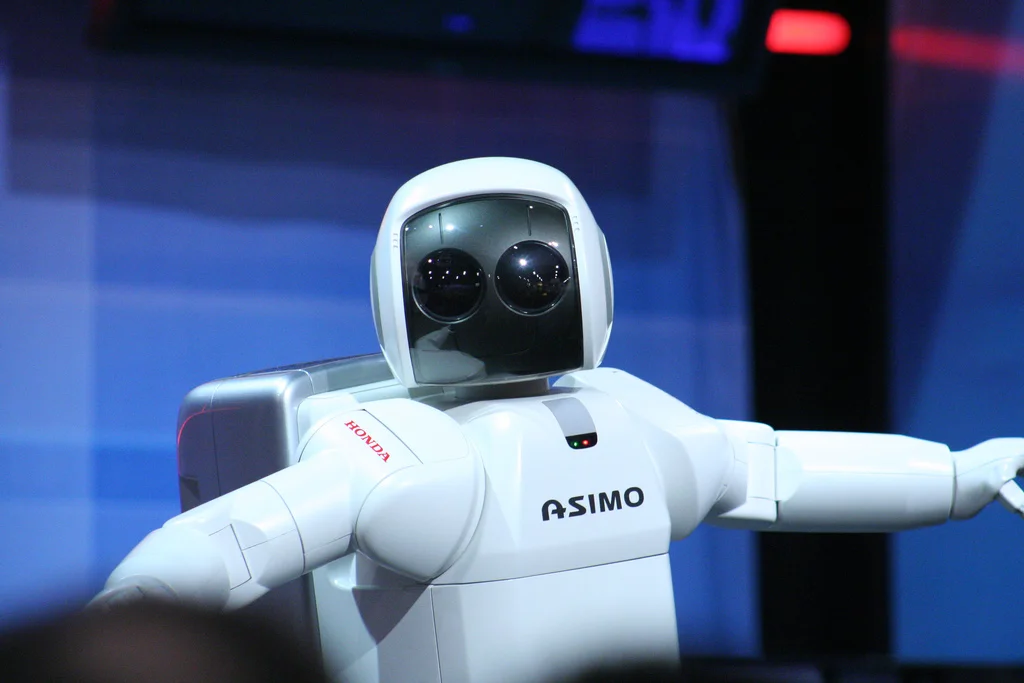
Note taking on iPad - 2016

Note taking on iPad - 2016

Over the years I have written many reviews of styli and iPad note taking apps on this blog. I am a heavy user of notes:

  • Jotting down things during client presentation briefings. A very small part of this is actually to make sure I do not forget certain things (a correction on page 53, the total market for home insurance). For the most part I find that when I write things down, I remember them better. I actually never look back at the notes.
  • The second big use of a note pad is to draw sketches for charts. Almost every chart with a sketch.

Up until now, I have not found a good alternative to pencil and paper:

  • Tapping on laptops (and iPad screen keyboards) disrupts the flow of a meeting (you look like a note taking clerk)
  • Styli were physically unpleasant to work with (too small, too fat)
  • Handwriting recognition on iPad was not optimal (small strokes, palm interference).

The iPad Pro (I have the 9.7" version) and Apple Pencil changed a lot. I actually use the device now in meetings and leave my note book and pencil at home. I tried Apple Notes, Penultimate, and Paper by 53. Of these, Penultimate suits me best in meetings. Everything syncs to Evernote (they got me locked in), nice and fat pen strokes, and easy to add pages and scroll over your notes. The big issue has now become battery life. Watch out in long meetings where you leave the screen on for a long time.

I got the iPad keyboard cover as well, but like laptops, that setup disturbs the dynamics of the meeting. I find myself using the keyboard for writing blog posts on the road in between meetings.

For brainstorming charts, I prefer Paper by 53. Boxes, circles, straight lines, the user interface is just better. I don't want to buy 2 iPad devices, but my guess is that the big 12" iPad Pro will be superior for creative work. The 9.7 screen feels limiting for big, bold, creative efforts. Maybe I should get 2 devices.
SlideMagic: a platform for magical presentations. Free student plan available. LEARN MORE
SlideMagic 2.0

SlideMagic 2.0

I have been incredibly busy with client work over the past months, but over the summer, I plan to turn my attention back to SlideMagic, my presentation design app. Two ideas have started to form in my head:

  • A smart way to get you to select the right basic slide layout depending on the sort of message you want to deliver
  • A tool that helps you select and stitch a story flow together, depending on the type of story you want to deliver

Obviously I could also focus on making existing features better: a more accurate PowerPoint conversion, better rendering on iPads for example.

For beta users out there, what do you want to see? You can let me know via jan at slidemagic dot com.

SlideMagic: a platform for magical presentations. Free student plan available. LEARN MORE
Netflix on its movie icons

Netflix on its movie icons

Some interesting reading here by Netflix who analysed how effective icons/tiles of its movies and TV shows were. 

SlideMagic: a platform for magical presentations. Free student plan available. LEARN MORE
iPad Pro review

iPad Pro review

While I have been upgrading my phone fairly frequently over the past years, my iPad has pretty stayed the same for a long time. I got the first one with Retina display (the 3 I think), got frustrated with its weight and got a Mini as soon as that one was equipped with a Retina display. Last week, I got an iPad Pro 9.7. 

Why? I will be honest, screen size. I subscribe to many iPad magazines in niche categories (mountain biking, synthesizers if you are interested) and these smaller publications do not always have apps that adjust to small screen sizes. At 46, I found them increasingly hard to read. 

Also I was curious about the Apple Pencil and keyboard. The big iPad Pro tempted me, but I held out long enough to read the reviews of most users who found its size too bulky. So, here I am with an iPad Pro 9.7. 

The first thing that strikes you is the incredible screen this iPad has. My iPhone 6S looks poor next to it. Second is its weight. Feels the same as my old Mini, despite a much larger screen. 

The pencil is the first one that actually works for an iPad. Over the years I have tried many, many styli, and always found myself going back to paper. All my slide designs start as a sketch on a piece of paper, I like to make them big, so I burn through many trees in a month. I am hopeful that the pencil will finally end this waste. The real answer will come after a month of use or so. The pencil works nicely in the Apple Notes app, but really shines in the Paper app by 53.  The only drawback of the pencil is that there is nowhere to put it. I reviewed a leather designer cover I got for my iPad 3 to carry everything around.

Multi-tasking looks useful: you can now open 2 app windows side by side.

Finally, the keyboard. I never had a problem with typing on their iPad screen, what did bother me was the pop up window for the characters. That is now gone. Attach the keyboard and you have the full screen real estate of the app. I am writing this blog post on my iPad as we "speak". 

It is this keyboard that really makes my presentation design app SlideMagic work on an iPad. The text dialogue box is gone. More and more I am starting to think that SlideMagic could actually be the first presentation app that allows you to create slides on a tablet for real. 

I will report back after some time for the 10,000 km review

SlideMagic: a platform for magical presentations. Free student plan available. LEARN MORE
Presentations are not the only issue

Presentations are not the only issue

Communication in the work place in general has its problems:

  • Email wording
  • Making a point in a meeting
  • Trying to get to a decision in a meeting
  • Annual feedback sessions
  • Handing over web/app designs to the implementation team
  • Product one pagers
  • Press releases
  • Keyword-loaden blog posts
  • Marketing slogans
  • User manuals
  • Travel policies

In presentations, the issue is most visible but it is sitting everywhere. People are used to transferring ideas in a dialogue where the recipient asks questions to help her understand what is being said. All this breaks down in one way communication.


Art: Tower of Babel by Pieter Breughel the Elder

SlideMagic: a platform for magical presentations. Free student plan available. LEARN MORE
The largest amount of text

The largest amount of text

The eye wants boxes on a slide to be equal in size. That is why I am always battling with the box with the largest amount of text, it determines the shape size and/or font size of all the boxes on the chart. Here you need to be a newspaper front page layout designer/editor and cut down the text of that box carefully without diluting its meaning. It will improve the look of your entire slide.

I really don't like the word "management" for example. You need it a lot in business presentations and has all these wide letters, which makes it hard to fit.


Image from WikiPedia

SlideMagic: a platform for magical presentations. Free student plan available. LEARN MORE
The shortcomings of application windows

The shortcomings of application windows

The main reason to design a new presentation app that is an alternative to PowerPoint (SlideMagic) is the flaw in the windows/mouse-based user interface design that has been with us since the end of the 1980s. Users can drag, move, place, distort, objects as they see fit. Inexperienced designers will get it wrong and put things in the wrong places.

Over my holiday, I have been listening to this Andreessen Horowitz podcast that discusses whether tablets are finally ready to eliminate the laptop:

Some other interesting points that came up:

  • "Where is my mouse?", the mouse pointer is actually not the most logical computer input device. After 2 decades we have gotten used to it, but is not perfect. In the 1980s, engineers combined multi-tasking and windows as one user interface concept. They are different.
  • Arranging and resizing application windows as actually not that user friendly. Most of the time, you want 1, 2, maybe 3 applications open in a convenient grid. (Similar to placing objects on a slide).
  • One of the big shortcomings of tablets today is the ability to create presentation slides (making small edits is not a problem). Maybe it is time to expand SlideMagic to work with touch screens :-)

Image from WikiPedia

SlideMagic: a platform for magical presentations. Free student plan available. LEARN MORE
Lower post frequency

Lower post frequency

I am on vacation with my family at the moment, posting might be a bit unpredictable. Going against good blogging practice, I am not working with a big post content pipeline but rather write entries almost all "live". You read it five minutes after I wrote it. Authentic and raw, but less good at incorporating family holiday schedules. Apologies.

SlideMagic: a platform for magical presentations. Free student plan available. LEARN MORE
Storyfying financials

Storyfying financials

Most presentations have some sort of written summary on the first page. You often almost skip it when presenting live, but it can be important for an important that reads your slide deck at the computer rather than attending a live presentation.

The one thing that I find really hard to summarise are financials. Prose that goes like "sales were x, up y% compared to last quarter but z% versus the same quarter last year at a slightly higher operating margin of v%" makes me totally lose the picture.

Financial journalists fill pages of the Wall Street Journal with this type of texts. And they are upset that it is now possible for an automated bot to do this job: insert a financial table and out comes a perfectly written paragraph. (Robo journalism)

What do I do as a reader? I reconstruct the table back in my head. 

So what to do in a presentation? I recommend a super simple written summary on page 1 (sales were up, but profits down), and then a very crisp financial summary table on the next page. Round up numbers, and use colour coding to show what went up or down.


Image from WikiPedia

SlideMagic: a platform for magical presentations. Free student plan available. LEARN MORE
The multiple uses of PowerPoint

The multiple uses of PowerPoint

Presenting slides in front of a big audience is just one application of PowerPoint, and probably not the one that is most commonly used. Here are a few others:

  • Corporate knowledge database
  • Product catalogue
  • Project management and planning tool
  • Word processor
  • Story boarding tool
  • Group brainstorming tool
  • Animation editor
  • System design tool
  • To do list and meeting minutes recording tool

A 1980s presentation design tool ended up being the operating system that power most communication inside a company.

SlideMagic: a platform for magical presentations. Free student plan available. LEARN MORE
Layout puzzles

Layout puzzles

Not every presentation slide is about finding the right image. In my work, I encounter a lot of "layout puzzles": tables or diagrams of boxes that need to convey complex trade-offs and relationships. The challenge is to convey the message simply, without making things too simplistic.

Here are some of the steps I go through:

  • Group things together, split things up until I get to table rows/columns or boxes that are more or less on the same level of importance
  • Edit down text to get clear box/row/column labels that are as short as possible, or when short is not an option, each have about the same amount of words (the number of lines covered is very relevant in typography)
  • Enforce some sort of grid to the page. Each box/column/row should have the same size, or span a multiple of grid elements. (In my presentation app SlideMagic it is not possible to violate this principle)
  • Swap rows and columns so that similar items end up next to each other. Re-arrange boxes in the diagram so that connected boxes are close and connecting lines do not cross.
  • At the final stage, add colour to make visual groupings that you could not create with physical proximity or connecting lines.

This might sound like tedious work, but the end result is often a diagram that forms the backbone of your entire presentation.


Image from WikiPedia

SlideMagic: a platform for magical presentations. Free student plan available. LEARN MORE
Dressing down the story

Dressing down the story

In many pitch presentations, I work hard to lift a story to its true potential. Show the bigger picture, put things in a historical context of where humanity is going, visualise the - dreaded word - vision.

In some presentations the opposite is required. The audience will get the dream, but will wonder whether any of this stuff is actually real, or happening within the next 2 years or so, because it all sounds too good to be true, or too expensive, or too science fiction.

Thinking about your audience before you start designing is a cliche from communication trainings. Maybe make it a bit more practical and try to imagine what stereotype people would assign to you after they see/hear you speak for 1 minute.


Image from WikiPedia

SlideMagic: a platform for magical presentations. Free student plan available. LEARN MORE
The problem with projectors

The problem with projectors

I have written about the poor quality VGA projectors that are still sitting in conference rooms of many companies before, but I myself fell into the trap again yesterday. A presentation that looked great on my computer screen was barely readable in a conference room, I have gotten used to high resolution screens and the option to use thin fonts and very subtle colour shadings. Reminder: these do  not come through on projectors.

Now we have a dilemma:

  • Presentations designed for retina displays are not readable on crappy VGA projectors
  • Presentations designed for crappy VGA projectors look "1990" on a retina display

My presentation app SlideMagic should be OK, it uses fat Roboto fonts and reasonably blunt shadings. For PowerPoint, think about where your deck will be used most: a person reading the attachment of an email or an audience watching things on the screen. If the latter, test your presentation before the all-or-nothing pitch.

SlideMagic: a platform for magical presentations. Free student plan available. LEARN MORE
Repeating yourself usually does not help

Repeating yourself usually does not help

When a VC says "no, sorry", she usually means it. Arguing and repeating your viewpoint over and over is not going to change her mind. 

  • She heard the point before, thought about it, and did not find it convincing enough
  • You now come across as a nagging CEO, might be difficult to work with
  • You are arguing about a point that she says was the reason she turned you down, but the real reason might have been something else ("I simply don't like you") which she is not sharing with you.

What you can do is inject new information into the conversation. A new customer signed up. A similar company got funding. A new team member came on board. A new way to slice the customer data gives a new insight. Chances that it will work are low though.


Image: Franklin's footpath by Gene Davis

SlideMagic: a platform for magical presentations. Free student plan available. LEARN MORE
PowerPoint 2016 for Mac bugs

PowerPoint 2016 for Mac bugs

I have written very positive reviews about PowerPoint 2016 for Mac, even calling it better than the latest version of Apple Keynote. But there a few annoying bugs inside. This blog is read by a lot PPT experts, so maybe one of you can help.

  • I encounter a persistent issue with setting theme colours. I tried to pick new ones and then save them as a new template, it refuses to do so. I go back to PowerPoint 2011 to set up new presentations.
  • Image compressions is now a crucial feature. In all my presentations I need to go down to 150 DPI to keep files below 10MB. But when I do compress images, often things go wrong. Especially with cropped photos. The image gets replaced by a big white box, with a miniature version of the original photo in the top left corner.
  • Many fonts have now more granular weight control: thin, light, regular, bold, black. This is great for design, but the good old "bold" button for a quick style edit does not work anymore for some reason.
  • Whenever I do copy-paste of a small item (a tiny arrow for example), an annoying dialogue box pops up, covering the entire object and making it impossible to move. 
  • Still, PowerPoint crashes often, especially when working with data charts. (Here is a trick to recover your work)

Are these just me?


Image from WikiPedia

SlideMagic: a platform for magical presentations. Free student plan available. LEARN MORE
US maps with statistics

US maps with statistics

The recently joined web site Data USA (datausa.io) is a great source of maps that can serve as backgrounds for presentation slides.

SlideMagic: a platform for magical presentations. Free student plan available. LEARN MORE
"Ooff, but we answered you already"

"Ooff, but we answered you already"

Often, when I start a presentation design project, I find that the real message of a pitch is buried.

  1. Buried under buzzwords and jargon that make the pitch sound the same as any other presentation out there
  2. Buried under "short cuts": this is a bigger problem. Over time, the company has developed an internal proprietary language where certain key terms summarise the entire concept behind the company. The insiders understand it perfectly, to an outsider it sounds meaningless.

As a result, I tend to get back to the same questions in a briefing meeting. "Why are you different again? What is the difference between your product and the one that company is offering?" My first version of a slide deck often contains deliberately blunt charts that force the client to react and correct a positioning that I think I understood (sort of).

Some people in the room fear that they hired the wrong presentation designer, who keeps on asking the same ignorant questions. Most of the time, I manage to convince them by the time my final product is delivered.


Image on Flickr by Nic McPhee

SlideMagic: a platform for magical presentations. Free student plan available. LEARN MORE
Keynote for iCloud, a mini review

Keynote for iCloud, a mini review

I had the opportunity to spend some time in Keynote for iCloud last week. We were editing a Keynote file with many people and needed to stay on top of versions. Keynote for iCloud was the logical solution.

It is amazing to see how web apps have evolved. After a relatively long wait time to upload/open the presentation in the browser, it is almost as snappy as if you are working on a desktop app. Browsing through slides, dragging and dropping of images, all great.

The issue is that there are a few features missing compared to the desktop version that are really important to me:

  • Distributing objects horizontally and vertically. The one biggest mistake people make in slide design is incorrect alignment of objects on the slide. Keynote for iCloud has the "soft guides" that pop up when you drag an object, but as soon as you have to deal with a lot of boxes, there is no way to line things up properly. A similar problem happens in resizing table columns and rows (but you could argue that this is a power user feature that not many users will miss).
  • Manipulating themes, especially colours. You can't set them in Keynote for iCloud, your only choice is to pick a template when creating a new deck. When uploading an existing slide deck, the theme colours get copied, but only for shapes. In tables they do not appear. And in data charts you cannot set them either. 

A smaller issue is that an animation that my client created in the desktop version did not play in iCloud presentation mode. I am not a big fan of animations in presentations so in theory this is not a big deal. But, differences in PLAY mode can create unexpected surprises when you deliver an important pitch and all of a sudden your content is displayed differently in the heat of the discussion.

I suspect that Apple had to make decisions what features to include with the mobile version of iCloud in mind. But these 2 shortcomings forced me to take down the Keynote deck into the desktop version, warn my client not to touch the file, and upload it again after I was finished.

Two lessons here:

  1. Slide design software still does not get what are the key features needed for layman designers to make decent slides. (Which is why I created my presentation app Slidemagic which is all about grids and alignment)
  2. Users are demanding. If you offer a product under one brand, users expect all features that they have gotten used to, to appear on all platforms. I experience this myself with users who view my presentation app SlideMagic as an extension of PowerPoint and complain where the pie charts are.

Keynote for iCloud is not there yet, but it is getting close.

SlideMagic: a platform for magical presentations. Free student plan available. LEARN MORE