Viewing entries in
Concepts

COVID-19 exit strategy in slides

COVID-19 exit strategy in slides

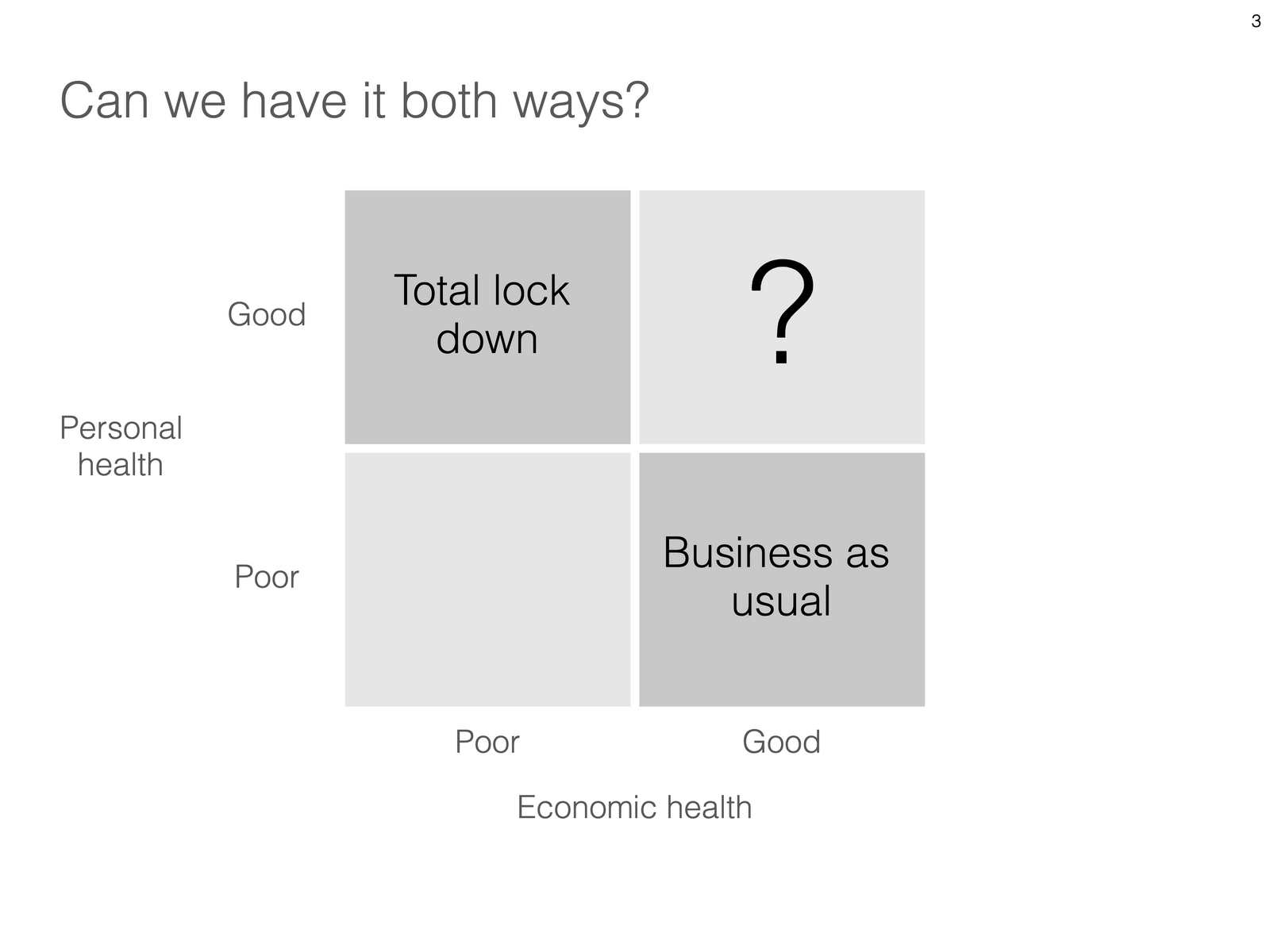
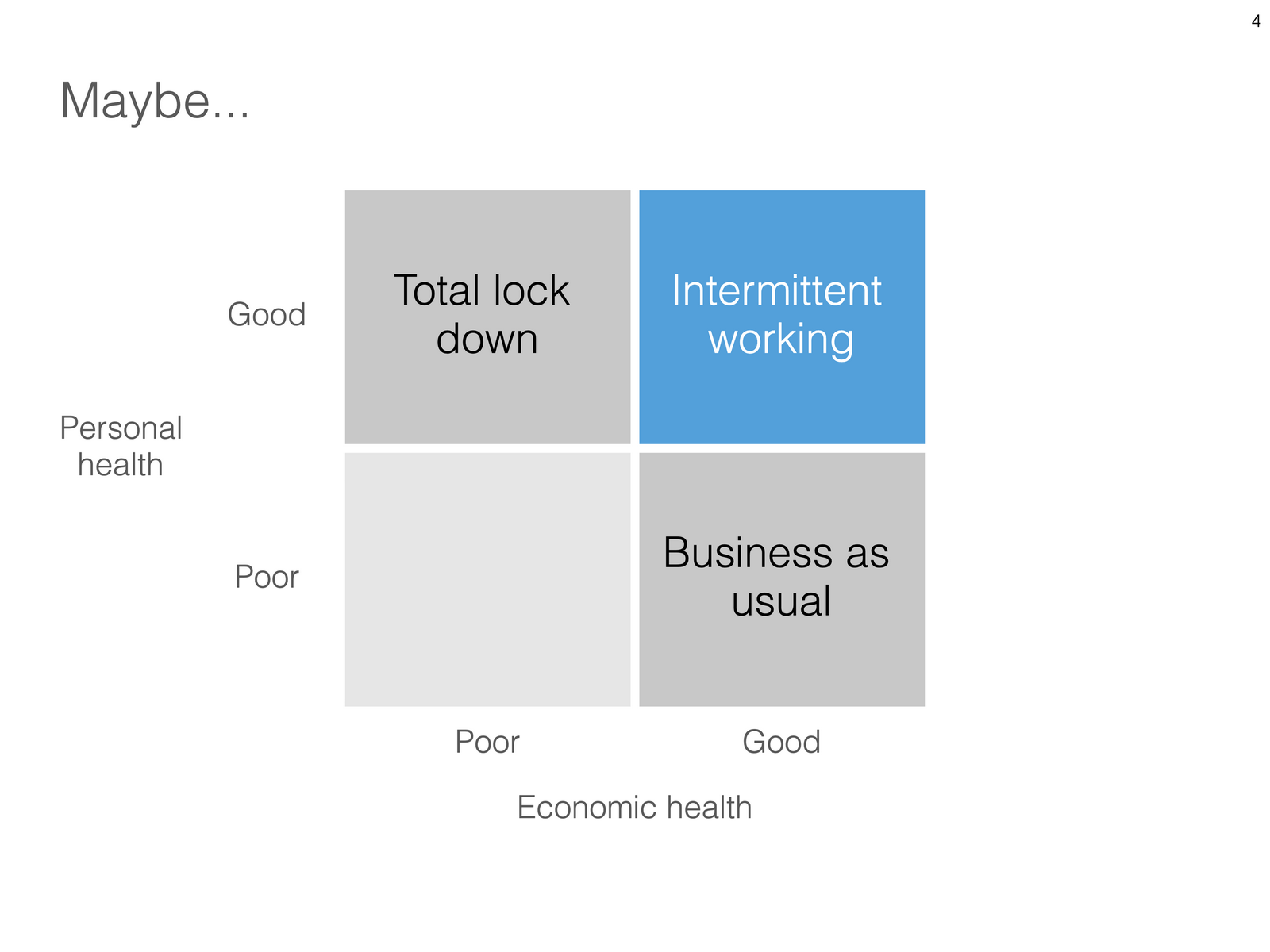
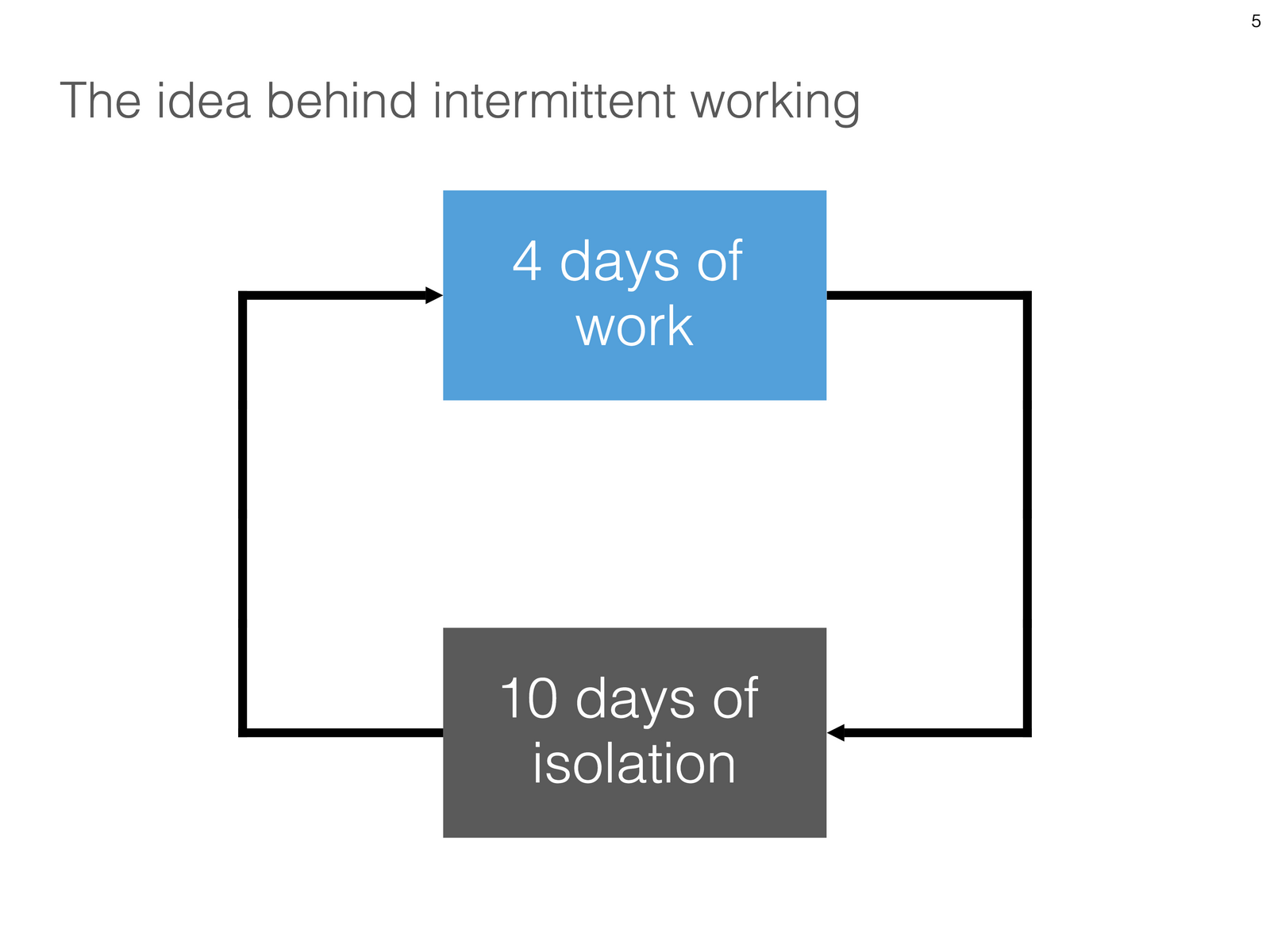
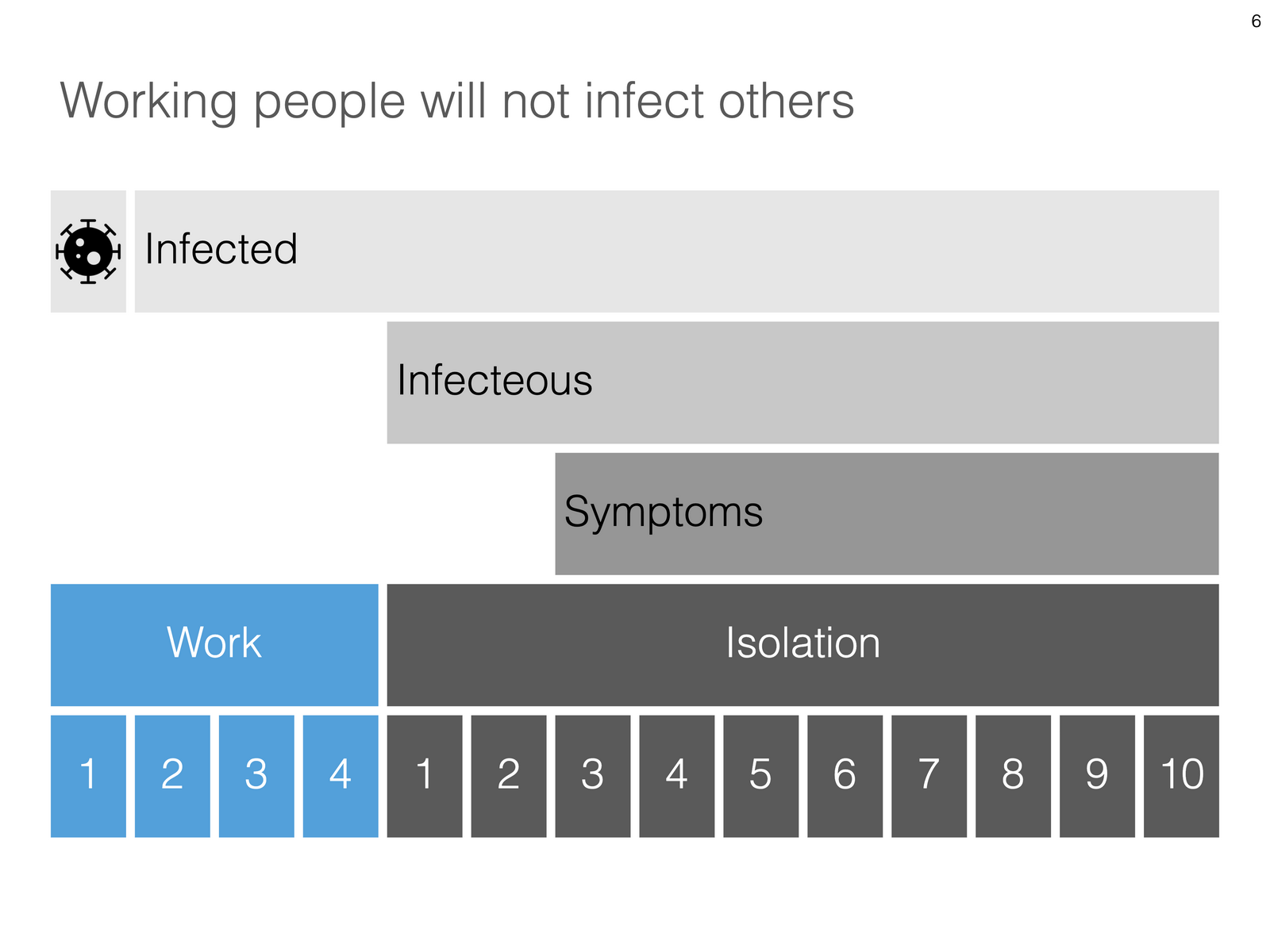
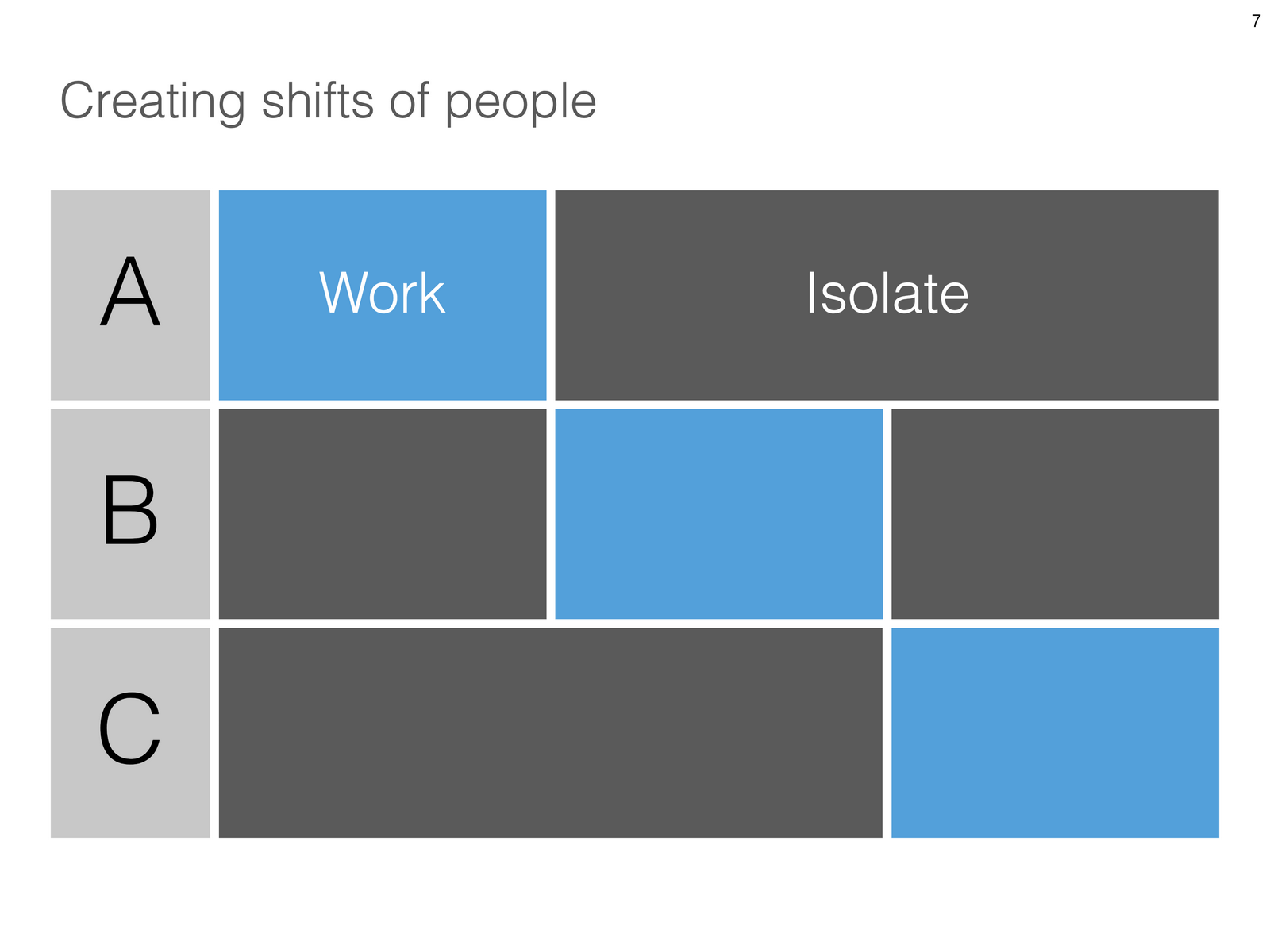
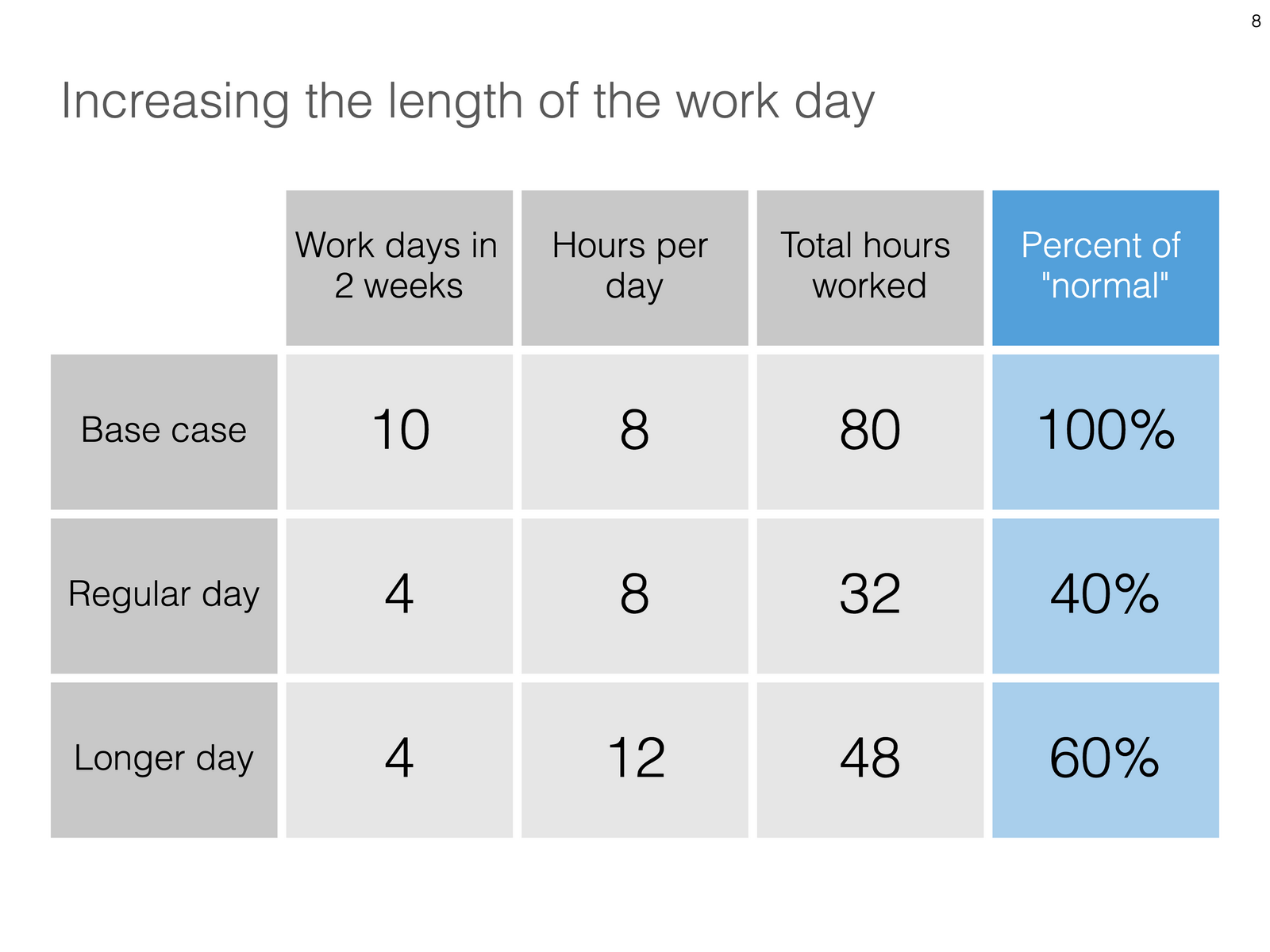
Uri Alon and other researchers at the Weizman Institute just south of Tel Aviv here in Israel have been working on an innovative idea for a COVID-19 exit strategy: intermittent working: let people work 4 days, and go into isolation for 10 days. Even if someone gets infected on day 1 of the work shift, the person will only become infectious during the isolation time, after which symptoms will appear. In that way, the economy can get going, while the infection rate of the virus will come down.

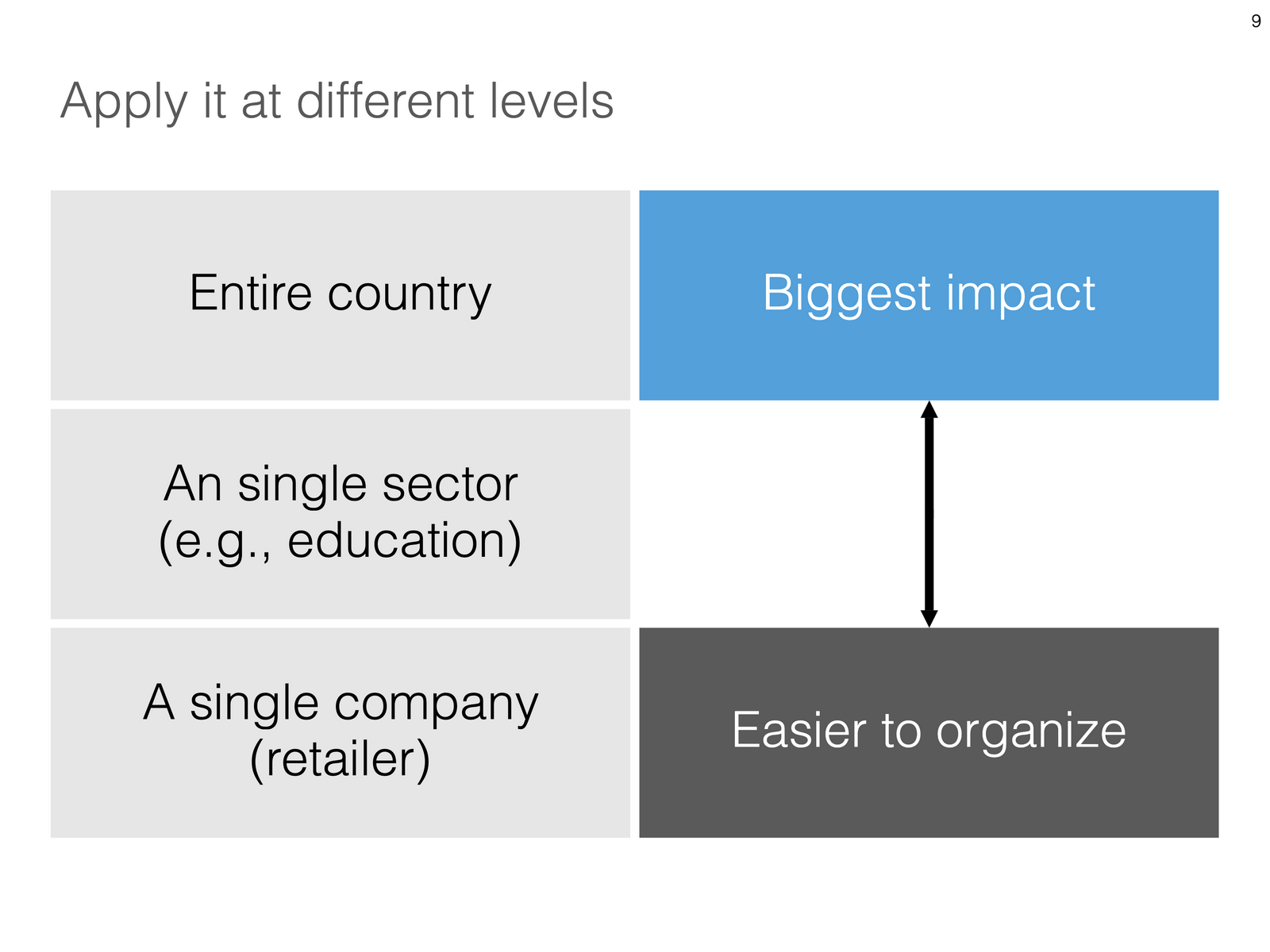
I think the idea is great, but I cannot see it adopted at a country level by politicians. For a specific sector (education?), or a specific company (a retailer with lots of client-facing staff), it could get adopted. Another (maybe even likely) application is to combat a likely second wave of the virus towards the winter. Rather than slamming the full brakes on the economy, go for the intermittent approach.

Communication of this idea is hard though. The researchers started with their scientific paper. Lots of graphs and analysis that shows the statistical impact of their research, including all kind of variables such as the percentage of people that actually stick to the rules. Next up is a video that explains the concept in a much more intuitive way.

I am constantly looking for new charts to the SlideMagic template database, and made a few simple charts that communicate this idea. All of this is done in the spirit of SlideMagic: very simple charts that are really quick to put together. Nothing fancy, but looking decent and doing the job of getting your message across.
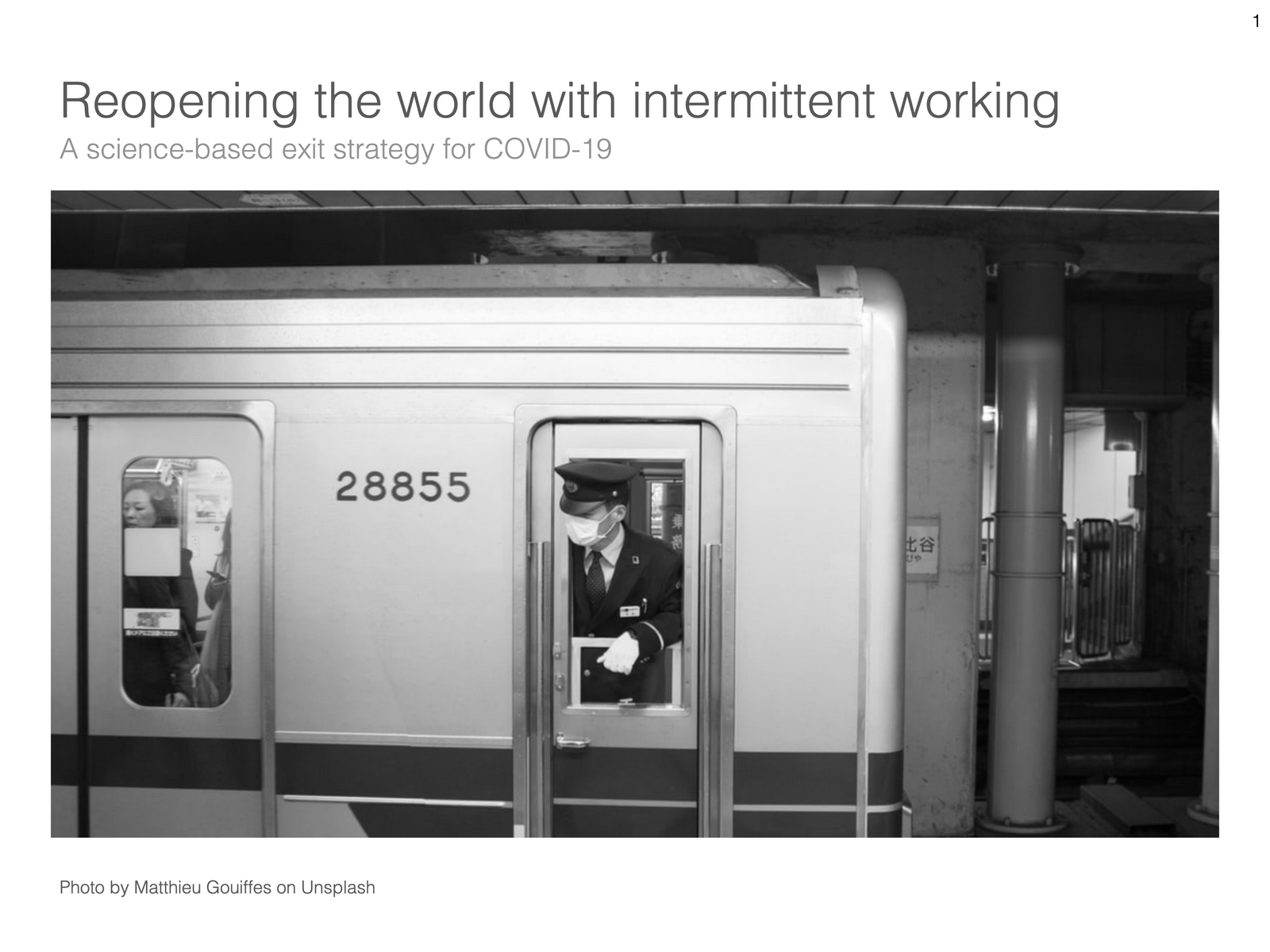
Subscribers can download the slides here in .magic and .pptx format. For a limited period of time, every user of the desktop app can access the full slide library there. When adding new slides, search for “COVID-19” in the app, and they will pop up for you to use.

SlideMagic: a platform for magical presentations. Free student plan available. LEARN MORE
Presenting sensitivities

Presenting sensitivities

I added a few more slides to the database today, one of them was this one: a template to present a sensitivity analysis.
Why this particular layout?

  • It is nicely spaced out, a calm composition for so much data

  • Numbers are disconnected from the spreadsheet: rounded up, entered by hand

  • Colours, bold, are used to direct the eye to what is important, and what is secondary

Some thoughts about how and when to present this type of analysis:

  • Presenting sensitivities and not the same as analysing them. The latter is the homework that you should have been doing before the presentation. Figure to what factors your model is sensitive, decided whether that is how it should be, then gather more information where needed to increase your confidence in variables that can make a big difference. What is left to discuss are sensitivities after you did everything to minimise and/or understand them.

  • The ranges of the variables you show should be realistic. This is not an exercise in mathematics, but an attempt to really understand what drives the future.

  • Pick dimensions that are not correlated, if the risks on the x and y axes are the same, you are not adding much insight.

  • Try flipping the analysis upside down, instead of showing deviations from the base case, show “what you would have to believe” in order to get to a certain number.

  • Be careful when sharing this type of data if you are in some negotiation about valuation. If the other side understand your model, they can basically salami slice the valuation using your own excel. You need to understand the sensitivities, but sharing them directly might not be smart.

The slide layout is available inside the SlideMagic app, or here on the web site.

SlideMagic: a platform for magical presentations. Free student plan available. LEARN MORE
I got the vanishing point wrong all the time...

I got the vanishing point wrong all the time...

They key concept in drawing in perspective is the vanishing point: every line in your slide should disappear in it (see an earlier blog post). It turns out I got the concept slightly wrong all the time. Because of the curve in the Earth’s surface, the real vanishing point for someone standing at sea level is actually below the horizon. A vanishing point that sits on the horizon, would require the radius of the Earth to be 64x as large. (For comparison, the Sun as a radius about 109x that of Earth.

Vanishing point at a planet with a radius 64x that of Earth

Vanishing point at a planet with a radius 64x that of Earth

The accurate vanishing point

The accurate vanishing point

With this new knowledge, will I change my approach to slide design? Not sure.

Based on an article in NRC Handelsblad. Simulation images by Siebren van der Werf.

SlideMagic: a platform for magical presentations. Free student plan available. LEARN MORE
Picking the 2x2 axes

Picking the 2x2 axes

Two by two matrices are a popular tool rank options. Watch out when to use them though:

  1. Do you actually have 4 distinct options that can be grouped according to 2 axes? Many situations have only 3 options, where the 4th option that is suggested by your framework is actually not meaningful in reality.

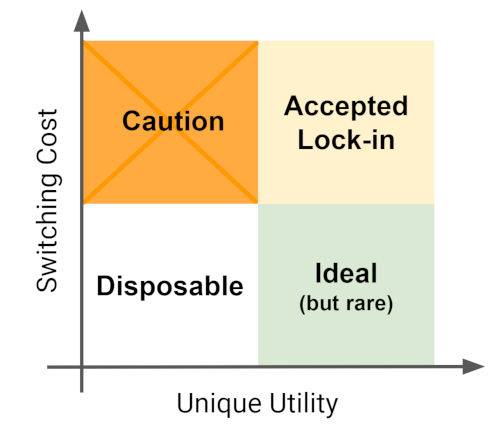
  2. If you pass the first test, make sure you set the axes right: the most favourable scenario in the top right, the least attractive options in the bottom left, the other two the “can’t have the best of both world” scenarios.

Below is an example of a 2x2 used in an article about software lock-in I stumbled across. Flipping the axes makes the diagram a lot clearer.

The original diagram

The original diagram

I quickly created reworked the axes in a SlideMagic 2.0 diagram below:

Screenshot 2019-09-02 18.46.06.png
Screenshot 2019-09-02 18.52.02.png

SlideMagic: a platform for magical presentations. Free student plan available. LEARN MORE
Adjusting frameworks

Adjusting frameworks

The world of management theory is full of frameworks designed by MBA professors and/or management consulting firms. Many view in the same of was the laws of physics: this is how you go about solving a particular problem.

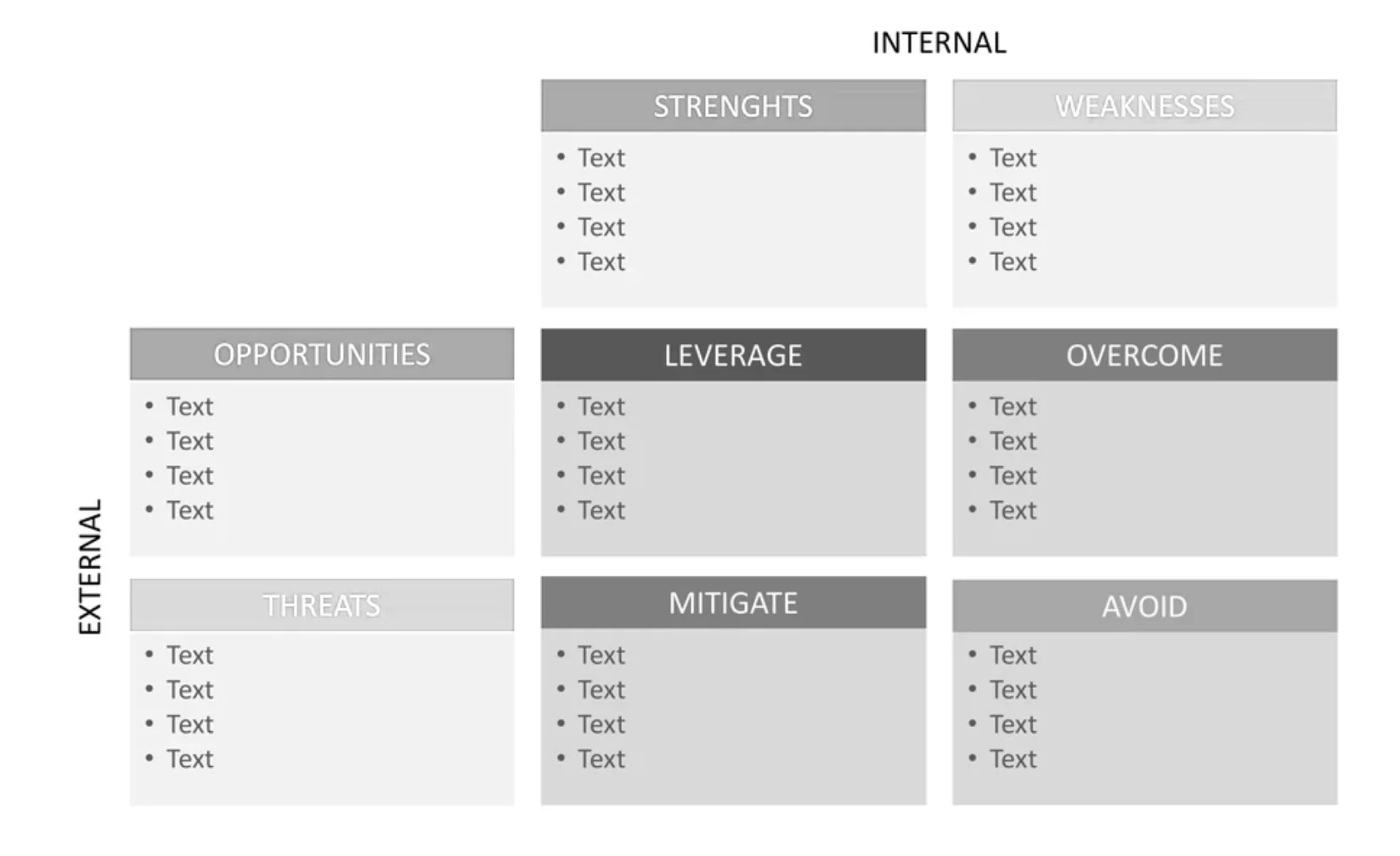
That is giving them too much credit. Dogmatically forcing a certain problem/solution into a framework will not work: if it does not fit, it does not fit. Every situation, every problem is different. Here is an example of someone adjusting the famous SWOT framework. Here is my own attempt at modifying a SWOT 2x2.

While frameworks can be helpful start thinking about a problem and planning the work that lays ahead of you, they are often not that good as layouts in presentations that communicate your final recommendations. Frameworks are complicated diagrams, and try to be exhaustive and list everything that is relevant for a problem on the page. For your final slide, that might not be what is needed to explain your findings. Frameworks can be useful to solve a problem, but might not be ideal for communicating the findings.

SlideMagic: a platform for magical presentations. Free student plan available. LEARN MORE
Visualising quantum mechanics

Visualising quantum mechanics

That is an ambitious title to start my first blog post after my return from a summer holiday in Asia!

Through a series of coincidences I ended up reading through a number of popular science books about quantum mechanics. I remember getting all carried away in the briefing session of a presentation design project for a startup in the field of quantum computing. My academic knowledge of this field was basically high school chemistry, so I added this topic to the list of things that needed a refresh. A holiday was the perfect occasion. I am sure I was the only one at the side of the pool dusting of theoretical physics knowledge.

From a presentation perspective, the fascinating problem that quantum mechanics struggles with a the lack of either a visual or verbal language to describe concepts. The mathematics is water tight and has proven to be really useful (lasers, semiconductors, LEDs, etc. etc.). But when you try to take a step back and want to understand what it actually all means in the context of your daily routines, things get confusing.

It is all the result of some form of Anamorphosis, projections of phenomena that get scrambled when angles or dimensions no longer line up. Every scientist is looking for that ultimate simple underlying concept that can explain/visualise/link quantum on a small scale to the more traditional physics that we see everywhere around us at a human scale.

In case you are interested, here are 2 books on the subject: Beyond Weird, and What is Real?.

Photo by Linus Mimietz on Unsplash

SlideMagic: a platform for magical presentations. Free student plan available. LEARN MORE
Heat maps in presentations

Heat maps in presentations

Harvard Business Review is bombarding (spamming?) my Instagram feed with this ad almost every day (Google shows that the chart was first created somewhere in 2016):

hbr.png

It is a very busy chart, so not to be used in your next TED Talk, but for close-up reading these heat maps are actually pretty good. This is a pretty decent summary of what much have been a huge scoring spreadsheet.

  • Only a few colours (suspiciously similar to the SlideMagic look…)

  • Careful attention is paid to sorting and grouping rows and columns

Some more improvements are possible:

  • There is too much text in the descriptions of the boxes: we know that we are talking about sectors, no need to remind us, and there is too much lingo in there (“digitally engaging”).

  • Column headings can be shortened, especially that long word “digital” can be lost here and there

  • I would move the “assets, usage, and labor” headings (nice short ones) to the top to make the link with the column headings clearer.

This boxy chart will be a good challenge for my code of SlideMagic 2.0, I am going to try it.

Photo by Guillaume Bolduc on Unsplash

SlideMagic: a platform for magical presentations. Free student plan available. LEARN MORE
Flying through

Flying through

With a bit of Photoshop editing you can create an effect of a PowerPoint shape flying through some loop. I uploaded a new slide to the template store that uses this effect. Over the arrow, I positioned a second layer of the image, but just with a piece of rope with its background isolated. The arrow expanding outside the frame of the image (yes, I look those), adds to the motion feel in the slide.

Click the image to find the slide on the template store, subscribers can download it free of charge.


Cover image by Blake Wheeler on Unsplash

SlideMagic: a platform for magical presentations. Free student plan available. LEARN MORE
Sensitivity analysis in PowerPoint

Sensitivity analysis in PowerPoint

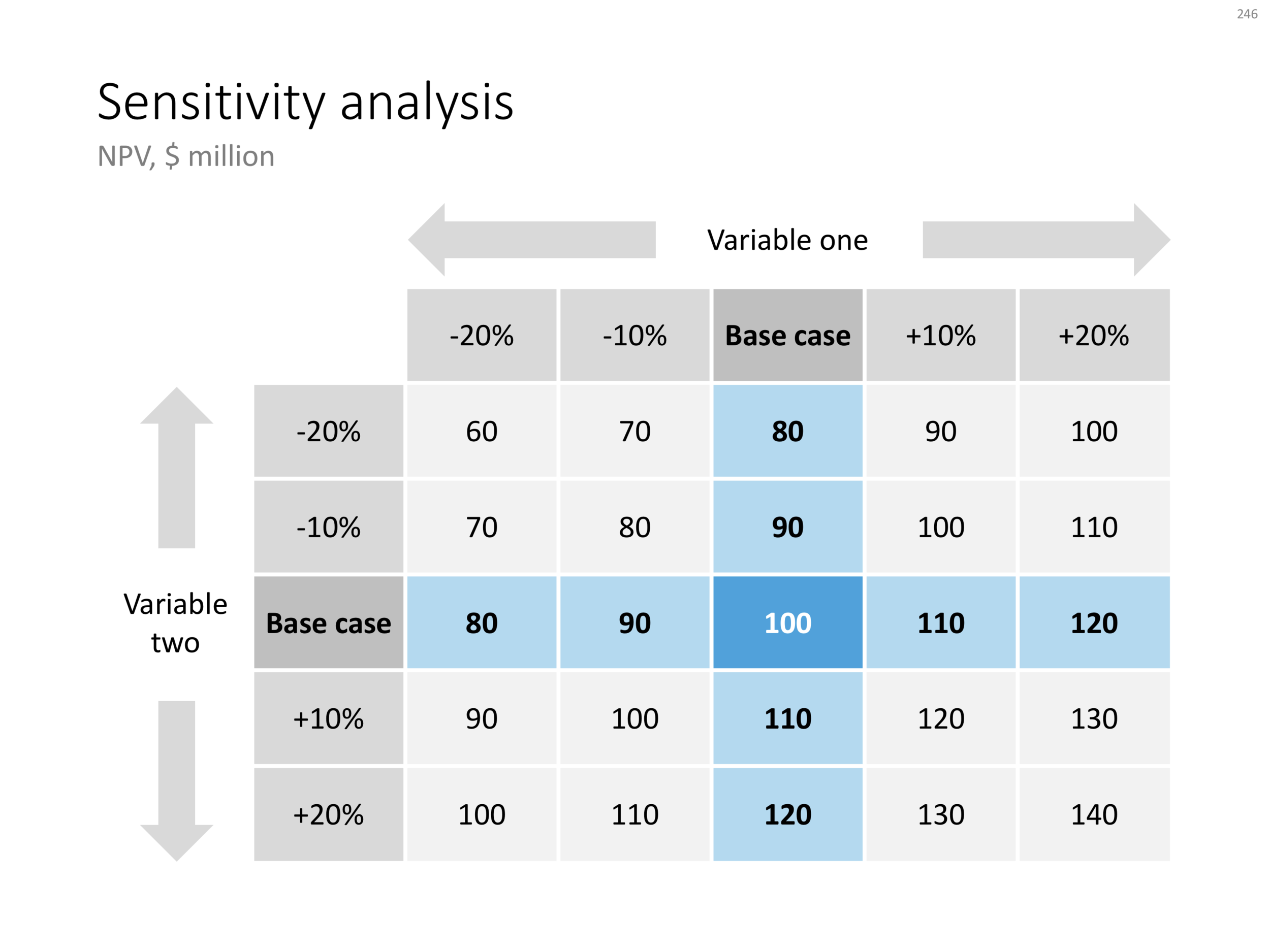
Today, I am adding a simple table to the store to show the sensitivity of an analysis. Each cell in the table shows an outcome of an analysis with a slight variation on 2 critical input variables. I used this type of a slide a lot in discounted cash flow valuation models, where assumptions about discount rates and assumed perpetual growth could make a significant impact on the outcome of your analysis.

The base case scenario is put very prominently in the centre of the table, it is the anchor for the viewer from which to start studying the other scenarios. I prefer making these type of charts manually, and not via a blanket copy-paste out of an Excel sheet. In that way, you have to think about whether each cell in the table is meaningful, and you can make sure that the data is formatted and rounded in the best way.

You can download this sensitivity analysis from the store, subscribers can do so free of charge.


Cover image by Markus Spiske on Unsplash

SlideMagic: a platform for magical presentations. Free student plan available. LEARN MORE
Risk matrix in PowerPoint

Risk matrix in PowerPoint

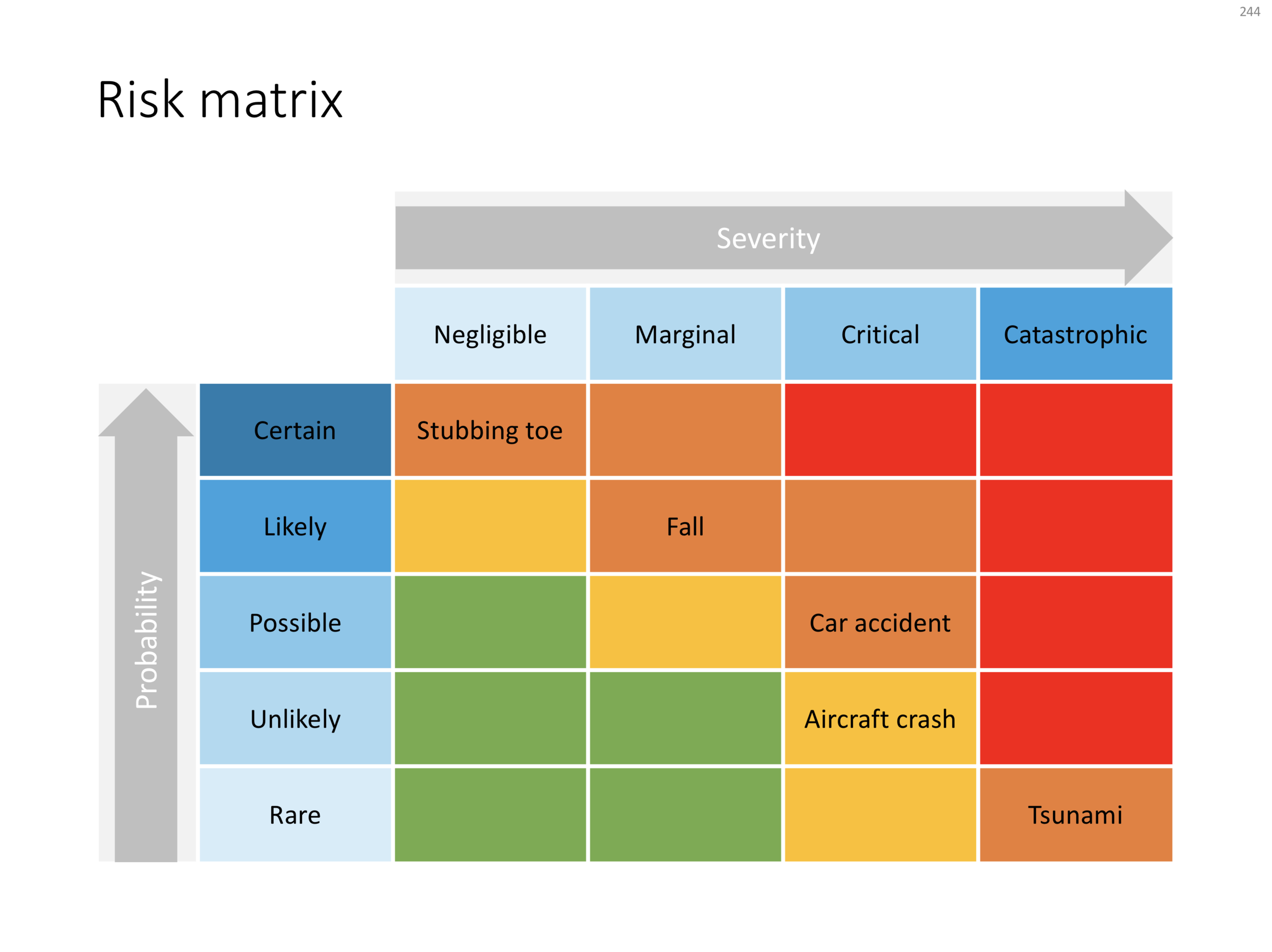
I am continuing to tick off the standard presentation frameworks in the store, yesterday I added a PowerPoint template for a risk matrix. The matrix has 2 axes: one for the probability that a disaster happens, the other one how severe it would be if it were to happen.

The matrix is designed in true SlideMagic style: not very fancy, but highly symmetrical, usable, and adaptable to your everyday presentations. You can download the slide here, subscribers can do so free of charge. Feel free to adjust the axis titles, labels, or dim the bright traffic light style colours to your taste and needs.


Cover image by JC Dela Cuesta on Unsplash

SlideMagic: a platform for magical presentations. Free student plan available. LEARN MORE
A prism that shows what's inside

A prism that shows what's inside

I have used the prism visual metaphor a few times in my client's presentations to show how rich, intricate, subtle components are present in a service or product that might not be apparent from the outside. Below is an attempt at a minimalist pyramid in PowerPoint (roughly modelled based on the cover of that Pink Floyd album).

I simplified the laws of physics here and there, the tricky bit was to get the blue shape inside the triangle right. I added the slide to the template store yesterday, you can find it ready for download here, and subscribers can do so free of charge.


Cover image via WikiPedia

SlideMagic: a platform for magical presentations. Free student plan available. LEARN MORE
Hmm, what do you think?

Hmm, what do you think?

The chart below is an attempt to create a comparison matrix that can deal with 4 dimensions. Two dimensions get consolidated into another one, which are put on another matrix. The results is mathematically correct, but does it work as a slide? Maybe it is pushing things too far.

You can download the four dimensional comparison matrix by clicking the image, subscribers can do so free of charge.

Cover image by Amy Reed on Unsplash

SlideMagic: a platform for magical presentations. Free student plan available. LEARN MORE
Creating an infinity symbol in PowerPoint

Creating an infinity symbol in PowerPoint

It is tricky to create an infinity symbol (or lemniscate) in PowerPoint, it is a shape that needs to overlap with itself and requires Escher-style (impossible) layering of shapes. The only way to do it is cheat, and construct the final shape of many individual shapes that are grouped together cleverly.

I managed to get it done, and you can see the final result here (hmm, those arrows point the wrong way around though):

An infinity symbol in PowerPoint

An infinity symbol in PowerPoint

I don't have the exact workflow anymore that I used (I made some destructive edits), but below is a screenshot of the PowerPoint file in slide sorter mode that I used to create the shape, starting with 2 circles and a square.

How to create an infinity shape in PowerPoint

How to create an infinity shape in PowerPoint

This shape is useful to show concepts that keep on going, or loops that you can't get out of. You can download the infinity symbol here, or find other slides with loops. There are Apple Keynote versions available as well.

Cover image by Mark Asthoff on Unsplash

SlideMagic: a platform for magical presentations. Free student plan available. LEARN MORE
PowerPoint vs Keynote in 2018

PowerPoint vs Keynote in 2018

Over the past few days I converted all the slides in the SlideMagic store from PowerPoint 4:3 into PowerPoint 16:9, Keynote 4:3, and Keynote 16:9. That was quite a bit of conversion and uploading work... As a result I got an even better understanding of the differences between PowerPoint and Keynote. Here is the 2018 version of the comparison.

Overall both programs are excellent, as you would expect from software that has been around this long. Bugs have been ironed out, and both programs have "learned" from each other to get to a good workflow. So the differences are not that major.

Where PowerPoint is stronger

  • Workflow for advanced users. I can customise the top tool bar with the functions I use most (aligning, distributing, moving things to the back, etc. see my full list of toolbar short cuts here). Also in Keynote it can get confusing at high speed to change colours of text and shape fills, too many clicks, and too many opportunities to get it wrong. The interface looks elegant, but it slows you down.
  • Data chart editing is better in PowerPoint with the full power of Excel behind it
  • Stretching of (groups of) shapes is predictable in PowerPoint: you can distort aspect ratios. Keynote is more restricting and protects the novice designer with stretching images. But, it does the same for large groupings of objects, as soon as you have a few connectors inside, it is no longer possible to stretch complex diagrams across the page, without also increasing its height. This cost me a lot of time to clean up my flow chart template for example. I could not understand when Keynote decides it is OK to stretch, and when not.
  • Complex connector diagrams run more smoothly in PowerPoint. Keynote is "smarter" and helps you pick/decide/suggest possible connector lines between shapes, but because of that, it is harder to convince it to something you want against its own suggestion. In more complex diagrams this becomes a problem.

Where Keynote is stronger

  • Cropping of images is more intuitive in Keynote
  • For the first time I really worked with the file manager (duplicating instead of "save as") and went into the version history of Keynote, no need to worry about saving, which was actually really convenient.

There are some charts which PowerPoint can make and Keynote not, I found out the hard way with my conversion effort:

  1. Slides that use 3D positioning of objects and text distortion
  2. Slides that use bevels and 3D lighting/shading. I am sure it is possible by carefully selecting the gradients, but there is no 1-click solution

Both of these are not crucial to presentation design. In fact, too much 3D fire power in the hand of the layman designer might not beneficial to the quality of the slides. Below are examples of charts from my template store which are not available in Keynote because I simply could not covert them. (Click the images to be taken to the template store).

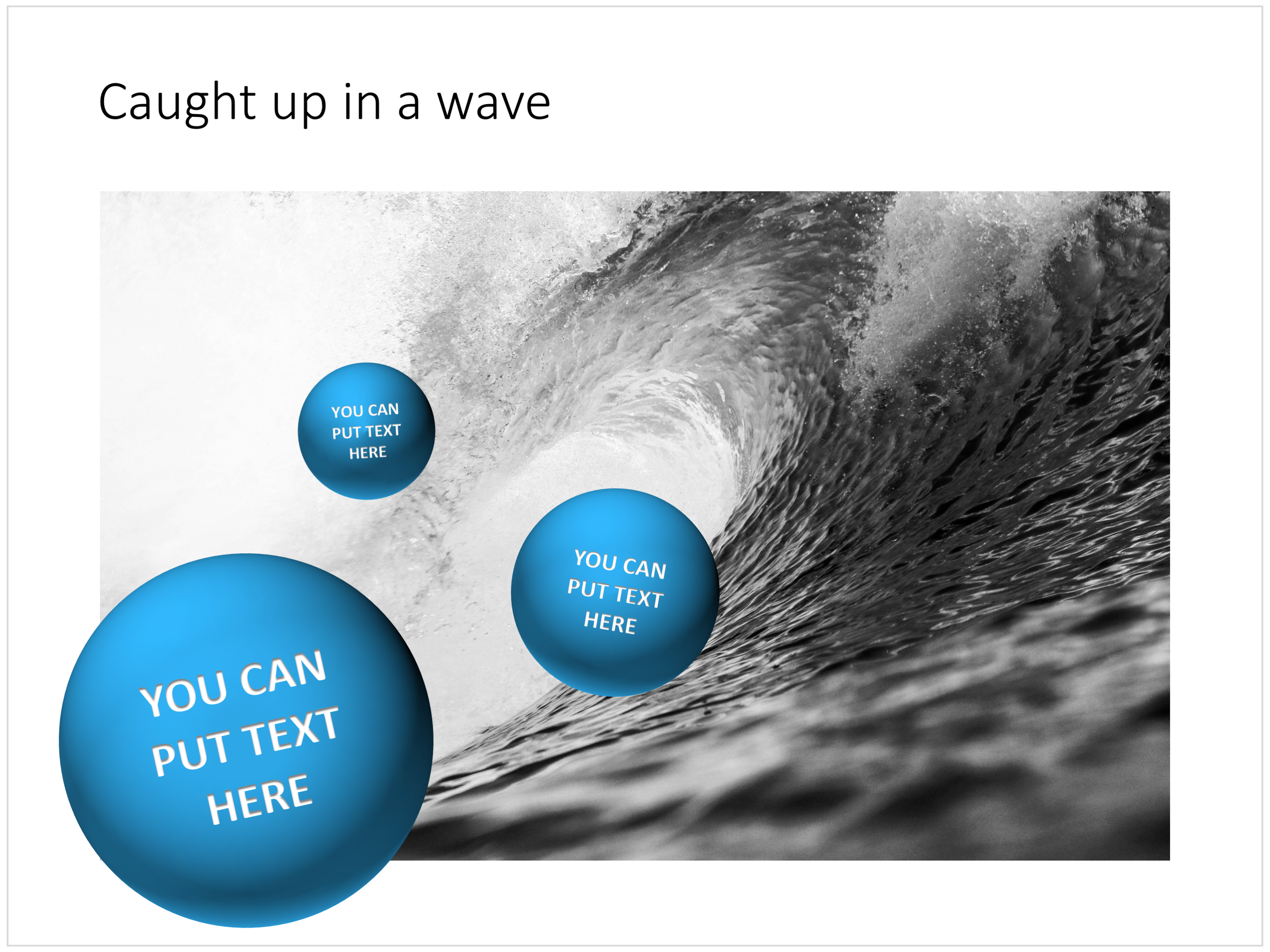
Balls bouncing on a big wave

Balls bouncing on a big wave

Domino pieces in PowerPoint

Domino pieces in PowerPoint

Proliferation of options

Proliferation of options

The start line: comparing two optionis

The start line: comparing two optionis

Black hole

Black hole

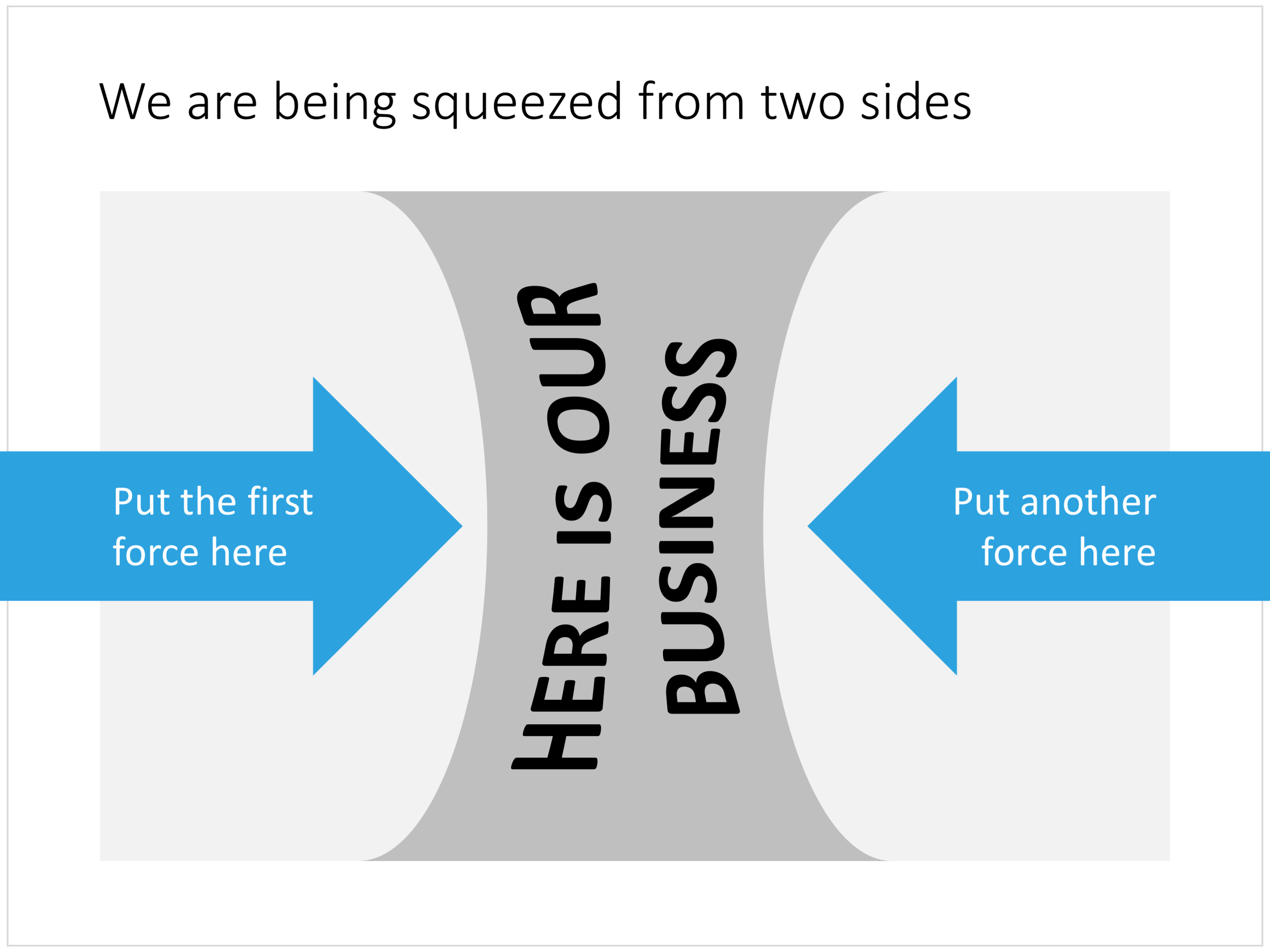
Squeezed

Squeezed


Cover image by Chris Sabor on Unsplash

SlideMagic: a platform for magical presentations. Free student plan available. LEARN MORE
Puzzle pieces in PowerPoint

Puzzle pieces in PowerPoint

Although you could consider them a presentation cliché, puzzles can work really well in a presentation:

  • Show how things fit beautifully

  • Show how your are missing (hopefully just one) critical piece

  • Show that you finally managed to plug that last gap

Puzzle shapes can also work great when you use them in combination with images. You can go back to this blog post about making Photoshop-like image cut outs in PowerPoint.

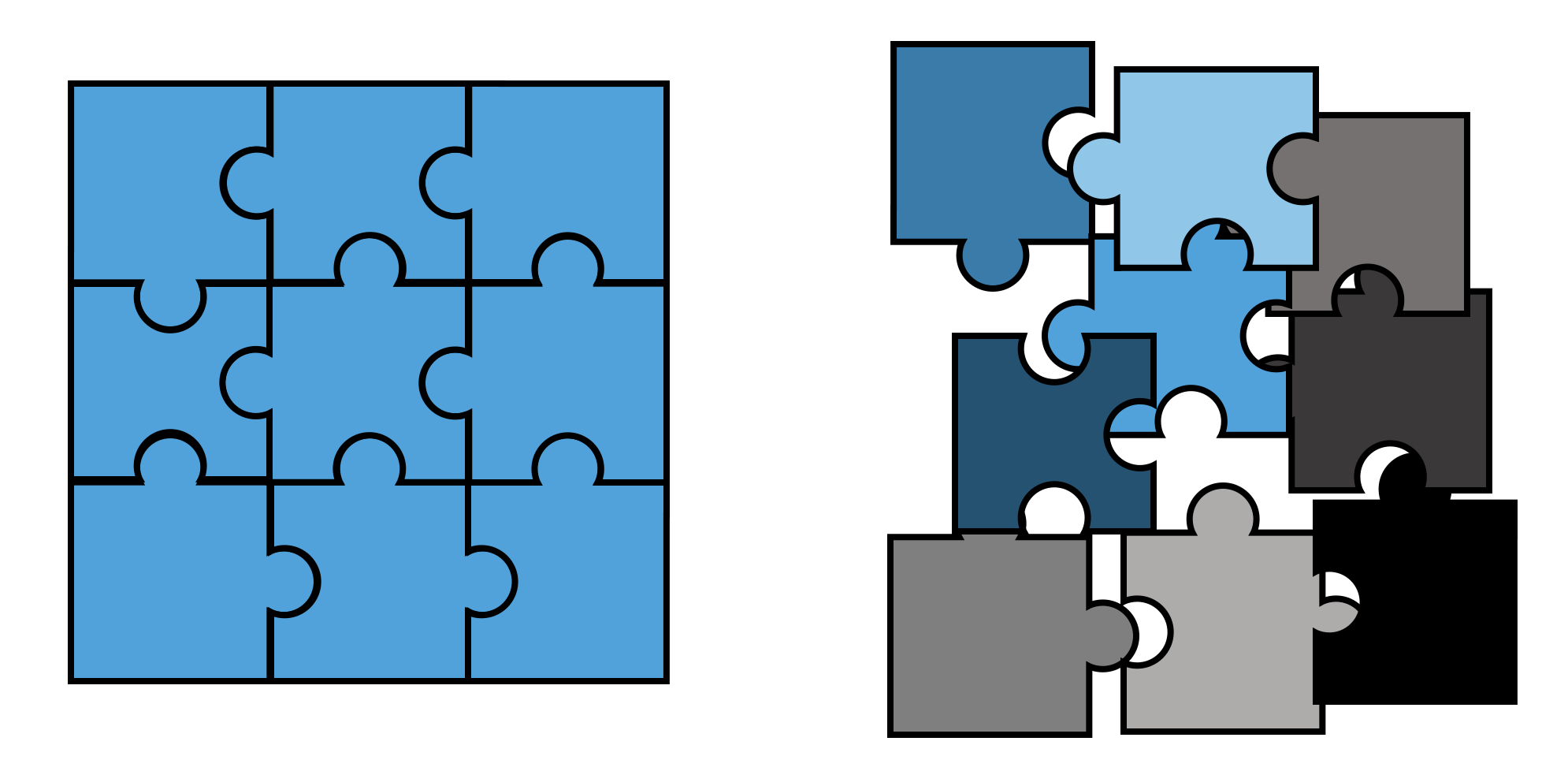
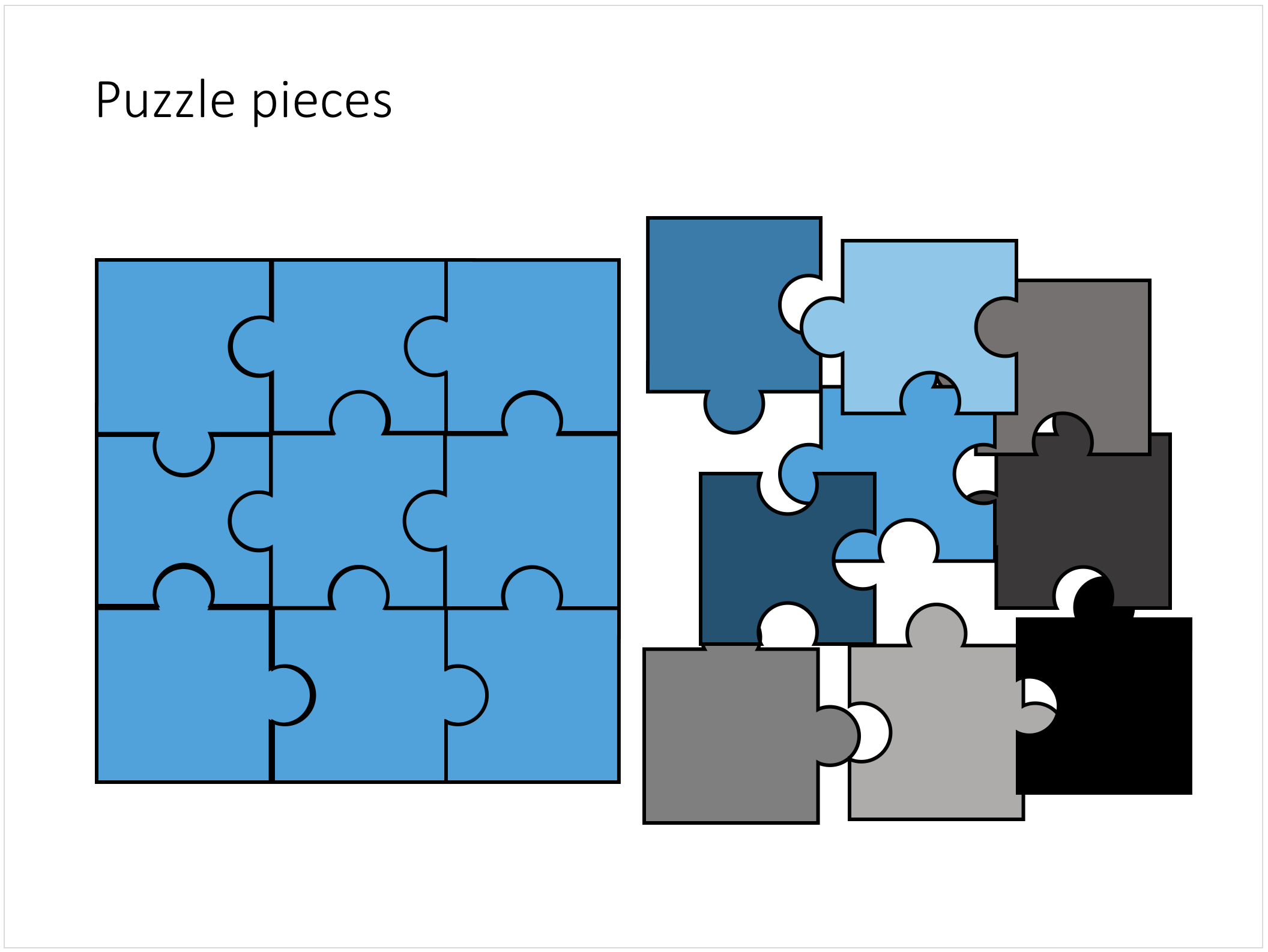
Stock image sites are flooded with millions of puzzle piece designs, but they are not very practical for the average PowerPoint designer (especially late at night working for tomorrow's deadline). Almost all these puzzles pieces are vector objects or images that are impossible to edit in PowerPoint. Moreover, all these puzzle pieces have wildly irregular shapes that make them hard to fit in your slide composition that requires exactly nine of them.

This PowerPoint puzzle slide solves the problem for you. The pieces inside are fully editable PowerPoint shapes, you can change their colour, you can put text in them, you can reconfigure and piece them together as you see fit. Yo'u can download the finished slide by clicking the image (An Apple Keynote version is available as well).

You can try to create the pieces yourself if you want, I used simple square shapes and circles, either joining or subtracting the shapes. Circles and squares might not be the most realistic shapes, but they are very practical when have to piece things together. There is a little bit of math homework to do to determine which type of puzzle shapes you actually need, and which ones you can create by rotating existing pieces.

SlideMagic: a platform for magical presentations. Free student plan available. LEARN MORE
Concentric circles in PowerPoint

Concentric circles in PowerPoint

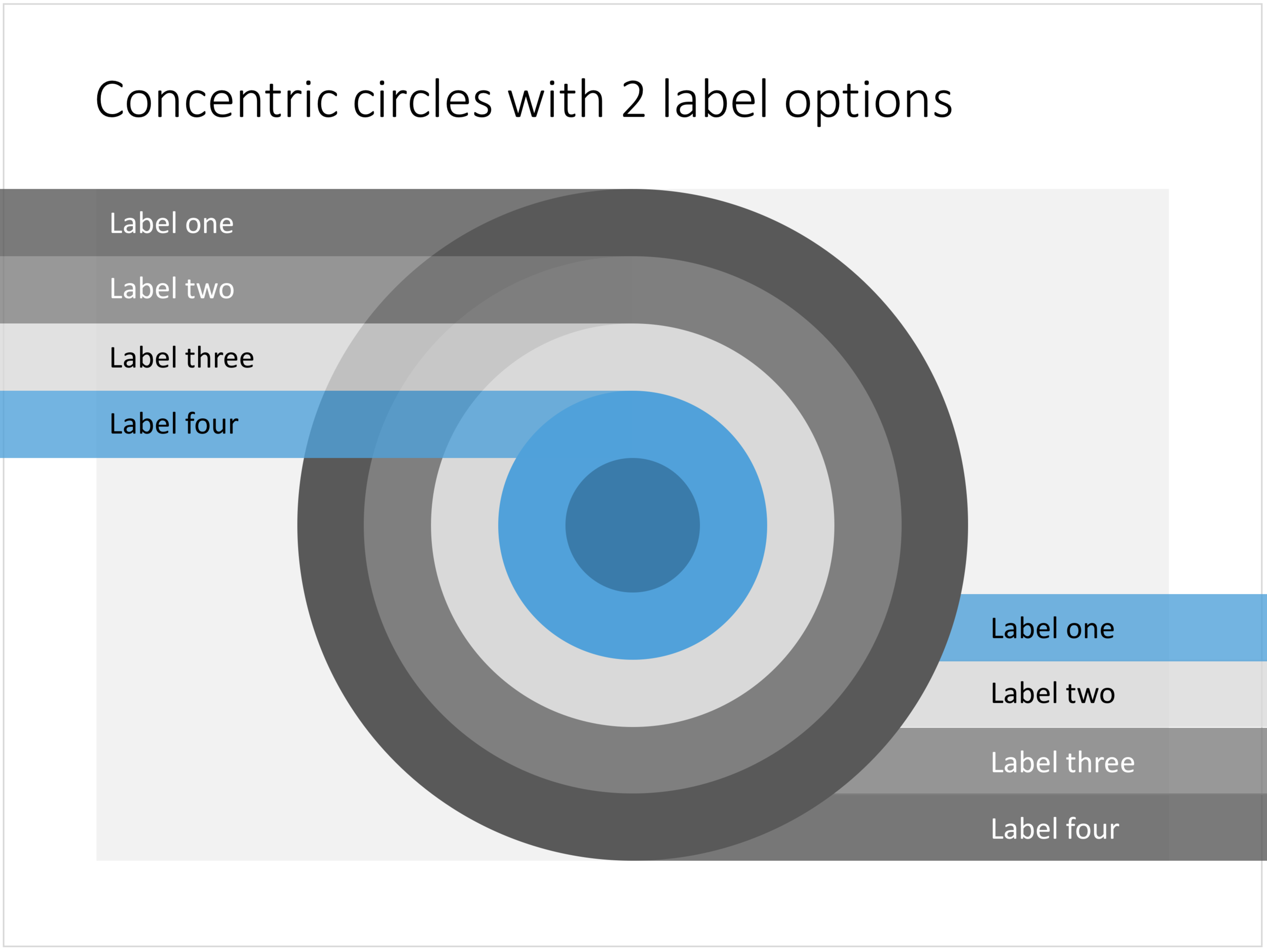
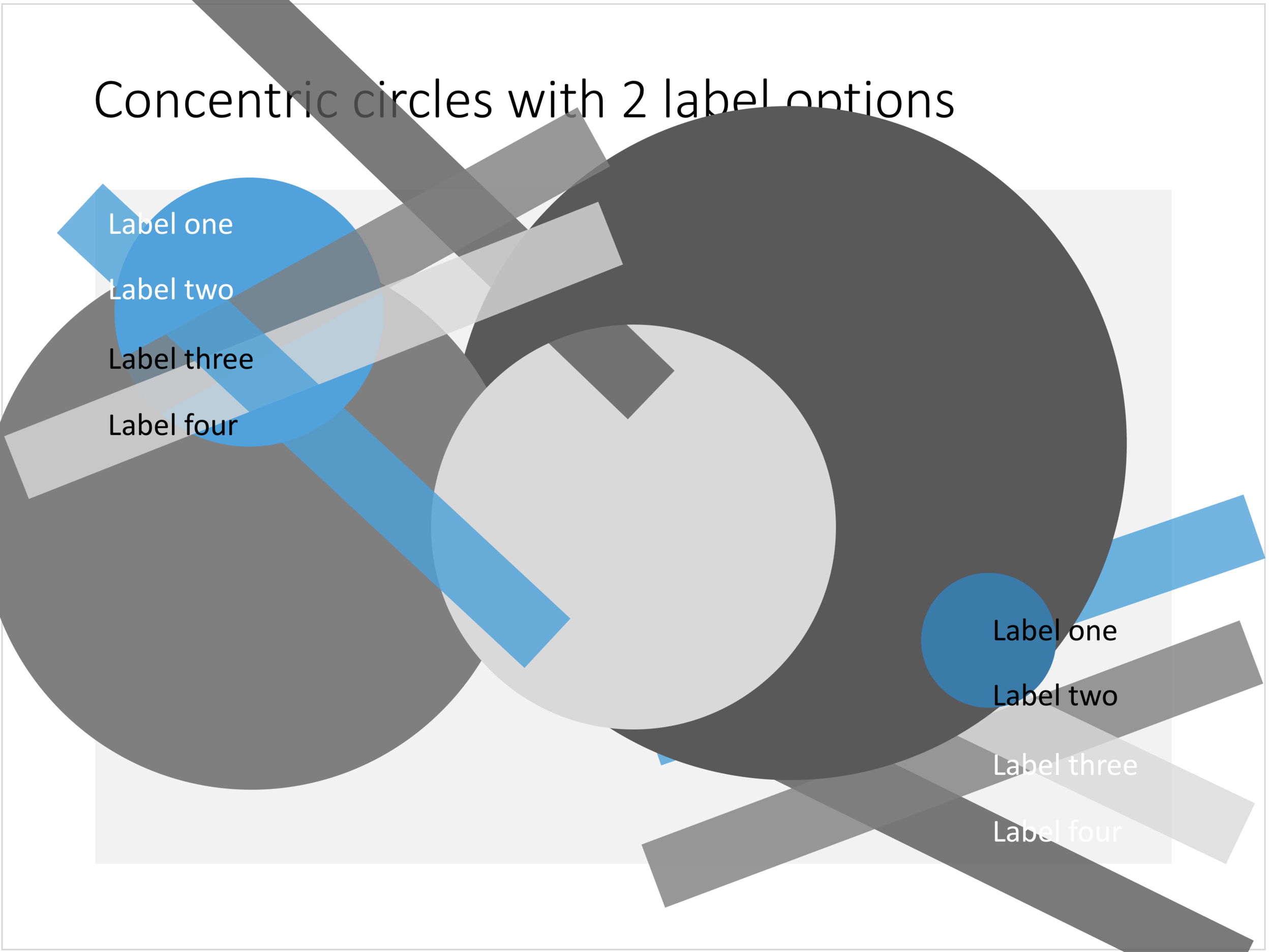
You can create very beautiful compositions by just using basic shapes and a few colours. Below is a presentation slide with concentric circles, and an image that shows how it is constructed. Feel free to borrow the design approach, or you can download the finished slide here.

This technique was often used by the Swiss graphics designers in the 1960s. You can use the slide concept below in a number of ways: show some sort of layering, show multiple layers of security or protection, show a whirl or rolling dynamic. You can take the labels of and just use the circles.

Concentric circles in PowerPoint

Concentric circles in PowerPoint

How to make concentric circles in PowerPoint

How to make concentric circles in PowerPoint

SlideMagic: a platform for magical presentations. Free student plan available. LEARN MORE
Blue ocean strategy in a presentation

Blue ocean strategy in a presentation

Most investor or sales presentation have some sort of slide about the competitive environment. (Here are earlier blog posts about how to present the competition). Usually, people use tables, or 2x2 / 3x3 matrices to show how they are different.

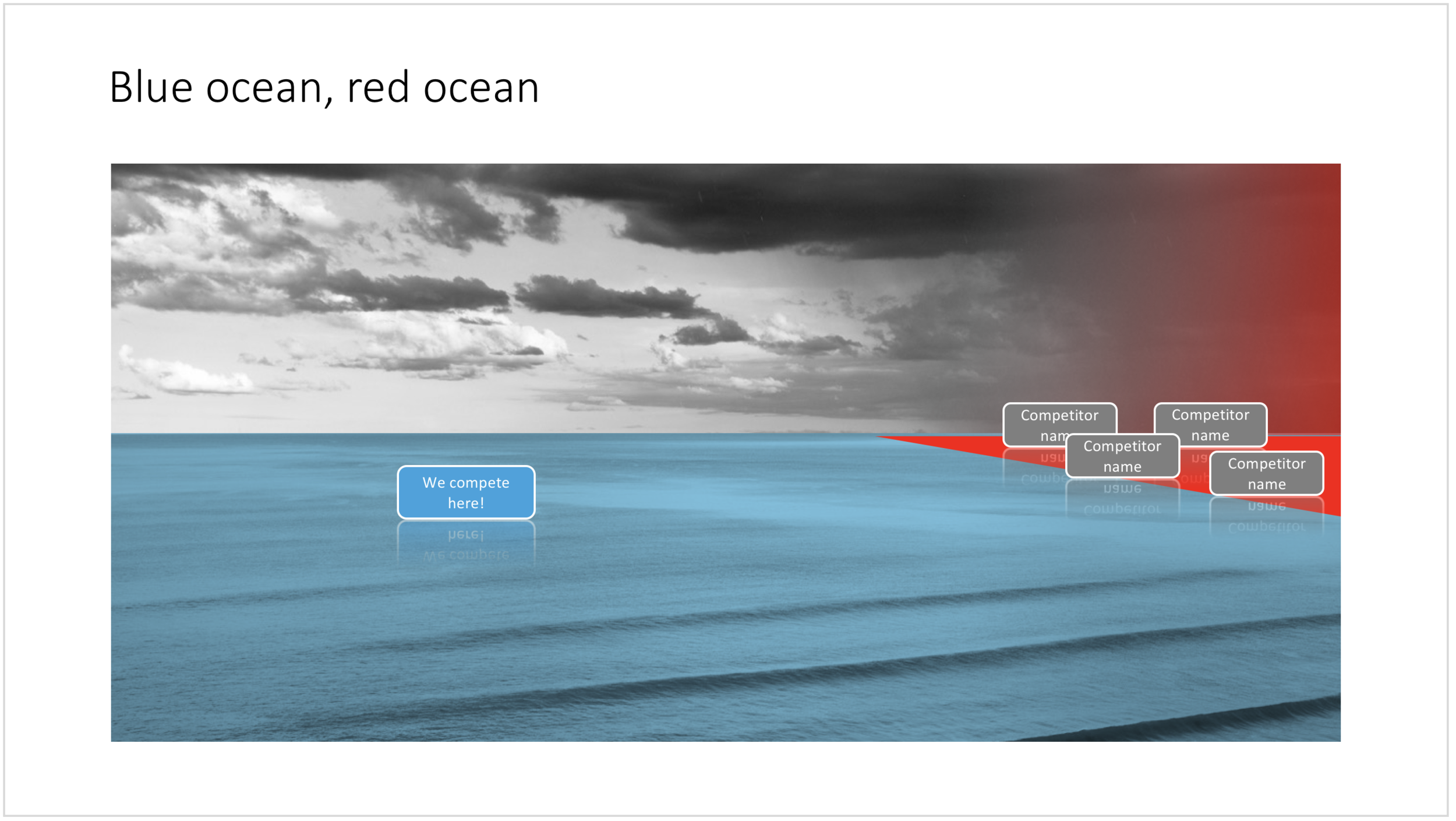
The chart below might a completely different take on the subject. The Blue Ocean strategy concept developed by INSEAD argues that is often better to define an entirely new market rather than battling with all the existing companies that go after well-established market segments. You can download the slide here.

Visualise the competition using "Blue Ocean Strategy" in a presentation

Visualise the competition using "Blue Ocean Strategy" in a presentation


Cover image by Ishan @seefromthesky on Unsplash

SlideMagic: a platform for magical presentations. Free student plan available. LEARN MORE
Presentation layout for when you are stuck...

Presentation layout for when you are stuck...

Sometimes the simplest slides can be the most effective ones. This slide layout shows a big arrow crashing into a wall to visualise your obstacle or roadblock. The wall image is framed, while the arrow is bleeding of the page, adding an extra movement effect.Edit to text in the arrow and/or on the wall to show your audience what it stuck. The text in the arrow will automatically tilt in the right 3D angle, and both the wall and arrow will colour in your primary accent colour. Please copy this slide into a presentation that uses your own corporate presentation colour theme.

I am gaining a lot of experience now in translating PowerPoint designs into Keynote. This chart is only available in PowerPoint and not in Keynote, because the latter cannot tilt objects in a 3D space. The same problem arises with charts that rely heavily on bevels or other 3D lighting effects, which is not obvious to do in Keynote.

Here you can find this wall layout in the SlideMagic store. Cover image by Chris Benson on Unsplash

SlideMagic: a platform for magical presentations. Free student plan available. LEARN MORE
Bubble charts in PowerPoint and Keynote

Bubble charts in PowerPoint and Keynote

Bubble charts are useful to present and analyse very large datasets. The standard template in PowerPoint and Keynote still needs some adjustment to make the chart useful. In this bubble chart on the SlideMagic template store, I have tried to do the hard work for you.

This a reformatted version of the standard bubble chart that you will find in PowerPoint and Keynote, on top it has the layout of a 2x2 matrix. The bubble chart is useful when you want to compare a data series with 3 elements, across a large number of data points. Examples are countries, business units, regions, products, etc.

The first two elements will be plotted on a regular XY chart, the 3rd element is the size of the bubble. PowerPoint or Keynote do not support labelling of the bubble very well, which are put in manually.

A 2x2 matrix structure is put on top of the regular bubble chart, giving you 4 distinct quadrants to segment your bubbles in. In the current example, the quadrants have the same size, by putting the 2 axes right in the middle. To do so, you need to manage the ranges of the axes carefully. If this is not important to you, you can put the X and Y axes where they are relevant without worrying about this. Quadrants of unequal size will still look good.

I am working hard to make the store more useable. This layout is an example. There are 4 variants of the chart: PowerPoint, Keynote, both in 4:3 or 16:9. I tried to add all the right instructions about how to use the layout, and show many links to other relevant slides in the store. While working on your presentation, you can go back and forth between designs and get ideas on how to visualise the key messages of your presentation. Some layout suggestions, you might be able to create yourself, others you might already have bought and can re-use, or you can download a layout right away to add it to your library. SlideMagic will be a place that saves you time making your business presentations.

Cover image by Alejandro Alvarez on Unsplash

SlideMagic: a platform for magical presentations. Free student plan available. LEARN MORE
Most templates now available for Apple Keynote

Most templates now available for Apple Keynote

The template store now supports Apple Keynote, a drop down menu let's you make a selection between your preferred presentation software. Not all templates could be converted, Keynote is missing the 3D shape rotation feature of PowerPoint that I used in some of the slides.

The store now gives you the option to download templates either as a PowerPoint or Keynote file

The store now gives you the option to download templates either as a PowerPoint or Keynote file

Slides in Keynote look the same except for the font

Slides in Keynote look the same except for the font

The only adjustment I made was the font: switching it from PowerPoint's default Calibri to Helvetica Neue for  Keynote. I am keen to keep the look and feel of the charts as "standard" as possible to make it easy to integrate the design in the corporate presentation templates that people are using.

Under pressure!

Under pressure!

The slide above is a layering of 2 images that visualizes a big dam that is under pressure from something. You can use it either to show that something is about to burst, or the opposite, that defenses are strong and holding out well. I love the massive architectural scale of these hydro power installations, especially when you can highlight it with this tiny car driving across it. You can download this dam template here.

Looking for other visual concepts that are similar? You can try and search the store for "forces", "down", or this search "downward" and see what slides come up. That is my longer-term vision: no more boring bullet point charts, and no more searching for "where is that slide that I made 2 years ago", but rather have all the relevant designs ready at your finger tips. The search engine with design ideas is almost as important as the actual design itself.

Searching for "downward" in the template store

Searching for "downward" in the template store

SlideMagic: a platform for magical presentations. Free student plan available. LEARN MORE