Viewing entries in
Layout

Quote slides in presentations

Quote slides in presentations

Quotes can add credibility to your presentation. If experts, celebrities, and/or customers agree with you, you must be right. But, not all quotes have equal weight. They have been overused in many PowerPoint decks. (Anyone can find a picture of a serious-looking person and get her to say what you want her to say in a few mouse clicks).

Here is a check list:

  • The person needs to be relevant and credible (third tier social media "experts" do not carry much weight)
  • The person needs to be identifiable ("Senior marketing executive at major high tech firm" can be anyone and is most likely you)
  • The quote needs to be interesting, cut the buzzwords and marketing language, cut the cliches ("Wow,  these guys really have a targeted value proposition that resonates with my medium-term return on investment objectives")
  • The text needs to be long enough that it is specific, and short enough that it reads like a headline. A full page of verbatim will not come across 
  • The quote needs to be relevant, a generic motivational quote might not help close that enterprise software contract.

Quote slides are (and should be) pretty simple: a nice big image with a big text overlay. Still there are some things to watch out for. Below is a quote slide that I have added to the SlideMagic template store. Let's go through the design process.
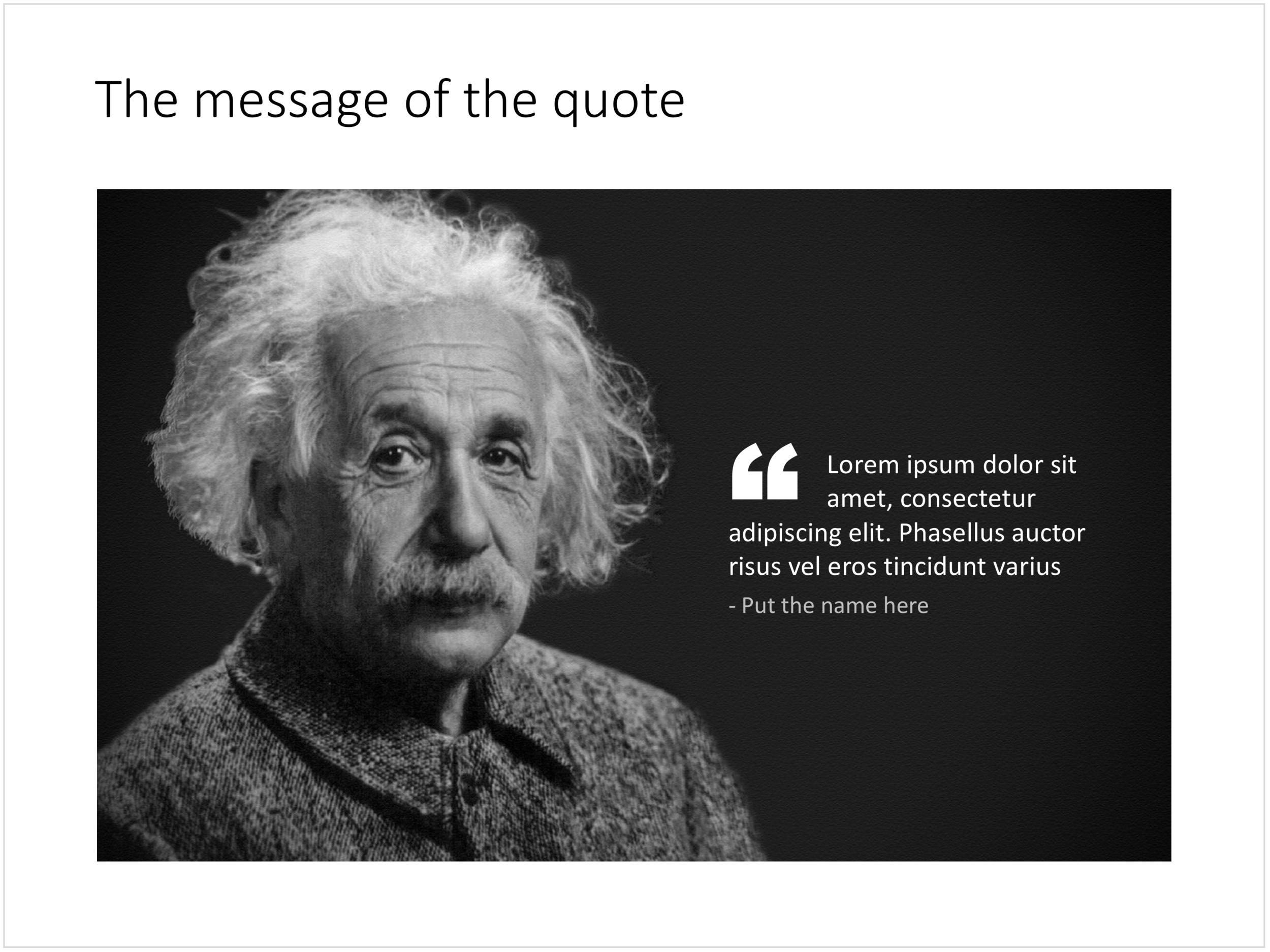
  • The image should have a calm background with enough "white" space for text. You don't need to be a Photoshop guru to extend the background of an image in PowerPoint, it is easy to add a black or white box next to images. You can use the colour picker to match the precise colour, or use semi transparent overlays for the best effects
  • Make the quote symbol stand out. Regular quotes are too small, and the layout does not look good, as the quote pushes the start of the paragraph in. There are endless ways to do it and I settled on this one. One big quote at the beginning of the paragraph with a text indent. Take some time to find a quote in a good font. In the above slide, the text font is the Microsoft Office standard Calibri, but the quotes of this font don't look that "fat", I used Arial.
  • This slide is a framed image slide, which gives me the opportunity to add a big headline at the top of the slide with the main message (the headline can say "Customers are really happy", the quote can say "With product [x], I no longer need to use a pencil".

Feel free to borrow the suggestions above, or you can download the finished slide here. The template store has related designs for quotes, or customers.

SlideMagic: a platform for magical presentations. Free student plan available. LEARN MORE
The iceberg in PowerPoint, presentation cliches

The iceberg in PowerPoint, presentation cliches

I think people are spending way too much time on creating corporate presentation documents for internal company  meetings where the objective is to get your colleagues to agree on something that needs to happen next. Not every meeting is your all company annual sales kick off.

Presentation cliches can be effective visual shortcuts to get your point across. People have seen them before, instantly connect to the concept, and you can move on. The challenge is to make your slide look decent, maybe even referring to the cliche in a tongue-in-cheek way.

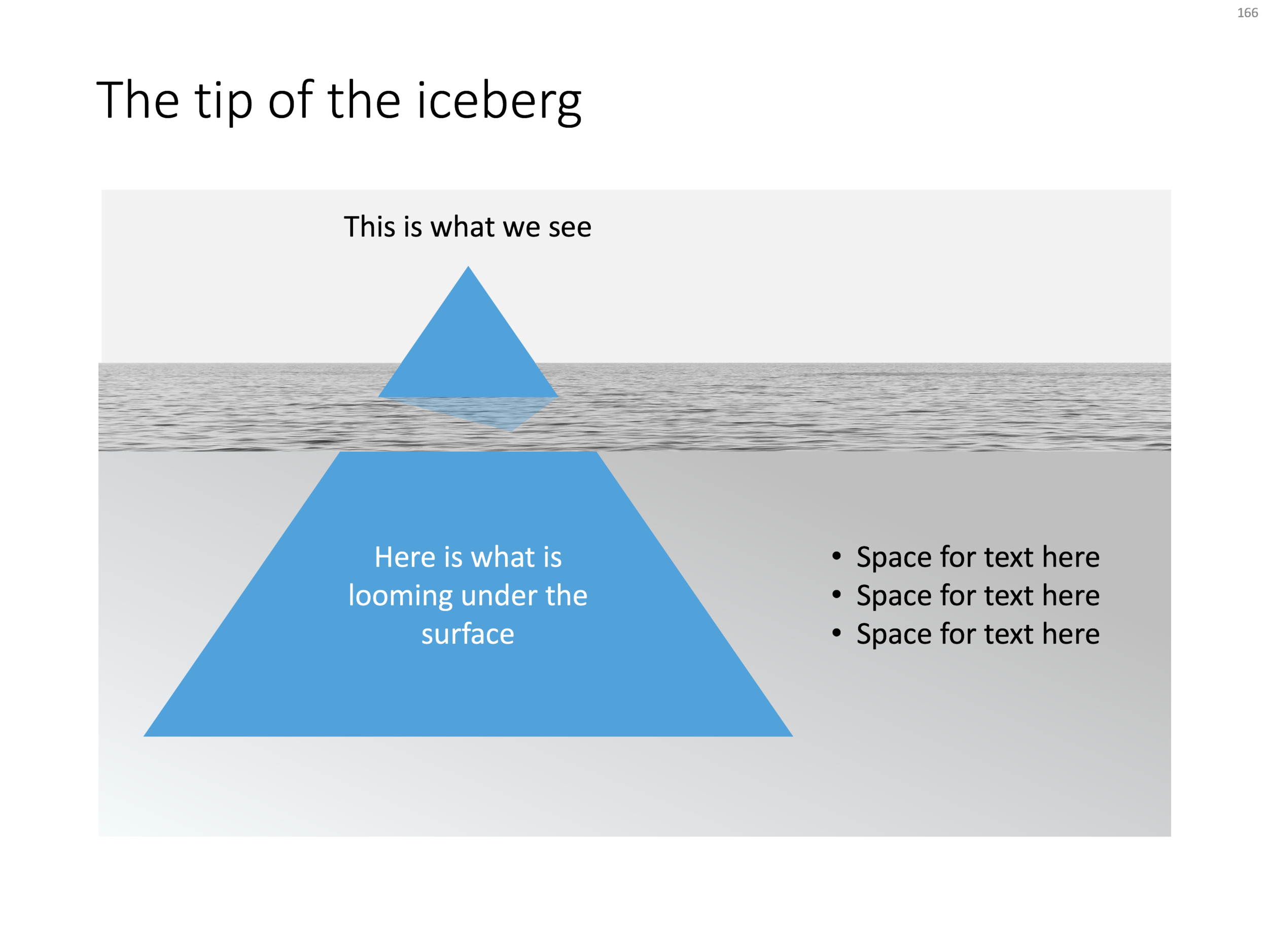
Below is what I tried to do to the infamous tip of the iceberg slide.

The tip of the iceberg presentation "classic" (or cliche?)

The tip of the iceberg presentation "classic" (or cliche?)

  • Don't try to make it look too photo realistic, but rather use an abstract simple geometrical shape, and use the presentation accent color (instead of white against a dark background)
  • Keep the slide very simple, but the depth effect is actually created with clever layering of (partly semitransparent) shapes and image crops, it took me some head scratching to figure out
  • Shift the whole composition to the side to leave some more space for text, if you need it.

All in all, this chart looks better than a boring list of bullet points that describe some looming threat you want to warn your colleagues about. Just resist the temptation to fill that empty piece of arctic ocean on the right or the crisp polar sky with text.

If you want, you can download the tip of the iceberg slide here.

Photo by paul morris on Unsplash

SlideMagic: a platform for magical presentations. Free student plan available. LEARN MORE
The pillars and other PowerPoint cliches

The pillars and other PowerPoint cliches

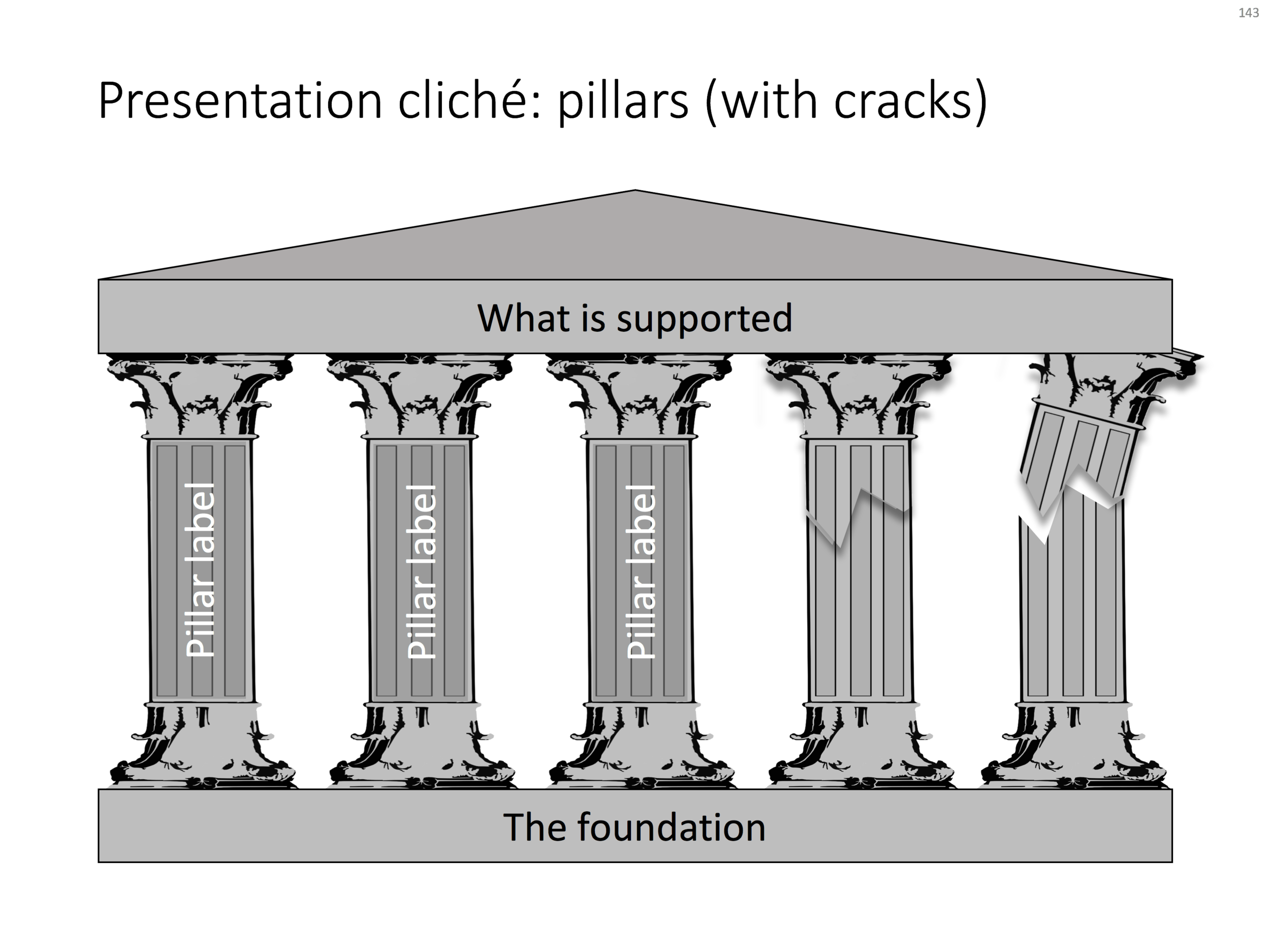
Some presentation slide layouts have been used so many times that they have become a cliche. You know it, when you see one. In very high profile presentations, it is a good idea to take them out and replace them with a different design, to prevent the audience from thinking "Oops, it's going to be one of those decks again".

I am pragmatic though, and I you need to stitch together a quick deck for tomorrow's strategy meeting, and yes, you have a case that your strategy depends on 5 pillars, I will forgive you for digging up that temple slide from the archives.

For your convenience, I have created a downloadable pillar/temple slide in the template store. This version can also come in handy when you need to address not totally stable strategies. In case you  are curious, I  have labeled some other slides as "cliche" in the template store, you can a run a search for the keyword "cliche" and see what comes up. Do you agree?

SlideMagic: a platform for magical presentations. Free student plan available. LEARN MORE
How to create Harvey Balls in PowerPoint

How to create Harvey Balls in PowerPoint

Harvey Balls are a repeating pattern of simple pie diagrams to score options among different access. Strategy consultants love them because it allows you to make qualitative assessments quickly. They work great on group discussion whiteboards as well: draw the empty circles and have the meeting participants colour them in.

Apparently they were invented at Booz Allen in the 1970s, which is probably why we at McKinsey referred to them as "moons".

In PowerPoint they are a bit tricky to make, in the template below I tried to make an effort. To change the values, you need to open each pie diagram and change its value, make sure that you are not moving or re-scaling any of the pie diagrams in the process.

At McKinsey, I remember always keeping a "moon" diagram somewhere in my hard drive, so I could easily re-use the various shapes (these were not Excel pie diagrams, but graphic icons that came in the four stages).

Visually, I think they are not perfect. Maybe in the early 1990s, with primitive computer graphics, Harvey balls served a purpose, but now the same effect can equally be achieved by applying different colour shadings in the background colour of the cells in your table.

As always, feel free to copy the design, or download the ready-made slide from the template store.

SlideMagic: a platform for magical presentations. Free student plan available. LEARN MORE
Pop out of the box

Pop out of the box

My slide layouts usually have a white frame around them, even big images I don not let "bleed" of the page. Why? My slide decks are usually a mix of these minimalist big image slides and more traditional, dense, consulting-type slides. The big pictures usually go in the front of the deck to sell the idea, but for financials, roadmaps, etc. I need a different format. Mixing two styles of presentations gives the deck an inconsistent look.

(The exception would be tracker pages, or section separators, which I usually stretch over a full page).

That "box" gives you some new design opportunities though; you can make things pop out by putting them outside the frame on purpose. This is technique that is often used on magazine covers. Below are some slides from the store where I used this technique (clicking them takes you to the store).

SlideMagic: a platform for magical presentations. Free student plan available. LEARN MORE
SWOT analysis

SWOT analysis

You have been searching "SWOT" a lot in my slide template store, and got blank results. So, by popular demand, I added a SWOT slide template.

The slide is a bit too dense to put up in your next TEDTalk, but that is never the purpose of a Strengths-Weaknesses-Threats-Opportunities analysis. A SWOT is an analysis rather than a presentation tool. In my life as a strategy consultant at McKinsey, a SWOT analysis rarely solved a big strategic problem start to finish, but it is usually a great tool to get people started.

It can be especially useful in big group discussions where strategic debates can go all over the place. Putting an empty SWOT framework on a flip chart immediately calms the group down and focuses the meeting.

I expanded a bit on the traditional 2x2 (4 boxes) model: the SW, and OT boxes are now put on the side of the matrix, leaving space for 4 new boxes in the center that enable you to scribble what you are actually going to do about all these internal and external factors.

(I vividly remember that 50% of the group discussions around a SWOT whiteboard were about in which box to throw a particular thought).

Feel free to copy the design, or download the SWOT analysis ready made from the template store. You can find there more examples of strategic frameworks as well.

SlideMagic: a platform for magical presentations. Free student plan available. LEARN MORE
Presenting your team

Presenting your team

Presenting your team. Team slides are tricky: there is so much to tell when you have 3 people with a 20 year career. Where to start?

SlideMagic: a platform for magical presentations. Free student plan available. LEARN MORE
Turning a bar chart into a Gantt diagram

Turning a bar chart into a Gantt diagram

From bar chart to Gantt. Read in this blog post how you can turn a stacked bar chart into a Gantt diagram.

SlideMagic: a platform for magical presentations. Free student plan available. LEARN MORE
Evidence from press clippings

Evidence from press clippings

Here is a slide I often encounter in draft publications: a screen shot of a news web page, with a few words circled in the middle of the article. There are a few problems with this

SlideMagic: a platform for magical presentations. Free student plan available. LEARN MORE
Using perspective in PowerPoint

Using perspective in PowerPoint

How to create a 3D perspective in PowerPoint. Most of the time, 3D is not required in business presentations. But sometimes, it is. See how to position objects on a 3D canvas in this post.

SlideMagic: a platform for magical presentations. Free student plan available. LEARN MORE
How to present the competition

How to present the competition

How to present the competition. The best slide to talk about competition of your product or company depends on your specific market. I will take you through a number of common slide layouts.

SlideMagic: a platform for magical presentations. Free student plan available. LEARN MORE
App demo slides

App demo slides

App demo slides. Doing a live app demo in a 20 minute pitch meeting is risky, the technology might go wrong, and probably more than half the time you spent in a 2 minute app demo could be things that are not really interesting: logging in etc. Instead, I usually prepare a series of screen shots with big explanation bubbles in my presentations.

SlideMagic: a platform for magical presentations. Free student plan available. LEARN MORE
Spacing objects on a circle

Spacing objects on a circle

Spacing objects on a circle. It can be tricky to distribute text bubbles evenly on a circle. To make it easier, you can put a temporary shape inside the circle like in the example below. Delete it after your bubble chart is complete.

SlideMagic: a platform for magical presentations. Free student plan available. LEARN MORE
Mixed cluster and stack charts

Mixed cluster and stack charts

On a few occasions, I had to use a combination of a cluster and a stack chart. This chart is not available as a standard option in PowerPoint. Here is how to make it:

  • Create a regular stacked column chart
  • Set the gap width to 0
  • Blank out the data where you want the gap between the years to be
  • Manually add labels for each of the years

You can create one yourself using the above ingredients, or you can download the one I made in the SlideMagic template store:

SlideMagic: a platform for magical presentations. Free student plan available. LEARN MORE
2 ways to stretch objects in PowerPoint

2 ways to stretch objects in PowerPoint

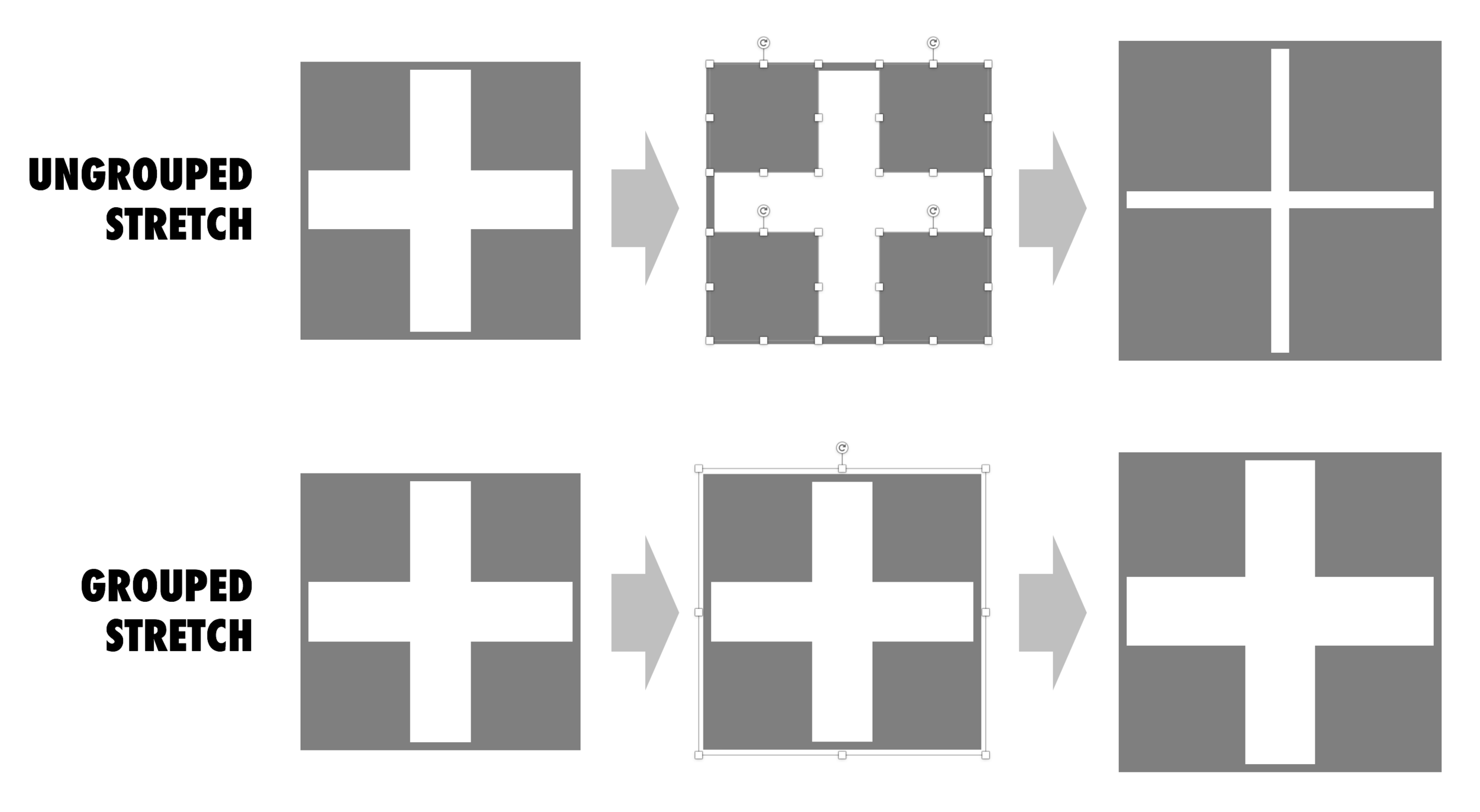
Use these 2 ways of stretching objects in PowerPoint to your advantage. One will make objects closer together, the other maintains the spacing between them. I never paid much attention to this in the first 2 decades of presentation design, but after noticing it, it has proven very useful over the past weeks. Better late than never.

Screenshot 2017-10-18 09.15.46.png

SlideMagic: a platform for magical presentations. Free student plan available. LEARN MORE
Digital car instrument clusters

Digital car instrument clusters

I had the opportunity to drive a BMW the other day with al all digital instrument display panel. Car manufacturers have something to learn about design. The display tried really hard to look like an analogue one, reflections, depth effects, glow edges, gradients. The whole thing feels very PowerPoint 2007 / Windows 7 / Nokia to me.

Also, a digital display opens up the possibility to re-arrange how the smaller data elements are displayed (kms, fuel tank, etc. etc.), but BMW did not (yet) do that.

Car instrument panels are up for a big shake up. I think the answer is not displays that mimic analog gear, plus eliminating buttons and replace them with touch screens and menu diving. Instead, I would opt for a beautiful, minimal display of essential information, and actually, very high quality, regular "analogue" buttons.

It affects not only the user/driver experience today, but also whether cars will eventually turn into a classic or not. To make the parallel with electronics, old gear from the 1960s / 1970s can still look/work beautiful, while designs from the 1980s and 1990s with low res/poor digital interfaces look cheap and ugly. Digital displays that look advanced today, will be totally obsolete in 5 years from now.

We will see what happens.

SlideMagic: a platform for magical presentations. Free student plan available. LEARN MORE
Slideuments and graphics designers

Slideuments and graphics designers

Many designers with excellent skills in web and/or print design somehow cannot deploy their talent very well in PowerPoint/business presentations. I have been thinking hard about why this could be.

The key challenge I think is the tight relationship with content and design. In print/web the design of a page does not really change that much if the content changes (it is still a block of text, an image, and an icon that fit in the same overall grid). In a business presentation, everything goes upside down when your competitor analysis needs to include 3 instead of 2 dimensions.

The second reason is - I think - that both people who write presentations and designers who polish them, stick to the conventional slide format: title across the top, list of bullets.

Now here is an interesting experiment for a 100% graphics designer who is not allowed or does not have the knowledge to touch any of the content (the classical print graphics designer situation). Assuming the presentation is a slideument (meant for reading rather than presenting).

Hand over the material in a word processor, as a long text file rather than a partly finished PowerPoint presentation. Now give the designer total freedom to present this material in any form she wants, even in any software she wants, using any page layout she wants.

Changes are you might get a pretty good lucking slideument by taking "PowerPoint" and its familiar layout out of the equation.


Image via WikiPedia

SlideMagic: a platform for magical presentations. Free student plan available. LEARN MORE
Useful busy slides

Useful busy slides

Increasingly, presentation meetings are about discussing a proposal for investment or a product sale, rather than confronting an audience with an idea for the very first time. People have gotten the basic idea in material they saw beforehand.

So, there is a new role for busy slides, meant for pondering on a desktop screen.

A number of things can make slides busy:

  • Too many topics/ideas to cover
  • Lots of filler/buzzwords that inflate a simple point into a paragraph of prose
  • Complex relationships, dependencies, architectures, pricing models

The first two are a no-go, even for presentations that are meant for reading. The third option however, can be useful. In many cases, it is virtually impossible to visualize a complex timeline or network in a series of slides with pretty pictures and one word on them.

Some guidelines how to design these useful slides crammed with content:

  • Think about every word/label you type, can it be shorter, and if so, will we save an entire line?
  • Grid, grid, grid: make sure everything lines up with everything where ever possible, this will make the composition calmer on the eye
  • Hierarchy: create multiple layers of insight, big bold ones that catch the eye immediately, smaller subtle one for the reader who has more time
  • Use color to connect items

Image via WikiPedia

SlideMagic: a platform for magical presentations. Free student plan available. LEARN MORE
4:3 or 16:9?

4:3 or 16:9?

"What, it is 2017 and you design a deck in 4:3 format?", I got these questions a few times. Here are the pros and cons of both formats.

A 16:9 or widescreen aspect ratio will give you a nice image on an LCD conference room monitor or desktop/laptop screen with the black bars on the left and right

A 4:3 aspect ratio will look better on projectors, which are still used in many larger presentation rooms. Also: 4:3 looks better when decks are printed, a habit that is still very common in the financial services industry where people like to take notes, look in detail at data tables, (and probably want to take an opportunity to quickly flick ahead if the presenter is slow/boring).

And personally, I like the design freedom of a more even design canvas (4:3) better than the wide screen version, which forces me to make horizontally stretched slide designs. (A cheat: put the headline across a number of lines to the left of the slide and use the imaginary 4:3 canvas to the right of it for your slide content.

So, here you have it. I don't think 4:3 is old fashioned for presentations (it is for movies), it just depends on the most likely presentation context you expect.

In my presentation app SlideMagic, I used a 4:3 canvas, but use the extra horizontal space of a 16:9 screen to add your "explanation boxes" that you can slide in and out. When set to "out", the presentation becomes 16:9 with a more detailed description of the slide in case you send the document ahead of a meeting and the recipient will open/read it without you being there to explain it.


Image via WikiPedia

SlideMagic: a platform for magical presentations. Free student plan available. LEARN MORE
My standard page layout

My standard page layout

The empty template in my presentation app SlideMagic uses pretty much the same layout as my bespoke work in PowerPoint/Keynote for clients:

Big slide headline that can run over 2 lines (I like elaborate titles, similar to newspaper headings), without any graphical elements (lines, banners, logos)

  • Small logo in the bottom right, I compromise here and give in to most companies insisting that the audience should be reminded to whom they are listening on every page. Many clients want to move that logo left, which creates a graphical imbalance: the bottom right logo balances the weight of the left-aligned title in the top left. Also, a logo at the left creates problems with footnotes.

SlideMagic: a platform for magical presentations. Free student plan available. LEARN MORE