Viewing entries in
SlideMagic

SlideMagic analytics

SlideMagic analytics

Over the weekend I re-wrote the entire analytics engine of SlideMagic. (Apologies for the frequent app updates).

I had a whole bunch of tools installed, some of them dating bask a long time when I just started out with the blog. They were spitting out a lot of data that was never really used. Web analytics brings back memories of my time as a McKinsey consultant. The client having a massive and sophisticated business intelligence (“BI”) information system that could produce any breakdown of any segment at any time. Our work was to find what actually mattered, which often was a surprisingly simple chart.

If you are running a massive web site with billions of hits, then A/B testing the colour of buttons might make you money. You hire the web analytics consultant, let her do her work, and in the end your return on investment is a 0.005% uptake in conversion on a billion of clicks minus the cost of the data analysis project. The result is a massive amount of trackers that follow you across the internet.

SlideMagic no longer has them. I went back to basics, and put a very simple system in place, that gives me the information I need given the growth stage SlideMagic is in (making sure that the product works flawlessly). In the process I could also eliminate any possible information that could, if you really wanted to, identify a user. All is clean now, and I understand/control 100% what is actually going on with your data.

Photo by Nick Loggie on Unsplash

SlideMagic: a platform for magical presentations. Free student plan available. LEARN MORE
A better way to edit speaker notes

A better way to edit speaker notes

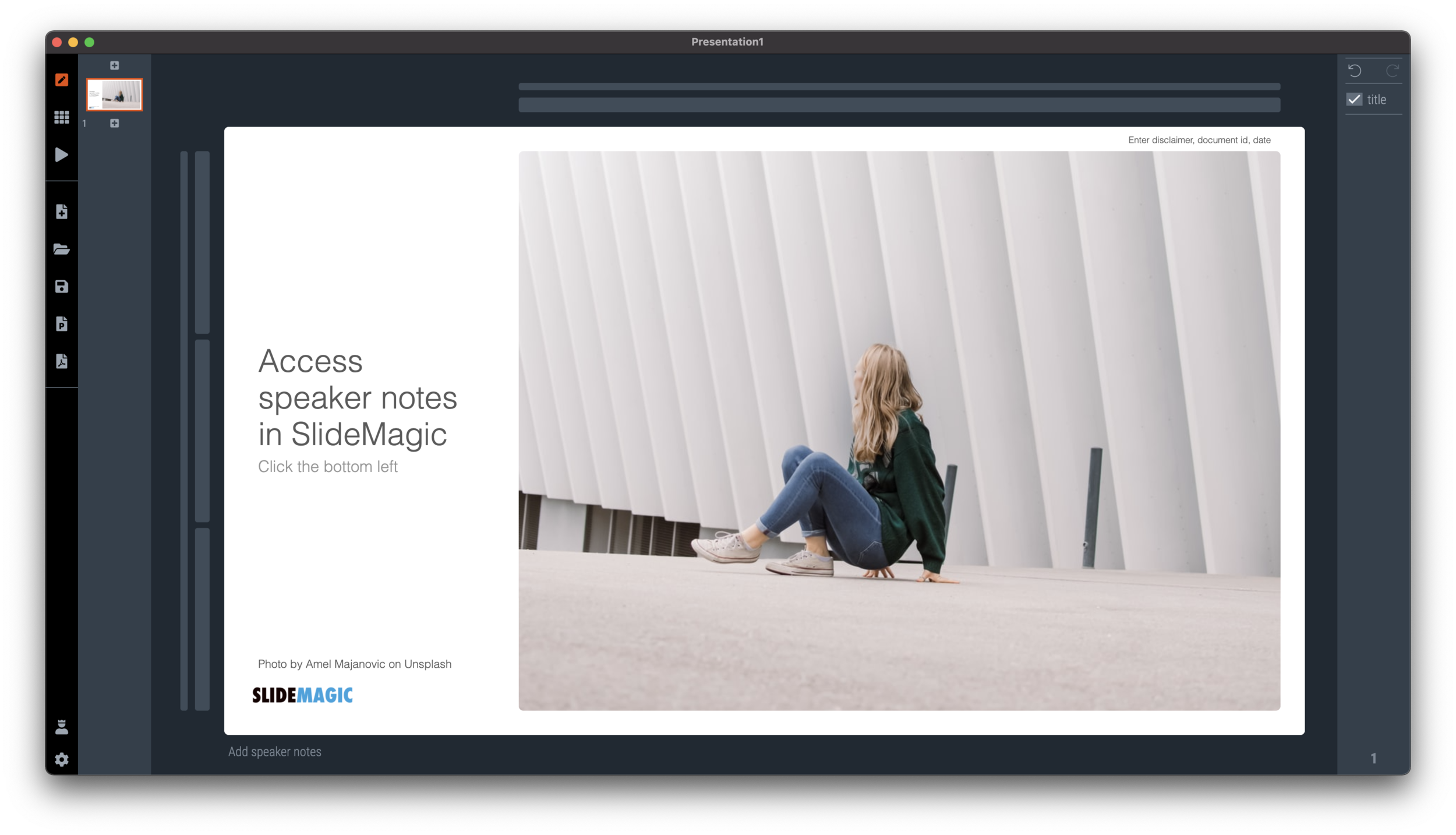
I made the user interface for speaker notes a bit clearer in version 2.6.12 of SlideMagic. The mysterious bullet point icon at the bottom of the slide has been replaced with a simple text link. Click and you will see a big and bold overlay over the slide where you can add your notes.

Screen Shot 2021-01-27 at 6.07.07.png
Screen Shot 2021-01-27 at 6.20.17.png

Speaker notes will show up in the presenter view window when you present the slides and are only visible to you the presenter, not to the audience. On a Zoom call, share the audience window to the video call participants, while you keep an eye on your private presenter view with important reminders of the points you want to make when presenting the slide.

Screen Shot 2021-01-27 at 6.10.39.png

In SlideMagic, you can edit your speaker notes also in this presenter view window. This is not only great for last minute fixes of your story, but also gives you a platform to edit the flow of your story slide by slide. Increase the size of your presenter view window, and click through your presentation. You see a small thumb of your slide, an even smaller one of the next slide up, and a big text box to write down your points.

Screen Shot 2021-01-27 at 6.25.13.png

When you return to the normal view of the slide, you will see that the speaker note edit link has changed colour, to remind you that there are speaker notes in this slide. This is important when you share .magic files with other users, because they will be able to read those speaker notes as well. (This prevents you from sending “Better not share our 50% churn with investors in the first presentation with investors if they do not ask for it….” to well, an investor attending your first presentation)

Screen Shot 2021-01-27 at 6.31.38.png

When convert a SlideMagic .magic file to PowerPoint .pptx (a ‘pro’ feature), the speaker notes will be transferred as well. (Of course, a PDF conversion will have no speaker notes.)

Screen Shot 2021-01-27 at 6.30.09.png

SlideMagic: a platform for magical presentations. Free student plan available. LEARN MORE
A faster way to edit slides

A faster way to edit slides

I have made more improvements to the SlideMagic user interface. Is is now easier to select multiple cells, especially in fine grids.

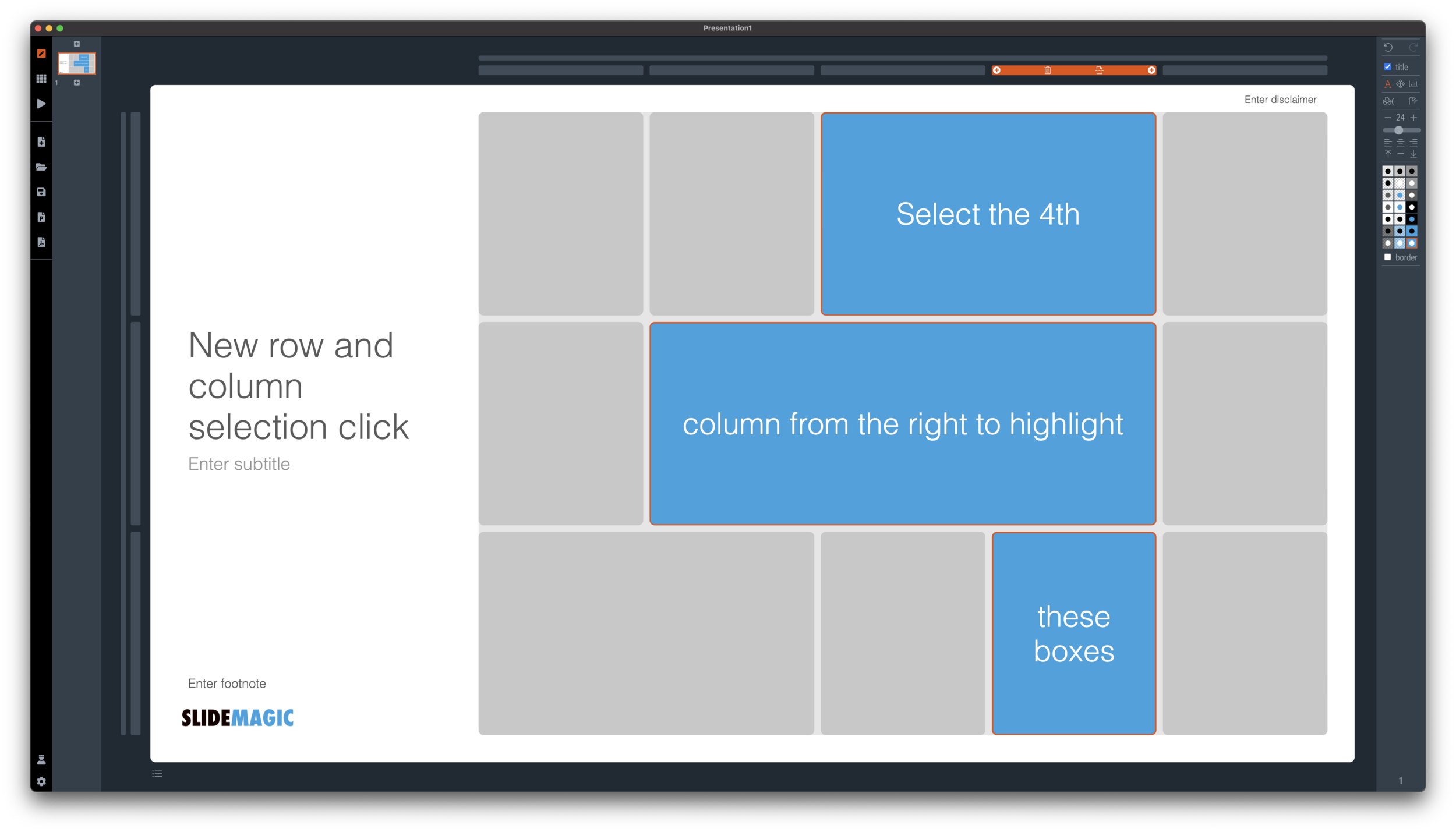
If you select a column marker at the top of the slide, all boxes in your slide that “touch|” the column will be become selected, and you can apply formatting to them in one go (for example, make them all blue).

Screen Shot 2021-01-18 at 17.36.19.png

The same applies for rows, click a row marker, and all relevant boxes in the row line up.

Screen Shot 2021-01-18 at 17.37.58.png

Finally, you can select whole areas of boxes by first clicking a top-left element, then clicking a bottom-right element, and SlideMagic will light up all the boxes that are in between. See the example below.

Screen Shot 2021-01-18 at 17.38.42.png
Screen Shot 2021-01-18 at 17.38.46.png

SlideMagic: a platform for magical presentations. Free student plan available. LEARN MORE
New 'no-title' layout

New 'no-title' layout

SlideMagic works with fixed positions for slide titles, subtitles, footnotes, and logos. Each slide looks organised, consistent, and the same.

Some slides call out for a slightly differently layout. Tracker pages for example. A simple text box that sites right in the middle of the screen. Up until now, SlideMagic would push these text boxes a bit down or to the right because of the required space for the slide title.

With a very simple check mark, I now created the option to remove titles from the slide on a slide-by-slide basis. It is a tiny adjustment to the user interface that can improve the look of layouts significantly. I am still putting a high hurdle when it comes to complicating SlideMagic. This is definitely not a complication!

While the user interface adjustment is easy, behind the scenes, there is a lot going on. Removing the the titles from a slide requires recropping of all the images on a slide. With SlideMagic’s new automatic cropping algorithm, this has now become possible. Imagine doing this for a slide with 40 client logos in a regular presentation design software, after which you come to the conclusion that the slide looked better with a title: re-cutting, re-cropping, re-distributing 40 images again. In SlideMagic, this is a button click.

You can check out the new features as of version 2.6.9

Screen Shot 2021-01-18 at 16.57.04.png
Screen Shot 2021-01-18 at 16.57.31.png
Screen Shot 2021-01-18 at 16.56.44.png
Screen Shot 2021-01-18 at 16.55.56.png

SlideMagic: a platform for magical presentations. Free student plan available. LEARN MORE
Should you put 'confidential' on every slide of your presentation?

Should you put 'confidential' on every slide of your presentation?

For years I tried to resist the pressure from lawyers to fill every slide with legal disclaimers. They do not look very pretty. But SlideMagic aims to be practical and as of version 2.6.8, you can do so, if you have to.

To make them still look OK:

  • I made the font really small, in all caps, so the disclaimer looks more like some sort of a document id

  • All disclaimers are exactly the same and at exactly the same place

  • The placement of the disclaimer changes based on what sort of aspect ratio / slide layout you are using

Screen Shot 2021-01-18 at 9.46.17.png

Should you put disclaimers? (Warning, I am not a lawyer). There are certain situations where you probably should. Certain confidentiality agreements state that information needs to be marked as being confidential to be covered by the agreement.

But, if there is no such agreement in place, I am not sure how much leverage you have if people are sharing pages despite all the scary warnings on the page. Also, if you are using slides with a big TED talk or product launch, the whole world can see them, making the disclaimers pretty useless.

Most investors do not sign NDAs, and you actually you want the junior VC to forward your pages to a partner in the firm. Assume that when you send your slides to investors, there can be leaks, so be careful what you put in there. In most cases the actual content of your super secret technology will not make the difference when it comes to evaluating your pitch deck in the early stages of the investment process.

So, consult your lawyer, push back if she insists, and give in if she has a reasonable argument.

Photo by Kristina Flour on Unsplash

SlideMagic: a platform for magical presentations. Free student plan available. LEARN MORE
Making SlideMagic more Zoom-friendly

Making SlideMagic more Zoom-friendly

Up until now, playing a SlideMagic presentation would trigger a full screen view of your slide, plus second full screen window on the presenter machine (if available). Switching back and forth to full screen, swapping monitors can be a bit disorienting, and in the area of Zoom, it does not work well when you want to share your audience window, but not your presenter view.

Screen Shot 2021-01-06 at 10.10.07.png

As of version 2.6.3, entering a presentation will now always trigger 2 windows (not in full screen): the slide and a smaller presenter view with timer, counter, and a thumb of the next slide coming up. You can re-rearrange them to monitors as you see fit, and go to full screen manually if needed.

This also ‘solves’ the issue of deciding which screen is the audience screen, and which one the presenter’s when many on screen projectors (not replaced very frequently) have lower screen resolutions than most computers.

SlideMagic: a platform for magical presentations. Free student plan available. LEARN MORE
How to crop headshots in your presentation

How to crop headshots in your presentation

The ideal design for a slide that shows your team is a group picture, all taken together. Unfortunately, these are almost impossible to produce. Teams change, and people are hardly ever in the same room (especially now with the virus).

The next best thing is a collage of headshots. Professional graphics designers have a specific approach to line these up properly:

  • Make sure that the eye line of all the head shots is more or less the same (at 25-33% of the image height

  • Make sure that the sizes of the heads are more or less the same

In PowerPoint and Keynote, this is an absolute pain to do. Getting different images to have the exact same size is tricky. Cropping images to position eye ines is tricky to do, and might undo part of the work that you did to get them to be all the same size.

In SlideMagic, things are easier, because it works with fixed shapes and smart cropping.

Below I plopped in 3 portrait images from the built-in image search engine of SlideMagic. In 2 of the 3 cases, the “AI” smart cropping algorithm did already a reasonable job, in the last case, totally not. But first things first, all images have the exact same size, and are spaced out absolutely perfect.

Screen Shot 2021-01-10 at 15.12.31.png

Next, we are going to drag the central dot at eye level for each of our team members and drag the images inside their boxes so the eye lines line up.

Screen Shot 2021-01-10 at 15.12.51.png

Now we can zoom the headshots to the right size by dragging the zoom slider at the bottom of the slide. SlideMagic keeps the eye line at exactly the level you set it to when zooming.

Screen Shot 2021-01-10 at 15.13.04.png

SlideMagic remembers the layout and crop of your image, for example if you change the aspect ratio of your slide to 4:3, the image still looks OK

Screen Shot 2021-01-10 at 15.13.11.png

SlideMagic: a platform for magical presentations. Free student plan available. LEARN MORE
New focal cropping now out of beta

New focal cropping now out of beta

I released version 2.6.1 as a regular SlideMagic app update, which includes the new focal cropping image rendering engine. I have been testing it extensively over the past few days and things are working smoothly.

If you are working on slide decks that you made a long time ago with SlideMagic, briefly check whether the image positioning is exactly as you intended it to be. (Including a possible logo image at the bottom right of the slide). An image that you thought was cropped “fill” or “fit” might just show a tiny gap around the borders. Hitting “fit” or “fill” again should solve the problem.

SlideMagic: a platform for magical presentations. Free student plan available. LEARN MORE
Weave effect in slides

Weave effect in slides

See the slide below. A weave effect shows how vertical and horizontal things are interconnected (in this case stuff I did back at McKinsey). It is impossible to weave shapes in programs such as PowerPoint or Keynote, they cannot be on top in one spot, and at the bottom in another,.

Screen Shot 2021-01-05 at 6.50.59.png

One way to get around this is the visual trick I applied here. Stick to a flat grid of boxes and colour/connect them to fake the visual effect. Super easy to make, super easy to change (adding, removing rows and columns). Below is the basic grid structure I used for this chart:

Screen Shot 2021-01-05 at 7.02.09.png

In PowerPoint and Keynote it can still be fiddly to line up all the boxes, especially when you want to make changes to a grid. You might have to resort to tables with very fat white margins between cells,. In SlideMagic it is super easy and even fun to create these charts. (Pro tip: SlideMagic converts to PowerPoint and can do the hard work for you).

I have added a variant of the slide to the SlideMagic template database (find it here, or simply search for “weave” in the desktop app)

SlideMagic: a platform for magical presentations. Free student plan available. LEARN MORE
Chart make-over: UK vaccine priorities

Chart make-over: UK vaccine priorities

I took on the challenge from this tweet:

The embedded tweet is obscuring the image, here is the original taken from the BBC:

_115770677_who_gets_covid_vaccines_first_640x2-nc-3.png

I think these icons are very cute, but are very hard to understand. I quickly put the following together in SlideMagic.

Screen Shot 2021-01-03 at 10.37.09.png

In the philosophy of SlideMagic, not the design of a pro, but very clear and very quick to put together. Notice how I kept things simple, by including the theoretical 0-16 years in nursing home residents, there won’t by any but the big horizontal bar shows the message “everyone” and maintains the visual harmony.

I have added this vaccin priority slide to the SlideMagic template database. You can access this slide for free by simply searching for “vaccine” from within the SlideMagic desktop app.

SlideMagic: a platform for magical presentations. Free student plan available. LEARN MORE
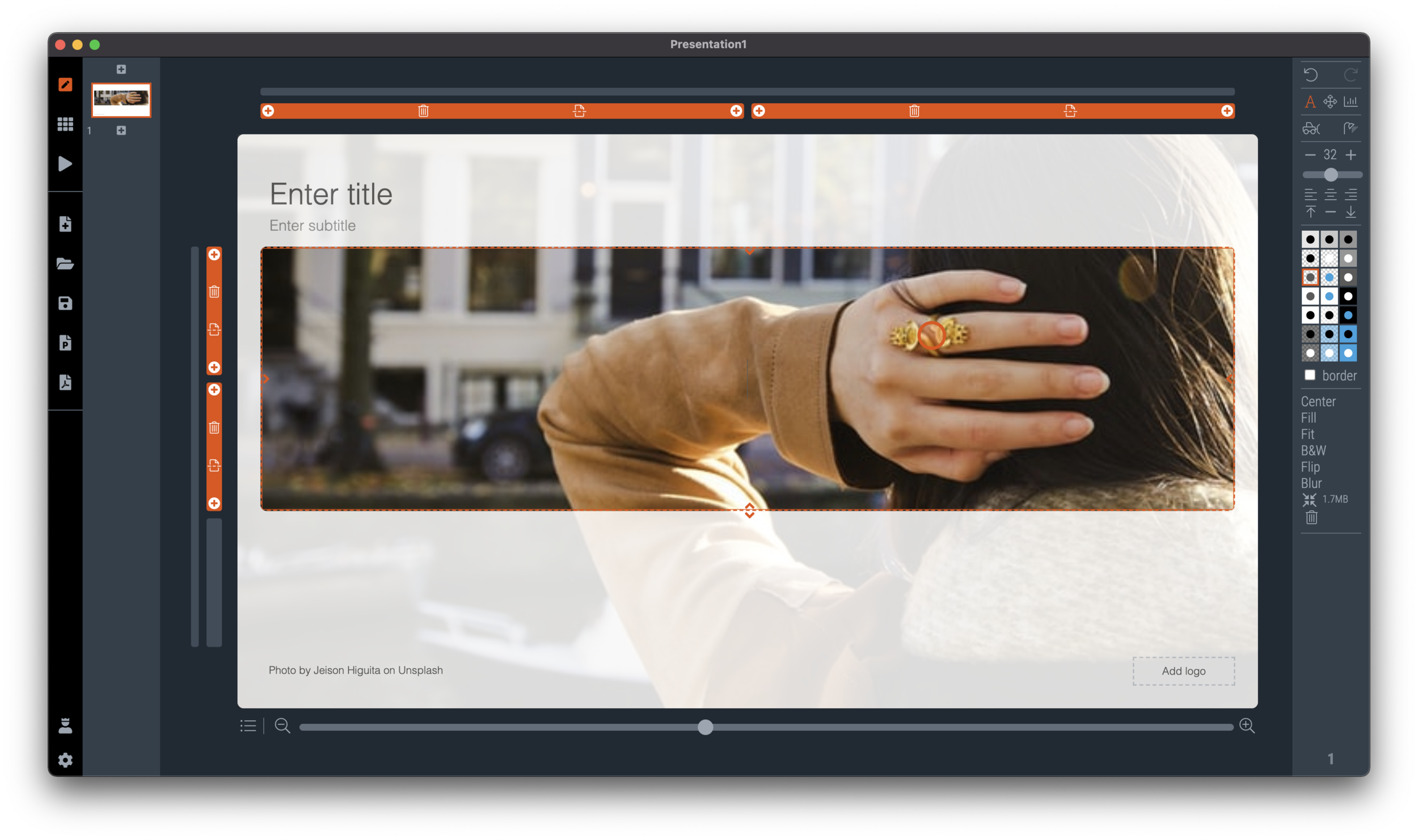
Focal point cropping!

Focal point cropping!

******* UPDATE: The new focal cropping is now out of beta and part of the regular SlideMagic release ********

Happy new year to you all, 2021 has already an important feature update.

I am testing an exciting new feature for SlideMagic: focal point cropping. (I first spoke about this back in August.) For each image in SlideMagic, you can set a focal point, a dot on the most important part of the photo. This can be a face, a feature of your product, a quote on a screen shot for example. If you subsequently change the size or shape or zoom level of the image, SlideMagic will re-crop the image so that your focal point appears in the right spot.

I have seen many examples of focal crops in other applications, but no one did get it completely right. That small house on the mountain you focused still disappears on certain screen sizes, or pictures get completely stretched and distorted when resizing screens or changing the composition of your slide. In SlideMagic, everything stays in place.

A particular design decision in web technology standards made it particularly hard to do (without having to divide by zero). Over the winter break, I rewrote the entire image rendering engine of SlideMagic, which was a bit like replacing the foundations of a house while people continue to live in it.

A lot is going on here, in terms of underlying math and how the user interface works. I won’t spell it out in detail here, the app should respond naturally without you having to think about it. The basics are in place now, but I still see a lot of improvement opportunities to the image cropping algorithm including automatic object detection.

I have released the feature only as a beta version at the moment, it will not update for non-beta users. Before the official release I want to make sure everything works for new presentations, maintain backward compatibility for older presentations, that there are no hiccups when downloading templates from the SlideMagic template database. If you want, you can install the latest beta version via Github here, the next time you start SlideMagic again, the latest current version will install back.

Below some screen shots where you see the feature in action:

Screen Shot 2020-12-30 at 12.51.23.png
Screen Shot 2020-12-30 at 12.51.29.png
Screen Shot 2020-12-30 at 12.51.35.png
Screen Shot 2020-12-30 at 12.51.41.png
Screen Shot 2020-12-30 at 12.51.46.png
Screen Shot 2020-12-30 at 12.51.58.png

This new cropping engine also enables me to take out this “hack” to deal with different image aspect ratios and images


SlideMagic: a platform for magical presentations. Free student plan available. LEARN MORE
Winter break 2020

Winter break 2020

More or less every year since 2008 when I started this blog, I posted around the winter break that I would pause writing to enjoy a holiday with my family. This year is a bit different. I am currently completely rewriting the image rendering engine for SlideMagic with a number of objectives:

  1. To finally enable proper smart cropping of images: if you scale an image, change its aspect ratio, crop, resize, whatever, SlideMagic will do the right thing and keep the item you want to be in focus, where it should be: in focus. The math for this is actually tricky, let’s hope I get it to work.

  2. Improve the performance of the application dramatically, especially when zooming/resizing and repositioning images. I should be able to match “video game”-type response rates

  3. (To remove a dependency on a very weird 1990s specification standard how images are rendered on web pages).

Non-beta SlideMagic users will not be guinea pigs for my plumbing changes, don’t worry.

Happy holidays everyone!

Photo by Mike Kotsch on Unsplash

SlideMagic: a platform for magical presentations. Free student plan available. LEARN MORE
Update: V2.5.19

Update: V2.5.19

I have been keeping a low profile here over the past week as I continue to improve the performance and stability of SlideMagic. I feel a bit like a construction contractor: putting up the house is easy with very visible progress, but getting those last tweaks done is time consuming and relatively below the radar work.

Under the hood things improve very well. The tool gets used more intensely now so every corner it will soon be tried and tested. I notice that I am fixing some of issues that are similar to the ones I encountered with PowerPoint’s public software releases (as an industrial user, I hit them first). My software development budget is a bit lower than Microsoft’s but we are getting there.

Photo by Cesar Carlevarino Aragon on Unsplash

SlideMagic: a platform for magical presentations. Free student plan available. LEARN MORE
Stack charts with tighter grid integration

Stack charts with tighter grid integration

Stack charts are very useful. So useful in fact, that SlideMagic does not support pie charts (by design).

They are very easy to make in Excel, but using them straight in a presentation is tricky. First there is the overall formatting of the chart, then there is the legend which is never connected to the chart itself, and does not leave enough space for text other than ‘new’, ‘old’.

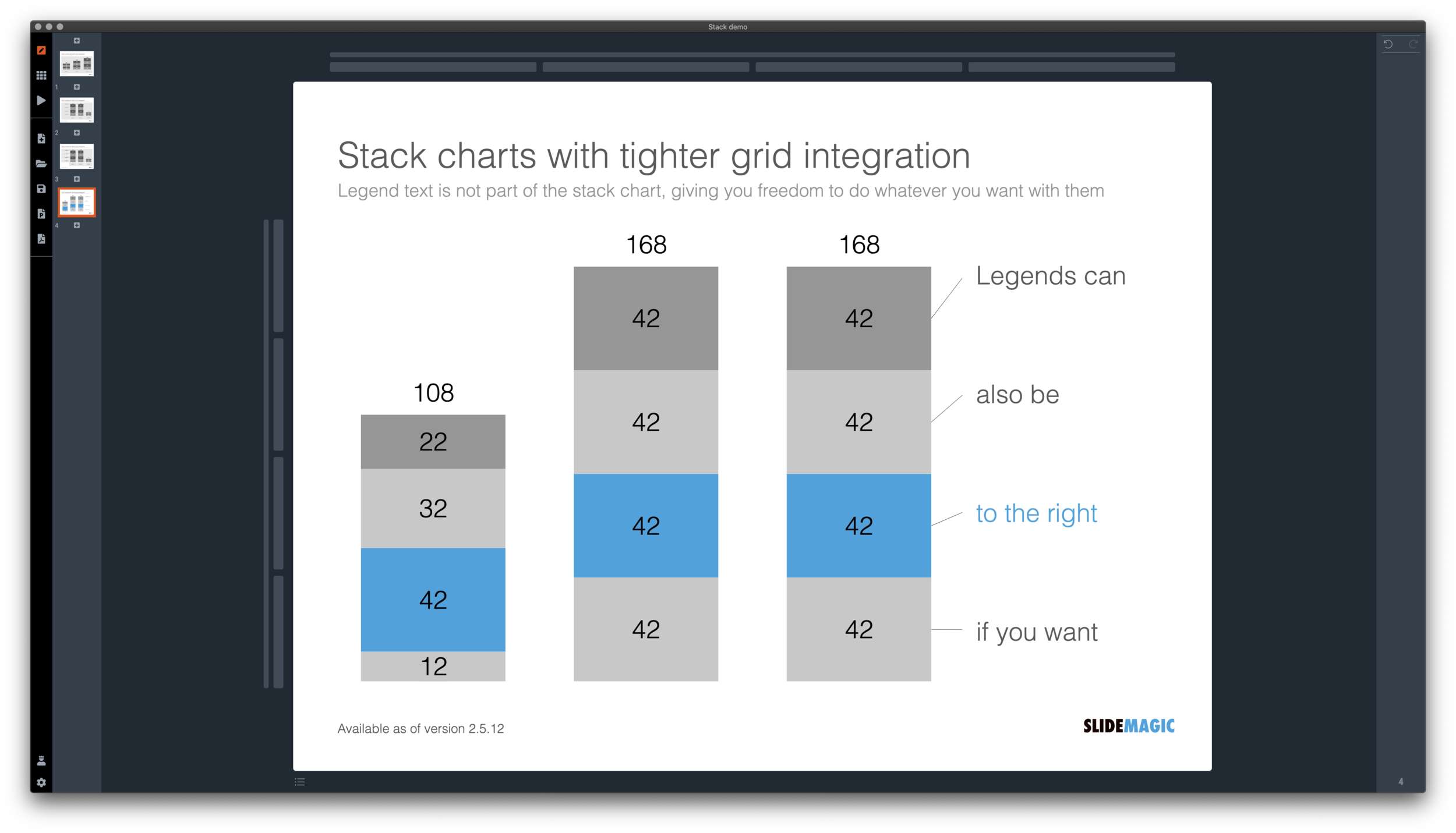
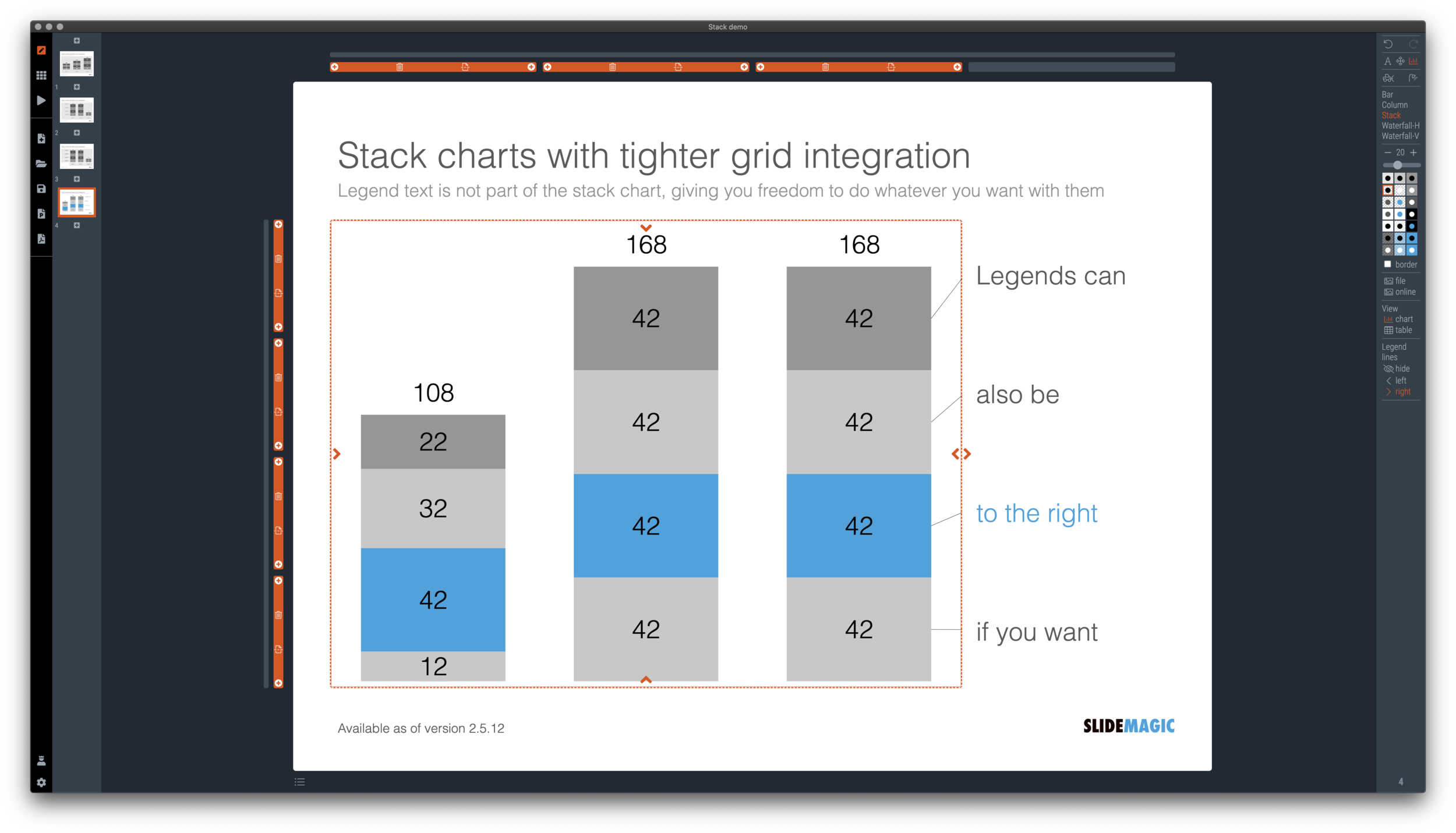
I just overhauled the stack chart in SlideMagic and forced to be tightly integrated with the slide grid. Adding/deleting rows to your slide will add/delete data series to your stack chart. Furthermore I have actually removed the legend from the stack chart shape itself, what is left is only the option to add lines that point to boxes outside the chart. This gives you total freedom to do whatever you want with the chart legend, small, big, or even huge text boxes. Everything lines up, you can even fit stack charts in tables if you want.

The charts below give you a sense of what the new engine does:

Screen Shot 2020-12-02 at 9.44.35.png
Screen Shot 2020-12-02 at 9.49.56.png
Screen Shot 2020-12-02 at 9.51.28.png
Screen Shot 2020-12-02 at 9.51.36.png

The old stack charts will continue to work in SlideMagic for the moment. If your charts have them, you can edit them. If you want to make new ones, click <SHIFT> + <STACK> and you can still make them. An old stack chart can instantly be converted into a new one by selecting it and clicking the <STACK> icon.

Stack charts in the template database are still in the old format, I will convert them over the coming weeks to the new format.

Stack charts convert to native Excel charts when saving your presentation as a PowerPoint file (the connecting legend lines are still missing for the moment). In PDF, you have exactly “what you see is what you get”.

SlideMagic: a platform for magical presentations. Free student plan available. LEARN MORE
Regenerating the PowerPoint slides

Regenerating the PowerPoint slides

For subscribers who are using SlideMagic to download PowerPoint templates only: I have re-run the conversions of the entire database to solve some issues with arrows not being rendered correctly. All should be working fine now, let me know if you still find a slide that does not download correctly.

Pro-tip: try the SlideMagic app, a much more convenient way to work with the template database, convert to PowerPoint (if needed) as the very last step in your workflow.

SlideMagic: a platform for magical presentations. Free student plan available. LEARN MORE
A dedicated browser

A dedicated browser

Many people are surprised that SlideMagic is a desktop app. “Hey, it is 2020, not 1995?” Well, the SlideMagic desktop app is a bit different than the things you would run on your machine in 1995. It updates frequently (sometimes daily), and constantly is in touch with the slide data base server. I would actually call it a “dedicated browser”: a front end for the SlideMagic server with features such as dropdown menus and drag/drop between multiple windows that you cannot find in a regular browser.

People agree that on phones and tables, a dedicated app gives a better experience than a web page. The same is (still) true on a desktop.

Photo by Ilse Orsel on Unsplash

SlideMagic: a platform for magical presentations. Free student plan available. LEARN MORE
Example: COVID chain of infection

Example: COVID chain of infection

A slide came flying by on Twitter:

I might a quick remake of this slide in SlideMagic, in line with the SlideMagic philosophy: quick, clear, nothing too fancy (= time consuming) and added it to the SlideMagic template database since it could be a useful basis for any slide that needs to show some sort of chain of events.

Screen Shot 2020-11-12 at 8.48.34.png
Screen Shot 2020-11-12 at 9.03.42.png

What did I change?

  • Removed the low-contrast red on black colours

  • Took out the simplistic icons and replaced it with no-nonsense clear numbers

  • Rounded up numbers so to avoid cut up people (audience is not hard core scientists)

  • Put in a proper bar chart to show the magnitude of 416 vs 3, instead of an icon count

  • Flipped the design left to right to make the flow in time more clear

This slide demonstrates how easy it is to line up bars of a data chart, arrows, and text cells of a table in the overall slide layout (an absolute pain on other presentation design software).

SlideMagic: a platform for magical presentations. Free student plan available. LEARN MORE
More plumbing...

More plumbing...

An update.

A couple of days ago I released version 2.5 of SlideMagic with lots and lots of small updates that were sitting on the todo list. When designing, I cannot stand it when a small detail is off, and the same applies to software development. And like in design, most users/viewers won’t notice these individual details, but when taken together they add up to something. This slide does looks right for some reason, this app just works for some reason. Opening up SlideMagic should trigger an update to version 2.5.3 (writing this on November 11) after a few minutes, if not, you can visit the SlideMagic download site to install the latest version.

I am making changes to the positioning as well. That download or app landing page is now the home page of SlideMagic and no longer the web site that says that SlideMagic is a template bank, but also an app, and also a place where you can download entire presentations. All confusing, and still a left over of the SlideMagic template store on Shopify. The Shopify store is closed, and (that was quite a moment), the entire V1 version of the SlideMagic web app has been wiped from the server.

So the web site (still WIP) now reflects what SlideMagic is: presentation software with a uniquely clever user interface and a huge built-in template data base.

Photo by Bruce Warrington on Unsplash

SlideMagic: a platform for magical presentations. Free student plan available. LEARN MORE
How to make a source of change waterfall chart (Apple quarterly results)

How to make a source of change waterfall chart (Apple quarterly results)

In between the election news: waterfall charts….

Waterfall charts are a great tool to explain the difference between 2 scenarios. In SlideMagic, they are really easy to create. Below is one I put together quickly with data from Apple’s 2020 Q4 earnings result, and a photo I found using SlideMagic’s built-in Unsplash image search. Notice how I opted for an unusual vertical waterfall, to create more space for the axis labels.

Screen Shot 2020-11-02 at 13.42.33.png

Some people would argue that you could make the chart even clearer by breaking the axes: showing them as ‘5.6’ and ‘4.7’ for example. Yes, it would highlight the deltas better, but in general, I think manipulating axes, well, manipulates the message. The fact that the changes are relatively small to the total is part of the message.

Screen Shot 2020-11-02 at 13.42.27.png

I reshuffled the rows a bit to group the decreases and increases. That makes it more clear in one sense, but less clear in another. Your choice.

\How do you go about making such an analysis? I put my numbers in a Google Sheet that you can view yourself.

  1. Enter the data for the 2 comparable quarters in 2 columns. Add the totals as calculations rather than hard-coded numbers to check that you did not make any typos. (The blue cells are the one that I type in, the white ones are calculations).

  2. Create space between the 2 columns

  3. Pull numbers from the input that you consider drivers. You see that I deviated a bit from the way the input was presented:

    1. Divided billions by thousands to make it more readable

    2. I use % gross margin rather than absolute COGS and profit numbers

    3. R&D: absolute number, SGA, % of sales

  4. Recalculate the operating income with just these drivers (line 37), it is crucial that you get this right, double check with the input.

  5. Now start varying your drivers one at a time, and recalculate the operating income in the scenario that just that one variable would have changed (see the green numbers in the spreadsheet).

  6. Finally, check whether the component variations add up to the total variation you need to explain (in this case, I was lucky). If you are not, you need to allocate the non-explained differences to the factors somehow.

It is important to keep in mind that these spreadsheet figures are just spreadsheet figures. The change in product gross margin for example is probably not independent from the change in product mix (fewer phones, more laptops). Also there is a small rounding issue (the rounded vales do not add up to 14.8). I would solve that by chopping the biggest factor (-1.7 to -1.6). It is always distracting when small rounding errors create inconsistent numbers on your slide.

Users of SlideMagic can access the waterfall charts with a search for ‘apple’ in the desktop app.

SlideMagic: a platform for magical presentations. Free student plan available. LEARN MORE
Opt in/out for beta versions

Opt in/out for beta versions

I am pushing new updates to the SlideMagic desktop app almost every day. Most of the things I do at the moment are not spectacular new features, but improving the plumbing of the app. I have now created the option to opt in or out of these beta versions (that could have the occasional bug). Users on deadlines for important presentations do not have time to beta test software.

All users are by default opted out of beta versions. You can opt-in by accessing your user account on the SlideMagic web site and tick the appropriate box. Make sure you are logged in to your account in the SlideMagic desktop app as well for the automatic updates to work.

Screen Shot 2020-11-01 at 13.32.48.png

To switch back to stable updates only, untick the box in your user account, and go to the desktop app download page to install the latest regular version of the app.

It is pretty amazing that today’s software development tools enable this juggling of regular and beta versions in just a few lines of code. Soon, beta versions will move again from plumbing to a number of new features I have in mind. Stay tuned.

Photo by Scott Webb on Unsplash
SlideMagic: a platform for magical presentations. Free student plan available. LEARN MORE