Viewing entries in
Software

Watch out: converting DOCX to PDF

Watch out: converting DOCX to PDF

In a recent update of Microsoft Word (Mac version 2016), a new option has been snuck in when saving DOCX document as PDFs: "best for electronic distribution". and it is the default choice. This will probably produce documents that are smaller, but it comes at a price: custom fonts are not embedded correctly. Pay attention which option you pick and do check the PDF document before sending it to see if all font renderings worked out correctly

SlideMagic: a platform for magical presentations. Free student plan available. LEARN MORE
Chart hygiene

Chart hygiene

Here are some slide make over suggestions for messy PowerPoint presentations that do not require any changes to content. They fix basic graphical hygiene:

  • Make sure all slides use the same slide master template: titles, page numbers, logos (if you want to use them), all sit in the same place
  • Find/replace fonts: make sure all fonts in a deck are the same
  • Create a frame of guides in the master slide and make sure all slide content fits inside the frame on each slide
  • Apply a consistent color scheme to all the slides
  • Eliminate italics
  • Make sure that characters in the same box, paragraph have the same font size (huge differences are OK, but very small size differences do not look good)
  • Un-stretch photos with the wrong aspect ratio
  • Align and distribute slide elements where ever you can
  • Play with line breaks and font size to avoid orphan words on a second line
  • Remove multiple, overlapping "confidential" labels and page numbers from pages
  • Draw a shape, set proper colors and fonts, and make it the default shape, delete the shape, repeat for a text box and a line

That was presentation make-over V0.1, the content might be bad, the layouts could be poor, but it will look organized.

If you have been working in my presentation app SlideMagic, you will have noticed that is almost impossible to make the mistakes I am correcting in the above.

SlideMagic: a platform for magical presentations. Free student plan available. LEARN MORE
Data leakage in PowerPoint

Data leakage in PowerPoint

Be careful with sending PowerPoint presentations that could have left overs of confidential information hidden inside that you do not want outsiders to see:

  • Comments in the speaker notes field at the bottom of the slides ("Let's don't tell our investors yet, about the disappointing Q1 results, we will do that in 2 weeks"). When you use an old presentation to "copy-save" it as the master of a new one, comments get copied across as well. 
  • Regular comments on slides that have not been removed
  • Information, comments, analysis, that sits in the Excel engine of data charts, when someone clicks "edit data", the full Excel sheet opens
  • Also, even if you remove the data labels or axes from a data chart, the data still remains visible when hovering over it with a mouse.

It is best to share your presentation as a PDF file, but even then watch out with information that becomes visible when hovering over with your mouse (data points, file names of images, etc.)


Image via WikiPedia

SlideMagic: a platform for magical presentations. Free student plan available. LEARN MORE
Common SlideMagic mistakes

Common SlideMagic mistakes

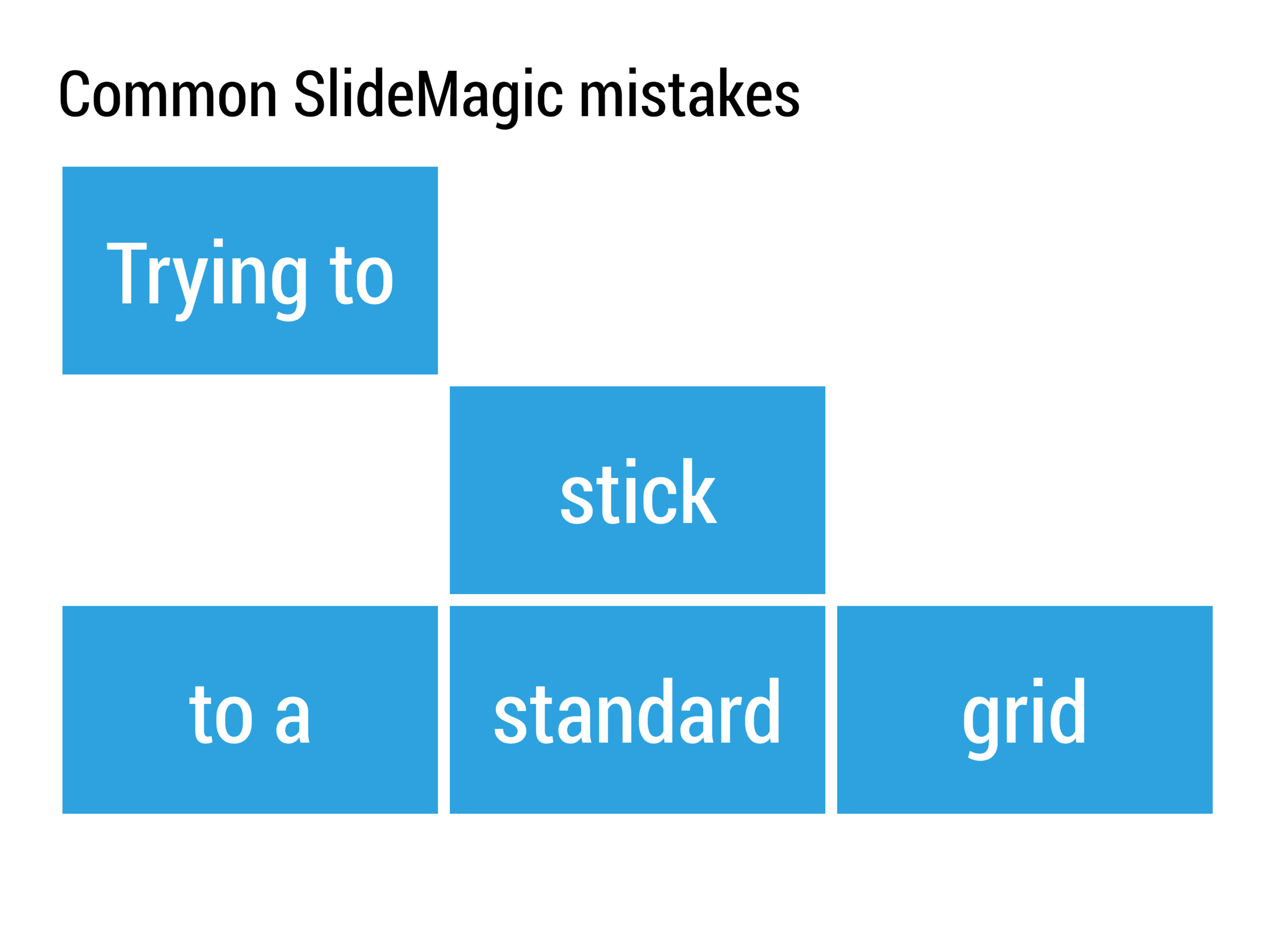
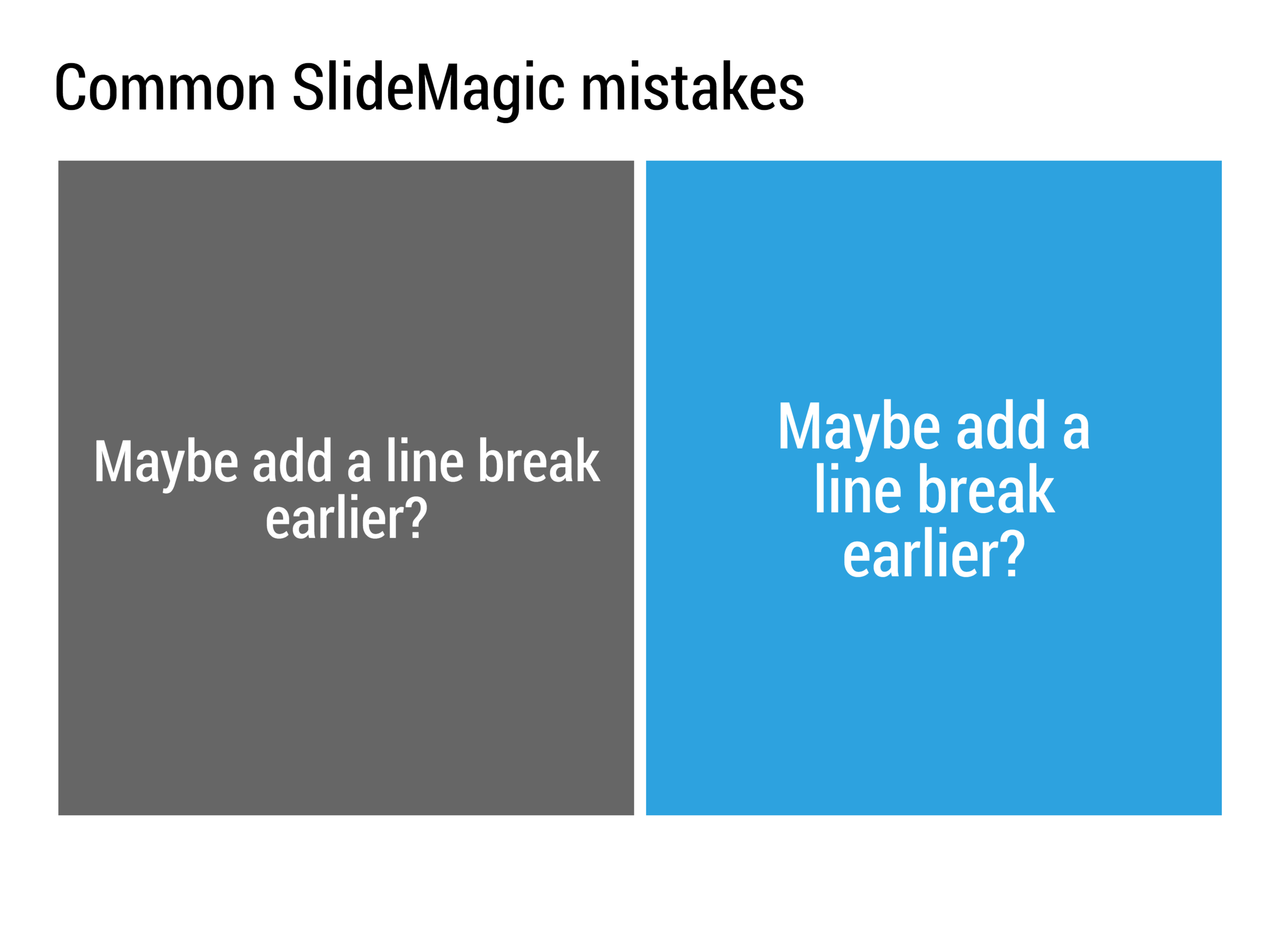
My presentation app SlideMagic will make life easier for every amateur designer. Still a few common mistakes sneak in that are hard to prevent with software. Most of them are related to the balance of typography on a page. Making sure that boxes contain roughly the same amount of text, and that signs are nicely balanced. See the examples below.

SlideMagic: a platform for magical presentations. Free student plan available. LEARN MORE
Chart chooser

Chart chooser

There are endless types of data charts out there: lines, bars, scatters, pies. Which one to pick depends on the type of data you have, and what message you want to convey. Here is a new handy tool that can make life easier for you: chart chooser.

A box of handy cards that guide you step-by-step through a selection process. Excel templates are an optional add-on that could be useful, some of these diagrams are tricky to recreate.

SlideMagic: a platform for magical presentations. Free student plan available. LEARN MORE
All the slide templates you will ever need

All the slide templates you will ever need

With my presentation app SlideMagic I aim to change the communication culture in corporates. People spend too much time preparing slides. They produce documents that are unattractive to look at, and spend far too much time falling asleep in conference rooms.

The solution: splitting the communication tools: Excel and PowerPoint for logging the analysis, and a new tool 100% focused at communicating an idea and getting to a decision. A super simple visual language does not allow you to get lost in crafting complicated slides, or worse - give up all together and just use bullet points on every chart.

In a business presentation you need very few visual concepts:

  • Listing and organizing stuff (yes, the dreaded bullet points)
  • Comparing, contrasting, things
  • Showing growth, trends, forecasting
  • Showcasing things (products, people, clients)
  • Linking one thing to another, impact, cause/effect, from-to

When you hit "insert" in SlideMagic, you get presentation with this list of slide templates. In my opinion they can cover 99% of your business presentation needs. Think about what you want to do (listing, comparing, forecasting, showcasing, linking), pick a template and adjust row/column counts and you are done.

If you want, you clone this entire slide deck in your own SlideMagic account via this link. Let me know which concepts that I have left out you cannot live without. Maybe processes, timelines?

SlideMagic: a platform for magical presentations. Free student plan available. LEARN MORE
Struggling with Apple Keynote

Struggling with Apple Keynote

I am currently doing a bespoke presentation design project for a client in Apple Keynote rather than my usual PowerPoint. Overall, Keynote is a great piece of software, but as a power user I seem to be hitting its limitations. Not in terms of features, but in terms of workflow.

In PowerPoint, I have developed a pretty rapid process to turn scribbled chart concepts in decent looking slides. (Confirmed by the occasional client who can look over my shoulder while I do some last minute edits close to a deadline). It is the simple things that you need quick access to: changing colors, resizing objects, aligning things.

In Keynote I am "tearing my hear out" to do a few things. I know this blog is read by many presentation design gurus, so maybe one of you can point me out what I am doing wrong.

  • Getting a shape color fill. I keep on clicking the rainbow circle, but it is not always clear whether it is active or not, and if it is, whether you are working on a font color, shape color, or outline color. The same with making things semitransparent: shape, text, line, or everything combined.
  • I can't distort the aspect ratio of grouped items when scaling up or down. This is great for images, but not handy when you want to scale up an object composition to fit an entire slide exactly
  • When you select multiple items, you can't scale up or down all of them together
  • You select items by "touching" them, not by including them in the entire selection box. As a result, you always hit objects such as the slide title by accident in your selection
  • I have not found a way to space out part of the columns or rows in a table evenly
  • For some reason, I cannot change the color of the left marker in a gradient. My solution is to put another marker on top of it. Again, this leads to frustrated clicking on the "fill" box.
  • In the full button, there is a nice arrow that activates a drop down menu with suggested colors, there is no way I can set these to some alternative color pattern.

Hopefully some of you can highlight a mistake I made, and/or Apple can fix things in a next update. Obviously, my presentation design app SlideMagic does not suffer from these issues... 

SlideMagic: a platform for magical presentations. Free student plan available. LEARN MORE
Smart row / column insertion

Smart row / column insertion

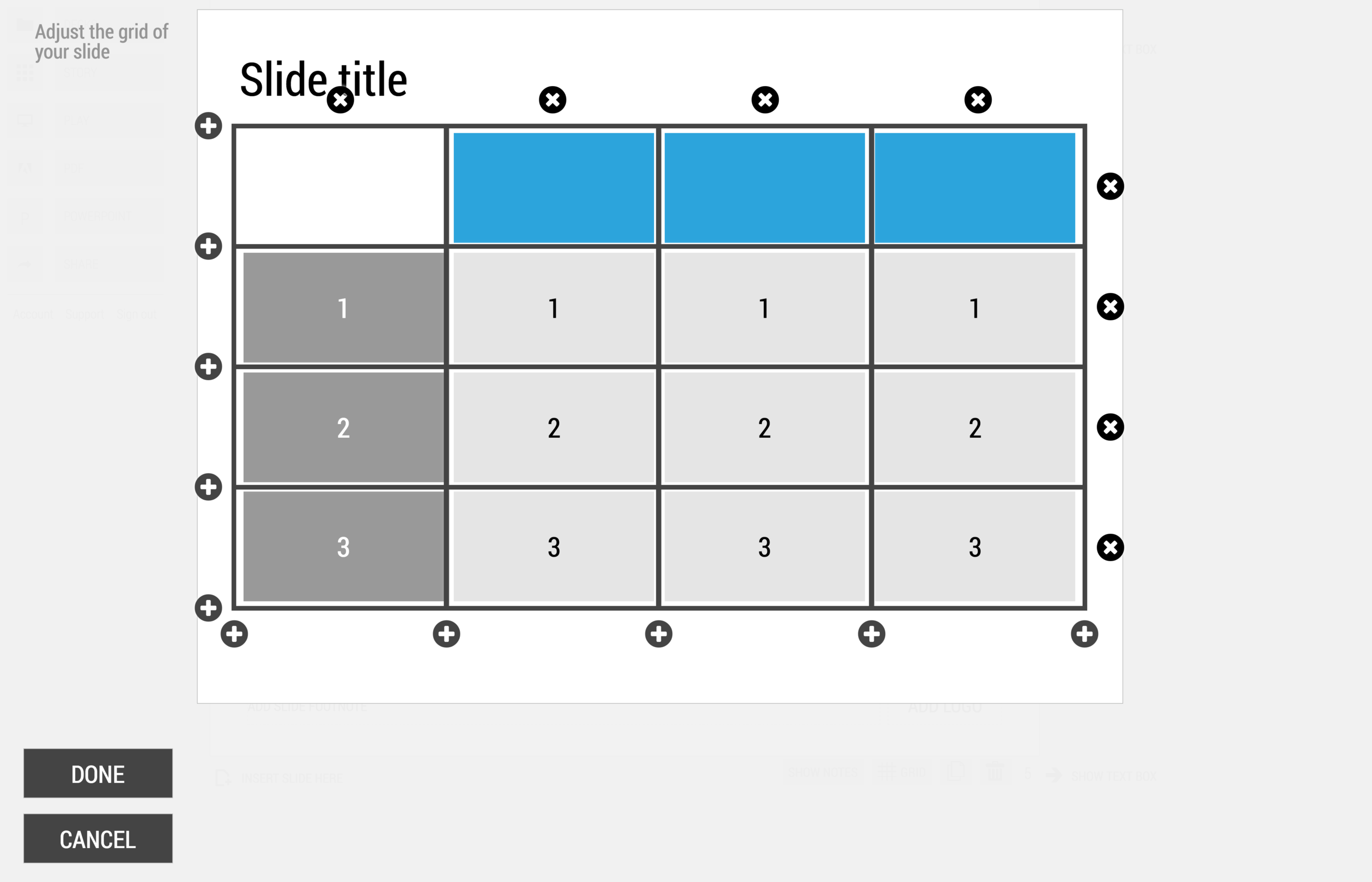
My presentation app SlideMagic is all about the grid. We have made some improvements to make the workflow (even) faster. Now, when you insert rows and or columns, it copies its design and structure from its neighbors. This will save you a lot of time in more complicated table layout with different background colors.

1) Our starting point

1) Our starting point

2) Open the grid editor

2) Open the grid editor

3) Add a row and a column

3) Add a row and a column

4) The result

4) The result


Image via WikiPedia

SlideMagic: a platform for magical presentations. Free student plan available. LEARN MORE
One software, many uses

One software, many uses

PowerPoint is used for many things in today's corporations:

  • Quickly write documents for internal use
  • Maintain the competitor intelligence database
  • A tool to draw the system architecture diagram
  • Organize your thoughts, make a work plan
  • Brainstorm ideas live in a group
  • Logo / design concept prototype
  • A UI spec (that’s how I used for SlideMagic)
  • Big stand up presentation to outsiders - big audience
  • Big stand up presentation to insiders - big audience
  • Big stand up presentation to outsiders - conference room
  • Big stand up presentation to insiders - conference room
  • One-on-one "coffee chat"
  • Document for reading for outsiders
  • Document for reading for insider 

To name a few. We get problems when we confuse the application and the target audience. A project status update on the overhead of the big annual industry conference, pretty pictures without explanations when you want your budget approved by the CEO.

SlideMagic: a platform for magical presentations. Free student plan available. LEARN MORE
How to brief a presentation template designer

How to brief a presentation template designer

The traditional approach is to hand the designer a blank slide and say "we need a fresh PowerPoint template". You will get a slide back full of supporting graphics, logos, page numbers which shows that the designer added some value.

Here is the better approach: give an actual slide with content and ask her to improve that, including the template. The likely result is a well-designed slide. Now delete all the content and see what you are left with. It is likely to be an empty page... Here is your new PowerPoint template.

Oh, and the most important part of the template design project is not the template (i.e, the blank page). It is to make sure that the standard colors and fonts are programmed correctly. That's a programmer's job, not a designer's job.

In my presentation design app SlideMagic, things are easier. Upload your logo, use the color picker to select your accent color based on the logo, and you are all set.


SlideMagic: a platform for magical presentations. Free student plan available. LEARN MORE
Searching slide libraries: Bitlasso Reveal

Searching slide libraries: Bitlasso Reveal

Most people amass a huge library of PowerPoint and Keynote slides on their computers. File search as a tool to find presentations is collapsing under the load, and searching for a specific slide inside a presentation is impossible. Most people are now using their email program as a document archive ("where is that deck I sent Sally last week?"). 

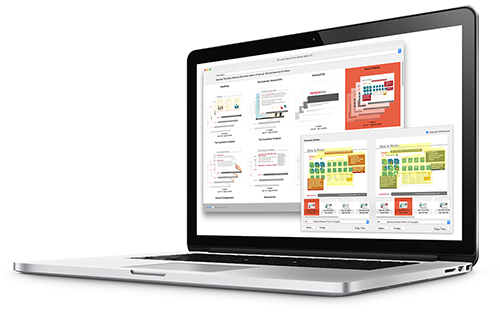
BitLasso's Reveal is a new program that aims to solve this issue. After installation it builds a database of all your slides and makes them searchable by keywords. The first try is very impressive, you use a specific topic that you still remember from a long time ago, and pop: there are the slides!

Slides are grouped together if they are similar (with yellow highlighting the differences), you can group them by date, by title. It all works brilliantly.

As a graphic design nitpicker, I noticed that fonts are not rendered correctly. But, remember this is a search tool, not a presentation application.

For the average user, this tool works great. For me, a professional presentation designer who has an incredibly large slide library with presentation for many, many, clients there is still a problem. Common business search terms will return so many slides that it is still hard to find the one you need. This is not a problem of the software though, more a result of my profession.

One suggestion could be to allow the search results to be grouped by some sort of directory, or limit the search inside a specific directory, since most users will have a basic level of organization by project on their hard drive to focus the search.

A second concern for power users is the size of the database. Mine quickly ran in the gigabytes after 15 minutes of indexing. Again, I suspect most regular people won't have this problem, and computers by now should be able to handle pretty large files as long as there is sufficient hard drive space available.

All in all, a product worth while checking out. A free trial allows you do 30 searches (give the database indexing some time before you spend them), and the full version of the product costs $49. The software only works on Mac at the moment.

SlideMagic: a platform for magical presentations. Free student plan available. LEARN MORE
Status reports in PPT

Status reports in PPT

This Tweet caught my attention:

Yes "status reports" are a distinct category of presentations. Some sort of weekly, monthly, quarterly updates, that follow more or less the same template. A lot of time is spent (wasted) on creating these. In the short run, you can do a lot with workflow automation. For example create the entire presentation in Excel, which has the same drawing and charting capabilities that PowerPoint has. And yes in the end, SAAS dashboards might replace them all together, if, and that is a big if, the dashboard is designed well.

The "other" type of presentation, the one in which you pitch an idea, a budget, an investment, is here to stay. Each story is different, each pitch is different. Still, people spend too much time on PowerPoint to create them (hopefully my presentation design app SlideMagic will change that), but the creative process will not be automated anytime soon.


Image from Wikipedia

SlideMagic: a platform for magical presentations. Free student plan available. LEARN MORE
Two new screen interfaces

Two new screen interfaces

Both Microsoft and Google launched new screen-based devices over the past few days.

The Microsoft Surface Studio is a desktop computer with a very large touch display. It can be used in regular upright mode, or folded down, which turns it into a giant, almost-horizontal tablet. There is a new interface gadget, a cylinder that you put right on the screen. 

I think this might be the future of desk-based design interfaces. Portable tablets are too small. Upright touch screens are to cumbersome. This hybrid looks great. 

Google introduced the Jamboard, a big touch screen that is meant for white boarding in meetings. The main feature is the collaboration supported by Google software. You can upload, edit, move things, and people not in the room can join the conversation remotely.

The features look impressive, the size of the screen might still be a bit small though to enable really productive group collaboration. Time will tell. 

SlideMagic: a platform for magical presentations. Free student plan available. LEARN MORE
PowerPoint Designer - first impressions

PowerPoint Designer - first impressions

Microsoft has been adding a number of features to PowerPoint recently. One of them is Designer. In the Design tab of the ribbon, a new button appears on the right "Design Ideas". Clicking it generates alternative layouts of your slides on the right side of your screen.

The layouts are pretty nice. Microsoft has "automated" the design of 2 types of slides:

  • Image collages, multiple photos get put in different suggested grids, with place for a title
  • Process bullet points that can be translated to horizontally spaced out sequences of equally sized shapes.

Both are useful. Layman designers usually have no idea how to crop a nice photo collage, and translating that bullet list into a horizontal sequence looks nice, especially on wide 16:9 screen.

But here comes the but. 

  • The algorithm only works on these types of slides, so layman presentations will look inconsistent as same slides cannot be improved by the algorithm
  • And in case of the bullet transformation, PowerPoint needs to analyze the text with language processing, to decide that you are describing some kind of process. I had a hard time to trigger the algorithm, and in the end typed the exact same text as was used in Microsoft's explanation web post.

Microsoft is on the right path, these suggested layouts look a lot nicer than the SmartArt objects. And, getting layman designers to use some sort of grid is the biggest possible improvement you can create in slide design.

But I think it will take some time before language interpretation will be so sophisticated that PowerPoint understands the meaning of a slide and can pull a suggested layout from its library. That's one step above asking Siri to book a movie for you. 

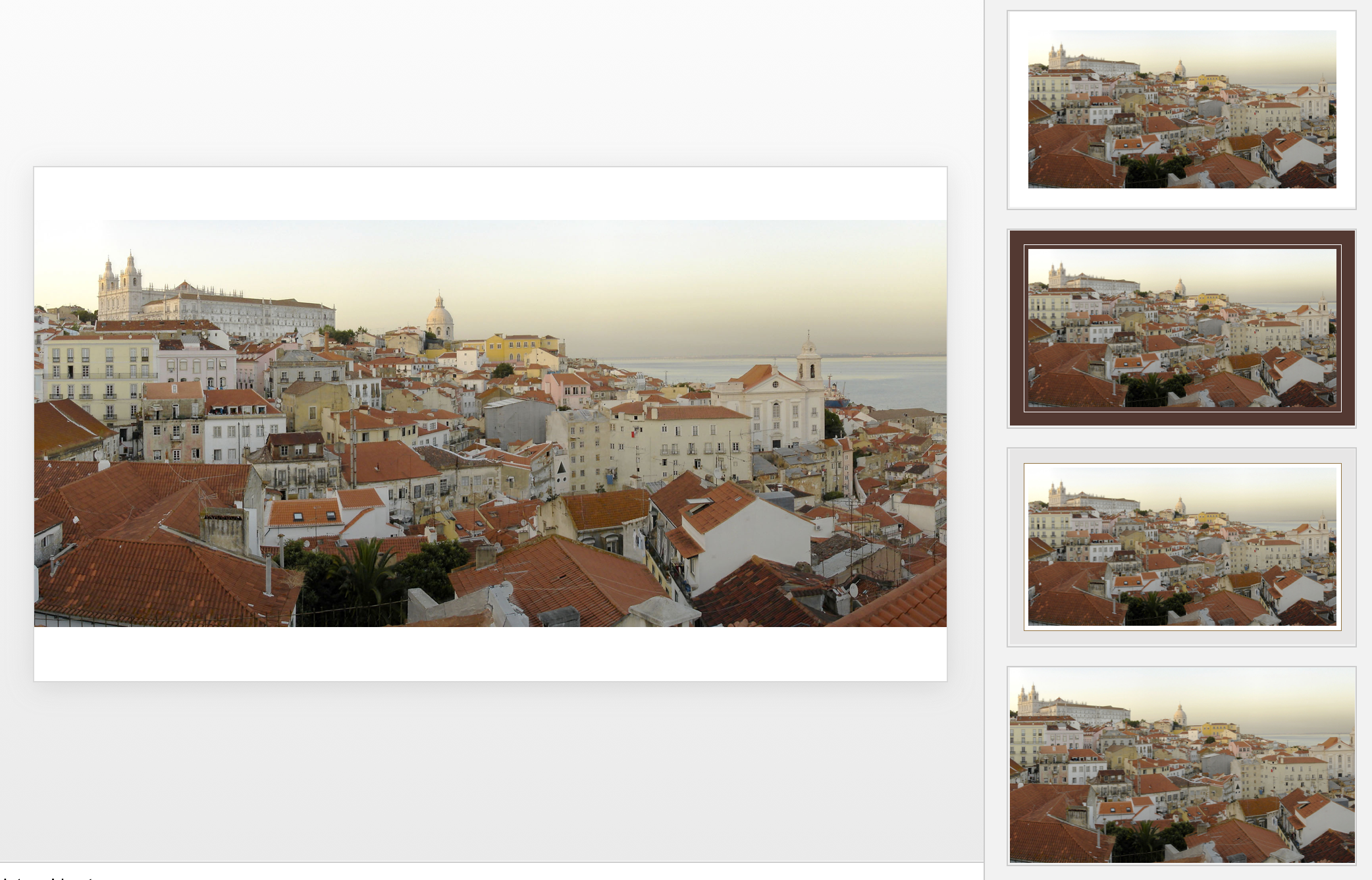
Images get a nice suggested cropping

Images get a nice suggested cropping

Multiple images trigger multiple grid suggestions

Multiple images trigger multiple grid suggestions

No suggestion to clean up this grid

No suggestion to clean up this grid

No suggestions for these charts

No suggestions for these charts

Language interpretation concludes this is not a process

Language interpretation concludes this is not a process

This is a process, text taken from a Microsoft post

This is a process, text taken from a Microsoft post

(* Commercial start *)

This is why designed my presentation app SlideMagic with a forced grid structure, which is a fundamentally different interface approach from PowerPoint and Keynote, which are based on free placement and resizing of objects.

(* End of the commercial break *)

PowerPoint Designer is not 100% there yet, but from its look and feel and general creative direction you see that Microsoft is on the right path.


SlideMagic: a platform for magical presentations. Free student plan available. LEARN MORE
Keynote 7.0 - first impressions

Keynote 7.0 - first impressions

Now that all my data is backed up constantly to the cloud, I have been become more daring when it comes to updating machine operating systems. So, over the weekend I upgraded my client production machine to Sierra, and I could upgrade the iWork applications (I only use Keynote) as well.

Keynote become "7.0", a big upgrade number. PowerPoint and Keynote are both highly mature pieces of software, they work very well and have not changed that much over the years. The big new features in Keynote 7.0: realtime collaboration and live presentations.

Real time collaboration is the main advantage that web app Google Slides has over desktop applications Keynote and PowerPoint. Earlier, Apple launched an iCloud-based version of Keynote where multiple people could access the same file in a web browser. The problem with this format was that the iCloud version lacked a few crucial features compared to the desk top version. If you started out working in iCloud only, there are no issues. But in most cases, you would group-edit a document online that was originally created on a desktop. I struggled finding certain formatting coloring functions which made it hard to keep slides in consistent look, and missed certain table and data chart manipulation functions online (making it hard to edit existing tables and data charts).

In Keynote 7, collaboration is now done right from the desktop app, all features are supported. During the Apple product announcement (video) it all worked perfectly. I tried things, and it worked less perfectly, but maybe because I was trying to collaborate with myself (trying to edit a test presentation in parallel on my phone). I did not get to invite people via iMessage, the email link worked, but there was a significant delay in syncing of the edits, creating sync conflicts. I assume that Apple being Apple will iron these issues out (and they might not happen in a proper collaboration set up where I am not trying to trick the system in collaborating with myself).

Having said all that, I am not a big believer in real-time editing of presentations and other documents. I can see it work when brainstorming a rough design concept, but final design tweaks are best made by one owner of the pen, who decides which input to take from collaborators. A simple commenting system will do here. There are also file integrity issues, collaboration might be fine in the heat of the meeting, but what if you discovered 2 weeks later that people have been editing your sales pitch the moment you show it at a client? All these perspectives apply equally to Google Slides.

The second new big feature in Keynote 7.0 is live presentations. You can share a link to your presentation instantly and have people in different locations on any device see your slides instantly. This is a very handy feature. It works really simple. This will be a powerful assault on all those meeting and presentation viewing applications that always require 15 minutes of background phone calls to get everything to work properly.

In short, Keynote remains a very powerful and useful presentation design software tool. Live presentations is a welcome extra feature. If you force me to compare it to PowerPoint, I would give PowerPoint the slide edge, because of the workflow for the advanced user. It is easier/faster to do basic things such as coloring and formatting boxes. For the average user, there is no real difference.


(Promotion of my presentation app SlideMagic: all this software (Keynote, Google Slides, PowerPoint) is very similar and have one specific flaw, they offer the inexperienced designer too many degrees of freedom to position objects, pick colors, fonts, layouts. In SlideMagic I tried to cut down that freedom, you can do less, but what you do will look decent. Try it out. End of promotion.)

SlideMagic: a platform for magical presentations. Free student plan available. LEARN MORE
SlideMagic just got more minimalist

SlideMagic just got more minimalist

We deployed a new version of my presentation app SlideMagic that eliminated the TEMPLATES menus. It makes things even simpler. Templates are now more integrated in the workflow

  • When you click INSERT SLIDE HERE, you get presented with a number of pre-designed layouts in addition to the 3x3 blank grid.
  • In your file browser (the DECKS menu), you have access to a number of featured presentations at the top of the page. These are example presentations designed by me that you can duplicate.
  • In the STORY mode, you can import individual slides or entire presentations (including featured presentations) into your own presentations


SlideMagic: a platform for magical presentations. Free student plan available. LEARN MORE
Using templates in SlideMagic

Using templates in SlideMagic

In little bursts of work I will be updating my presentation app SlideMagic over the coming weeks. I noticed that many users stick to the 9 box grid that is the default blank layout of a new slide. Yesterday we released a new insert routine. You now get presented with a number of slide layouts to choose from when inserting a new slide, without having to import and/or clone template slides.

Try it out and let me know what you think.

SlideMagic: a platform for magical presentations. Free student plan available. LEARN MORE
The latest cool presentation app

The latest cool presentation app

I saw this Tweet by Garr Reynolds (Presentation Zen):

I agree fully, and as the CEO of an aspiring presentation app (SlideMagic), I am not contradicting myself. SlideMagic is of course cool, but not because it adds spectacular features. It makes you design slides in a very strict grid so that your slides look good regardless of your design experience. Try it yourself.


SlideMagic: a platform for magical presentations. Free student plan available. LEARN MORE
How do you do it?

How do you do it?

A question I often get after a very simple make over of a slide. Answer:

  • Make boxes the same size
  • Line everything up in a grid
  • Cut excess filler words and passive verbs
  • Us one accent colour
  • Harmonize fonts
  • Reset image aspect ratios
  • Fit everything inside a frame with white space around it

"You make it sound so simple, but it is not.". It actually is. If you struggle doing it in PowerPoint, use SlideMagic, my presentation app.

SlideMagic: a platform for magical presentations. Free student plan available. LEARN MORE
Curves in PowerPoint

Curves in PowerPoint

PowerPoint allows you to draw curves as lines, but it is harder to make fills under a curved line without resorting to actual data charts. Here is what I do: I use rectangular shapes to cut/shave a shape. See below. Notice that it is also possible to fill your custom shapes with images.

Draw a shape

Draw a shape

Position your knife

Position your knife

Use the "subtract" function to cut the shape

Use the "subtract" function to cut the shape

Horizontal knife

Horizontal knife

One more cut

One more cut

Fix the edges with format shape - edit shape - edit points

Fix the edges with format shape - edit shape - edit points

Add an image if you want

Add an image if you want

SlideMagic: a platform for magical presentations. Free student plan available. LEARN MORE