Chart concept: can't see the forest for the trees

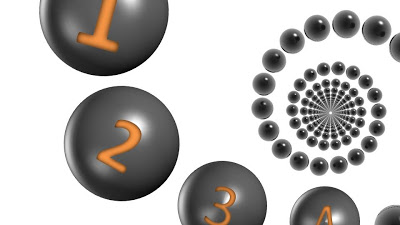
I often need to produce a chart that needs to say one's inability to see the forest for the trees. This ad by Orange warning people against SMS-ing while driving makes the point nicely. Very labor-intensive to replicate in PowerPoint.

SlideMagic: a platform for magical presentations. Free student plan available. LEARN MORE
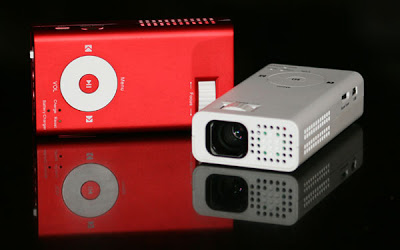
New pocket projector launched in the market

I have been following the developments in the market for pocket projectors. If they work, they have the potential to create a whole new setting in which to give presentations (conference auditorium, small meeting room, and now the white wall in the local coffee shop).
The (obvious) problem with the early devices was that they lacked power. Here is a new device that is a bit bigger/heavier, but promises to deliver more performance: the Beambox Evolution R-1
Via engadget.

SlideMagic: a platform for magical presentations. Free student plan available. LEARN MORE
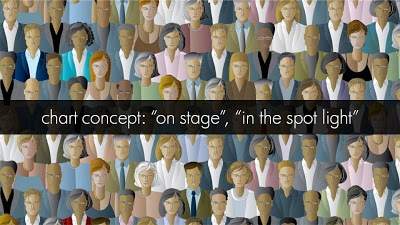
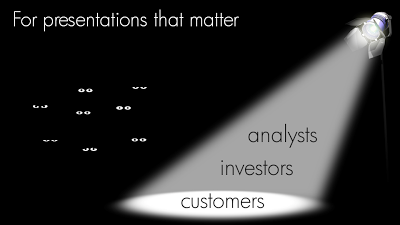
Chart concept: an audience staring at the audience

Putting your audience in the patient seat can be a powerful presentation technique. While upgrading my own introduction presentation, I started playing around with "eyeballs" that create an audience staring back at you.
Click on the images for a larger picture.

SlideMagic: a platform for magical presentations. Free student plan available. LEARN MORE

New startup - do you still need to bother with a logo?

I encounter this situation often when designing fund raising presentations for new startups pitching to VCs. "Oops, what about our logo?". My answer is usually don't bother, instead invest time to find a suitable color scheme.
  • Getting a good logo designed is expensive
  • It takes time for logos to become brand icons. First you need a brand story/experience, only then can customers connect it with your symbol. Read Seth Godin's post (great quote "the iPod didn't need a logo").
  • Logos are not important for the look and feel of a presentation, colors are. If a client insist, I will put them in 8pt at the right bottom of the page. Think about what drove logo design in the last century: they needed to fit on a building, a letter head, a form, a black and white fax. Because the user could not manipulate colors, fonts, images like we can today, it was the only "interesting" graphic on an otherwise boring piece of paper without an identity. These times are over.
Forget about logos if you are short of time, or short of cash. Pick some nice colors instead. Worry about your logo later.

SlideMagic: a platform for magical presentations. Free student plan available. LEARN MORE
Putting PowerPoint text in a perfect circle

I am revamping my own introduction presentation and needed to align text according to a circle. Untill now, I used to improvise to fit text in a circle. There is a clean and simple way to do this. Click on the image for a bigger picture.


SlideMagic: a platform for magical presentations. Free student plan available. LEARN MORE
3D font city - 5 years from now in PowerPoint?

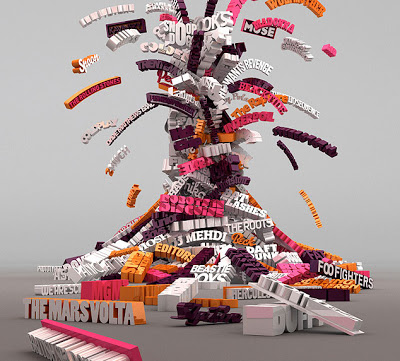
Graphics design has always been ahead of mainstream PowerPoint in terms of graphical abilities (colors, images, drop shadows, etc.). On the front page of Digg Design today an interesting collection of 3D typography put in one place by Naldz Graphics
A taste of things to come! Wouldn't it be interesting to navigate around in a 3D city of buildings made of words to support your presentation?
(Image by Serial Cut, advertising for the Zune marketplace)

SlideMagic: a platform for magical presentations. Free student plan available. LEARN MORE

Big PowerPoint fonts that don't scream

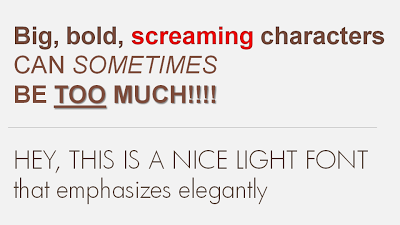
If a message is important there is a temptation to use a "screaming" typography: bold, italic, underline, big fonts in bright red. Resist it. Underlining should always be avoided. Italics almost always. And I am not a big fan of heavy bold characters either. Experiment with a lighter font, such as this Futura Light font that comes with PowerPoint 2007. (Don't forget to save it with your presentation to prevent catastrophes when presenting on another computer).

SlideMagic: a platform for magical presentations. Free student plan available. LEARN MORE

Need your help: colors in data charts PPT 2003 versus 2007

Colors in data charts. This 2003-2007 compatibility issue drives me crazy. Many of my clients still use Office 2003. Does anyone have a solution?
  • PPT 2003 uses Microsoft Graph for data charts, PPT 2007 Excel
  • I create a chart in 2007
  • I save the 2007 PPTX in 2003 PPT format
  • I (or my client) opens the 2003 PPT file and
  • right-clicks the chart to open it: all the colors are off...
I have to change every color manually using RGB codes to set them permanently to the correct value in 2003.
There must be a better way to do this! Let me know if you know.

SlideMagic: a platform for magical presentations. Free student plan available. LEARN MORE
Data visualizations - how bad is this recession compared to previous ones?

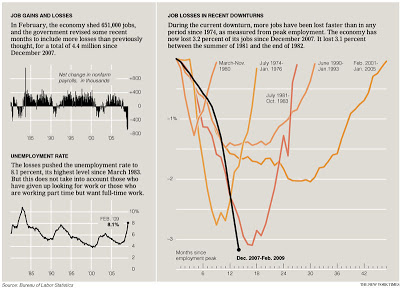
The only up side of economic turmoil is probably that there is plenty of data available for interesting visualizations. The New York Times posted this chart: (click for a larger picture)
I like it because the designer gave some thought about what metric to put in. He/she could have shown a times series of GDP growth, absolute unemployment, or unemployment rate to name just a few. That's why I do not like these automated PowerPoint chart wizards, it makes you skip the step of actually thinking about what metric really makes your point. (And more importantly, what are the 15 metrics you can get rid of without changing anything to the message of your slide).
Via Junk Charts, an excellent source of data visualization discussions. For more frequent updates about the financial crisis (including many data visualizations) follow Paul Kedrosky.

SlideMagic: a platform for magical presentations. Free student plan available. LEARN MORE
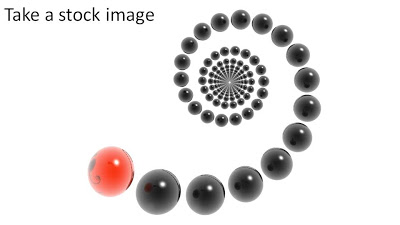
Create your own composite images in PowerPoint

It is easy to create your own composite images in PowerPoint:
  1. Select a stock image isolated on a white background
  2. Make the white background transparent
  3. Select image, go in format, picture effects, shadows, interior shadow to make the edges smoother
  4. Paste this image on another image with the background of your choice

SlideMagic: a platform for magical presentations. Free student plan available. LEARN MORE
Godin on presenting: give love / get respect

See his recent blog post, great presenters should have: 1. Respect (from the audience) 2. Love (to the audience) The only thing I want to add is that I think a speaker can get respect during a presentation, he/she does not necessarily have to have it beforehand (although it helps).

SlideMagic: a platform for magical presentations. Free student plan available. LEARN MORE
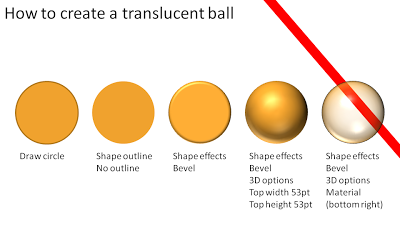
How to make a 3D translucent ball in PowerPoint

Here is how you make 3D balls used in these images, or these images. Click on the chart for a larger picture.
You should experiment with the "top height" and "top width" to find a value that best fits the size of the object you are working on.

SlideMagic: a platform for magical presentations. Free student plan available. LEARN MORE
Why not zoom those images

Stock image sites are trying to convince you to buy higher resolution (and higher price) versions of the same image, I usually don't buy it.
  • In case you need to print it on a street sign (not required for me)
  • Because you want the very best looking PPT slide (no real difference + big file size)
There is a reason however that might make me change my mind. The same argument holds when buying digital cameras with ever increasing mega pixel capabilities: your ability to zoom.
Try to experiment with zooming into stock images (don't be afraid to create a "bleed"). The result might not look good on your computer monitor, but from a distance it can look refreshing. (Do the slide sorter view test).
In the example above, both approaches work. A tiny image on a big white background, or an extreme zoom. The middle ground (as usual) is boring.

SlideMagic: a platform for magical presentations. Free student plan available. LEARN MORE
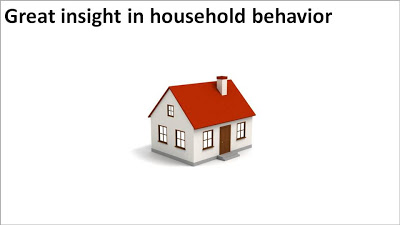
PowerPoint lessons from a toilet paper ad

I am learning a lot from print advertising. I am learning a lot from the adgoodness blog.
Especially in fund raising presentations I design for startups that are going to pitch to potential investors, I am spending a lot of time/effort in finding that one image or visual concept that really nails down the idea in one big bang. Almost to the extent that the following slides are not required anymore.
Consumer marketing is all about focus on one single and clear consumer benefit. Here is a(nother) great example. Food for thought when designing your next presentation.

SlideMagic: a platform for magical presentations. Free student plan available. LEARN MORE

Exception: some conceptual stock images can be useful

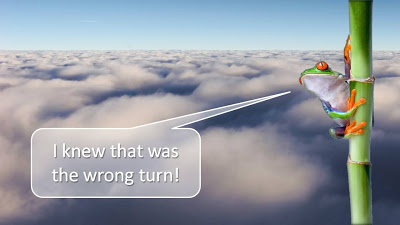
I am not a big fan of conceptual stock images. Compositions you can do yourself. There are exceptions. See the example below.

SlideMagic: a platform for magical presentations. Free student plan available. LEARN MORE

3D smoke 'n mirrors - making things disappear from an image in PowerPoint

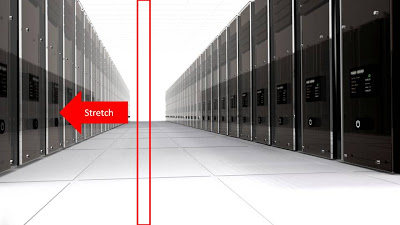
Stretching part of a picture cannot only be used to create white space, you can also let things disappear pretty much like David Copperfield does:
I used this concept to show how a new technology solution of one of my clients can save a lot of server costs. The zapped servers live on in the reflection in their opposite neighbours though...

SlideMagic: a platform for magical presentations. Free student plan available. LEARN MORE
More 3D in PowerPoint - obstacle course!

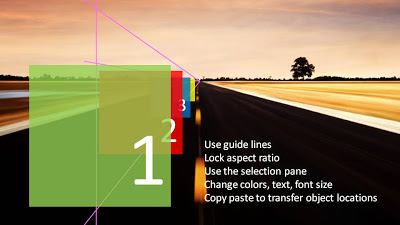
I am continuing to experiment with 3D effects. Here is an alternative idea to visualize a number of obstacles on the road ahead. The last image (click it for a larger picture) contains some explanations on how I did it. If things are not clear feel free to as in the comments.
Does anyone know how to add a smooth moving animation to this, motion paths and re-sizing of objects do not go together?
(Apologies for the image quality as I converted to JPG instead of PNG to improve load times)

SlideMagic: a platform for magical presentations. Free student plan available. LEARN MORE
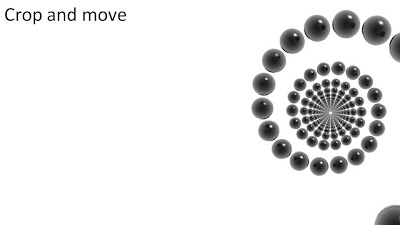
Chart concept - rip those PowerPoint shapes apart

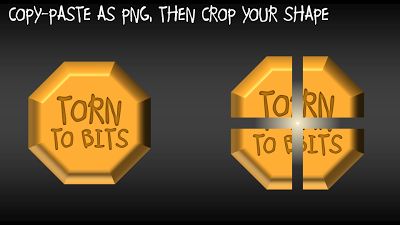
A concept I often use to visualize things that are torn apart by opposing forces in PowerPoint presentations.
  • Copy a shape (with text)
  • Paste special as PNG (4 times, or even more)
  • Start cropping the copies

SlideMagic: a platform for magical presentations. Free student plan available. LEARN MORE
How to strip web text of its formating

Especially for sources in footers I often want to avoid re-typing a complicated title of a document that I found on the web. Copy-paste of the text also copies some of the text formating. Solution: copy the text, paste it into "Note pad" (the standard text editing utility that comes with Windows), select the text again and paste it into a PPT text box. I would be interested if other people have faster solutions for this.
UPDATE: Remy got the solution in the comments: copy any text, then select Edit and "Paste Special" and select unformatted text. Thank you!
UPDATE 2: Glen Turpin recommends PureText (see the comments).Thank you!

SlideMagic: a platform for magical presentations. Free student plan available. LEARN MORE
Chart concept - distorting text under a magnifying glass in PowerPoint

Chart concept - distorting text under a magnifying glass in PowerPoint

For when you want to make the point that it is important to pay attention to the small print, or make sure that you did not skip over important hidden information, you can use this concept.

In PowerPoint 2007:

  • Get a picture of a magnifying glass from any stock photography site
  • Set the font to a Times Roman-like serif font that looks like a book/newspaper
  • Cut the sentence in 3
  • Increase the size and apply a "can up" distortion to the text inside the magnifying glass (select the text, go into format, text effects, transform, in "warp", 3rd from the left, 4th from the top.

UPDATE: I have added a slide with this concept in the SlideMagic template store, you can download it here.

A magnifying glass in PowerPoint

A magnifying glass in PowerPoint


Photo by mari lezhava on Unsplash

SlideMagic: a platform for magical presentations. Free student plan available. LEARN MORE