
Every slide starts with a sketch

Painters first make a sketch before starting the final painting. Presentation designers should do the same. I have a big pile of old print outs that is my unlimited source of scrap paper. An important slide can take 5-10 page-filling rough sketches before turning to the PowerPoint editing screen.

I always carry one of these beautiful notebooks (affiliate link) with me to capture an idea that pops up in my head. Yes, a notebook and not an application such as Evernote on my iPhone because the idea is most of the time a sketch or a scribble. Hard to do in digital format.

The end of my most productive/creative days are always marked with a full paper trash can next to my desk.
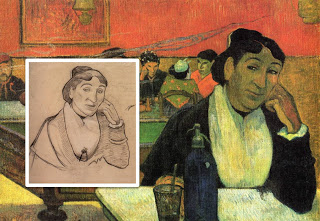

The painting is Gauguin's night cafe, info about him and Van Gogh painting at this location here and here.

SlideMagic: a platform for magical presentations. Free student plan available. LEARN MORE
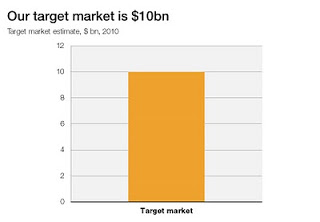
The lone column

A column chart with just one lone column is not a column chart. Column chart need to compare things, show a trend over time.

SlideMagic: a platform for magical presentations. Free student plan available. LEARN MORE
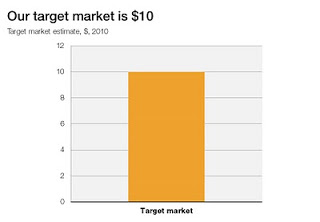
Quotes to dramatize a number

The site number quotes is a tool with a healthy dose of humor: it helps you "dramatize" a number, simply enter it and the site returns a long list of quotes. Maybe the exact quote is not what you can use in a "serious" presentation, but it might just open up a part of your creative brain that you did not yet access. Thank you Steven Duncan.

SlideMagic: a platform for magical presentations. Free student plan available. LEARN MORE

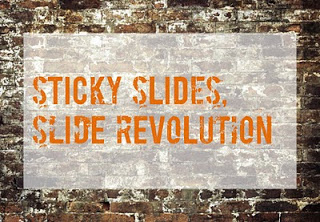
Chart concept - painted billboard

This vintage-style ad found on Ads of the World can easily be replicated in PowerPoint. A white box, semi-transparent with a bit of soft edges and a nice font against an image of a brick wall and you're done.


SlideMagic: a platform for magical presentations. Free student plan available. LEARN MORE
Oops, I thought I deleted that?

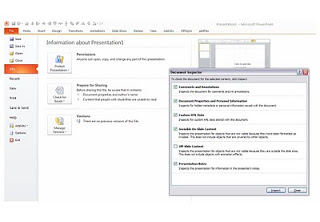
PowerPoint files can still contain information that you thought was long gone. Watch out with this, especially when sharing files with outsiders via email, or on content sharing platforms such as SlideShare.


The easy solution is to convert PowerPoint files to PDF. If you want to stick to the PowerPoint format, here are some things to watch out for:

  • Data charts (bars, pies, columns) in PowerPoint are generated via an embedded Excel spreadsheet. Even if you did not include data in the graph, the source still sits in the Exel file. Open the spread sheet behind each chart and check whether it contains redundant data you do not want to disclose. (For example breakdowns by category, or in case of public investor presentations, forecast of financials beyond the current reporting period).
  • Cropped pictures that were not compressed still remain in PowerPoint in their full size, if you reset the image it comes back in its original form. If you do not want that, select the image, then compress, then ask PowerPoint to remove the cropped areas of the image.
  • Hidden content such as author information, speaker notes with informal side comments such as ("not sure whether this is true, I made it up for the moment"), or objects that are outside the canvas of the slide. In PowerPoint 2010 you can inspect your presentation for things like this in file, info, prepare for sharing.
P.S. Image tags can be an unwanted piece of information in PDFs, here is how to get rid of them.

SlideMagic: a platform for magical presentations. Free student plan available. LEARN MORE
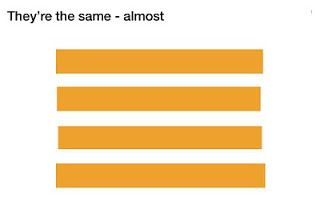
Almost the same size is not good enough

Making similar boxes the exact same size, and exactly aligned matters a  lot in slide design. The brain gets distracted when object alignments is just a bit off.

Usually the slide starts out OK, ctrl-C/ctrl-V a bunch of objects and they are all exactly identical. Over time, things start to degrade. Accidentally resizing things a bit, moving a box a bit, etc.


You need to train your eye to spot the imperfections. The quickest fix is usually to select a group of objects, select "format" and then give them all the same size in centimeters (hight, width, both). In the Arrange / Align menu you will tools to spread objects out evenly.

Little effort, big result.

SlideMagic: a platform for magical presentations. Free student plan available. LEARN MORE
"Let's start with our history" Uh oh...

You're the owner/founder of the company and you are pitching to a potential investor. When introducing the company, you always start with its history:
How you started straight out of university, renamed the company after a waterfall you visited in Africa a year later, developed a 2nd product line, but then dropped that again in year 4, re-branded again, moved to a different city, and hey, that's how we ended up where we are today.
To you it makes perfect sense. The story is how the company became what it is, how you became what you are. To the outsider, it is not that relevant, and even potentially confusing as the audience tries to figure out what you are about.

Skip the history and start with today. Except - if needed - a short reference to a useful link to the past: "the fact that we started out as a piece of 3D home design software in 1998 comes in handy today as we move forward to build the world's best 3D gaming engine".

A chronological story line is not always the best story line.

SlideMagic: a platform for magical presentations. Free student plan available. LEARN MORE
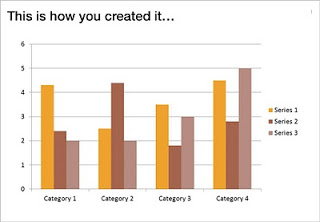
Undoing PowerPoint 2003 data chart font squeeze

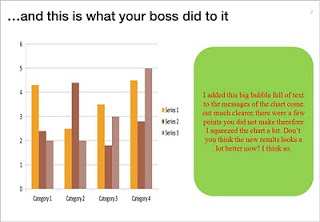
One the biggest hassle of PowerPoint 2003 was that when you resized a data chart, all the fonts got completely squeezed. Only PowerPoint pros new that you had to open the chart, and once it's open in Microsoft Graph, you can resize the object without doing damage. Any other person (99.99% of the population) went for the squeeze.


If there is one reason to upgrade to PowerPoint 2010 (2007 also solves this), this is it.

But here you are, the corporate IT department insists on keeping the company on Office 2003, and you just got your 45-page back from your boss who "edited things for clarity" and you're on to present tomorrow morning 9:00.

This will save you:

  1. Right click the chart
  2. Go to the bottom: "format object"
  3. Now resize the chart back to 100% by 100%
  4. Close the object
  5. Open it as you would do normally (you are 0.01% of the population) and resize properly.

SlideMagic: a platform for magical presentations. Free student plan available. LEARN MORE
File naming

The number of images on my hard drive is spinning out of control and I never got around to using dedicated software with image tags for my images (maybe I should). Lately, I am paying more attention when naming an image file. And the one thing that helped me most is to put the noun first. For example:
  • sky_sunny.jpg
  • sunny_sky.jpg. 
The latter is how we are used to think, the first is best for sorting and finding things on a computer.

SlideMagic: a platform for magical presentations. Free student plan available. LEARN MORE
1st experiment with the iPad as a 1-on-1 presentation tool

OK, I did my first presentation in a 1-on-1 meeting using an iPad. It was a bit improvised, as I made a last minute decision to drop a paper copy for the new gadget. My experiences.

  • It still is a bit of a hassle to get your file presentable on an iPad. I installed the Keynote app, but this is an iPad-specific piece of software that does not import regular Keynote files and I have not (yet) designed presentations specifically for the iPad. So I went for PDF. 
  • In order to get the file on the iPad I had to upload it to Google docs, and then I used the GoodReader app to get it down on the device.
  • PDF was a bit tricky too. The PDF I created on my Windows PC did not render well on the iPad (custom fonts were invisible). It turned out, that it did not show well on a Mac either. So: import the Windows PowerPoint file into PowerPoint 2008 on the Mac, have the Mac convert it to PDF.
  • The PDF conversion was not ideal. The Mac decided to give my slides a white frame, and keep the parts of the pictures that were outside the slide borders in the page render. So I went back into PowerPoint to delete these (compress pictures) and start the process again.
  • I presented outside and the bright Tel Aviv sun light was too strong for the display of the iPad, so it was a bit hard to see. I already use big fonts om my slides, but my advice when designing for an iPad: go even bigger. The presentation view you have at a coffee table is one of an audience member in the back of the presentation venue.
  • I love the sophisticated screen controls of the iPad: scrolling, zooming, etc., but these are not useful when presenting. "Oops, let me zoom that back, oh, that's the next page, let me back up". There needs to be a way to switch to very simple page controls in a presentation mode. Ultimately I can see how zooming can be an interesting part of the iPad presentation experience (Prezi-like) though.
So, not a perfect experience, but I am learning.

SlideMagic: a platform for magical presentations. Free student plan available. LEARN MORE

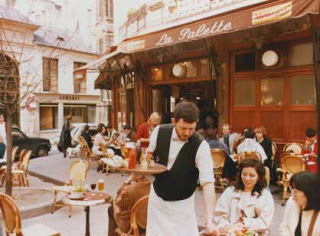
In Paris this summer

I will be around Paris some time this August. I am not sure whether it will work out in the end, but maybe we can organize a meetup in one of my favorite places there. If you are interested mail me at contact [at] axiom [dot] co [dot] il. (Image credit bfraz)

SlideMagic: a platform for magical presentations. Free student plan available. LEARN MORE

Chart concept - overwhelmed

It is important to pay attention to camera positions when selecting images for your presentation. This wave that is about to crash on top of the photographer is a great example. Add some dramatic typography and the audience can almost feel the need to swim to the shore before it's too late.


Image via iStockPhoto.com.

SlideMagic: a platform for magical presentations. Free student plan available. LEARN MORE
De-cluttering this blog

The reading experience on the iPad has influenced the design of this blog. I cut the share buttons, retweet counters, time stamps, etc. What's left is a clean sheet of paper with some ideas to make you a better presentation designer. Now it's purely up to the quality of the content whether ideas here will spread or not. What do you think?

SlideMagic: a platform for magical presentations. Free student plan available. LEARN MORE
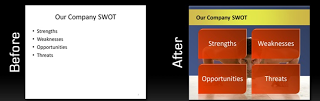
Chart concept - sky writing

You take a picture of a cloudy sky, and hand write a text with a healthy dose of "glow" and you can create your own skywriting images.


Here is how people used to do this before the age of PowerPoint:

SlideMagic: a platform for magical presentations. Free student plan available. LEARN MORE

PowerPoint 2010 mini review - the little differences

I have been working with PowerPoint 2010 for a few days now, here are some of my first impressions. I am discussing the upgrade from PowerPoint 2007 to 2010. (2003 users: see my earlier post on upgrading to 2007.)


For heavy PowerPoint users, I recommend upgrading to PowerPoint 2010 not so much about the advertised "big" new features, but amount a number of minor changes that make a big difference. Here are a few that I have discovered so far:
  • Finally the "hanging bullet" issue does not require complicated ruler manipulations: you click a bullet style, and the 2nd line of your paragraph gets aligned properly without a need for manual intervention.
  • Like in PowerPoint 2008 for the Mac, when you drag around objects lines appear that make it easier to snap objects together or align them
  • PowerPoint 2007 used to crash a lot when editing complex data charts (in Excel): no longer (fingers crossed)
  • You can now customize the ribbon without having to rely solely on this hack.
  • Apparently, PowerPoint 2010 saves a backup file somewhere even if you say "don't save", which can be a life saver.
  • The user interface is a bit calmer and more "Zen"
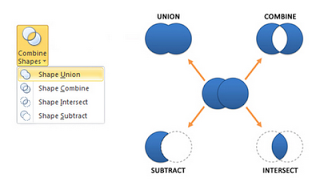
  • Finally, PowerPoint can now join and subtract shapes.
  • The tool to take the background color out of an image got a lot more sophisticated
Should 2003 users upgrade: definitely, 2007 users, probably only the heavy users. An (affiliate) link to everything Microsoft Office 2010 on Amazon.

SlideMagic: a platform for magical presentations. Free student plan available. LEARN MORE
Visual Bee: attempt at PowerPoint automation

Visual Bee is an Israeli startup that offers a plugin for PowerPoint that can improve slides automatically. At the click of a button it does 2 things:
  1. Transform list of bullets into shapes that are distributed evenly over the slide
  2. Analyzes the words in your bullet points and picks an appropriate background image
The user can choose from a number of styles, that will be applied consistently through your document.


The style of the transformed slides is not exactly my personal favorite ("standard" stock images, lots of effects), but having said that, they do look a lot better than the original bullets. The best results are achieved if the original slide is actually already in pretty good shape. For example in the bullet slide above, the words have been cut to an absolute minimum. The tool will work less good when applied to dense slides.

As a professional designer, I would value a tool that automatically creates harmonious structures of 4, 5, 6, 7 objects. Fitting shapes around a pentagon is tricky.

For the non-professional designer, maybe the best thing that this tool does is to encourage you to improve the quality of the input slides: cutting text without worrying about the layout of the slide.

SlideMagic: a platform for magical presentations. Free student plan available. LEARN MORE

Chart concept - mystery door

This ad reminds us how easy it is to create a visual concept with elementary shapes and nothing more than basic drawing skills.


Via Ads of the World.

SlideMagic: a platform for magical presentations. Free student plan available. LEARN MORE

Buzz word abuse

Wonderful, a top 100 of the most over-used buzz words in press releases compiled by Adam Sherk:
Leader, leading, leading, best, top, unique, great, solution, largest, innovative, innovator, award winning, exclusive, premier, extensive, leading provider, innovation, real-time, fastest, easy to use, dynamic, state of the art, smart, flexible, cutting edge, biggest, world class, amazing, next generation, revolutionary, sustainable, best practices, leverage, thrilled, robust, delighted, cloud, user friendly, extraordinary, breakthrough, savvy, ROI, transform, seamless, groundbreaking, empower, scalable, one of a kind, proactive, best in class, return on investment, market leading, turnkey, mission critical, strategic partnership, ground breaking, dashboard, iconic, industry standard, never before, re-purpose, ecosytem, win-win, best of breed, enterprise class, empowerment, magical, synergy, out of the box, feature-rich, stack, cross-platform, value proposition, well positioned, disruptive, hit the ground running, disruption, mindshare, space-age, bleeding edge, exit strategy, customer-centric, sea change, sticky, silo, synergistic, client-centric, outside the box, paradigm shift, peak performance, perfect storm, organic growth, top-down, next-gen, never been done, bottom-up, solution-driven, secret sauce, low hanging fruit.
People hear/see/read them so often that nobody pays attention anymore. Think about that in your next presentation or white paper. (Hmm, not sure what to think about "sticky" featuring prominently in there.)

Via Advertising is Good for You.

SlideMagic: a platform for magical presentations. Free student plan available. LEARN MORE

2 years of Sticky Slides

Today is the second anniversary of my blog, thank you for reading, commenting, and contributing!

SlideMagic: a platform for magical presentations. Free student plan available. LEARN MORE

Dilbert and presentations

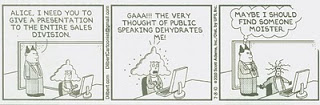
Presentations and PowerPoint are an integral part of corporate suffering in cubicles, the reason why they get featured often in Dilbert cartoons. Here is today's cartoon.


A reminder of the excellent post by PowerPoint Ninja back in 2009 with dozens of cartoons on the subject. In exchange for using the comic, here is an (affiliate) link to everything Dilbert on Amazon.

UPDATE. After a comment by Rowan below: the Dilbert site is now searchable, and you can actually buy comics for your PowerPoint presentation, for a reasonable price. As an example, here is a search for all PowerPoint-related Dilbert cartoons going all the way back to 1989.

SlideMagic: a platform for magical presentations. Free student plan available. LEARN MORE