
PowerPoint 2013 mini review

Everyone can install a preview of the new and upcoming Microsoft Office 2013 free of charge. Follow the process outlined here, and take into account some of the health warnings by Geetesh Bajaj (be especially careful with Outlook). I installed my version on a Parallels virtual PC on my Mac and limited my mini review to PowerPoint.

Probably on purpose, Microsoft made very little changes to the menu structure of PowerPoint. Anyone using PowerPoint 2010 will feel at home immediately. Everything stayed in the same place. The look and feel of Office 2013 has improved a lot: clean lines, fewer gradients, fewer shadows, light fonts. The UI radiates calm and good taste. Almost a bit too calm, as it can be hard sometimes to see the contrast of white slide backgrounds against the background of the design canvas. But overall, very good.

Microsoft has made the 16:9 aspect standard in PowerPoint 2013. This will work well with modern computer monitors, but I am actually not a big fan of designing slides in 16:9. It works great for movies, but for visuals I find a wide screen somewhat limiting. Also, old VGA conference room projection screens have a 4:3 ratio, and more importantly, I do not expect tablet devices to go to a 16:9 screen ratio.

If there is one criticism for Microsoft, it would be the bullet point template: it is still there. You insert a new slide, and the bullets are waiting for you to be filled in. The entire slide master is still the messy collection of bullet point-based slide layouts with big page numbers and dates on every page. Maybe with PowerPoint 2016, this will be eliminated...
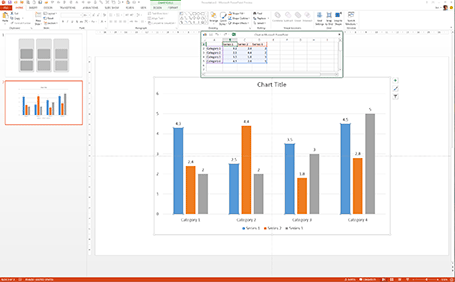
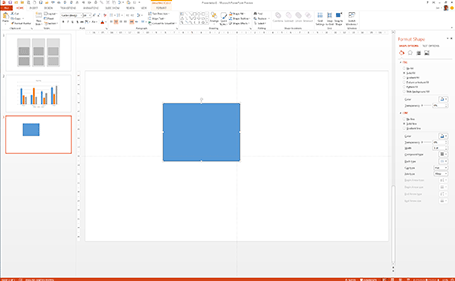


Back to the good news. Some nice and subtle improvements:
  • The standard data chart looks a lot better: lines are more refined and the standard tick marks are gone, axis labels are rounded up. Somehow data editing is a lot smoother than in PowerPoint 2010 where the integration with Excel can cause freezes and hick ups.
  • It is easier to create new drawing guides on the screen and set their spacing, no more looking for the ALT, CTRL, SHIFT key, I always forget which to pick. A simple context menu will do the trick
  • Speaking about context menus, Microsoft uses the horizontal screen real estate better, if you now right-click-format a shape, a box to the right of the screen pops up with the formatting options, similar to the inspector in Keynote.
  • The smart drawing guides have become smarter: when you drag a third copy of an object across the screen it now freezes when you reached the point where you aligned all 3 shapes at exactly the same distance (similar to what Keynote does).
  • The Calibri font range has been extended with a light variety. I have always argued that for on screen presentations, the selection of font weights available is more important than the actual fonts. If Arial would just come in 5 weights presentations would just look so much better (fat headlines, subtle text)
  • By default, images keep their aspect ratio, making it harder to distort them while re-sizing
  • There is now a commenting system on each slide, comments pop up in a vertical bar at the right, which is great to moderate a discussion right next to the slide without having to rely on the body of the email that you used to send the presentation
  • Office 2013 is completely integrated with Skydrive for online access to all your files stored in the cloud.
All in all this looks like an upgrade worth paying for.

SlideMagic: a platform for magical presentations. Free student plan available. LEARN MORE

Crappy paste-as-image

If you use a custom font just on one page of your presentation, it is better to use the text as an image, so viewers of your presentation do not have to install that font on their computers in order to see it. Microsoft PowerPoint gives the option of paste special, past as image but - at least on a Mac - the resulting graphic looks horrible. I simple make a screen shot of the text and paste that in.

SlideMagic: a platform for magical presentations. Free student plan available. LEARN MORE
Got into a fight

I usually do not get draw into a fight, the exception was recently when a client asked me to design a presentation that was a response to a presentation by a competitor that was a direct attack on the company.

The competitor document consisted of 5 pages of dense text with long sentences written in a style of two children complaining in front of the head teacher: “She says, but that is not true, then I say, you see that I am right?”. Lots of quotes, lots of complicated arguments, no numbers, no visuals.

My design was different. One simple headline per slide, one simple fact or illustration to support it. I did not discuss any features of my client, did not repeat the sales story of my client. Just corrected fact after fact after fact. I think it works pretty well, it is just a bit a waste of all that negative energy that goes into aggressive presentations.

SlideMagic: a platform for magical presentations. Free student plan available. LEARN MORE
Replicators

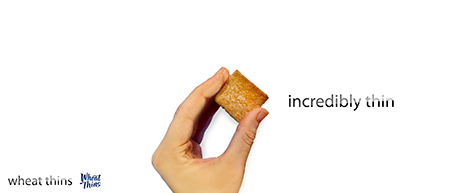
I have never been a fan of stock image photographers making pre-fab slide compositions, but in one area they can add value: digitally replicating items to infinity. See the attached image by higyou on Shutterstock. It is worthwhile visiting multiple stock image sites for these type of renderings, since they often can only be found exclusively on one site. Have a look at Filter Forge if you want to try to create these types of effects.


SlideMagic: a platform for magical presentations. Free student plan available. LEARN MORE

Nothing ever changes...

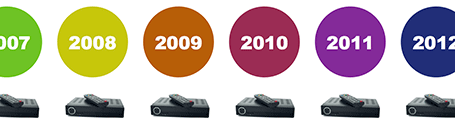
Here is a simple concept to visualize a problem that the cable television industry has: replacement cycles of hardware sitting in the people’s homes is really loooooong, especially compared to how often we upgrade our mobile devices. In this slide I used repetition plus cropped the years on both sides of the page to create that sense of continuity.

SlideMagic: a platform for magical presentations. Free student plan available. LEARN MORE
Changing PowerPoint shapes

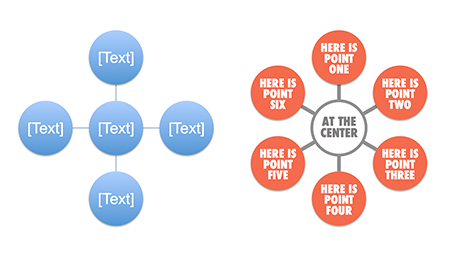
Another hard to find feature in PowerPoint. It is possible to change a shape, for example turn a rectangle into an oval. Select the rectangle, go into the SmartArt menu, select the shapes button, and the select the shape you want instead.

SlideMagic: a platform for magical presentations. Free student plan available. LEARN MORE

Office 365: not there yet

I signed up for a trial of Microsoft Office 365, the cloud-based version of Microsoft Office to see whether it could be a work-around to get the Windows version of PowerPoint to run on my Mac. (There are a few bits missing in the Mac-version of PowerPoint).

Not every Office user is the same. For the corporate user that needs access to files on any device, plus the ability to make some small edits to Office documents that are created on desktop applications, the Office 365 offering makes perfect sense.

But Office 365 is not ready yet to become a core design platform. I tested only PowerPoint, and ran the web app in Google Chrome on Mac OSX, please correct me if some of the limitations were due to hardware/software issues:
  • The availability shapes and functions in PowerPoint are extremely limited when compared to the desktop version. Now, I am all in favor of cutting PowerPoint features but here basic elements were left out (creating data charts  or cropping pictures for example)
  • Fonts are a big issue, if purchased custom fonts that are installed on my computer, but they are not present on Microsoft's Office 365 server, so your presentations become garbled
  • The preview of slides are low-res and slightly blurry (I am using a 2500 pixel monitor), only when you click to edit an object does the full resolution kick in.
In a few years from now, Microsoft Office applications will run smoothly across devices and platforms, we need a little bit more patience.

SlideMagic: a platform for magical presentations. Free student plan available. LEARN MORE

Everyone can design

Advertising agency RPA made a bunch of Apple-style ads for common products, probably intending to show that the world would be boring of all ads looked like this. I actually disagree, and would welcome to see the clutter in advertising go.


You see how easy it is to create professional looking slides by just applying a bit of white space and picking the right crop for your images. You do not need to be an advertising professional to do this, you do not need sophisticated software to do this.


Via AdFreak.

SlideMagic: a platform for magical presentations. Free student plan available. LEARN MORE

Keynote discoveries

I am a PowerPoint veteran who only recently started to design presentations in Keynote. Here are some of the little things that were hard to find:
  • Connecting shapes with a line: select both shapes go to the insert menu and select connecting lines
  • Remove an image background: go to the format menu and select instant alpha
  • Edit an image (make it B&W for example): select the image and click the tiny button with the levers (next to the stroke buttons). 

SlideMagic: a platform for magical presentations. Free student plan available. LEARN MORE

The pitch bottleneck

Sometimes a startup idea is already stuck in the mind of a potential investor. I think pretty much any VC is convinced that ultimately mobile payments or social friend-to-friend shopping recommendations could be huge businesses. The bottle neck is: how to make it work. When you pitch your startup idea in one of these fields, you will be welcomed by a healthy dose of cynicism.  Do not waste your time on preaching to the converted, but have your pitch target the bottle neck in the mind of the investor.

SlideMagic: a platform for magical presentations. Free student plan available. LEARN MORE

Re-discovering Smart Art

Smart art inside PowerPoint is a semi-automated template engine for diagrams. It easy to add and remove boxes/bubbles, edit text. The idea is good, but I have not used them a lot:
  • The standard out-of-the-box formatting is ugly
  • Although there are many frameworks to chose from, none of them usually really work for my particular presentation problem
  • I have seen them too many times in presentations where designers simply dump in a smart art graphic to replace a bullet point chart (the result is still a bullet point chart that looks a bit different)
Recently, I have started to use smart art in my presentations, but in a different way. I use them to position objects on a slide by picking only the very basic configurations and reformat the slide items heavily so you can hardly recognize it is a smart art object anymore. An example below:
 

Well, I said before: your PowerPoint is really good PowerPoint if your audience cannot tell it is PowerPoint...

More about smart art on the Microsoft site, or over at the PowerPoint Ninja blog.

SlideMagic: a platform for magical presentations. Free student plan available. LEARN MORE

In between the lines

One of the most important criteria for an investor to invest in your business is you, the entrepreneur, and the in-person presentation is an excellent way to figure you out as a person. Information about all the other elements of your company is covered in the slides, your business plan and/or your website. Investors can read about your CV, but the only way to figure you out is attending that 45 minute presentation. What you present is important, but the other 50%, how you are as a person is also vital. How is to work with you as a Board member with you, the CEO, at the helm of the company?

Can you be trusted? Trust and integrity are one of the most important things a potential investor is looking for. And it does not really work to put a slide on the projector that says “I never lie”. The investor needs other clues that come out in between the lines of your slides. Maybe an investor knows the answer to a question, but asks it any way. If you do not know the answer it is better to say so than make something up. Do you start to gossip, leak information, to people you have just met 20 minutes ago? If you do it to the potential investor, you are likely to do it to others as well.

There is no upside in bending the truth. So maybe you were successful in getting away with some form of reality distortion in the pitch meeting, the investor will eventually find out during the extended due diligence in the weeks (or sometimes) months to come. You enter an exclusivity period, you continue to burn money, and at the end the investors finds out and withdraws from the deal (integrity issues are a huge red flag). Then you are left without an investor, without funds, and a tarnished reputation as you have to explain to other potential investors why this one pulled out. Your entire company is at risk.

How are you to work with? If you interpret every question or feedback as a major assault on your company that needs to be fought by “going for the kill” you will have convinced investors that you have strong will power and a lot of energy and determination. On the other, you lost valuable points as a person is open to constructive feedback from Board members. Sometimes it is good to admit that you do not know, acknowledge that certain suggestions could be useful, or if you disagree come up with thoughtful arguments. Again, your behavior tells the story, not what it is you actually say.

How do you treat your colleagues? If you present with your team it gives potential investors an excellent show case of you are as a people manager. Constantly silencing, or belittling your team will not get you points on this scale.

SlideMagic: a platform for magical presentations. Free student plan available. LEARN MORE

Smartphone screen shots

The best way to make a slide with a smartphone screenshot:

  • Get a stock image of a smartphone without the device maker brand (using Google Image search might get you into copy right issues)
  • Take the actual screenshot on your smartphone, in my case I use my iPhone browser to go to the web page and press the home and on/off button at the same time. Email yourself the image
  • And here comes the trick: apply a subtle inner shadow to the image. You see the difference in the image below, the left side one looks a little bit bland, the right side looks much more natural

SlideMagic: a platform for magical presentations. Free student plan available. LEARN MORE

The Idea Transplant blog turns 4

It all started with this post back in the summer of 2008. Now, 4 years and almost 1,200 posts later I have a great reader community, an international client base, and switched what I call myself from strategy consultant to presentation designer. Thank you for reading.

SlideMagic: a platform for magical presentations. Free student plan available. LEARN MORE

A Microsoft strategy mistake

This Twitter conversation just unearthed another feature that is missing in the Mac OSX version of PowerPoint:


There are many more, see older posts about PowerPoint 2011 for Mac versus PowerPoint 2010 for Windows here.

I do not think the reason for this is a technical one, it should be possible to write the same software for both platforms. Hence, Microsoft must be thinking that by making PowerPoint 2010 for Windows just that tiny bit more feature rich, it will convince users to stay on the Mac platform.

I think this will be backfiring: Mac users will simply switch to Keynote. Microsoft should create an organizational separation between the Windows and Office business, the latter should consider the Mac a highly profitable platform for selling software.

SlideMagic: a platform for magical presentations. Free student plan available. LEARN MORE

Use that video

When you have invested in a great animated promotion video to put on your website, why not use it in your presentation? A good video can tell a relatively complex story in under 2 minutes. Most of these videos contain high quality art work that is great for use in a presentation.

Embed the video in your presentation (I prefer putting in the actual file rather than linking to an YouTube video) and create visual connections later on in the deck using screen shots of the video (either page-filling or small thumbnails).

Do not feel embarrassed that that video just cut your bullet point product explanation from 15 minutes to just 2, your audience will appreciate it.

SlideMagic: a platform for magical presentations. Free student plan available. LEARN MORE

Elevator pitches are 2-way

If you got the attention of a potential investor in a random setting you can decide how to use your 2 minutes. One option is the 1-way monologue, where every single one of these precious 120 seconds is filled with information and facts.

The other option is pitch your idea briefly, read someone’s face, interpret a quick question and adjust your story to the concern you see.

I think the second approach is better. Maybe you lose 30 seconds of airtime, but the other 90 seconds are definitely more effective.

SlideMagic: a platform for magical presentations. Free student plan available. LEARN MORE

PowerPoint as a word processor

PowerPoint or Keynote are perfect alternatives to word processing applications to write documents that are primarily intended for reading and not for presenting on-stage. Corporate executives are so overloaded with information that the memo written in long-hand text is making way for a more visual way of presenting that is somewhere in between a dense text and a keynote presentation. If you write a book or a complex legal contract you probably rely on some of the more advanced word processing functionalities (style sheets, numbering, revision marking, etc.) For all other situations, PowerPoint or Keynote work fine.

The first and most important thing to do is to realize that you are writing a document for reading not presenting and adjust your style accordingly:
  • Reduce your font size to make space for more elaborate sentences. You will not be there to present the document, so the text should be self-explanatory. Big bold fonts work great for catchy headlines, for actual reading a smaller font size is more readable (a bit counter intuitive).
  • Don’t make your sentences to long. A book has only 7-10 words on a line, and newspapers use columns to keep lines short. The eye can get lost if it needs to make left-to-right movements over longer distances. Consider using a column layout of the page as well, either across the page, or one column at the side of the page and an illustration covering the rest.
  • Add tracker pages, page numbers, and other reminders of where the reader is in the document. I believe that in short stand up presentation these elements just add clutter, when we sit down to read, we need to bring them back in.
  • Maintain white space on the page, use wide page borders to create a calmer look. It is better to shrink the text and give it space to breath, rather than increase the font size until you covered the entire canvas.
  • Use very subtle techniques to highlight text. Too many bolds, italics, and underlines create clutter. Only use a few different font sizes.
  • Make sure that objects and text columns are properly aligned on each page.
  • Dark background are usually not very readable with smaller text, and are definitely a problem when your document has to be printed. Go for a light background instead.
Remember that writing a text document in presentation design software might sometimes require deviating from the standard presentation 4:3 landscape aspect ratio, PowerPoint or Keynote can equally work with a vertical A4 or letter page format.

SlideMagic: a platform for magical presentations. Free student plan available. LEARN MORE

Cropping a composition

The 2 photos from a birthday party below show what an impact cropping a good composition can have on the quality of your images. I used the iPad app Snapseed (affiliate link) to do the following:
  1. Cut out the eating man, cut out the light/bright parts of the image at the top to focus on the boy in the foreground and the girl reaching fro the bubble in the back
  2. Take out the color since the composition of the greens and the clothing of the kids does not really look interesting. The B&W image enhances the texture of the bubbles, leaves, and grass
  3. Selective up the brightness around the faces of the boy, the girl, and the boy back to the left
  4. Up the sharpness and structure of the image


The result is a transformation from a bland image to one that looks like a Matrix-style freezing in time. I am constrained here by the 455 pixel limitations of Blogger, the final image looks better at its proper resolution.

SlideMagic: a platform for magical presentations. Free student plan available. LEARN MORE

How to put video inside PDF

More and more of my presentations start to use video, and my preferred format for emailing/Dropboxing decks is PDF, so how do you insert a video in PDF? It is easy with Adobe Acrobat X:
  1. Save your presentation (PowerPoint or Keynote) as a PDF without the video
  2. Open the deck in Acrobat X and select tools at the top right
  3. Select multimedia, select video, and draw where your video should go with the cross hairs
  4. Select the video file, or insert a YouTube link (I went for the first option, the video size was below 10MB)
  5. Select advanced options, and select use poster image from file to pick the right cover
  6. Click done
The investment bankers of a recent client insisted on the traditional Executive Summary to send to potential investors. I used this video and a 3 column dense text layout to turn a boring bullet point list into a nice looking one page document meant for reading and watching.

Unfortunately, the video does not (yet) play on an iPad...

SlideMagic: a platform for magical presentations. Free student plan available. LEARN MORE