What do you mean, "presentation"?

What do you mean, "presentation"?

This is a comment by my 15 year old daughter. She sees SlideMagic or PowerPoint as software that you can use to create your school project or make a photo compilation to share with your friends.

She is right. “Presentations” are mostly documents that capture an idea. Only a small percentage of these slides actually get presented on a screen in front of a live audience. “Presentation Zen”, TED Talks, Steve Jobs, and others have taught us how to make good live presentations, and SlideMagic can support this.

Now it is time to take on the quality of the other 95% of slides that get produced in businesses (and schools).

Photo by Alex Litvin on Unsplash

SlideMagic: a platform for magical presentations. Free student plan available. LEARN MORE
Image cropping with a focal point

Image cropping with a focal point

SlideMagic can switch back and forth between multiple layouts, and needs to handle rapid changes in the grid of a slide. As a result, aspect ratios of images get changed all the time, tripping up your carefully selected image composition. At the moment, the app is storing different crop and zoom levels for different aspect ratios, but that solution is not ideal. (You see how Squarespace gets it wrong with the banner image of this blog post).

I want to get to the point where a SlideMagic user can click a focal point of an image, after which the app will do the hard work of re-adjusting the crop automatically. Doing research, I see a lot of “AI” applications that can figure out what the focal point of an image should be, there seems to be nothing that deals with focal point-based cropping itself. The solutions I see, are ones where you can store multiple crops of the same image, after which the most appropriate one gets selected.

I started scribbling a manual algorithm to come up with reasonable compositions. Here are the first (manual but automateable) results applied to some cows on a beach in Africa, the first image is the original.

Screen Shot 2020-08-20 at 13.16.43.png
Screen Shot 2020-08-20 at 13.16.50.png
Screen Shot 2020-08-20 at 13.17.07.png
Screen Shot 2020-08-20 at 13.16.58.png

It works pretty well, on the the extremely horizontal one gets cropped too low, I would have shown a bit more sky on that one. Let’s see if we can get this to work, both in terms of the algorithm, and the user interface.

Photo by Vince Gx on Unsplash

SlideMagic: a platform for magical presentations. Free student plan available. LEARN MORE
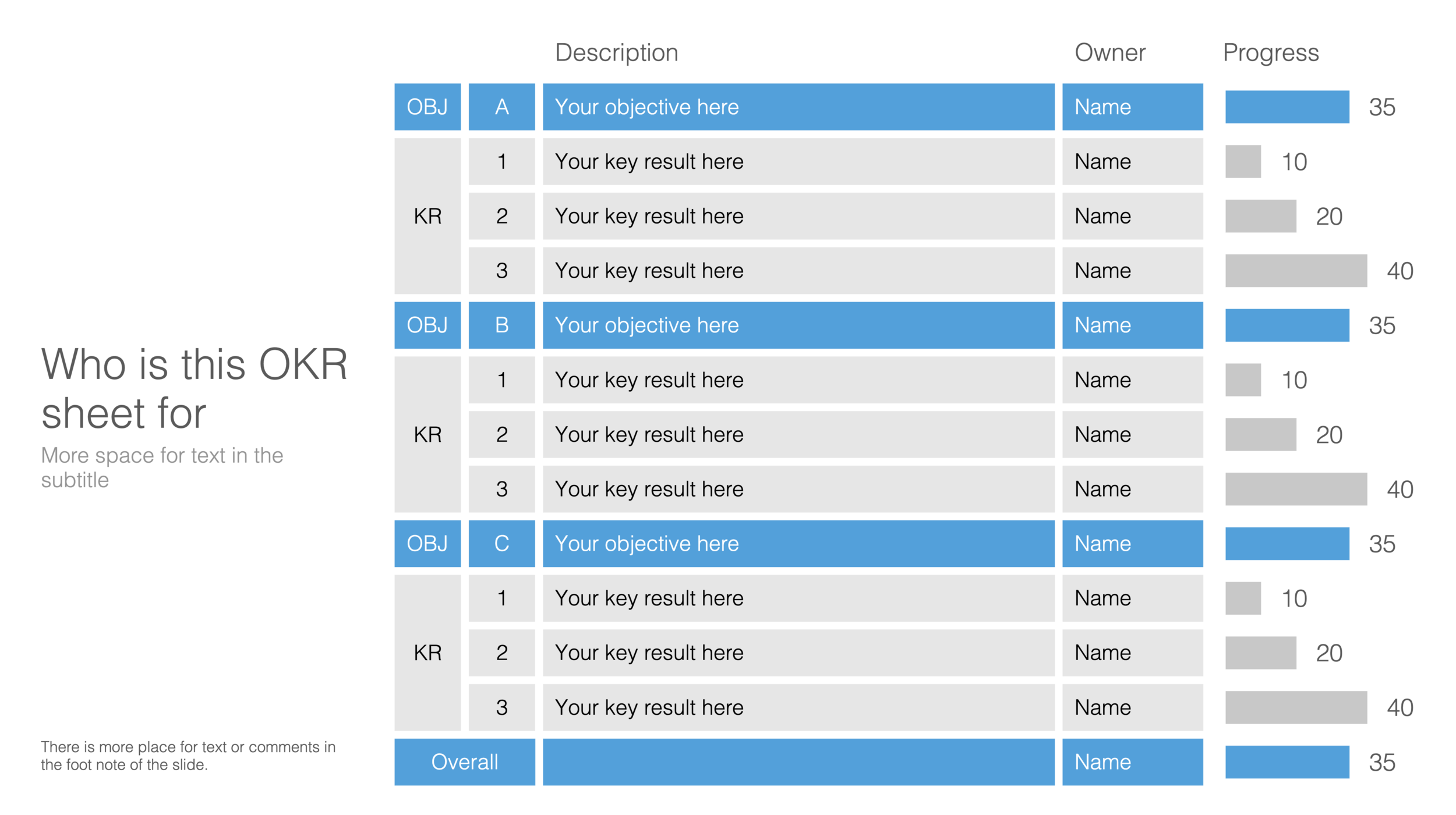
An OKR slide template (Objectives and Key Results)

An OKR slide template (Objectives and Key Results)

Not enough SlideMagic users have discovered that I try to respond to requests for new or missing templates. Today I added a template for an OKR sheet, Google’s approach to managing Objectives and Key Results.

SlideMagic is particularly useful for slides like this, it is easy to add rows, adjust the layout, and now those boring percentages can be visualised easy with a bar chart that always lines up with your table.

Screen Shot 2020-08-19 at 17.27.43.png

Search for “OKR” in the SlideMagic desktop app and it will pop up and ready to work on for free, alternatively, pro subscribers can download the template (in .magic or .pptx format) from the online template bank.

Let me know if you need more/different types of OKR templates.

SlideMagic: a platform for magical presentations. Free student plan available. LEARN MORE
New arrows are now live

New arrows are now live

The latest version of SlideMagic has the new arrow feature available, finally enabling me to discontinue the dreaded connectors. Arrows are big and bold to show cause-effect relationships or other forces. I made an algorithm to let them do the right thing in terms of layout in various box sizes, and in various aspect ratios, both for horizontal and vertical shapes. In PowerPoint and Keynote it is fiddly to get arrows to look exactly the same once you start changing the angles of the pointer by hand.

When converting to PowerPoint (a pro feature), your arrows will show up as editable PowerPoint arrow shapes.

I can now call SlideMagic 99% feature complete (hmm, line charts?) and will focus on hardening the application to make it absolutely stable.

The legacy connector feature will stay in the background. If you load an old slide that uses it, the legacy arrows will be rendered and you can edit them. If you have to add more legacy connectors, simply shift-click on the connector icon, and you will be given the option to use the old feature.

The new arrows also give me more design freedom to start expanding the template library with new slide layouts that features these ‘fat’ arrows.

Fat arrows are great for showing cause-effect relationships

Fat arrows are great for showing cause-effect relationships

Arrows follow the color scheme of the cell, black on accent, will give you this result

Arrows follow the color scheme of the cell, black on accent, will give you this result

You can place background images behind arrow elements

You can place background images behind arrow elements

SlideMagic arrows are converted to fully editable PowerPoint arrow shapes when converting (pro feature)

SlideMagic arrows are converted to fully editable PowerPoint arrow shapes when converting (pro feature)

Thinner arrows can be created with the line new line drawing feature

Thinner arrows can be created with the line new line drawing feature

SlideMagic: a platform for magical presentations. Free student plan available. LEARN MORE
The perfect arrow...

The perfect arrow...

I am replacing the connectors in SlideMagic with 2 features. The relatively thin lines that connect boxes in a diagram went live yesterday. Currently I am working on the 2nd feature: fat arrows to show cause-effect relationships or other forces.

As I already discussed back in 2017, it is tricky to get arrows to look right in presentation software. The aspect ratio of the containing box, the angles of the arrow, some come out great, others won’t.

image-asset.png

And even if you got one right on your slide by moving the various sliders in the shape, how do you make sure that the 3 below it look exactly the same? Oh, and then you need to insert a fifth one and squeeze everything a bit…

I think I am on to a possible solution. I scribbled an algorithm on a piece of paper, now let’s see how to bring it to life in SlideMagic, and then convert them to PowerPoint. The latter might have to be via an image rather than a dynamic shape. Below is a screenshot of my development machine. Work in progress.

Screen Shot 2020-08-11 at 15.40.55.png

SlideMagic: a platform for magical presentations. Free student plan available. LEARN MORE
The new line drawing mode

The new line drawing mode

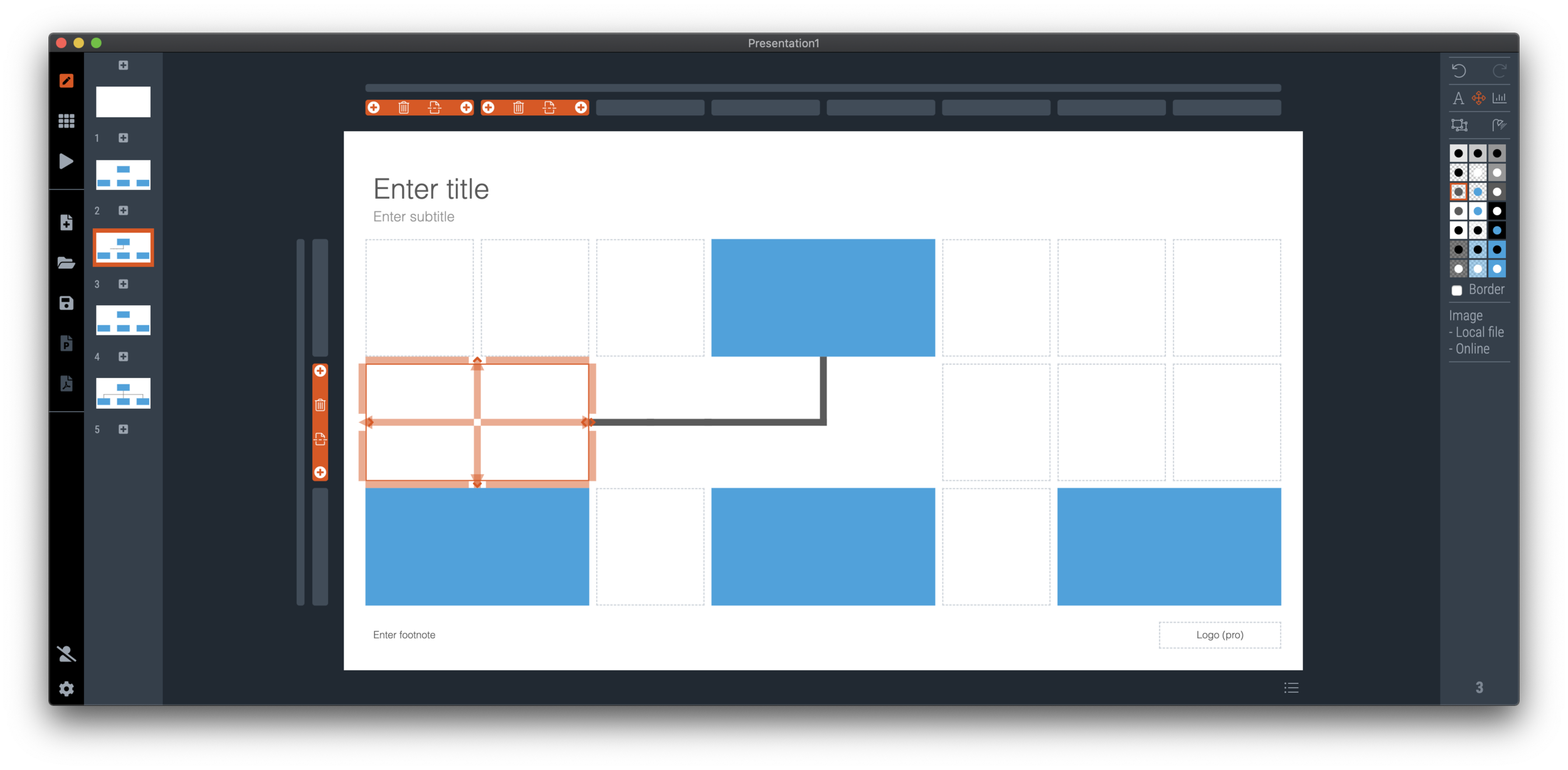
I just deployed version 2.4.16 on the server that has the first version of the new line drawing engine of SlideMagic built in. This will be the replacement of the cumbersome ‘connector’ feature that was inherited from SlideMagic 1.0.

Any presentation app needs some sort of approach to drawing lines, especially to connect boxes in diagrams. Freehand drawing and line dragging goes straight against the philosophy of SlideMagic, which forces you to keep everything lined up, evenly spaced out on a grid.

The connectors solved this by micromanaging lines, you have designate a box to be a line box, and then meticulously set the line configuration inside it. The result is a line grid that perfectly scales up and down with your grid. But this can be a pain to maintain, especially if you are working in a very fine grid.

So I can came up with a compromise and added a separate line drawing layer to the ‘frame; of the slide, the background that sits behind the work area of the slide (i.e., not the title and the footnote). Selecting the frame will highlight a Manhattan-like grid of dots, between which you can draw any (straight) line or arrow you want, across the entire slide. This line patter will move with changes to the grid, but - and this is the concession - is not 100% tied to the boxes in your chart. But I think it is a price well worth paying, imperfections are easy to fix.

A side effect, it is now also easy to draw a fat border around a group of boxes if needed.

Below is a bare bone organisation diagram.

Screen Shot 2020-08-10 at 6.55.29.png

The old connector system required fiddly editing, see below.

Screen Shot 2020-08-10 at 6.57.18.png

The new line drawing layer makes things easier. As soon as you select the frame of the slide (click the long bar at the top, or the tall column to the left of the slide), you are presented with a grid of dots.

Screen Shot 2020-08-10 at 6.55.39.png

You are free to add lines from dot to dot across the entire slide (yes, even ones at an angle)

Screen Shot 2020-08-10 at 6.55.55.png

All of this makes it easy to connect boxes in the required way in your diagram

Screen Shot 2020-08-10 at 6.56.29.png

Feel free to download the latest version of SlideMagic and play around with the new feature and let me know your feedback. There are a lot of design decisions that I had to make. Keep line editing mode active to go to the next dot, connect line segments in one shape, dragging of lines (or not). I think the current model works, where lines stay on the chart as individual segments. I will need to implement the multi-select on them though, and work on an algorithm that removes double segments, and combines two consecutive segments into one.

SlideMagic: a platform for magical presentations. Free student plan available. LEARN MORE
YC advice on pitching

YC advice on pitching

YCombinator has made library of support material for startup founders available online for free. One of the results for a search on ‘pitch decks’ produces this. Some things to highlight:

“Be excited. Your pitch should not sound memorized. Intonation, cadence, and projecting help a lot”

“Actually explain what you do, and do it quickly”

“Don't be "cute" with your points, be declarative”

“If you make a joke, telegraph it. If you're not sure the joke will land, cut it

“Charts should be easy to understand - make one point with any graphic or chart. Don't make people read charts - they'll stop listening to you.”

“Line graphs are better than bar graphs when showing growth” (Not sure this is the case)

“TAM should be bottom up, not top down” (I.e., not 0.5% of $5billion)

“Coolness and legibility are not orthogonal, they're diametrically opposed”

It is important to understand where these suggestions are coming from: very experienced investors that are focusing on very, very early startups and hence need to sit through many, many, pitches with a huge range in quality (both in terms of pitch quality and company/founder quality). That explains the feedback of make your title readable, don’t use thin fonts, make your slide clear that when I look up from answering an email on my phone, I still know what is going on, don’t be cute, tell what you actually do, etc.

Still, if you are an early stage company looking for funding, this is your audience, better give them what they want. And remember, part of your startup pitch is testing your ability to sell a product to a matching audience. Selling your company to investors, or selling your product to customers, or helping investors sell their stake in your company to another investor in the future, all require similar skills.

Photo by Hunters Race on Unsplash

SlideMagic: a platform for magical presentations. Free student plan available. LEARN MORE
Fixing the connectors

Fixing the connectors

SlideMagic 2.0 is almost getting to a point where I can call it ‘feature complete’. Once reached, I will be spending most of my time on hardening the application to make it 100% enterprise-grade, before venturing into adding more capabilities.

The last obstacle on the road are the ‘connectors’, a left over from the SlideMagic 1.0 UI that are not very intuitive to use. The connectors where meant to cover the 2 minimal line drawing elements that any presentation app needs to have:

  • The ability to connect boxes in diagrams (flow charts, org charts) with lines and arrows

  • The ability to create a visual flow in a slide with big arrows that show cause and effect

This is very tricky to accomplish in SlideMagic, as the app stubbornly insists on not requiring any freehand drawing or dragging that breaks the slide’s grid, and the current ‘connectors’ make that tension perfectly clear.

I think I might have come up with an elegant solution to this problem:

  1. Simplify the current ‘connectors’ and use them solely for fat/big cause effect arrows

  2. Add a simple grid based drawing capability for connecting boxes.

I got number 2 to work on my development machine, but it still requires a lot of work to make things intuitive, but the hardest part of the work has been cracked.

Luckily there is an advantage that SlideMagic does not have millions of users yet, we can still wiggle the software to get product/market fit, something almost all presentation design apps have failed to reach. Work in progress.

Photo by Charles Deluvio on Unsplash

SlideMagic: a platform for magical presentations. Free student plan available. LEARN MORE
Update

Update

I have entered my usual summer blogger schedule (fewer posts) and am now working really hard to get SlideMagic 2.0 right. The feature list for SlideMagic 2.0 is now almost completely implemented. In software, there are always more things to add, but the product as it stands at the moment is starting to get very useful. Over the last 2 weeks I put in very big changes that might not look big from a user’s perspective, but required huge changes under the hood:

  • The new '“side title” layout (my preferred)

  • Slide search previews in your own preferred colour, layout, font style

  • Horizontal and vertical waterfall charts

  • Dynamically generated slides with a relevant image (i.e., unlimited slide in the template bank)

  • Better rendering of slides and images on higher resolution screens

  • Useful image compression in the background

The only big one that remains outstanding is a better way to make diagrams with lines and arrows, the connector solution is not perfect.

In the background I am now tweaking lots of user interface details: how borders fit around thumbs, mouse behaviour when hovering over things, an “endless scroll” is now working for image search, messages that warn you when things go wrong, or when your app is busy searching, making sure that thumbnails distribute nicely over the screen when zooming, minimising the times when the app needs to re-render a slide or image to make the workflow calmer, etc. etc.

I start to look at app design the way I look at slide design. Things need to be absolutely right, and even tiny deviations, irregularities, small mistakes, can really upset me, while most people won’t even notice them. This is what I think ultimately leads to good design, one by one, these details do not matter, I you add them all though, something works without you having an ability to point your finger at exactly why.

If you tried SlideMagic 3 months ago, you almost won’t recognise it (sort of), today (at the moment of writing, version 2.4.12 is the latest one). Work in progress

Screen Shot 2020-07-29 at 14.14.41.png
Screen Shot 2020-07-29 at 14.17.10.png

SlideMagic: a platform for magical presentations. Free student plan available. LEARN MORE
The SlideMagic template bank now has an "unlimited" number of slides

The SlideMagic template bank now has an "unlimited" number of slides

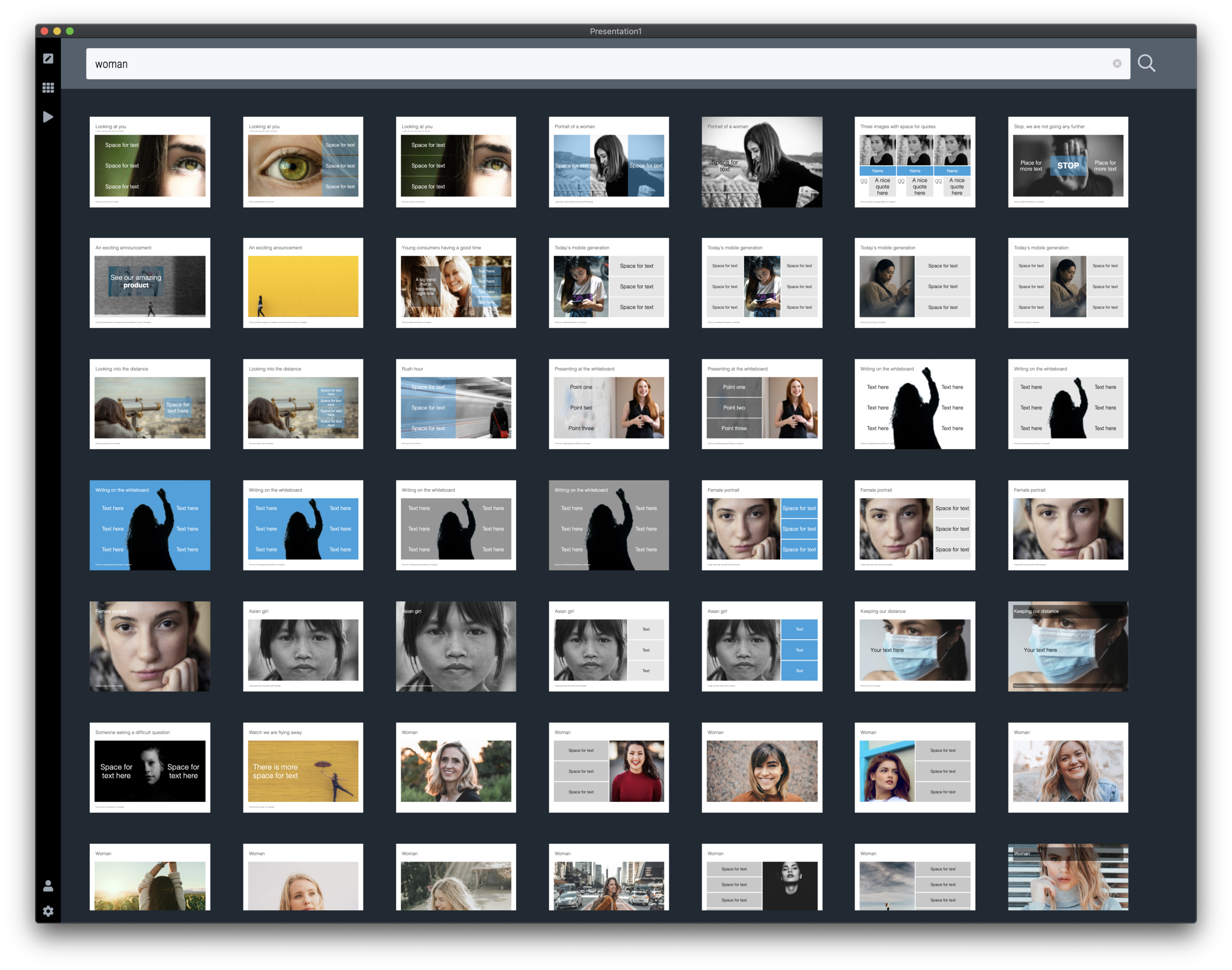
The latest version of the SlideMagic app (download) now has a feature that I wanted to implement for years: automatically generated slide templates.

The basic set of SlideMagic templates are closely related to my consulting background: lists, tables, frameworks, 2x2s, graphs, diagrams, etc. This set will grow into the thousands, but it still relatively small when it comes to the universe of slides.

There is a big long tail of slide designs that are impossible to design and store on a server: slides with backgrounds of an image: cities, buildings, buckets, cars, roads. It was already possible to search online for free images in SlideMagic, but now I took a step further.

When you hit a search inside the app, first SlideMagic will serve you its own templates that best match your search criteria. But then, the app will add automatically generated layouts with relevant images after that. These slides do not sit on the server, they are generated on the fly. In the screen shots below, you can spot the break between the two types of slides, but you need to look carefully.

Screen Shot 2020-07-22 at 15.14.59.png
Screen Shot 2020-07-22 at 15.16.14.png
Screen Shot 2020-07-22 at 15.16.51.png

This feature is only available inside the SlideMagic and not yet implemented on the web site. I am just starting to scratch the surface of all of this, as usual: work on progress.

SlideMagic: a platform for magical presentations. Free student plan available. LEARN MORE
SlideMagic slide search results now in colour

SlideMagic slide search results now in colour

Another day, another improvement

I stuck to showing images on slide search results in black and white because I would be sure that the photos would not clash with the accent colour for the slide users had picked (most users will swap SlideMagic blue for their own logo colour). That worked, but it came at a price: slide templates all looked a bit sad. This is not only due to the greyscale colours, but also because of the way the greyscale filter was applied: many colours were translated into too dark tints of grey I think.

This morning I re-rendered the entire slide database (the server is still a bit tired) and images in slide templates now show up in colour.

It is worth the trade-off I think. Of course it is possible to go back to a black and white image in the SlideMagic app, simple untick the ‘colour’ box and the image will show up as grey scale (you can always go back to colour if you want).

Screenshot 2020-07-21 10.05.06.png

The colour option is only available for the slides that I added more recently, after I switched off the colour option when ‘flattening’ or compressing slides. Obviously new templates will all appear in colour, or I will set them explicitly to black and white when I feel that it serves the slide’s message better.

This addition of colour coincides nicely with the more mature SlideMagic product I think, slowly but certainly it comes out in its full shiny colours :-)

Let me know what you think.


SlideMagic: a platform for magical presentations. Free student plan available. LEARN MORE
Waterfall charts in SlideMagic!

Waterfall charts in SlideMagic!

Finally, they have arrived. Waterfall charts in SlideMagic. Everything lines up with other elements in your slide. Super easy to make and edit, super easy to convert to editable PowerPoint / Excel charts if needed. Download version 2.4.7 of SlideMagic to try it out (both for Windows and Mac). This is a brand new module in the app, please let me know if you experience any issues or have other suggestions.

Screenshot 2020-07-20 12.41.38.png
Screenshot 2020-07-20 12.41.47.png

SlideMagic: a platform for magical presentations. Free student plan available. LEARN MORE
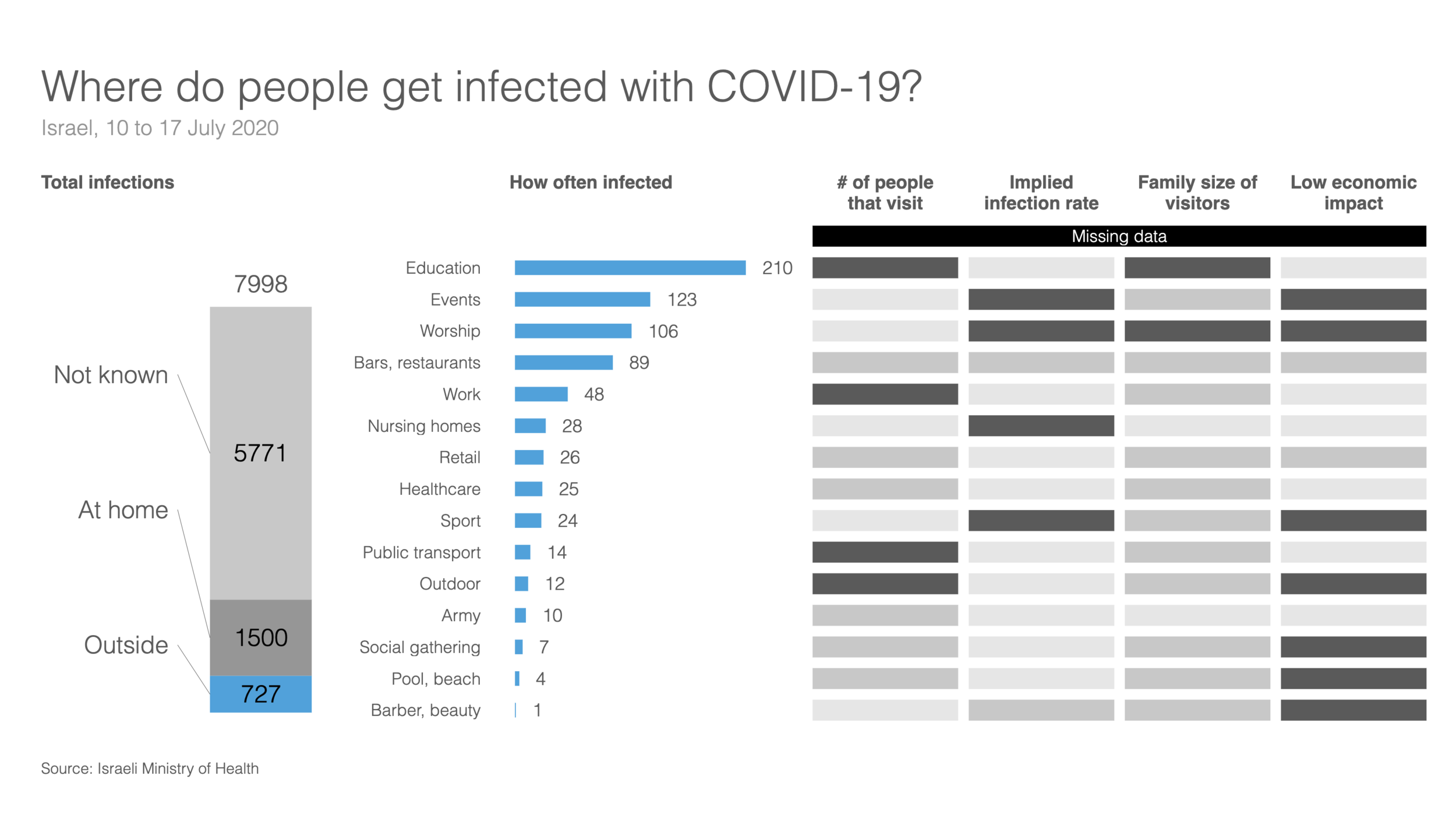
Chart makeover: where do people get infected with COVID-19

Chart makeover: where do people get infected with COVID-19

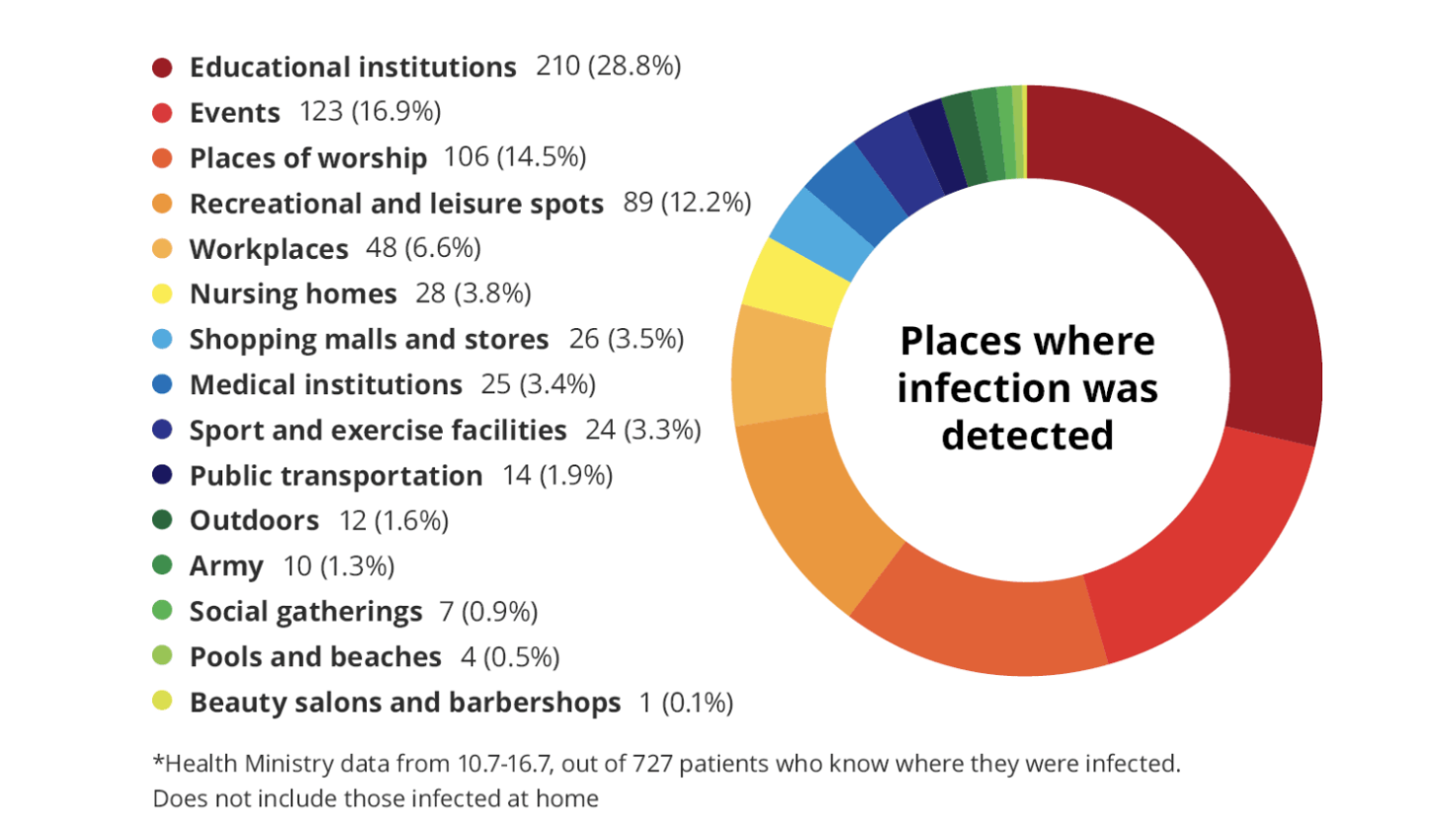
Israel is experiencing a very strong second wave of the virus. Its health ministry recently published data about where people get infected.

Screenshot 2020-07-20 06.32.57.png

This graph does not tell the entire picture, I tried making a quick slide in SlideMagic:

Screenshot 2020-07-20 07.35.36.png

What did I add?

  • Providing the overall context: for many patients it is not known where they are infected, and many get infected at home (which are probably secondary infections)

  • There is still important data missing. The most important one is how many people in total actually visit a place. Millions of people visit schools, thousands probably visit gyms and places

  • We need to understand the impact on secondary infections (how big are the typical households that these people are coming from).

  • Then there is the question about impact to society…

This SlideMagic slide is free, you can download it here. It is clearly an example of an analysis slide, rather than a visual to be presented to a large audience. While I am not a big fan of stretched 16:9 layouts, in this case I had to go for it to create space.

PS. My opinion re. the strong second wave in Israel? Yes, Israel got the virus under control and then reopened too quickly (school were the main source of infection initially). But, in the end I believe any country re-opening will go through the same process, may just a bit slower. I think Israel is 1-2 months ahead of other countries re-opening.

SlideMagic: a platform for magical presentations. Free student plan available. LEARN MORE
Working to add waterfall charts to SlideMagic

Working to add waterfall charts to SlideMagic

Waterfall charts are always an absolute pain to make. As my coding skills increase, I am getting more confident to add trickier things to SlideMagic ( tricker in terms of coding, not in terms of user interface). So, I have started to work on adding waterfall charts to SlideMagic. Below a screenshot of my development machine.

Screenshot 2020-07-16 12.21.38.png

They should be in line with all the other data charts in SlideMagic, line up perfectly with the grid to make it easy to add data labels and incorporate them into the overall slide composition.

For many corporate users of SlideMagic, the killer feature might be the conversion of these simple waterfalls in a fully editable spreadsheet in PowerPoint/Excel.

Work in progress…

Update: the latest version of SlideMagic now as the waterfall functionality. It should work great in the app. PowerPoint conversions works as well except for the data labels. Let me know if you encounter any issues.

Photo by Robert Lukeman on Unsplash

SlideMagic: a platform for magical presentations. Free student plan available. LEARN MORE
Slide search results in your own colours

Slide search results in your own colours

After updating to the latest version of SlideMagic, your slide search results will no longer appear in SlideMagic blue, 4x3 aspect, but in your own personal colour palette, and in your own preferred screen size.

Screenshot 2020-07-15 12.34.15.png
Screenshot 2020-07-15 12.34.59.png
Screenshot 2020-07-15 12.35.51.png
Screenshot 2020-07-15 12.37.02.png

Unlike most template banks, SlideMagic now generates slides on the fly the moment when you search for them, rather than serving pre-fab files. This opens interesting opportunities for future features :-). Work in progress.

SlideMagic: a platform for magical presentations. Free student plan available. LEARN MORE
Using heat maps in your presentation

Using heat maps in your presentation

This is a neat visualisation of the COVID outbreak in Florida:

Screenshot 2020-07-15 07.13.12.png

Why does it work?

  1. It uses colour intensity to introduce another dimension of data in a column diagram: time, number of cases, and age range.

  2. The colours are nicely chosen so the chart gives the impression of some sort of fire being lit (which is unfortunately the case).

These charts cannot easily be created in PowerPoint, this one is generated by some code. But you could give it a go in PowerPoint.

  • Take a standard column chart in PowerPoint

  • Make all the data series have the same value, the age brackets you want to use

  • Set the gap between the columns to zero

  • And now comes the hard part: manually add different colours to each data point. To select a data point click it twice in quick succession (one click will give you the entire data series wiping out your detailed painting effort in one go)

Screenshot 2020-07-15 07.27.05.png

Here is a quick search for heat maps in SlideMagic, I added one design that sort of resembles the COVID chart. You can see how the new slide layout with the side title I introduced a few days ago comes in handy to create more vertical space for data.

Screenshot 2020-07-15 08.14.16.png
Screenshot 2020-07-15 08.04.34.png
Screenshot 2020-07-15 08.04.14.png

SlideMagic: a platform for magical presentations. Free student plan available. LEARN MORE
Coming soon

Coming soon

Search results in the SlideMagic app show up as small screen shots of slides in SlideMagic’s blue colour at the moment. It would take a lot of bandwidth to send over the full slide designs when previewing templates.

I am making changes now on the server to make it possible that slide previews show up in your own colour scheme, with your own corporate logo on it, and in the layout you prefer(4:3, 16x9, black background, dark background).

The app will be upgraded first, after which I will make the feature available for paying subscribers on the web site as well. Users who prefer PowerPoint downloads will be able to download PPTX layouts with their own colours and logos already activated.

Work in progress.

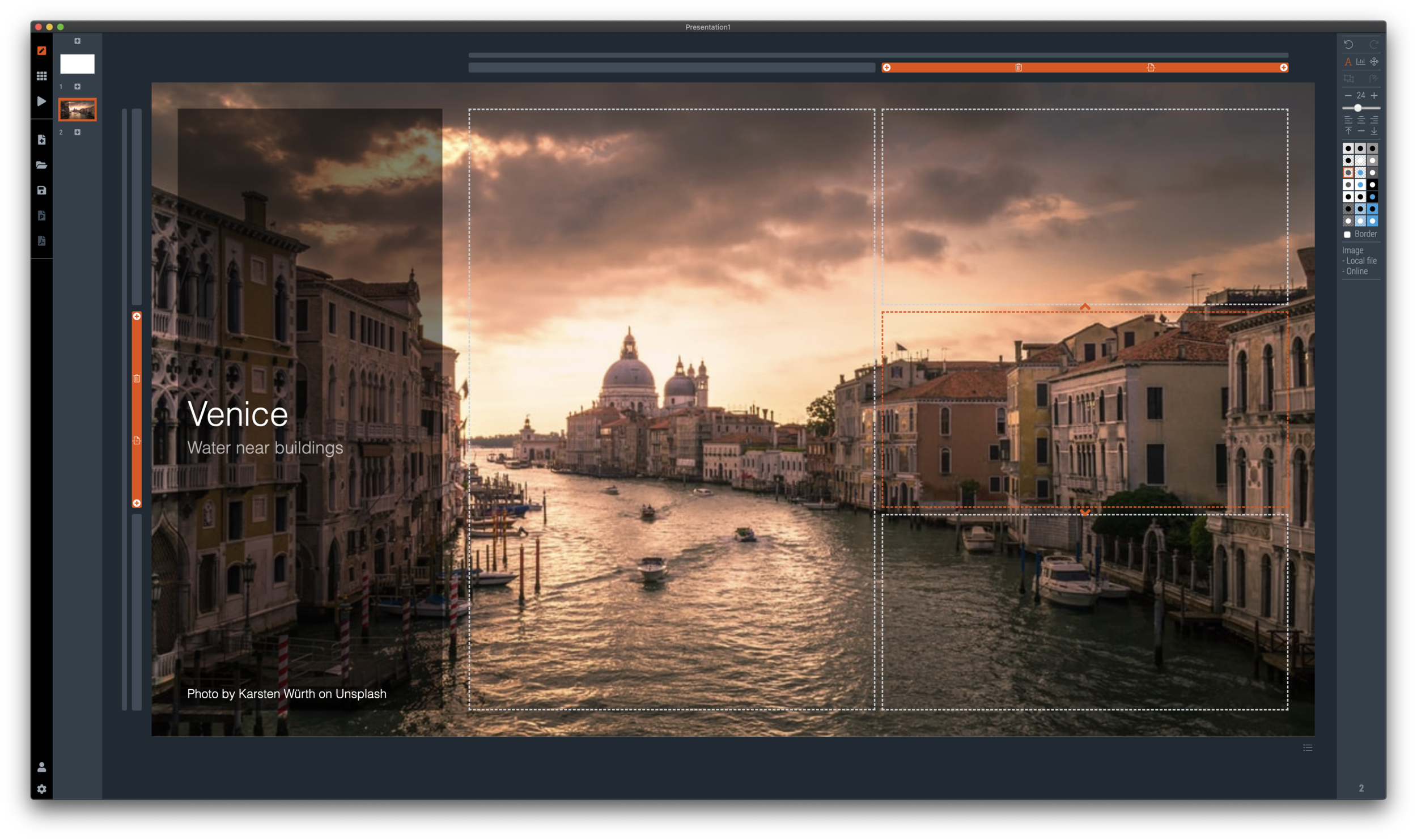
Photo by Lindsay Henwood on Unsplash
SlideMagic: a platform for magical presentations. Free student plan available. LEARN MORE
Embarrassment...

Embarrassment...

While cleaning up an old computer, I came across a version of SlideMagic from probably 6 months ago. Back then I thought this was just about as good as it can get, comparing it now to version 2.4.3, I am almost embarrassed to have even released this. I hope I feel the same way about the current version in 6 months.

Only now, I am getting close to the feature set that was in my brainstorm notebook from almost four years ago. I remember coming up with most what is in SlideMagic 2.0 during Web Summit in Lisbon in 2016…

Things still to fix are:

  • Connector editing (it works, but it is not intuitive and efficient enough)

  • Making sure that previews of template slides show up in your own personal slide branding, rather than SlideMagic blue (without wasting a huge amount of bandwidth and/or processing power)

Photo by Abigail Keenan on Unsplash

SlideMagic: a platform for magical presentations. Free student plan available. LEARN MORE
My preferred 16:9 layout for presentations

My preferred 16:9 layout for presentations

I just pushed a big update to SlideMagic (2.4) to the server and it contains a brand new 16:9 slide layout, the slide title. Most monitors today are widescreen, but unlike movies, I think 4:3 slides look much better. Text lines that run across the entire slide are hard to read, and wide screen slides always force you to make very “stretched” slide layouts.

The side title is the best of both worlds. The title of the slide is moved to the left, and the slide contain area is scaled up now that it has more space at the top. It stays in a 4:3 ratio though. The footer and logo is also moved to the left, creating even more space. The entire design shows up without black bars on a wide screen monitor. Below is an example.

It follows an approach I already blogged about in 2016

Screenshot 2020-07-09 11.45.33.png

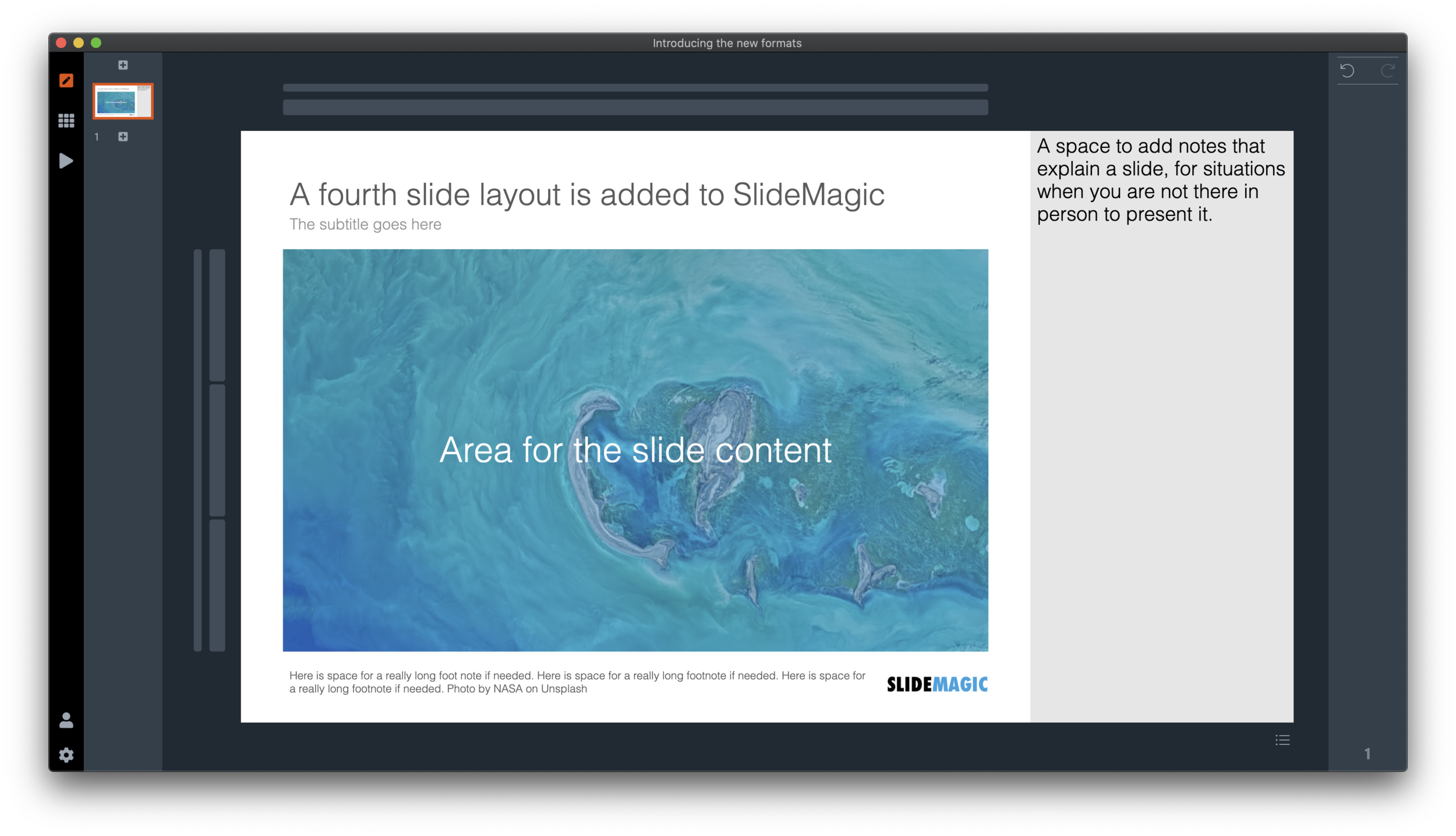
SlideMagic has now 4 screen modes, and you can switch instantly between them:

  1. Traditional 4:3 narrow

  2. 16:9 wide screen

  3. A 4:3 slide with an explanation panel to the side to leave notes for when you are not there in person to present the slide

  4. The new and shiny 16:9 side title

Soon, I will rerun the PowerPoint conversion algorithms on the server to increase the size of the SlideMagic PoiwerPoint template database with 25%, each slide will now be available in the new format as well,.

Screenshot 2020-07-09 15.46.36.png
Screenshot 2020-07-09 15.46.55.png
Screenshot 2020-07-09 15.46.45.png
Screenshot 2020-07-09 15.46.24.png

(Hmm, the side panel needs some more padding, I will fix that [Fixed in 2.4.1]). There are a number of other new features introduced in version 2.4.

Screenshot 2020-07-09 15.47.20.png

It is now also easier to select the “frame” element of the slide, I added 2 thin selection bars next to the regular grid selectors.

Also the right-to-left mode is completely rewritten (SlideMagic is based in Tel Aviv :-)) so that the side panel and side title show up in the right place.

Version 2.4 is a major update, please report any glitches you might experience.

SlideMagic: a platform for magical presentations. Free student plan available. LEARN MORE
"Operating system updates" for presentations

"Operating system updates" for presentations

Every year Apple releases operating system upgrades for computers, tablets, and phones. Your apps and documents have the same content, but look slightly different. I am trying to push this concept to the world of presentations.

It has already happened (sort of). The slide-out panel to right changes the look and feel of your presentation without changing the content. Over time, I have made subtle changes to font sizes and layout proportions, which means that every SlideMagic presentation in the world will have a slightly different look. Switching to a dark slide background turn the colours of your presentation upside down (in a good way), far beyond just making the background black.

I will try to push this further, by adding more layout options , your slides will look entirely different, including the ones you made 6 months ago, but you can always switch back to another layout format.

Photo by Michael Held on Unsplash

SlideMagic: a platform for magical presentations. Free student plan available. LEARN MORE