Viewing entries in
SlideMagic

Blue ocean strategy in a presentation

Blue ocean strategy in a presentation

Most investor or sales presentation have some sort of slide about the competitive environment. (Here are earlier blog posts about how to present the competition). Usually, people use tables, or 2x2 / 3x3 matrices to show how they are different.

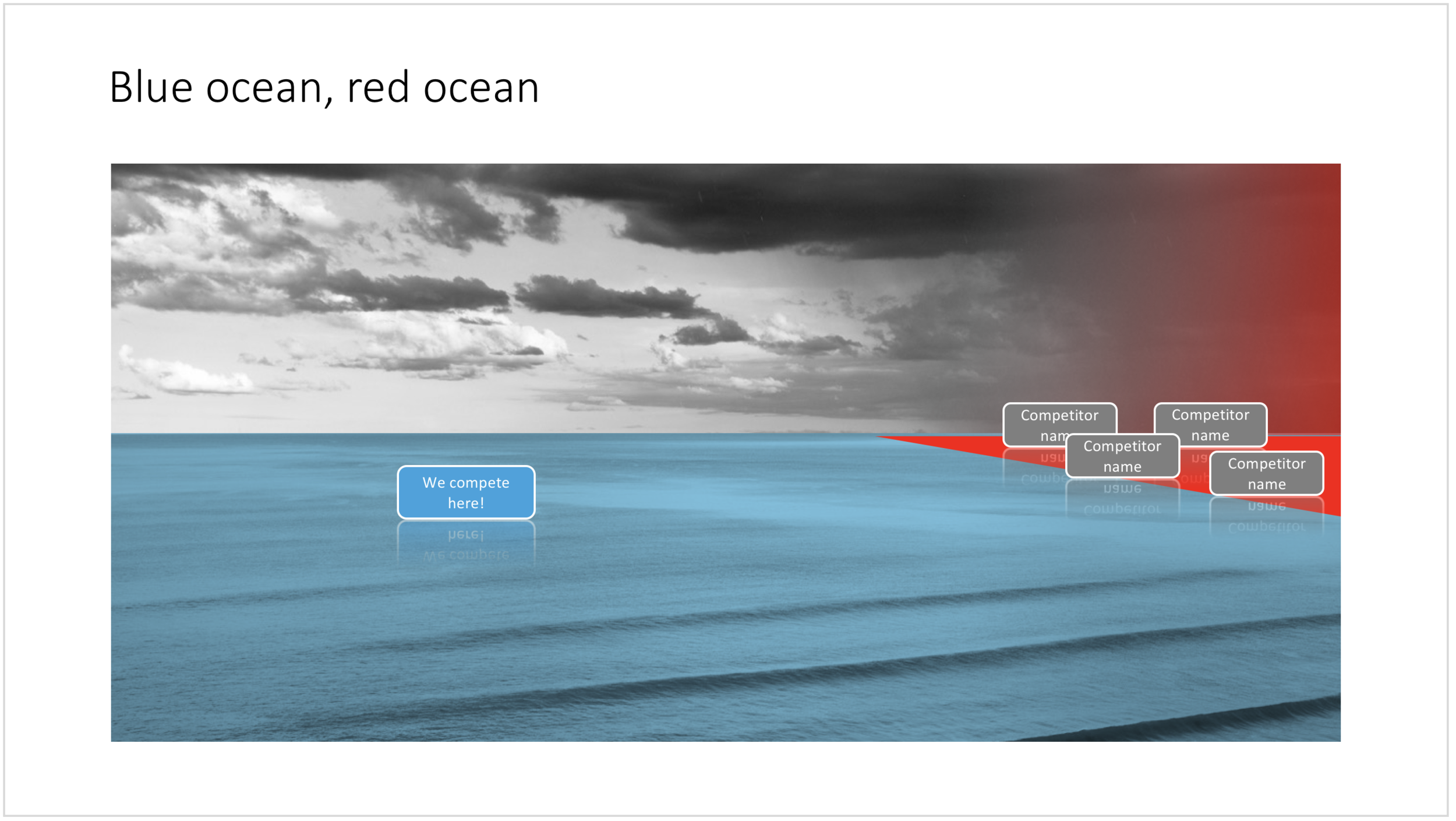
The chart below might a completely different take on the subject. The Blue Ocean strategy concept developed by INSEAD argues that is often better to define an entirely new market rather than battling with all the existing companies that go after well-established market segments. You can download the slide here.

Visualise the competition using "Blue Ocean Strategy" in a presentation

Visualise the competition using "Blue Ocean Strategy" in a presentation


Cover image by Ishan @seefromthesky on Unsplash

SlideMagic: a platform for magical presentations. Free student plan available. LEARN MORE
Presentation layout for when you are stuck...

Presentation layout for when you are stuck...

Sometimes the simplest slides can be the most effective ones. This slide layout shows a big arrow crashing into a wall to visualise your obstacle or roadblock. The wall image is framed, while the arrow is bleeding of the page, adding an extra movement effect.Edit to text in the arrow and/or on the wall to show your audience what it stuck. The text in the arrow will automatically tilt in the right 3D angle, and both the wall and arrow will colour in your primary accent colour. Please copy this slide into a presentation that uses your own corporate presentation colour theme.

I am gaining a lot of experience now in translating PowerPoint designs into Keynote. This chart is only available in PowerPoint and not in Keynote, because the latter cannot tilt objects in a 3D space. The same problem arises with charts that rely heavily on bevels or other 3D lighting effects, which is not obvious to do in Keynote.

Here you can find this wall layout in the SlideMagic store. Cover image by Chris Benson on Unsplash

SlideMagic: a platform for magical presentations. Free student plan available. LEARN MORE
Bubble charts in PowerPoint and Keynote

Bubble charts in PowerPoint and Keynote

Bubble charts are useful to present and analyse very large datasets. The standard template in PowerPoint and Keynote still needs some adjustment to make the chart useful. In this bubble chart on the SlideMagic template store, I have tried to do the hard work for you.

This a reformatted version of the standard bubble chart that you will find in PowerPoint and Keynote, on top it has the layout of a 2x2 matrix. The bubble chart is useful when you want to compare a data series with 3 elements, across a large number of data points. Examples are countries, business units, regions, products, etc.

The first two elements will be plotted on a regular XY chart, the 3rd element is the size of the bubble. PowerPoint or Keynote do not support labelling of the bubble very well, which are put in manually.

A 2x2 matrix structure is put on top of the regular bubble chart, giving you 4 distinct quadrants to segment your bubbles in. In the current example, the quadrants have the same size, by putting the 2 axes right in the middle. To do so, you need to manage the ranges of the axes carefully. If this is not important to you, you can put the X and Y axes where they are relevant without worrying about this. Quadrants of unequal size will still look good.

I am working hard to make the store more useable. This layout is an example. There are 4 variants of the chart: PowerPoint, Keynote, both in 4:3 or 16:9. I tried to add all the right instructions about how to use the layout, and show many links to other relevant slides in the store. While working on your presentation, you can go back and forth between designs and get ideas on how to visualise the key messages of your presentation. Some layout suggestions, you might be able to create yourself, others you might already have bought and can re-use, or you can download a layout right away to add it to your library. SlideMagic will be a place that saves you time making your business presentations.

Cover image by Alejandro Alvarez on Unsplash

SlideMagic: a platform for magical presentations. Free student plan available. LEARN MORE
Most templates now available for Apple Keynote

Most templates now available for Apple Keynote

The template store now supports Apple Keynote, a drop down menu let's you make a selection between your preferred presentation software. Not all templates could be converted, Keynote is missing the 3D shape rotation feature of PowerPoint that I used in some of the slides.

The store now gives you the option to download templates either as a PowerPoint or Keynote file

The store now gives you the option to download templates either as a PowerPoint or Keynote file

Slides in Keynote look the same except for the font

Slides in Keynote look the same except for the font

The only adjustment I made was the font: switching it from PowerPoint's default Calibri to Helvetica Neue for  Keynote. I am keen to keep the look and feel of the charts as "standard" as possible to make it easy to integrate the design in the corporate presentation templates that people are using.

Under pressure!

Under pressure!

The slide above is a layering of 2 images that visualizes a big dam that is under pressure from something. You can use it either to show that something is about to burst, or the opposite, that defenses are strong and holding out well. I love the massive architectural scale of these hydro power installations, especially when you can highlight it with this tiny car driving across it. You can download this dam template here.

Looking for other visual concepts that are similar? You can try and search the store for "forces", "down", or this search "downward" and see what slides come up. That is my longer-term vision: no more boring bullet point charts, and no more searching for "where is that slide that I made 2 years ago", but rather have all the relevant designs ready at your finger tips. The search engine with design ideas is almost as important as the actual design itself.

Searching for "downward" in the template store

Searching for "downward" in the template store

SlideMagic: a platform for magical presentations. Free student plan available. LEARN MORE
The snapping chain

The snapping chain

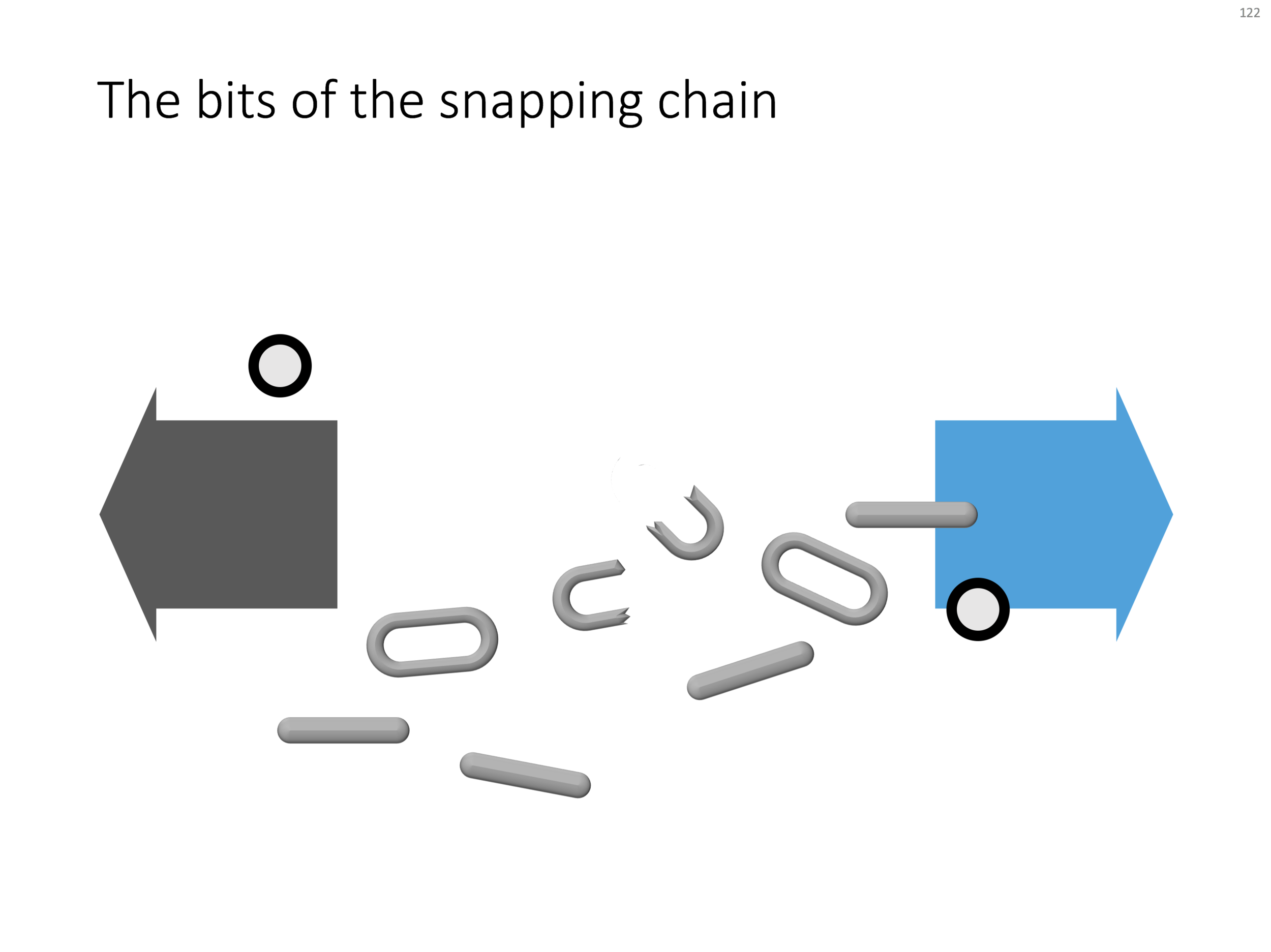
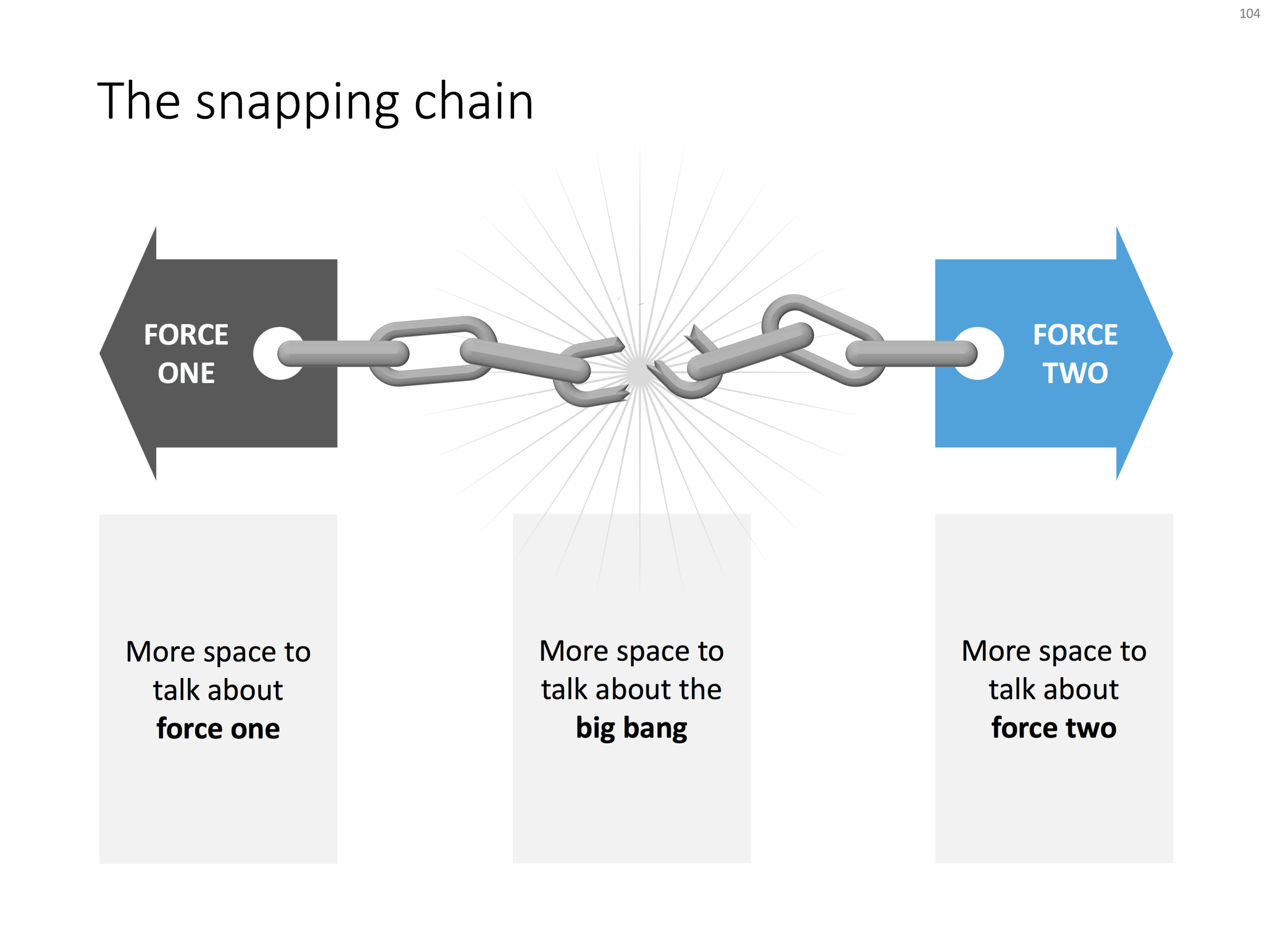
Business presentations usually rely on a few basic concepts. One of them is the snapping chain or rope, where 2 forces pulls something apart. One way to create this is with a stock image of a snapping rope or chain, but it can be hard to find one without an unhelpful 3D rotation, another approach is to create a chain from basic PowerPoint shapes.

Here is what I did

  • Take a rectangle with rounded corners
  • Increase the rounded corners until they become half circles (the small yellow dot in the shape)
  • Copy the shape, make it smaller
  • Centre the 2 shapes, subtract the smaller from the bigger
  • Apply some 3D bevel to to get the basic chain ring
  • The other chain ring is simply a rectangle with rounded corners.
  • Now, scribble a "saw" freehand shape.
  • Copy a chain ring, subtract the saw shape to get the broken ring
  • Copy this broken ring, and subtract it from another ring (to get the exact complement of the break lines)
  • Line everything up for the final composition.

You can follow these steps, or download the finished product from the template store.

Once you have your chain, "store it in a safe place", there are endless ways you could use it in future slides: multiple chains, longer chains, chains that go all around the slide :-) Here is another possible composition from the SlideMagic archive

The resulting chart is not a master piece illustration, but its unpretentious simplicity can do a decent job in an everyday business presentation. People spent too much time dealing with presentation software, and the objective of SlideMagic (the app, the store) is to help you get business concepts on a decent slide quickly and move on with more important things in life (and business).

SlideMagic: a platform for magical presentations. Free student plan available. LEARN MORE
Popping out of the box

Popping out of the box

Popping out of the box. Unlike many designers, I actually like framing my slides, leaving white space around the edges. Stretching your picture all the way to the slide boundary looks nice on one page, but creates inconsistencies with more traditional data slides, and reduces the readability of slide titles.

SlideMagic: a platform for magical presentations. Free student plan available. LEARN MORE
App demo slides

App demo slides

App demo slides. Doing a live app demo in a 20 minute pitch meeting is risky, the technology might go wrong, and probably more than half the time you spent in a 2 minute app demo could be things that are not really interesting: logging in etc. Instead, I usually prepare a series of screen shots with big explanation bubbles in my presentations.

SlideMagic: a platform for magical presentations. Free student plan available. LEARN MORE
Focal point chart

Focal point chart

A while ago, I discussed how to create a "focal point" slide, where a series of triangles can create the illusion of text boxes all disappearing in one big point. You can read the instructions how to create it in this blog post, but now you can also find them in the template store.

I am spending part of my daily time that I used to invest in blog posts, and increasing the library of my template store, I have an infinite amount of template ideas in my head, so there is still a lot of work for me cut out. Ultimately, the value of this store will be some sort of subscription, as a sign of support for me, in return for which you get unlimited access to all the designs. The combination of a powerful search engine and the largest library of useful charts on the net, I think the proposition of 1 second downloads will beat the alternative of manually copying my designs. Let's see how it goes.

SlideMagic: a platform for magical presentations. Free student plan available. LEARN MORE
Soft launch of the SlideMagic template store

Soft launch of the SlideMagic template store

Many users of the SlideMagic presentation app ask for the slides that the app generates in PowerPoint format. In response, I have built a SlideMagic presentation slide template store. The basic store infrastructure is finished, but the amount of slides available is still small.

It was quite interesting to see how in 2017 it is possible for a designer to pull of a full-fledged digital content eCommerce store with downloads and payment processing in a matter of days. (OK, my computer science engineering degree came in handy a few times when I had to go deep into HTML to customise the store template in a few places). A few years ago I was toying with the same idea, but the required investment in technology would have been a lot higher.

The main shortcoming of PowerPoint templates vs my presentation design app also applies to my own template store: templates are hard to customise. Adding a row of boxes to an existing design and getting everything to line up properly requires a bit of design skill. It is a trade off you have to make. The app is free to use, and makes these adjustments really easy. Where possible I will add slide variants to accommodate the layman designer where possible.

There are thousands of presentation template stores on the Internet and I tried to make mine different. All stores try to hard: designs are too sophisticated, full supporting graphical clutter that makes slides hard to customise and hard to fit in to corporate templates. My slides are incredibly simple and should blend in nicely when pasted into another corporate colour scheme.

The other missing item in template stores is search, how to find a decent template that fits your specific business concept you want to visualise. In my template store, I will start with paying close attention to tags and search terms. For future releases, I am working an "AI engine" that can guide you through a process to match your visualisation challenge with an actual slide suggestion (this is the biggest source of value, a library with thousands of suggested layouts is not).

I will build up the slides in the stores gradually. My first challenge is the complete the basic library of the store, then I should be able to add a few slides per day. Maybe changing the scope of my blog a little bit, discussing a possible visualisation of a business concept, and then putting the final result up in the store. With 250 blog posts a year, this will get us to a nice library over time.

I am using the gradual approach as well to get feedback. The most important one is customers voting with their money. Which slides will sell, which ones not? I have no idea yet. Secondly, I am encouraging users (you) to post requests for slide designs. If I can can accommodate them, I will add the relevant slides to the store.

The business model for the site is not yet finished. Once the library gets bigger, an "all you can eat" subscription model seems the most sensible. This is especially valuable for users as I keep on adding slides and concepts from blog posts and user requests.

Some of my clients have already noticed that I have a bit bandwidth for bespoke projects at the moment. I might drop a daily blog post here and there as I am trying to focus to get the slide library to a decent size over the coming weeks.

As I make changes to the store, the site might go "black" now and then, apologies in advance. I would invite you to look around and send any feedback to jan at slidemagic dot com. Let me know what you think!

 

SlideMagic: a platform for magical presentations. Free student plan available. LEARN MORE
Working in Google Slides

Working in Google Slides

Recently, a client insisted on using Google Slides for our presentation design project, especially because of its good collaboration features. Instead of starting a presentation in PowerPoint, then converting it to Google Slides, I took the native approach, and created a presentation from the ground up in this application.

The design of Google's office user interface has improved a lot over the years. Things look beautiful and work fast and snappy. Still, the Slides product is full of little issues that 1) slows down a pro-user like me, and 2) makes it harder for the layman designer to make good looking documents.

Because I invested my own hard-earned money in my presentation app SlideMagic, I feel a bit hesitant here to spoon feed a ready made upgrade suggestion list to a multi-billion dollar software developer with the world's smartest programmers ready to implement them....

In 2017 - leaving minimalist SlideMagic aside - I think PowerPoint is again/still the best slide design software out there (also on Mac), better than Google, better than Apple Keynote. The main criterium here is not feature set, but workflow.

There have been many of these types of posts on my blog over the past 9 years, and I am sure there are many more to come as products continue to evolve.

SlideMagic: a platform for magical presentations. Free student plan available. LEARN MORE
Building image grids in PowerPoint

Building image grids in PowerPoint

Making a grid of images in PowerPoint is tricky. Images never have a consistent aspect ratio, and when you place a lot of them on a page, the guide suggestions always snap in the wrong place somehow. Here is a survival guide.

  • Copy all your images inside the page and select them all
  • Right click and go in "format picture"
  • Tick the "size" icon, and click "size" 
  • Hit "reset" to kill any aspect ratio distortion
  • Hit "lock aspect ratio"
  • Now select each image one by one, hit "crop", hit "aspect ratio" and pick one
  • After this, select all the images again, and give them the same width with a numerical value
  • Position the images on your grid
  • Take each image in turn, select "crop" and move/zoom the image mask for the right composition

The above was a major consideration when designing the image grid system in my presentation app SlideMagic.

SlideMagic: a platform for magical presentations. Free student plan available. LEARN MORE
Trends in presentation and pitch design

Trends in presentation and pitch design

I opened some old presentations on my hard drive and started thinking about how my work has evolved over the past years. Here are some observations:

  • Starting points of presentations (the briefing decks I see) have gotten a lot better. Garr Reynolds, Apple product launches, TED talks, etc. etc., and maybe most importantly a younger post-overhead project generation is joining the workforce, raising the bar in presentation design
  • The audience has evolved as well. People know the general drill of a startup pitch, the Internet or a smartphone is not as strange as it was in the early 2000s. People have the courage to cut a bad presentation short. 
  • Back in 2003, I was probably one of the very presentation designers in the world, now there are thousands. 
  • Given the above, my work is moving on a bit. While I still do the proper upgrading of the look & feel of a presentation, it is completely not the most important thing I do anymore. Actually, my graphics and visual concepts are getting simpler, and simpler, maybe even regressing to what I did a few years back.
  • Orchestrating the flow of a pitch is still important, but as pitches get shorter and shorter, and everyone has pretty much settled on a classical investment pitch are start to focus more and more and the pacing of the story. People skip over important things too quickly, while spending far too much time on the obvious, and finally sometimes they do not even touch on a very fundamental missing step in their arguments. 
  • My favorite design work are the "puzzles": diagrams that need to show very complex trade-offs, technology infrastructures, or relationships of multiple factors impacting each other. In the end, these diagrams look very simple, but they can take a relatively long time to construct, burning through endless amount of scrap paper in the process.

Here it all comes back to my presentation app SlideMagic: the final technical slide design is increasingly a very, very simple diagram. The tricky bit is 1) get the pacing right, 2) find that simple composition that summarizes that complex relationship.


Painting by Max Lieberman

SlideMagic: a platform for magical presentations. Free student plan available. LEARN MORE
Common SlideMagic mistakes

Common SlideMagic mistakes

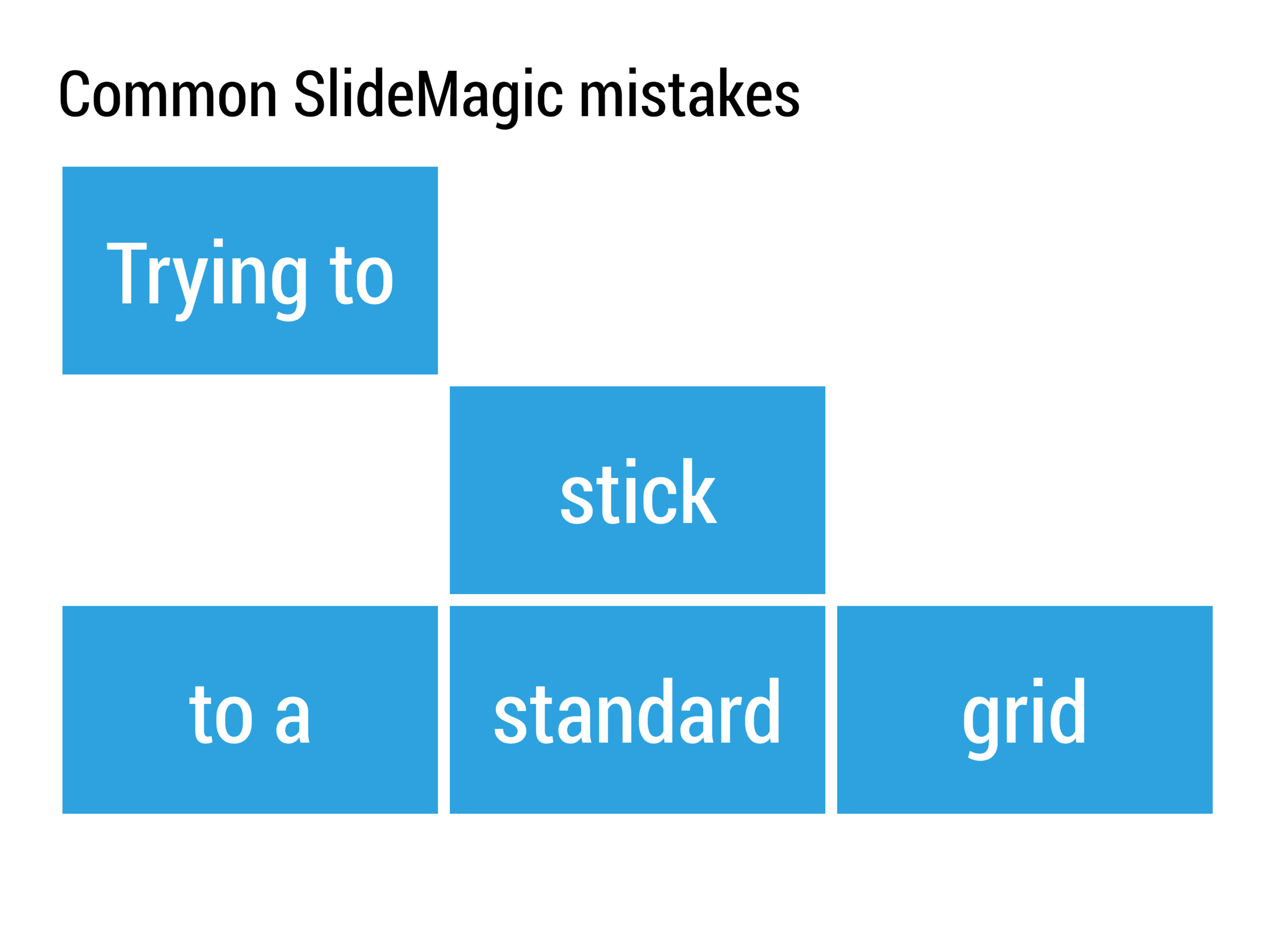
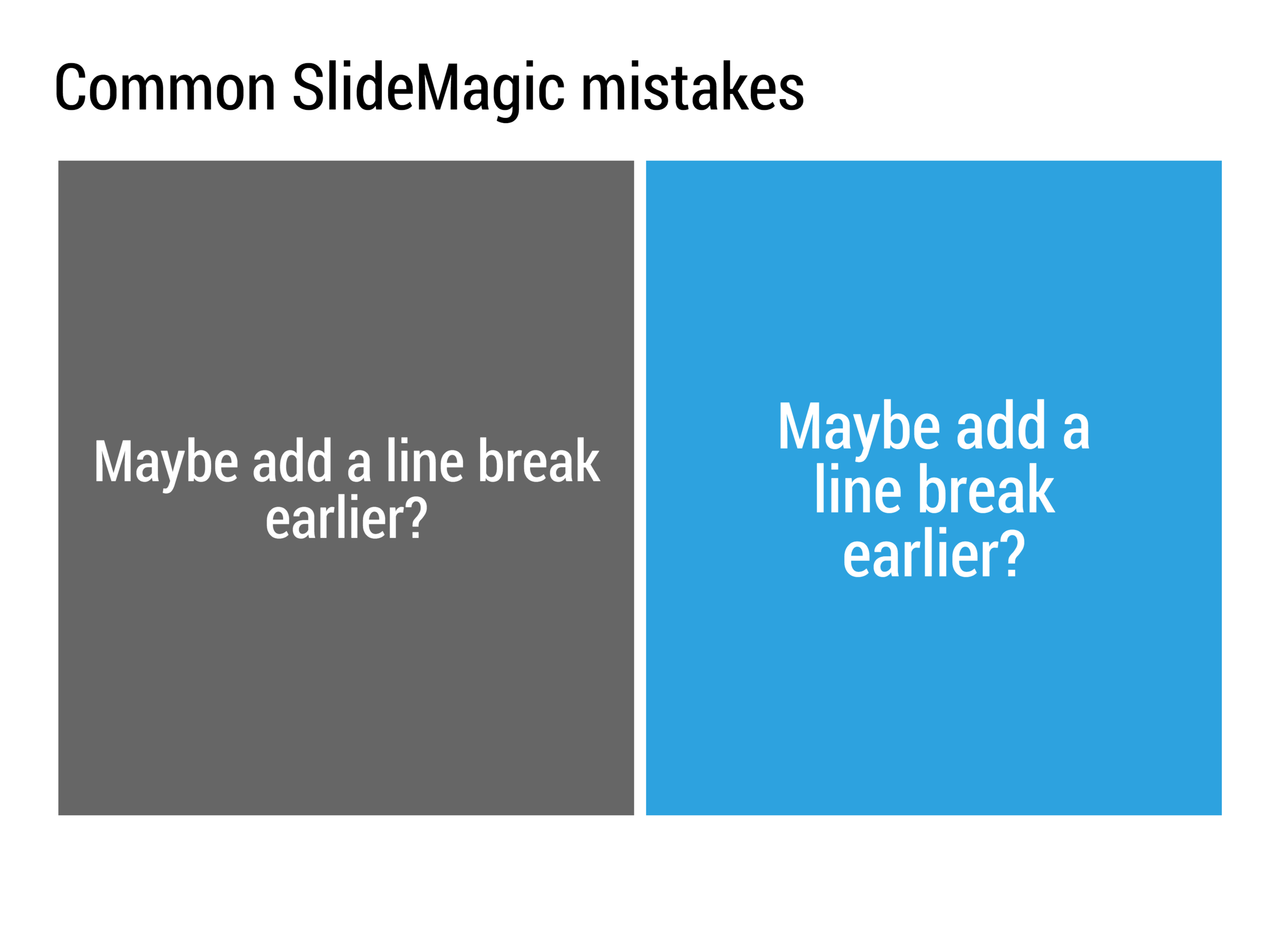
My presentation app SlideMagic will make life easier for every amateur designer. Still a few common mistakes sneak in that are hard to prevent with software. Most of them are related to the balance of typography on a page. Making sure that boxes contain roughly the same amount of text, and that signs are nicely balanced. See the examples below.

SlideMagic: a platform for magical presentations. Free student plan available. LEARN MORE
A new SlideMagic user interface

A new SlideMagic user interface

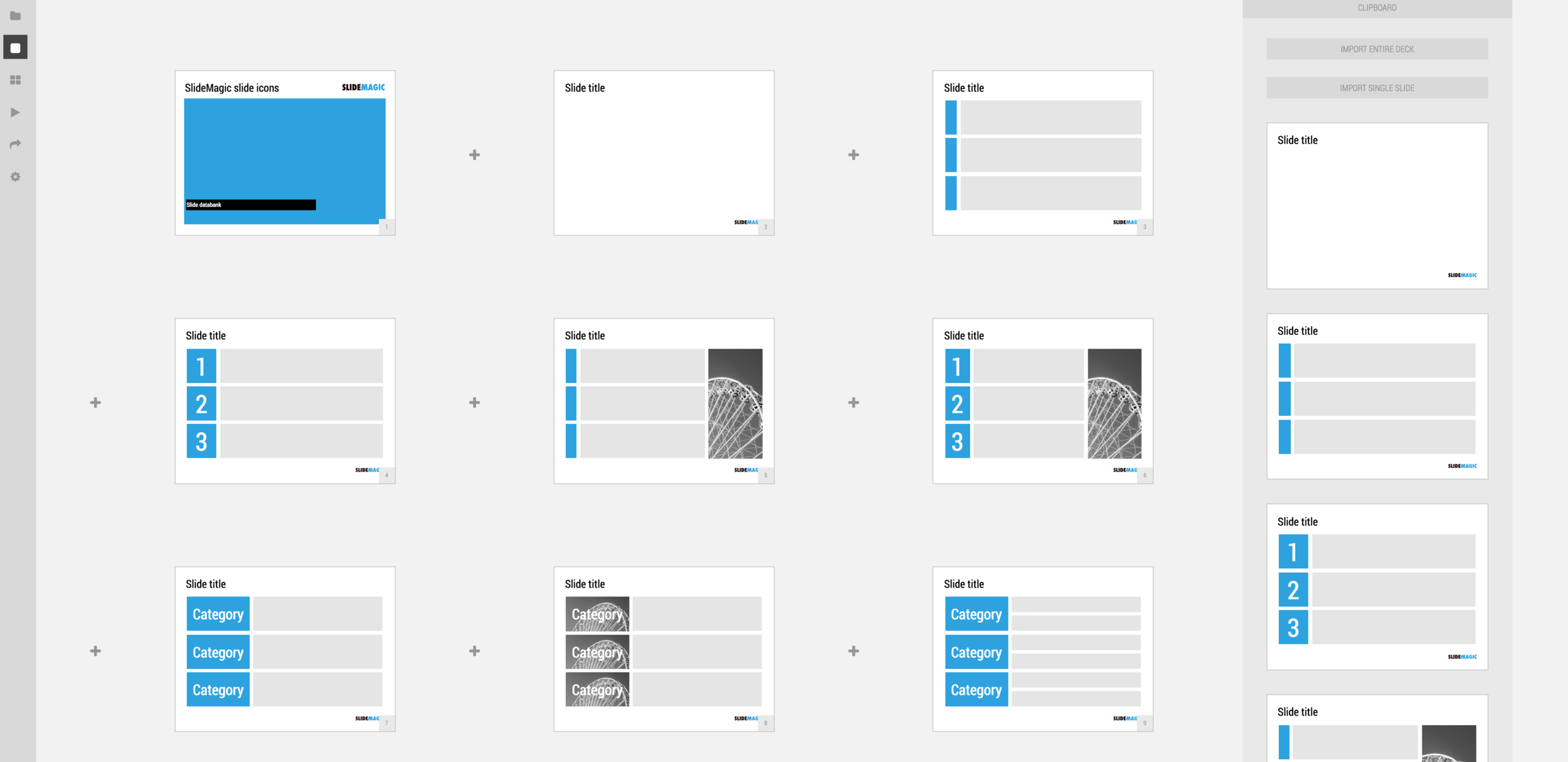
We just deployed a new, more minimalist user interface for presentation app SlideMagic. Have a look!. Some of the things that have changed over the past weeks:

  • Simpler menus: a very short set of tabs on the left side to help you switch between the application modes
  • A more intuitive approach to the slide clipboard where you can import single slides or entire decks
  • Smart insertion of rows and columns in the grid: new rows/columns will now copy color/layout settings from their neighbors

Let me know what you think.

SlideMagic: a platform for magical presentations. Free student plan available. LEARN MORE
All the slide templates you will ever need

All the slide templates you will ever need

With my presentation app SlideMagic I aim to change the communication culture in corporates. People spend too much time preparing slides. They produce documents that are unattractive to look at, and spend far too much time falling asleep in conference rooms.

The solution: splitting the communication tools: Excel and PowerPoint for logging the analysis, and a new tool 100% focused at communicating an idea and getting to a decision. A super simple visual language does not allow you to get lost in crafting complicated slides, or worse - give up all together and just use bullet points on every chart.

In a business presentation you need very few visual concepts:

  • Listing and organizing stuff (yes, the dreaded bullet points)
  • Comparing, contrasting, things
  • Showing growth, trends, forecasting
  • Showcasing things (products, people, clients)
  • Linking one thing to another, impact, cause/effect, from-to

When you hit "insert" in SlideMagic, you get presentation with this list of slide templates. In my opinion they can cover 99% of your business presentation needs. Think about what you want to do (listing, comparing, forecasting, showcasing, linking), pick a template and adjust row/column counts and you are done.

If you want, you clone this entire slide deck in your own SlideMagic account via this link. Let me know which concepts that I have left out you cannot live without. Maybe processes, timelines?

SlideMagic: a platform for magical presentations. Free student plan available. LEARN MORE
Smart row / column insertion

Smart row / column insertion

My presentation app SlideMagic is all about the grid. We have made some improvements to make the workflow (even) faster. Now, when you insert rows and or columns, it copies its design and structure from its neighbors. This will save you a lot of time in more complicated table layout with different background colors.

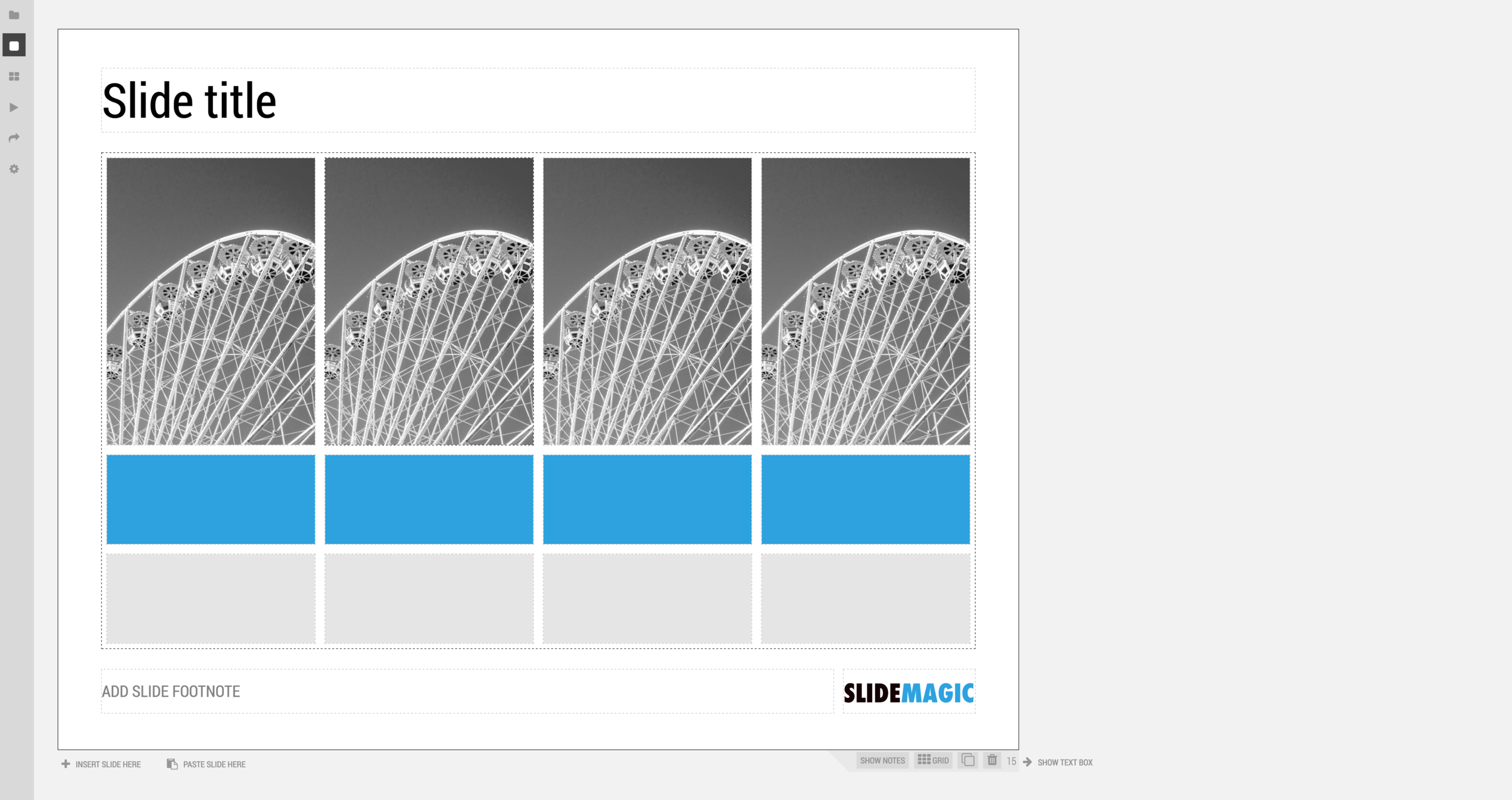
1) Our starting point

1) Our starting point

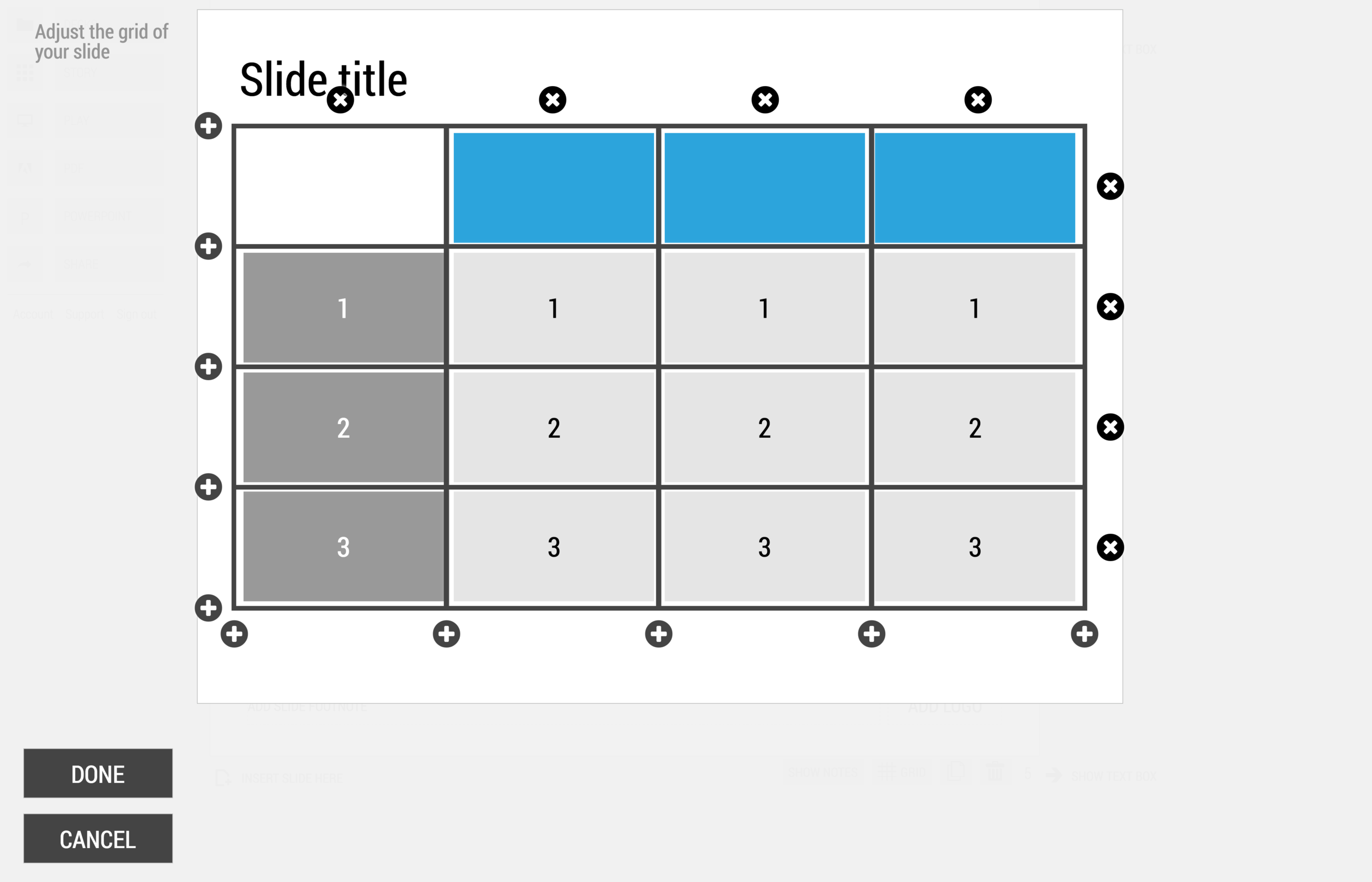
2) Open the grid editor

2) Open the grid editor

3) Add a row and a column

3) Add a row and a column

4) The result

4) The result


Image via WikiPedia

SlideMagic: a platform for magical presentations. Free student plan available. LEARN MORE
SlideMagic UI improvement

SlideMagic UI improvement

We put in a number of improvements to the user interface of my presentation design app SlideMagic

Templates, regular decks, duplicating, importing, etc. was all a bit confusing. We made a number of improvements to make the workflow more intuitive.

  • The concept of "template" (as opposed to regular deck) was eliminated. Now every SlideMagic user will see a number of "featured decks" at the top of the regular decks menu which can form the inspiration of your own presentation.
  • In the story view (the slide sorter), the 2 clipboards (one for individual slides, one for full decks) were integrated into one. All slides you import will now appear here, together with the ones you copied from your current presentation.

The account, support, and logout links that used to sit at the bottom left of the screen have been moved up. These buttons caused issues on smaller screens, especially tablets. As a result, SlideMagic is now running pretty well on iPad. I am not a big believer in designing slides on a small screen/tablet, because you need a decent canvas to focus and be creative. But, it can be handy to have the option to make smaller edits on a mobile device and that is now going pretty well with SlideMagic.


Let me know if you have any more feedback on SlideMagic here in the comments or by sending a message to jan at slidemagic dot com.

SlideMagic: a platform for magical presentations. Free student plan available. LEARN MORE
Status reports in PPT

Status reports in PPT

This Tweet caught my attention:

Yes "status reports" are a distinct category of presentations. Some sort of weekly, monthly, quarterly updates, that follow more or less the same template. A lot of time is spent (wasted) on creating these. In the short run, you can do a lot with workflow automation. For example create the entire presentation in Excel, which has the same drawing and charting capabilities that PowerPoint has. And yes in the end, SAAS dashboards might replace them all together, if, and that is a big if, the dashboard is designed well.

The "other" type of presentation, the one in which you pitch an idea, a budget, an investment, is here to stay. Each story is different, each pitch is different. Still, people spend too much time on PowerPoint to create them (hopefully my presentation design app SlideMagic will change that), but the creative process will not be automated anytime soon.


Image from Wikipedia

SlideMagic: a platform for magical presentations. Free student plan available. LEARN MORE
PowerPoint Designer - first impressions

PowerPoint Designer - first impressions

Microsoft has been adding a number of features to PowerPoint recently. One of them is Designer. In the Design tab of the ribbon, a new button appears on the right "Design Ideas". Clicking it generates alternative layouts of your slides on the right side of your screen.

The layouts are pretty nice. Microsoft has "automated" the design of 2 types of slides:

  • Image collages, multiple photos get put in different suggested grids, with place for a title
  • Process bullet points that can be translated to horizontally spaced out sequences of equally sized shapes.

Both are useful. Layman designers usually have no idea how to crop a nice photo collage, and translating that bullet list into a horizontal sequence looks nice, especially on wide 16:9 screen.

But here comes the but. 

  • The algorithm only works on these types of slides, so layman presentations will look inconsistent as same slides cannot be improved by the algorithm
  • And in case of the bullet transformation, PowerPoint needs to analyze the text with language processing, to decide that you are describing some kind of process. I had a hard time to trigger the algorithm, and in the end typed the exact same text as was used in Microsoft's explanation web post.

Microsoft is on the right path, these suggested layouts look a lot nicer than the SmartArt objects. And, getting layman designers to use some sort of grid is the biggest possible improvement you can create in slide design.

But I think it will take some time before language interpretation will be so sophisticated that PowerPoint understands the meaning of a slide and can pull a suggested layout from its library. That's one step above asking Siri to book a movie for you. 

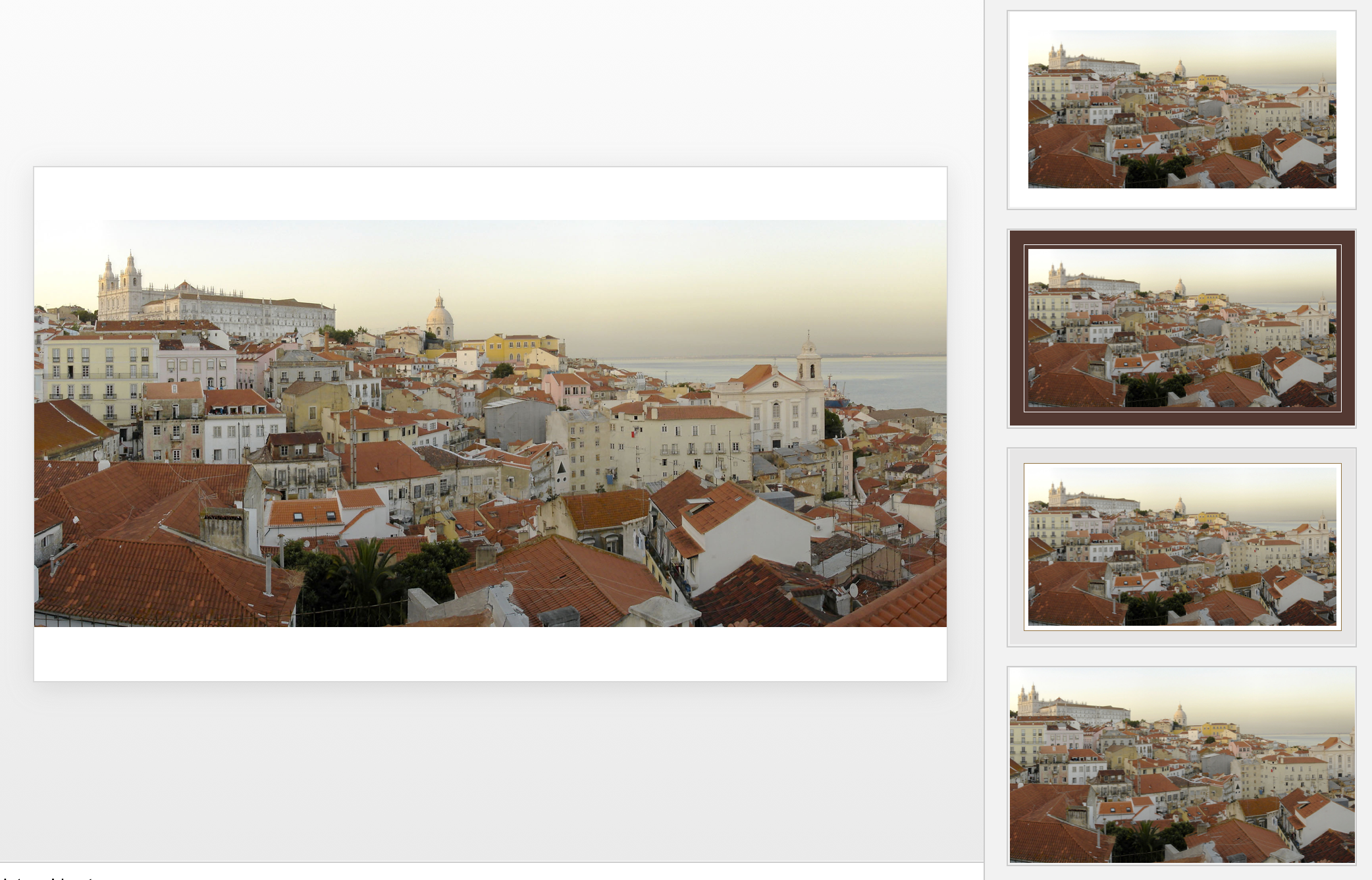
Images get a nice suggested cropping

Images get a nice suggested cropping

Multiple images trigger multiple grid suggestions

Multiple images trigger multiple grid suggestions

No suggestion to clean up this grid

No suggestion to clean up this grid

No suggestions for these charts

No suggestions for these charts

Language interpretation concludes this is not a process

Language interpretation concludes this is not a process

This is a process, text taken from a Microsoft post

This is a process, text taken from a Microsoft post

(* Commercial start *)

This is why designed my presentation app SlideMagic with a forced grid structure, which is a fundamentally different interface approach from PowerPoint and Keynote, which are based on free placement and resizing of objects.

(* End of the commercial break *)

PowerPoint Designer is not 100% there yet, but from its look and feel and general creative direction you see that Microsoft is on the right path.


SlideMagic: a platform for magical presentations. Free student plan available. LEARN MORE
SlideMagic just got more minimalist

SlideMagic just got more minimalist

We deployed a new version of my presentation app SlideMagic that eliminated the TEMPLATES menus. It makes things even simpler. Templates are now more integrated in the workflow

  • When you click INSERT SLIDE HERE, you get presented with a number of pre-designed layouts in addition to the 3x3 blank grid.
  • In your file browser (the DECKS menu), you have access to a number of featured presentations at the top of the page. These are example presentations designed by me that you can duplicate.
  • In the STORY mode, you can import individual slides or entire presentations (including featured presentations) into your own presentations


SlideMagic: a platform for magical presentations. Free student plan available. LEARN MORE