Viewing entries in
Software

Updates to the SlideMagic PowerPoint Add-in (alpha)

Updates to the SlideMagic PowerPoint Add-in (alpha)

Microsoft made some updates to its Office API (and SlideMagic made some changes to its server), and as a result, the SlideMagic PowerPoint add-in starts working a lot better.

The SlideMagic PowerPoint add-in is especially useful for users who download PowerPoint templates from the SlideMagic web site. Most of you are people who were subscribers to the legacy template store (RIP). Since PowerPoint conversions are a pro feature of SlideMagic, the add-in is only useful for pro subscribers.

What has changed?

  • The add-in now remembers your login details across PowerPoint files No need to constantly log in (again).

  • More importantly (thank you Microsoft), the SlideMagic add-in now adds slides straight into your existing PowerPoint presentation

The add-in is still an alpha phase, and things are tested for the moment in the online PowerPoint environment. I will submit it for another go for Microsoft approval to get it working with PowerPoint desktop versions as well.

Here is how to install the add-in:

  1. Download the file slidemagic.xml from this link

  2. Log in to your online Microsoft 365 account, click PowerPoint, and open a new presentation

  3. Select “insert”, then “add-ins”

  4. Select “my add-ins”, then “upload my add -in” in the top of the window (it is not available in the Microsoft store yet)

  5. Select the slidemagic.xml file you just download and upload it

  6. Go back to the '“home” ribbon

The add-in is installed. To use it:

  1. Click the SlideMagic button and the side panel loads

  2. Enter your log in details

  3. Search for a template, and click the design you like

  4. Click “insert” and the slide should appear in your PowerPoint presentation

While the slide is a perfect conversion from SlideMagic, you are obviously missing out on the customization features that make SlideMagic stand out from other presentation apps.

Below are the screenshots of the installation process

Screen Shot 2021-02-04 at 15.29.19.png
Screen Shot 2021-02-04 at 15.31.11.png
Screen Shot 2021-02-04 at 15.31.16.png
Screen Shot 2021-02-04 at 15.31.26.png
Screen Shot 2021-02-04 at 15.32.19.png
Screen Shot 2021-02-04 at 15.32.25.png

SlideMagic: a platform for magical presentations. Free student plan available. LEARN MORE
In-app tutorials

In-app tutorials

Since v2.6.18, SlideMagic has in-app onboarding tutorials. Click the ‘?’ icon in the bottom left of the app, and you will be taken around the features of the screen that is currently active. The slide edit screen also covers the general navigation inside the app. Next to the edit screen, there are page walkthroughs for the story, settings, presenter, image/icon search, and template search screens.

There is still some formatting to do, and the tutorial needs a more prominent position when you start SlideMagic for the very first time, but all in all, very useful I think. The real-time examples work much better than static tutorial pages, and now, the tutorial will always be up to date with the user interface (which is still changing now and then).

Screen Shot 2021-02-02 at 15.52.15.png
Screen Shot 2021-02-02 at 15.56.30.png

SlideMagic: a platform for magical presentations. Free student plan available. LEARN MORE
A better way to edit speaker notes

A better way to edit speaker notes

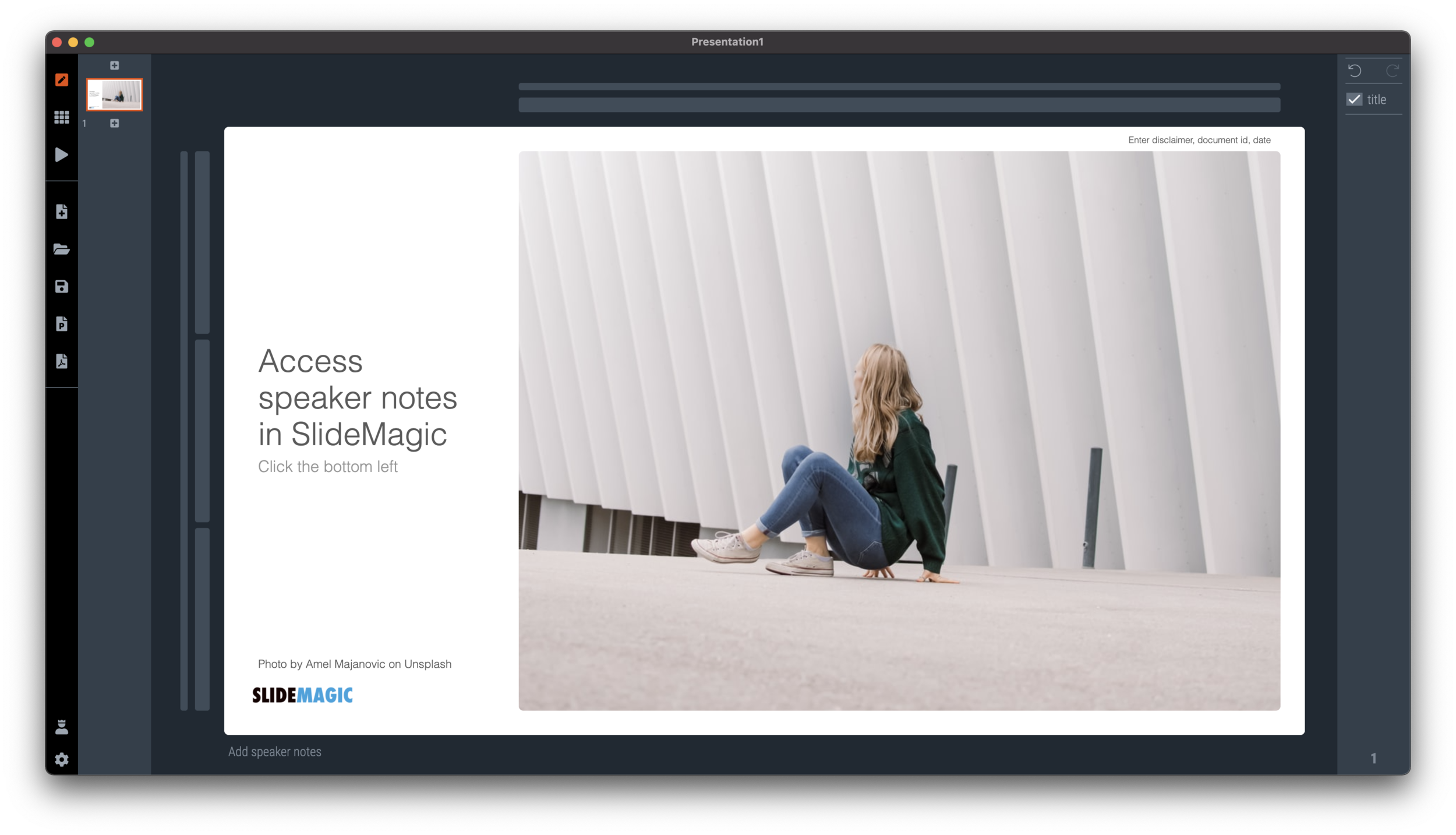
I made the user interface for speaker notes a bit clearer in version 2.6.12 of SlideMagic. The mysterious bullet point icon at the bottom of the slide has been replaced with a simple text link. Click and you will see a big and bold overlay over the slide where you can add your notes.

Screen Shot 2021-01-27 at 6.07.07.png
Screen Shot 2021-01-27 at 6.20.17.png

Speaker notes will show up in the presenter view window when you present the slides and are only visible to you the presenter, not to the audience. On a Zoom call, share the audience window to the video call participants, while you keep an eye on your private presenter view with important reminders of the points you want to make when presenting the slide.

Screen Shot 2021-01-27 at 6.10.39.png

In SlideMagic, you can edit your speaker notes also in this presenter view window. This is not only great for last minute fixes of your story, but also gives you a platform to edit the flow of your story slide by slide. Increase the size of your presenter view window, and click through your presentation. You see a small thumb of your slide, an even smaller one of the next slide up, and a big text box to write down your points.

Screen Shot 2021-01-27 at 6.25.13.png

When you return to the normal view of the slide, you will see that the speaker note edit link has changed colour, to remind you that there are speaker notes in this slide. This is important when you share .magic files with other users, because they will be able to read those speaker notes as well. (This prevents you from sending “Better not share our 50% churn with investors in the first presentation with investors if they do not ask for it….” to well, an investor attending your first presentation)

Screen Shot 2021-01-27 at 6.31.38.png

When convert a SlideMagic .magic file to PowerPoint .pptx (a ‘pro’ feature), the speaker notes will be transferred as well. (Of course, a PDF conversion will have no speaker notes.)

Screen Shot 2021-01-27 at 6.30.09.png

SlideMagic: a platform for magical presentations. Free student plan available. LEARN MORE
A faster way to edit slides

A faster way to edit slides

I have made more improvements to the SlideMagic user interface. Is is now easier to select multiple cells, especially in fine grids.

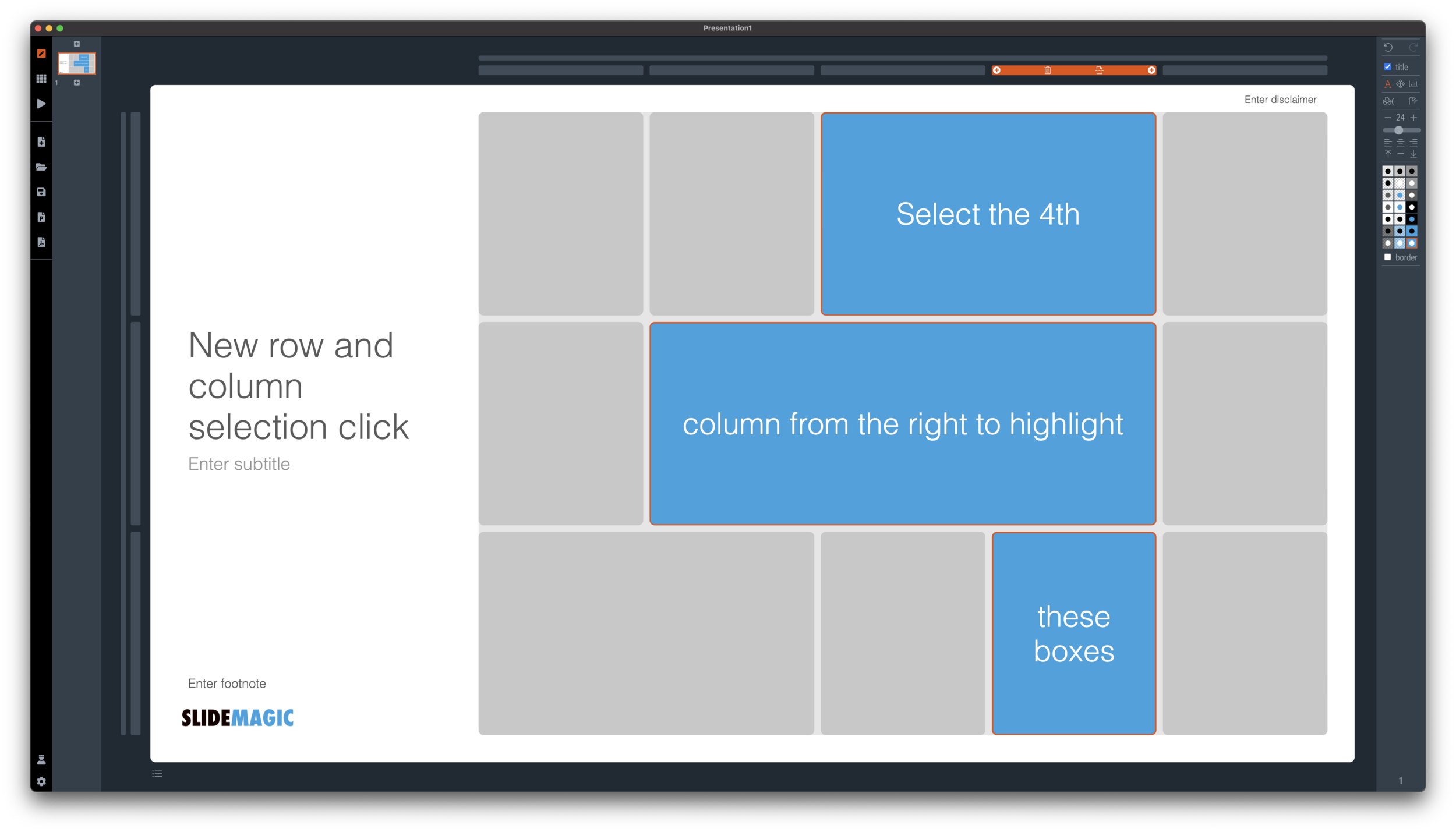
If you select a column marker at the top of the slide, all boxes in your slide that “touch|” the column will be become selected, and you can apply formatting to them in one go (for example, make them all blue).

Screen Shot 2021-01-18 at 17.36.19.png

The same applies for rows, click a row marker, and all relevant boxes in the row line up.

Screen Shot 2021-01-18 at 17.37.58.png

Finally, you can select whole areas of boxes by first clicking a top-left element, then clicking a bottom-right element, and SlideMagic will light up all the boxes that are in between. See the example below.

Screen Shot 2021-01-18 at 17.38.42.png
Screen Shot 2021-01-18 at 17.38.46.png

SlideMagic: a platform for magical presentations. Free student plan available. LEARN MORE
New 'no-title' layout

New 'no-title' layout

SlideMagic works with fixed positions for slide titles, subtitles, footnotes, and logos. Each slide looks organised, consistent, and the same.

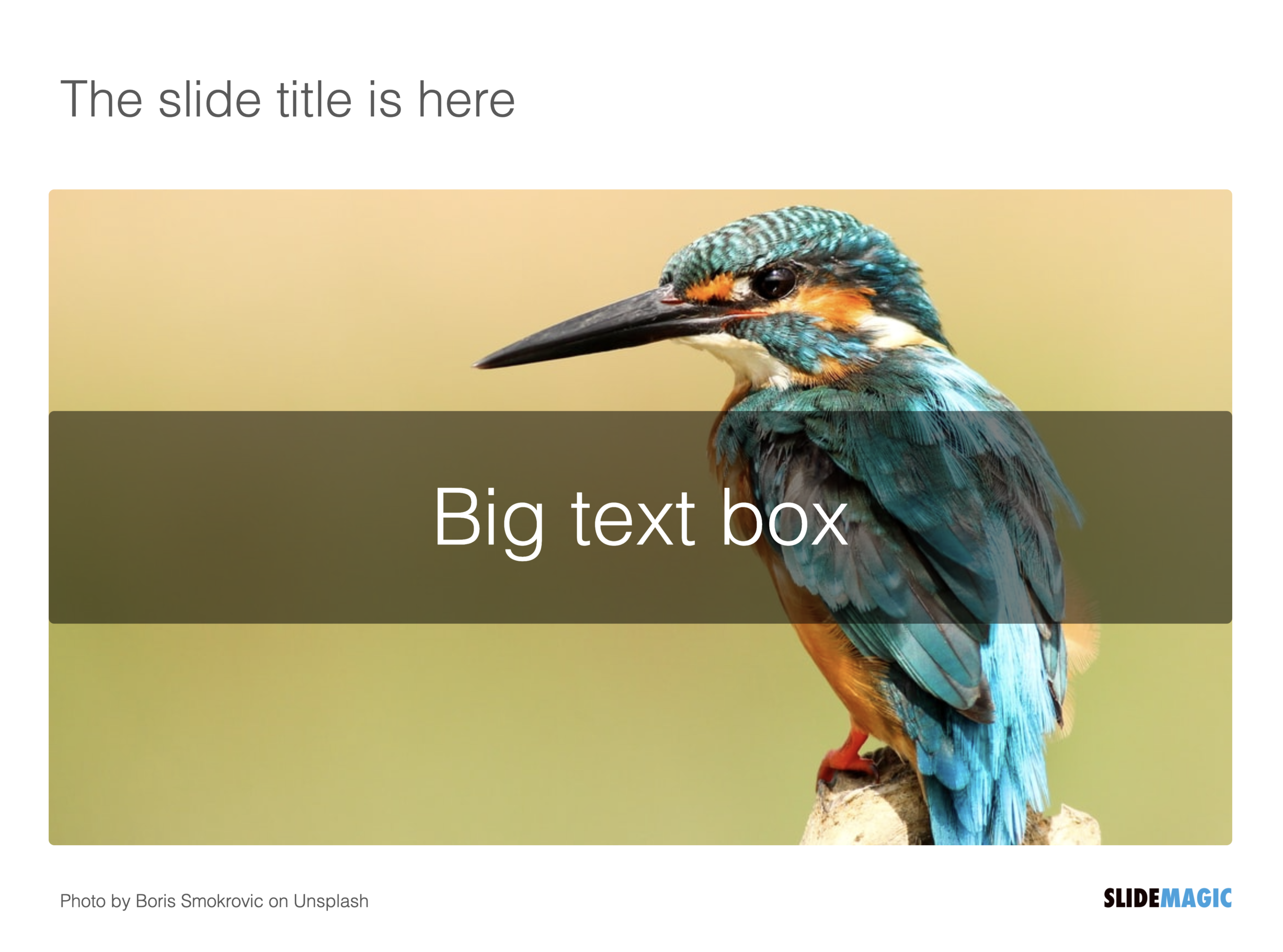
Some slides call out for a slightly differently layout. Tracker pages for example. A simple text box that sites right in the middle of the screen. Up until now, SlideMagic would push these text boxes a bit down or to the right because of the required space for the slide title.

With a very simple check mark, I now created the option to remove titles from the slide on a slide-by-slide basis. It is a tiny adjustment to the user interface that can improve the look of layouts significantly. I am still putting a high hurdle when it comes to complicating SlideMagic. This is definitely not a complication!

While the user interface adjustment is easy, behind the scenes, there is a lot going on. Removing the the titles from a slide requires recropping of all the images on a slide. With SlideMagic’s new automatic cropping algorithm, this has now become possible. Imagine doing this for a slide with 40 client logos in a regular presentation design software, after which you come to the conclusion that the slide looked better with a title: re-cutting, re-cropping, re-distributing 40 images again. In SlideMagic, this is a button click.

You can check out the new features as of version 2.6.9

Screen Shot 2021-01-18 at 16.57.04.png
Screen Shot 2021-01-18 at 16.57.31.png
Screen Shot 2021-01-18 at 16.56.44.png
Screen Shot 2021-01-18 at 16.55.56.png

SlideMagic: a platform for magical presentations. Free student plan available. LEARN MORE
Should you put 'confidential' on every slide of your presentation?

Should you put 'confidential' on every slide of your presentation?

For years I tried to resist the pressure from lawyers to fill every slide with legal disclaimers. They do not look very pretty. But SlideMagic aims to be practical and as of version 2.6.8, you can do so, if you have to.

To make them still look OK:

  • I made the font really small, in all caps, so the disclaimer looks more like some sort of a document id

  • All disclaimers are exactly the same and at exactly the same place

  • The placement of the disclaimer changes based on what sort of aspect ratio / slide layout you are using

Screen Shot 2021-01-18 at 9.46.17.png

Should you put disclaimers? (Warning, I am not a lawyer). There are certain situations where you probably should. Certain confidentiality agreements state that information needs to be marked as being confidential to be covered by the agreement.

But, if there is no such agreement in place, I am not sure how much leverage you have if people are sharing pages despite all the scary warnings on the page. Also, if you are using slides with a big TED talk or product launch, the whole world can see them, making the disclaimers pretty useless.

Most investors do not sign NDAs, and you actually you want the junior VC to forward your pages to a partner in the firm. Assume that when you send your slides to investors, there can be leaks, so be careful what you put in there. In most cases the actual content of your super secret technology will not make the difference when it comes to evaluating your pitch deck in the early stages of the investment process.

So, consult your lawyer, push back if she insists, and give in if she has a reasonable argument.

Photo by Kristina Flour on Unsplash

SlideMagic: a platform for magical presentations. Free student plan available. LEARN MORE
Making SlideMagic more Zoom-friendly

Making SlideMagic more Zoom-friendly

Up until now, playing a SlideMagic presentation would trigger a full screen view of your slide, plus second full screen window on the presenter machine (if available). Switching back and forth to full screen, swapping monitors can be a bit disorienting, and in the area of Zoom, it does not work well when you want to share your audience window, but not your presenter view.

Screen Shot 2021-01-06 at 10.10.07.png

As of version 2.6.3, entering a presentation will now always trigger 2 windows (not in full screen): the slide and a smaller presenter view with timer, counter, and a thumb of the next slide coming up. You can re-rearrange them to monitors as you see fit, and go to full screen manually if needed.

This also ‘solves’ the issue of deciding which screen is the audience screen, and which one the presenter’s when many on screen projectors (not replaced very frequently) have lower screen resolutions than most computers.

SlideMagic: a platform for magical presentations. Free student plan available. LEARN MORE
How to crop headshots in your presentation

How to crop headshots in your presentation

The ideal design for a slide that shows your team is a group picture, all taken together. Unfortunately, these are almost impossible to produce. Teams change, and people are hardly ever in the same room (especially now with the virus).

The next best thing is a collage of headshots. Professional graphics designers have a specific approach to line these up properly:

  • Make sure that the eye line of all the head shots is more or less the same (at 25-33% of the image height

  • Make sure that the sizes of the heads are more or less the same

In PowerPoint and Keynote, this is an absolute pain to do. Getting different images to have the exact same size is tricky. Cropping images to position eye ines is tricky to do, and might undo part of the work that you did to get them to be all the same size.

In SlideMagic, things are easier, because it works with fixed shapes and smart cropping.

Below I plopped in 3 portrait images from the built-in image search engine of SlideMagic. In 2 of the 3 cases, the “AI” smart cropping algorithm did already a reasonable job, in the last case, totally not. But first things first, all images have the exact same size, and are spaced out absolutely perfect.

Screen Shot 2021-01-10 at 15.12.31.png

Next, we are going to drag the central dot at eye level for each of our team members and drag the images inside their boxes so the eye lines line up.

Screen Shot 2021-01-10 at 15.12.51.png

Now we can zoom the headshots to the right size by dragging the zoom slider at the bottom of the slide. SlideMagic keeps the eye line at exactly the level you set it to when zooming.

Screen Shot 2021-01-10 at 15.13.04.png

SlideMagic remembers the layout and crop of your image, for example if you change the aspect ratio of your slide to 4:3, the image still looks OK

Screen Shot 2021-01-10 at 15.13.11.png

SlideMagic: a platform for magical presentations. Free student plan available. LEARN MORE
"I forgot how to do PowerPoint..."

"I forgot how to do PowerPoint..."

Overheard in a conversation. “I used to create lots of PowerPoint decks 10 years ago, but would not know how to do this anymore today”.

Graphics designers need to learn how to use Sketch, InDesign, and yes, PowerPoint. Coders need to learn how to work with software development tools.

Twenty years ago, mastering presentation software was a skill. First, dedicated graphics designers and/or secretaries would translate hand-drawn designs into PowerPoint. Then, the junior analysts on teams started to figure it out.

Putting a presentation together is now as normal a task as sending an email: it is a required skill for everyone (from new recruit to CEO) without the need for extensive training. If training (or memory) is required, then it is a software problem. SlideMagic is trying to solve it.

SlideMagic: a platform for magical presentations. Free student plan available. LEARN MORE
Starting to work on tutorials

Starting to work on tutorials

Now that SlideMagic 2.0 is nearing completion I have turned my mind to putting together tutorials. For the moment, I am keeping it short and to the point, you can follow my work here: www.slidemagic.com/tutorial. This is all still work in progress.

Screen Shot 2020-09-30 at 15.54.49.png

SlideMagic: a platform for magical presentations. Free student plan available. LEARN MORE
Spell checker

Spell checker

I added a spell checker to V2.4.40 of SlideMagic. Incorrectly spelled words get a little underlining, right clicking gives you access to some spelling suggestions, and the option to add a correctly spelled word to the library.

This feature was high on the list of priorities of my daughter, who is using SlideMagic a lot for school projects.

Screen Shot 2020-09-27 at 11.17.40.png

SlideMagic: a platform for magical presentations. Free student plan available. LEARN MORE
How to download your SlideMagic 1.0 presentations

How to download your SlideMagic 1.0 presentations

The reminder email has gone out to all SlideMagic 1.0 subscribers to download your presentations before I shut the service down and migrate the platform completely to SlideMagic 2.0. (I will keep the archived presentations but access won’t be instant).

Some people signed up five years ago, and I got some bounces from people who changed jobs / email address. So, another reminder here if you have an account but did not get your email.

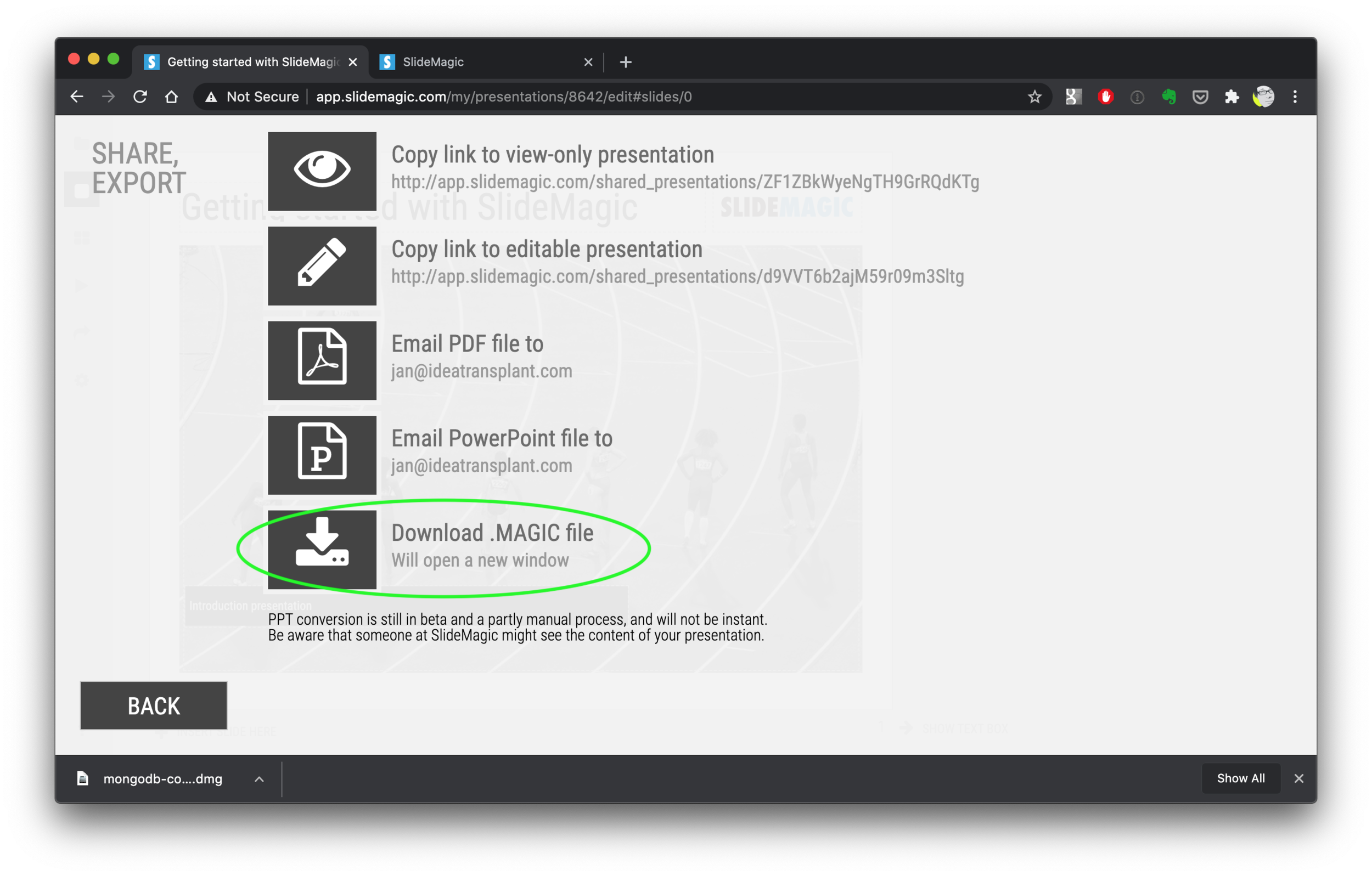
Other people. say that it is not completely clear how to download your presentation(s). Here are the steps:

  1. Log in to SlideMagic 1.0

  2. Open your presentation in SlideMagic 1.0

  3. Select the “export” arrow from the left menu

  4. Pick “download .magic file”

  5. Download and install the SlideMagic 2.0 desktop app

  6. Open the .magic file in the desktop app.

Here are the screen shots of the steps:

Screen Shot 2020-09-10 at 7.06.26.png
Screen Shot 2020-09-10 at 7.06.35.png
Screen Shot 2020-09-10 at 7.06.56.png
Screen Shot 2020-09-10 at 7.48.48.png
Screen Shot 2020-09-10 at 7.52.55.png
Screen Shot 2020-09-10 at 7.58.49.png
Screen Shot 2020-09-10 at 7.55.25.png

(Notice how I removed the hard-wired title page with the black bar from SlideMagic 2.0)

SlideMagic: a platform for magical presentations. Free student plan available. LEARN MORE
SlideMagic 1.0 sunset, long live SlideMagic 2.0

SlideMagic 1.0 sunset, long live SlideMagic 2.0

Towards the end of October, we will be pulling the plug on the SlideMagic 1.0 server. If you are a SlideMagic 1.0 user, you need to download your presentations as .magic files to your local hard drive, after which you will continue to be able to edit them in the SlideMagic 2.0 app.

SlideMagic 2.0 is vastly superior when compared to 1.0, with much more intuitive user interface, instant PowerPoint and PDF conversion, integrated Unsplash and Pixabay image search, waterfall charts, and a huge template database (SlideMagic 1.0 probably had 20 templates or so), just to name a few features. SlideMagic 1.0 was a web app, SlideMagic 2.0 is a desktop app that also works when you are not connected to the Internet, and has deeper access to your computer’s operating system for things like managing files and copying things between windows.

SlideMagic 1.0 users will be getting a reminder email over then next few days. I do plan to keep the SlideMagic 1.0 user presentations somewhere backed up, but access will be on request and no longer instant as of November 2020.

SlideMagic 1.0 was a necessary step to start the journey, it enabled me to get my head around what a modern presentation app should look like. But it has served its purpose.

The SlideMagic 1.0 log in is here: http://app.slidemagic.com, you can try the new app here https://www.slidemagic.com/app .

SlideMagic: a platform for magical presentations. Free student plan available. LEARN MORE
A clearer pricing model: just subscriptions

A clearer pricing model: just subscriptions

As I focused on the user experience of SlideMagic, I kept a temporary payment engine running, it takes a simple payment, but does not yet manage subscriptions. Subscription management is a bit more tricky, you need to keep user payment details on record securely, and manage renewals, cancellations, updates. That will soon all be tightly integrated with the Stripe payments platform.

In the process, I am now taking down the ‘day pass’ pricing option that allowed you to buy a maximum of 10 slide downloads for the duration of 1 day. I think this confusing what SlideMagic is trying to be: a full presentation solution (as opposed to a by-the-slide template business of which there are thousands on the internet).

Now SlideMagic has 2 offerings:

  • A free model with access to all slides (for the moment) in .magic format

  • A pro model that also includes PowerPoint, PDF conversion, and the ability to add your logo on slides, $99 per seat per year.

The free model gives people a change to get to know SlideMagic, offers a workable solution for users on a low budget (students, etc.). The Pro version is useful for people that need to use SlideMagic for real, share presentations in other formats with colleagues and clients, and need to brand slides in their own look and feel.

I will make sure that the payment engine works in a robust way first, then I will have to resort to modifying the web site with a better illustration of the positioning.

Legal disclaimer: all this can change in the future.

Photo by Catherine Heath on Unsplash

SlideMagic: a platform for magical presentations. Free student plan available. LEARN MORE
Customer service

Customer service

This tweet exactly applies to SlideMagic:

SlideMagic had a few glitches, but unlike established software products, users that suffered got the CEO himself to add designs to the template bank, recover presentations, gave refunds after people claimed they ‘never intended to make that purchase’, deploy patches within a few hours, and say ‘thank you’ even in the very few cases where feedback was not worded that nicely.

I think SlideMagic is getting close to the finish line as a proper and robust product as I am using it intensely myself now. Thank you all for your patience.

Photo by Alexander Andrews on Unsplash

SlideMagic: a platform for magical presentations. Free student plan available. LEARN MORE
Further cleanups

Further cleanups

Things are a bit quiet here on the blog, as I am using my annual blogging summer holiday to cleanup SlideMagic further. New features are frozen for the moment, as I am 100% focussed on making the app as stable as possible and have been posting regular updates frequently. If you are a frequent user of SlideMagic, you should now be running version 2.4.28.

One visible change I have made in the latest version is a slightly larger image zoom slider, you can see it in the screen shot below. I rotated the slider, it now appears vertically, allowing me to give it more space and make image zooming more precise.

Updates should install automatically eventually but you can force an update by downloading the latest version of SlideMagic manually.

Screen Shot 2020-08-24 at 14.39.41.png

SlideMagic: a platform for magical presentations. Free student plan available. LEARN MORE
New arrows are now live

New arrows are now live

The latest version of SlideMagic has the new arrow feature available, finally enabling me to discontinue the dreaded connectors. Arrows are big and bold to show cause-effect relationships or other forces. I made an algorithm to let them do the right thing in terms of layout in various box sizes, and in various aspect ratios, both for horizontal and vertical shapes. In PowerPoint and Keynote it is fiddly to get arrows to look exactly the same once you start changing the angles of the pointer by hand.

When converting to PowerPoint (a pro feature), your arrows will show up as editable PowerPoint arrow shapes.

I can now call SlideMagic 99% feature complete (hmm, line charts?) and will focus on hardening the application to make it absolutely stable.

The legacy connector feature will stay in the background. If you load an old slide that uses it, the legacy arrows will be rendered and you can edit them. If you have to add more legacy connectors, simply shift-click on the connector icon, and you will be given the option to use the old feature.

The new arrows also give me more design freedom to start expanding the template library with new slide layouts that features these ‘fat’ arrows.

Fat arrows are great for showing cause-effect relationships

Fat arrows are great for showing cause-effect relationships

Arrows follow the color scheme of the cell, black on accent, will give you this result

Arrows follow the color scheme of the cell, black on accent, will give you this result

You can place background images behind arrow elements

You can place background images behind arrow elements

SlideMagic arrows are converted to fully editable PowerPoint arrow shapes when converting (pro feature)

SlideMagic arrows are converted to fully editable PowerPoint arrow shapes when converting (pro feature)

Thinner arrows can be created with the line new line drawing feature

Thinner arrows can be created with the line new line drawing feature

SlideMagic: a platform for magical presentations. Free student plan available. LEARN MORE
The perfect arrow...

The perfect arrow...

I am replacing the connectors in SlideMagic with 2 features. The relatively thin lines that connect boxes in a diagram went live yesterday. Currently I am working on the 2nd feature: fat arrows to show cause-effect relationships or other forces.

As I already discussed back in 2017, it is tricky to get arrows to look right in presentation software. The aspect ratio of the containing box, the angles of the arrow, some come out great, others won’t.

image-asset.png

And even if you got one right on your slide by moving the various sliders in the shape, how do you make sure that the 3 below it look exactly the same? Oh, and then you need to insert a fifth one and squeeze everything a bit…

I think I am on to a possible solution. I scribbled an algorithm on a piece of paper, now let’s see how to bring it to life in SlideMagic, and then convert them to PowerPoint. The latter might have to be via an image rather than a dynamic shape. Below is a screenshot of my development machine. Work in progress.

Screen Shot 2020-08-11 at 15.40.55.png

SlideMagic: a platform for magical presentations. Free student plan available. LEARN MORE
The new line drawing mode

The new line drawing mode

I just deployed version 2.4.16 on the server that has the first version of the new line drawing engine of SlideMagic built in. This will be the replacement of the cumbersome ‘connector’ feature that was inherited from SlideMagic 1.0.

Any presentation app needs some sort of approach to drawing lines, especially to connect boxes in diagrams. Freehand drawing and line dragging goes straight against the philosophy of SlideMagic, which forces you to keep everything lined up, evenly spaced out on a grid.

The connectors solved this by micromanaging lines, you have designate a box to be a line box, and then meticulously set the line configuration inside it. The result is a line grid that perfectly scales up and down with your grid. But this can be a pain to maintain, especially if you are working in a very fine grid.

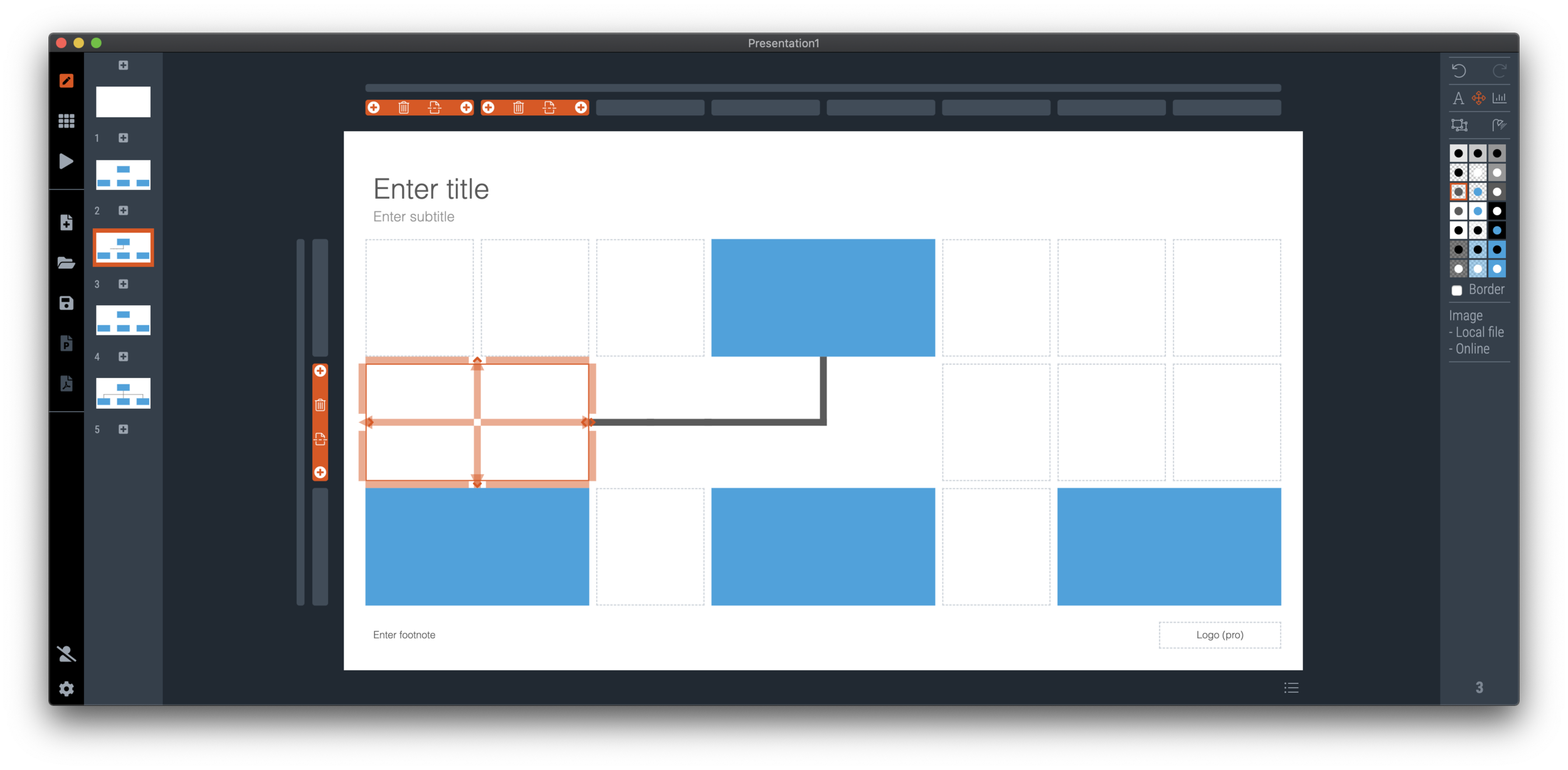
So I can came up with a compromise and added a separate line drawing layer to the ‘frame; of the slide, the background that sits behind the work area of the slide (i.e., not the title and the footnote). Selecting the frame will highlight a Manhattan-like grid of dots, between which you can draw any (straight) line or arrow you want, across the entire slide. This line patter will move with changes to the grid, but - and this is the concession - is not 100% tied to the boxes in your chart. But I think it is a price well worth paying, imperfections are easy to fix.

A side effect, it is now also easy to draw a fat border around a group of boxes if needed.

Below is a bare bone organisation diagram.

Screen Shot 2020-08-10 at 6.55.29.png

The old connector system required fiddly editing, see below.

Screen Shot 2020-08-10 at 6.57.18.png

The new line drawing layer makes things easier. As soon as you select the frame of the slide (click the long bar at the top, or the tall column to the left of the slide), you are presented with a grid of dots.

Screen Shot 2020-08-10 at 6.55.39.png

You are free to add lines from dot to dot across the entire slide (yes, even ones at an angle)

Screen Shot 2020-08-10 at 6.55.55.png

All of this makes it easy to connect boxes in the required way in your diagram

Screen Shot 2020-08-10 at 6.56.29.png

Feel free to download the latest version of SlideMagic and play around with the new feature and let me know your feedback. There are a lot of design decisions that I had to make. Keep line editing mode active to go to the next dot, connect line segments in one shape, dragging of lines (or not). I think the current model works, where lines stay on the chart as individual segments. I will need to implement the multi-select on them though, and work on an algorithm that removes double segments, and combines two consecutive segments into one.

SlideMagic: a platform for magical presentations. Free student plan available. LEARN MORE
Fixing the connectors

Fixing the connectors

SlideMagic 2.0 is almost getting to a point where I can call it ‘feature complete’. Once reached, I will be spending most of my time on hardening the application to make it 100% enterprise-grade, before venturing into adding more capabilities.

The last obstacle on the road are the ‘connectors’, a left over from the SlideMagic 1.0 UI that are not very intuitive to use. The connectors where meant to cover the 2 minimal line drawing elements that any presentation app needs to have:

  • The ability to connect boxes in diagrams (flow charts, org charts) with lines and arrows

  • The ability to create a visual flow in a slide with big arrows that show cause and effect

This is very tricky to accomplish in SlideMagic, as the app stubbornly insists on not requiring any freehand drawing or dragging that breaks the slide’s grid, and the current ‘connectors’ make that tension perfectly clear.

I think I might have come up with an elegant solution to this problem:

  1. Simplify the current ‘connectors’ and use them solely for fat/big cause effect arrows

  2. Add a simple grid based drawing capability for connecting boxes.

I got number 2 to work on my development machine, but it still requires a lot of work to make things intuitive, but the hardest part of the work has been cracked.

Luckily there is an advantage that SlideMagic does not have millions of users yet, we can still wiggle the software to get product/market fit, something almost all presentation design apps have failed to reach. Work in progress.

Photo by Charles Deluvio on Unsplash

SlideMagic: a platform for magical presentations. Free student plan available. LEARN MORE