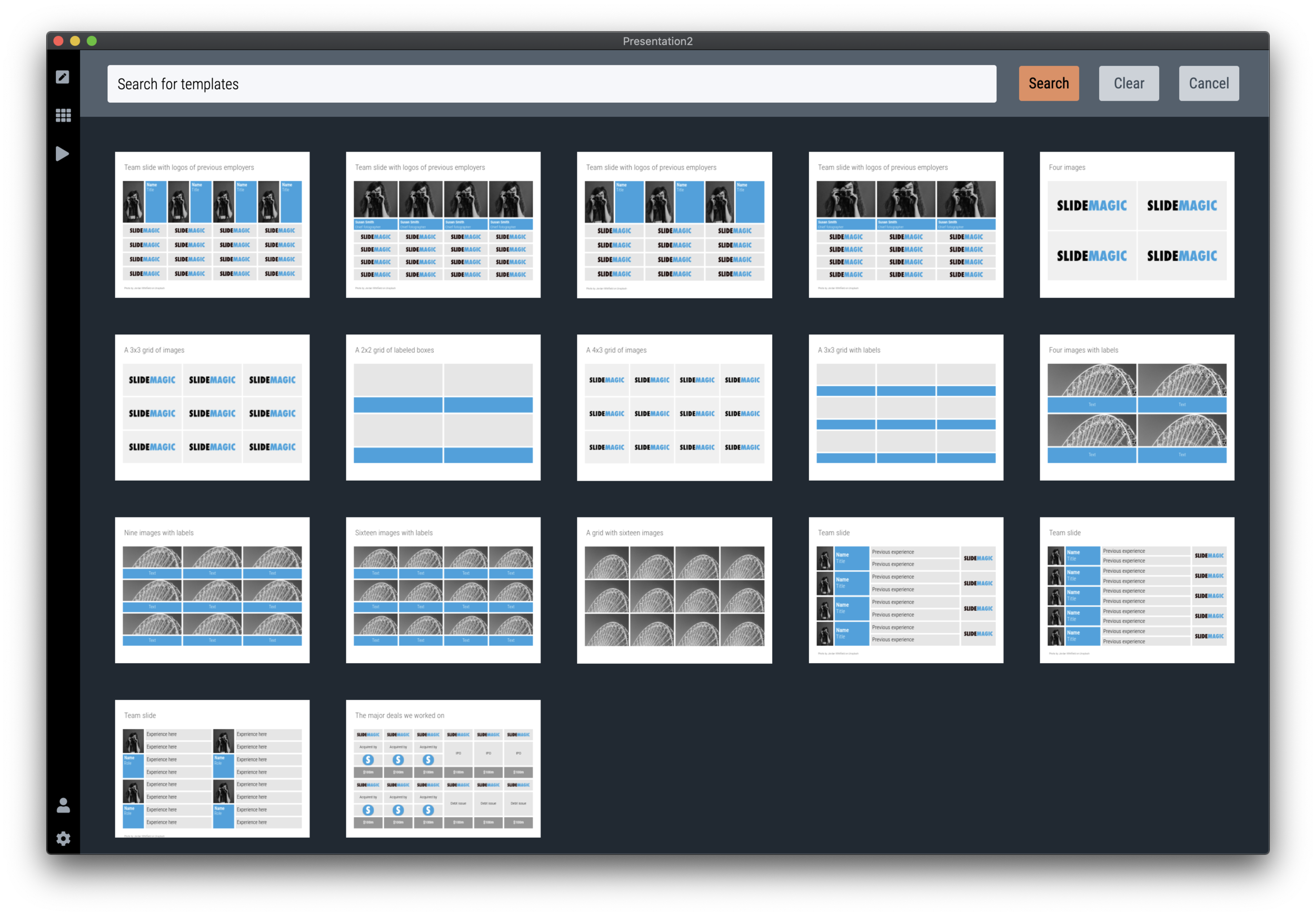
Viewing entries in
Layout

All the way back to 2008

All the way back to 2008

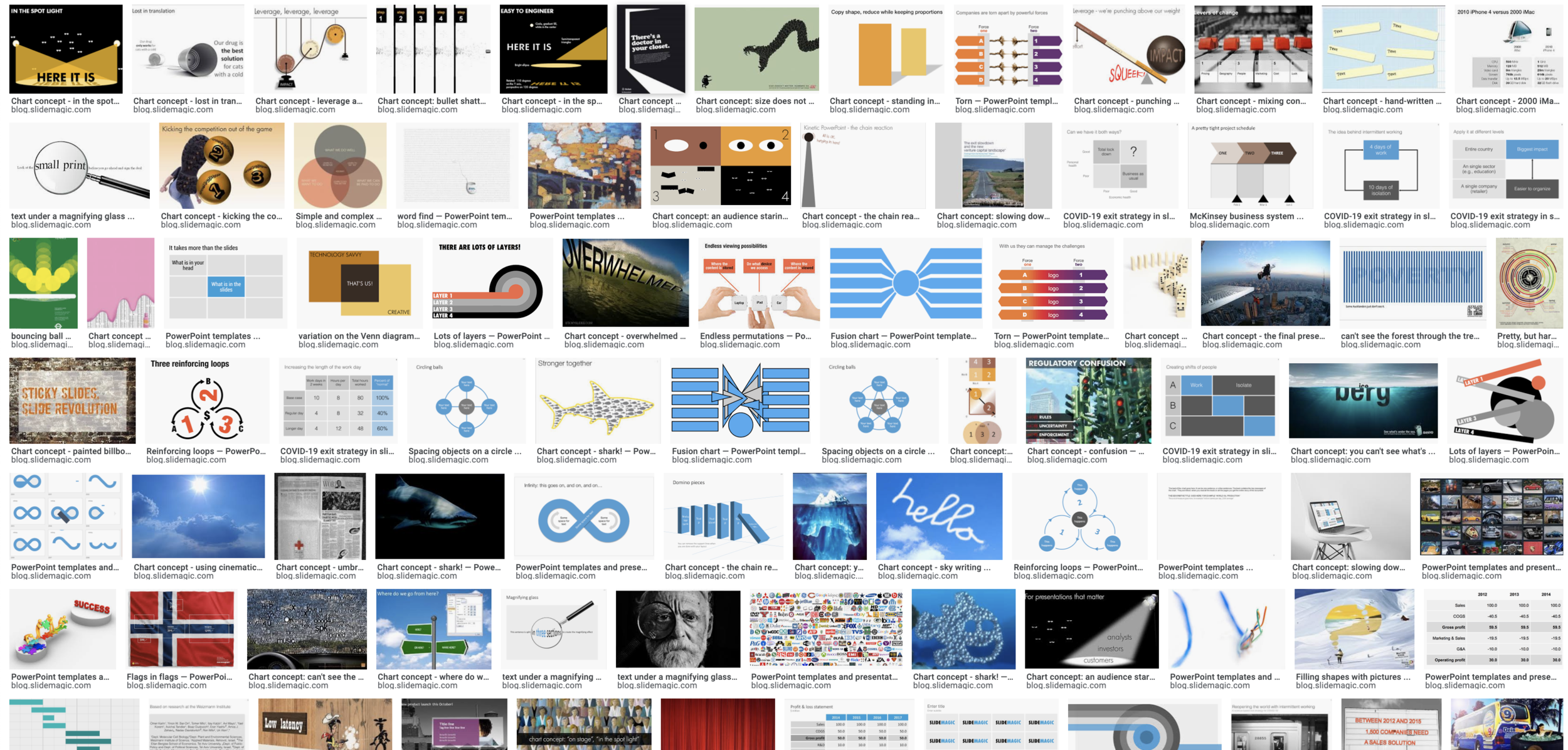
Now and then I dive back into the 12 year archive of my blog and see some or the early slide layouts I made. This Google image search pops up many of them.

Screenshot 2020-05-25 06.34.34.png

While many of these layouts are now still available as templates in SlideMagic, some of them, especially the early ones are a bit different:

  • “Slides that stick” orange and brown

  • Lots of hand written fonts

  • Unusual visual analogies

  • Most of them are definitely not for the layman designer…

Yes, I made have been a bit more “daring” back then (and remember, most of these designs actually were taken from actual client work), but I still think that I am on the right track with my current sober, simple, easy-to-make layouts. Less artistic, but far less time wasted by smart people that can use their energy to do more useful things that creating presentation slides.

SlideMagic: a platform for magical presentations. Free student plan available. LEARN MORE
Quora answer to "How to design a good presentation slide for business?"

Quora answer to "How to design a good presentation slide for business?"

Someone requested me to answer: “How do I design a good presentation slide for business?” Here is what I suggested:

This is a very generic question that is hard to answer without the specifics of the point you want to get across. Having said that:

There are many web sites, blogs, and books out there that advocate the principles of good slide design: minimal use of bullet points, use images, no clip art, use graphs, use white space, etc. etc. Everyone can spot a poor slide vs a good slide. The tricky bit is how - as an “amateur designer” - to make a (reasonably) good looking slide that still captures everything I want to say.

Some guidelines:

Find a basic look that seems to work, you can “borrow” from Apple, or other presentation styles that you think look decent and stick to fonts and generic slide layout rules. Personally, I like the style that Swiss graphics designers used in the 1960s a lot: Helvetica font, with a few simple colours. Very easy to copy to today’s presentation software.

Write the headline of what it is that you want to get across. Important: it can only be one message, not 2, not 3, just one key point that the audience should remember. If your whole slide fails, you (and your audience) still have that title to hang on to

Now, think about what you actually need to show to make that point. Here is where people lose it. They addd info, details, data, graphs, that do not contribute or support the headline at all. In that whole spreadsheet, there could be 2 numbers that you need. Be religious about this: you want to make a point, what visual do you need to support it. If you want to make other points, put them in other slides.

Consider more ways to express an idea than words. Use very simple graphics to simplify text. If there is a choice: put 2 boxes with the options with a double sided arrow in the middle. If there is a consequence, but 2 boxes with a single sided arrow. If there is an overlap of interests, use 2 overlapping circles. I would call this “visual verbs”: very simple shapes that instantly communicate what you want to say.

(Product plug: I am developing a software tool that supports some of this, you can check out SlideMagic, which has a free option, to find slide layout to get you started).

Good luck!

Photo by Jon Tyson on Unsplash

SlideMagic: a platform for magical presentations. Free student plan available. LEARN MORE
How to make a CV slide

How to make a CV slide

I am starting to work on a standard slide deck to present your CV, with me as the test subject. The first page is done. I like these type of time lines, because they communicate a lot of the basics about a person (years, employment, locations, education, etc.) in one slide, without making it too crowded. The rest of the presentation will cover more background.

Screenshot 2020-05-13 08.02.05.png

They way to set the slide up is to start with a fine grid, create the major divisions based on your professional work history, then start refining. Notice how I left the consulting-style table labels (‘Employer’, ‘Role’, ‘Location’, etc.) out because it is very obvious from the chart what the rows mean, and these labels would take valuable space/destroy the balance of the layout.

In general, I think 4x3 slides look better than 16x9 ones. 16x9 is made for movies, 4x3 has a more pleasing balance for graphic design. These type of timelines are an exception though, the amount of left-to-right information makes the 16x9 format very useful. SlideMagic switches back and forth at the press of a button.

You can find the slide here in the template store, or simply search for “CV” in the desktop app.

Screenshot 2020-05-13 07.46.56.png

You see how the search algorithm recommends other slides for highlighting career backgrounds and teams.

Screenshot 2020-05-13 07.59.47.png

There is more work coming up on the CV slide deck, stay tuned.

SlideMagic: a platform for magical presentations. Free student plan available. LEARN MORE
New slide templates

New slide templates

A busy day today: i completed a 2nd submission for the PowerPoint plug in, hopefully ticking all the boxes (well, except one that is actually an issue with the Microsoft Javascript API). Let’s hope for the best.

So no long-read, deep blog post today, still I found a few minutes to upload some new slides into the database. Soon, I want to get 1,000 layouts in the database, and we are making good progress towards to that goal.

Here are today’s additions. Remember that you can bring the colour of the images back once you download them into the desktop app.

Screenshot 2020-05-12 17.37.00.png

Image by 272447 from Pixabay 

SlideMagic: a platform for magical presentations. Free student plan available. LEARN MORE
Warren Buffett's investor presentation slides

Warren Buffett's investor presentation slides

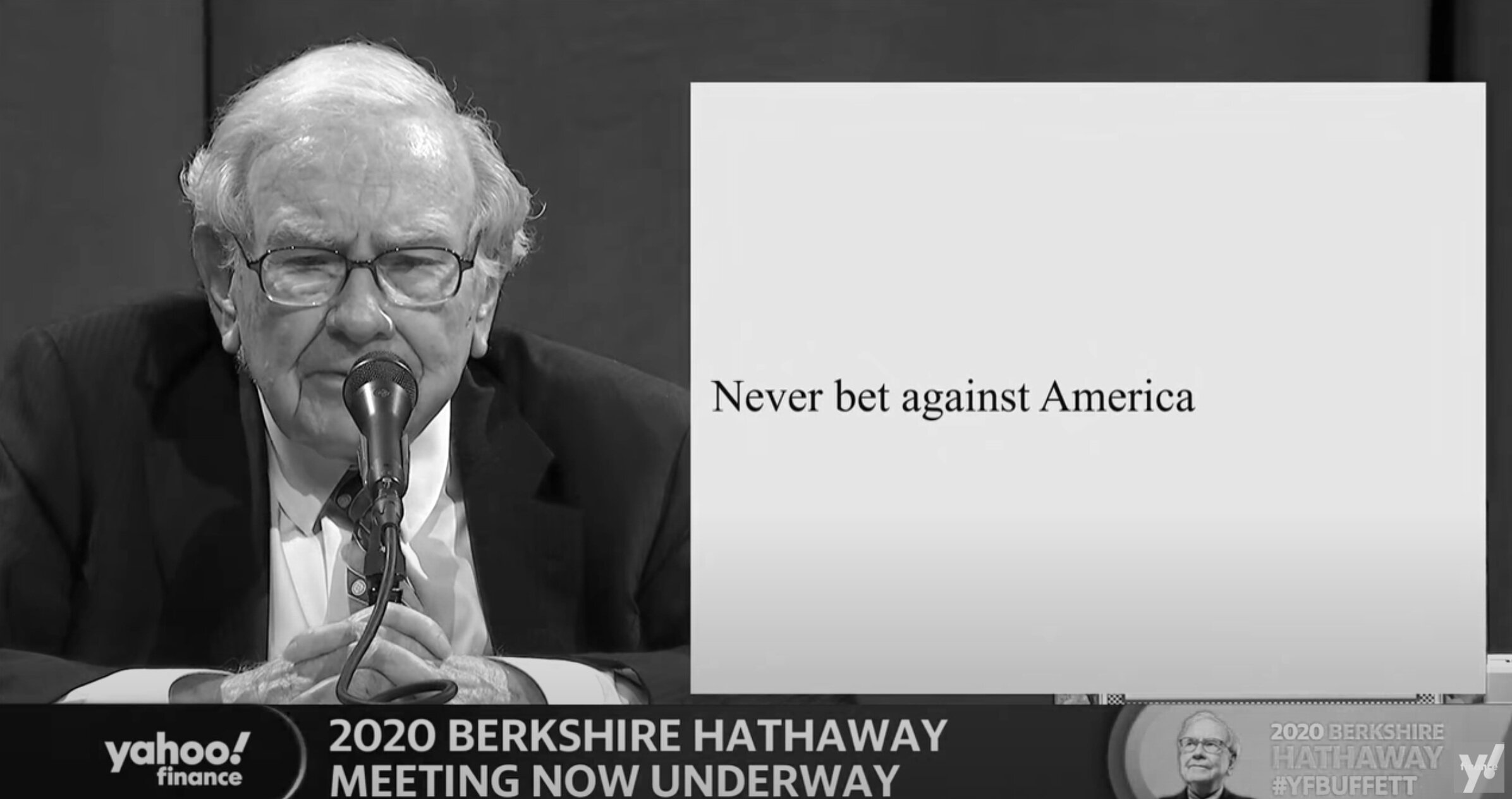
This tweet flew by about Warren Buffett’s slides during his annual investor meeting.

A sans serif font and centering the text would have made it look better, but overall, this slide is actually not that bad. One big message without distractions. (If Warren had used SlideMagic with this template, his slide would have looked like this)

Screenshot 2020-05-03 07.34.29.png

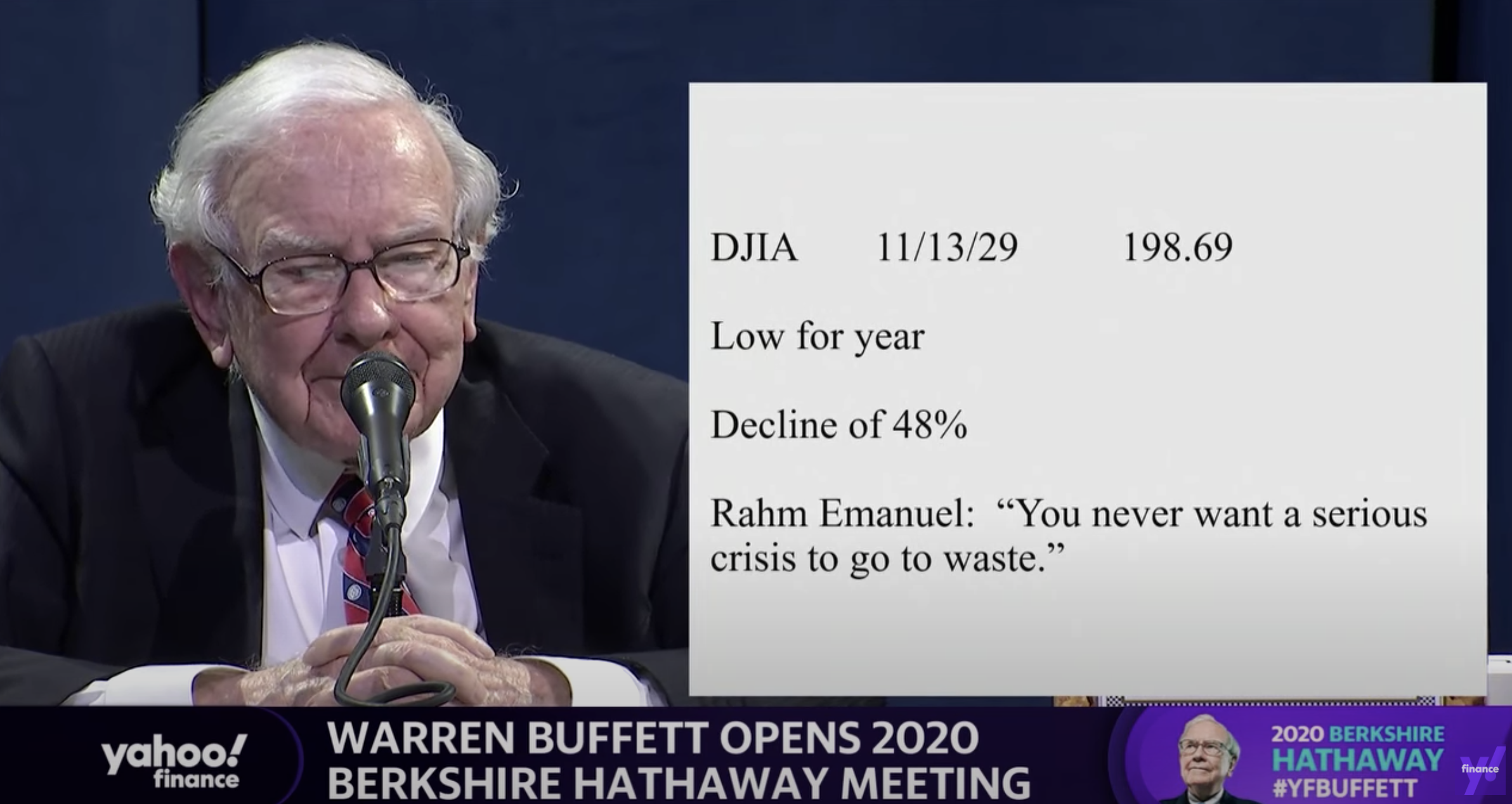
Other slides are less crisp though, as seen in the example below:

Screenshot 2020-05-03 07.24.07.png

But, Warren does not read out the bullet points, he tells a story starting with background about his father. People will read the slide for 2 seconds, wonder about the quote, and then focus all attention back on him.

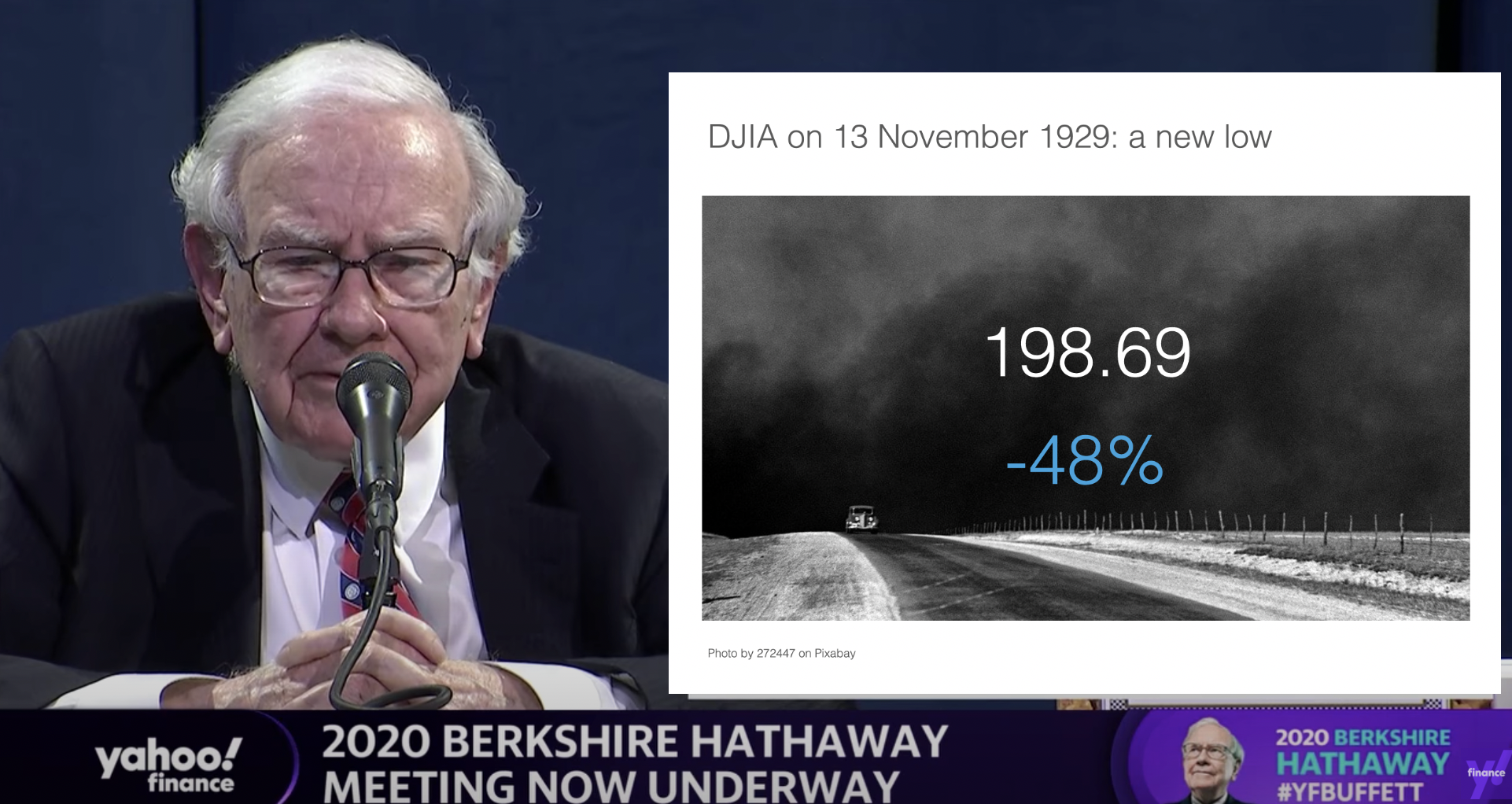
OK, I could not resist, SlideMagic would have produced the following slide (a quick search for “1930” in the built-in Pixabay image search delivers good results)

Screenshot 2020-05-03 07.51.59.png

I would put the quote on a completely separate slide, if at all.

Coming back to the first tweet. If you are Warren Buffett, then you get away with pretty much any slide design. On the contrary, making it all too fancy is a direct contradiction to his modest life style. If you are not Warren Buffett, putting in 2 seconds worth of effort with SlideMagic will definitely make a difference.

I tagged these 2 slide examples with “buffet” in SlideMagic, you can use them in your own designs and find them in the presentation app, or download them here.

SlideMagic: a platform for magical presentations. Free student plan available. LEARN MORE
"SlideMagic style"

"SlideMagic style"

Even presentations not made in SlideMagic can look like one. Have a look at “Standing on the shoulders of giants” by analyst Ben Evans:

Screenshot 2020-04-22 15.46.45.png

The design approach:

  • One strong accent colour

  • Lots of variations of grey

  • Calm slide layouts

  • Clear grid structure

SlideMagic does not like these circles (yet) though and makes you fit into that boxy look :-).

For your next presentation, put the slides in slide sorter view, and take a step back. Do things look consistent in terms of layout, colour, and the balance between white space vs used space? If you struggle to stick to the discipline, SlideMagic is here to help.

SlideMagic: a platform for magical presentations. Free student plan available. LEARN MORE
One image, different compositions

One image, different compositions

I am uploading lots of slides now to SlideMagic everyday. Where possible, I create multiple layouts of slides, often depending on the underlying image I use. For example, see the juggler below.

There are lots of degrees of freedom:

  • Image in a frame, or bleeding of the the page

  • Line up text with the balls, or not

  • Different colour options

As a SlideMagic user, you can pick one of these basic layouts and add or subtract boxes easily without messing up the overall of the slide.

Try it out for yourself, the search for juggler slides is here. For the moment, I have made access to the entire slide database from within the desktop app free, so you can experiment with presentations in .magic format. PowerPoint conversion and/or downloads require a pro subscription.

SlideMagic: a platform for magical presentations. Free student plan available. LEARN MORE
Startup Board update deck

Startup Board update deck

You can now access entire slide decks (“stories”) from the home page of SlideMagic. A few days ago I added a slide deck template for a startup Board update. As I upload the new slide decks, individual slides will get added with the right tags to the slide database as well so they will pop up when you search for relevant layouts.

More slide decks to follow. Let me know if you have any special requests.

SlideMagic: a platform for magical presentations. Free student plan available. LEARN MORE
How to create a logo page in a presentation

How to create a logo page in a presentation

Yes, I have been in this situation as well:

Below is a short video that shows how SlideMagic makes creating logo pages in a presentation really easy. In the first example, I start from scratch with a completely blank page. Notice how logos get plopped in, and how everything lines up instantly in the grid, and how easy it is to add columns, text boxes without having to re-arrange and re-align the entire page. (I have added this slide as a free slide on the template store, you can find it here, stripped of the logos I used because I could not verify copyrights)

The alternative is to start with one of the built-in templates of SlideMagic, search for “logo” in the app and see what slides come up:

Screenshot 2020-03-04 14.46.37.png

Now you can customise the page and swap the logos for the ones you need.

Screenshot 2020-03-04 14.47.52.png

The exact same search available in the online template bank as well (try searching for logo), but users who are downloading the PowerPoint version directly from the web site miss out on the magic of SlideMagic when it comes to manipulating image grids.

My suggested strategy: tweak things in SlideMagic, and export at the very last moment to PowerPoint if you have to share things with your colleagues. You will save a lot of time making those nasty logo grids.

SlideMagic: a platform for magical presentations. Free student plan available. LEARN MORE
Against the light

Against the light

In the early 1990s at McKinsey, presentation design was actually document production. Hand-written sheets of paper would be entered into a computer by full time graphics designers. Each word, each line, each graph. Then the whole thing would be printed and bound in books.

I remember the final quality check of the Amsterdam office manager: holding the pages against a strong light to see whether the titles, footers, page numbers, and margins of the slides lined up. You were in trouble if they didn’t.

Getting these basics right is very hard in today’s PowerPoint, If you copy and paste slides between masters, the alignment of objects will be off. If you change screen sizes (from narrow to wide screen and back), things go all over the place. Or, if you use/buy other people’s templates, they won’t fit well in your company’s slide layout. This is not PowerPoint’s fault, any software that needs to give total design freedom to its users will have this side effect.

I went through this the hard way myself, as I am making the slides of my “old” template store compatible with the new format of SlideMagic 2.0. Hundreds of slides that require small corrections to get things to line up properly.

With SlideMagic, professional designers might complain about the lack of flexibility in layouts, the rest of us will be extremely happy with how easy it is to tweak templates, screen sizes, and copy slides between presentations.

Photo by Bank Phrom on Unsplash

SlideMagic: a platform for magical presentations. Free student plan available. LEARN MORE
I got the vanishing point wrong all the time...

I got the vanishing point wrong all the time...

They key concept in drawing in perspective is the vanishing point: every line in your slide should disappear in it (see an earlier blog post). It turns out I got the concept slightly wrong all the time. Because of the curve in the Earth’s surface, the real vanishing point for someone standing at sea level is actually below the horizon. A vanishing point that sits on the horizon, would require the radius of the Earth to be 64x as large. (For comparison, the Sun as a radius about 109x that of Earth.

Vanishing point at a planet with a radius 64x that of Earth

Vanishing point at a planet with a radius 64x that of Earth

The accurate vanishing point

The accurate vanishing point

With this new knowledge, will I change my approach to slide design? Not sure.

Based on an article in NRC Handelsblad. Simulation images by Siebren van der Werf.

SlideMagic: a platform for magical presentations. Free student plan available. LEARN MORE
Picking the 2x2 axes

Picking the 2x2 axes

Two by two matrices are a popular tool rank options. Watch out when to use them though:

  1. Do you actually have 4 distinct options that can be grouped according to 2 axes? Many situations have only 3 options, where the 4th option that is suggested by your framework is actually not meaningful in reality.

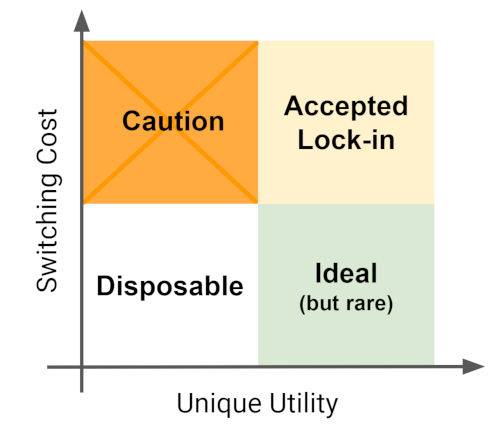
  2. If you pass the first test, make sure you set the axes right: the most favourable scenario in the top right, the least attractive options in the bottom left, the other two the “can’t have the best of both world” scenarios.

Below is an example of a 2x2 used in an article about software lock-in I stumbled across. Flipping the axes makes the diagram a lot clearer.

The original diagram

The original diagram

I quickly created reworked the axes in a SlideMagic 2.0 diagram below:

Screenshot 2019-09-02 18.46.06.png
Screenshot 2019-09-02 18.52.02.png

SlideMagic: a platform for magical presentations. Free student plan available. LEARN MORE
Quantification as a communication tool

Quantification as a communication tool

The backbone of almost any management consulting project (and final presentation) is some sort of quantification of options. In essence, the quantification is the communication.

Strategic options can be hard to compare, evaluate. Uncertainty, risk, lack of information, dependencies, short term, versus long term. Throw these in an average politically charged management meeting and the outcome is almost certain: indecision.

A quantification is convenient: simple rank the "score" and the answer rolls out. Every option can be compared objectively. Well, objectively to a certain extend. With all the wild assumptions and predictions, you can pretty much force an Excel model to go anywhere.

But that might actually be useful. The process of debating assumptions, seeing how much they actually matter, which ones are certain, which ones are a bit uncertain, and which ones are wildly speculative, weighing all the factors, is the communication process a consulting team and client will go through. At the end, the point estimate of "Option 3 wins with $52.3b value creation in 2035" might not be correct, but the thought process that went into the estimate means that option 3 is probably the most sensible option to take.

Why do people need to hire expensive consultants to lead them through this process?

  • Some sort of objectivity, an outside party who has the run the numbers with a credibility at stake
  • Raw horse power: knowledge how to run complex calculations involving risk and options (and an infinite supply of available human capacity in a certain time span)
  • Privileged access to information: data from another country, disguised industry benchmarks, etc.
  • And the guts to make broad "20% of the effort, 80% of the result" assumptions where it is appropriate

The analyst in the basement sees an endless stream of modifications of assumptions in the spreadsheet, but the client is getting the decision she wants.

Presenting the results of such a project can be tricky. The slides themselves can be super simple (a ranking of 5 options by value created in 2035), but the sequence how to take people through is complicated. Discussing your Excel sheet page by page is not going to cut it. 


Cover image by Tobias Fischer on Unsplash

SlideMagic: a platform for magical presentations. Free student plan available. LEARN MORE
How to start a new presentation slide

How to start a new presentation slide

When starting a new slide, most people think of what to write in it, then worry about composition which usually involves moving text boxes around so that everything still fits on one page.

Next time, start with the composition, then do the writing. Think how a few boxes and arrows can visualise common business concepts in a slide:

  • Something is bigger than another
  • Something is growing
  • Torn between opposing forces
  • Reinforcing loops
  • Ideal fit or a mismatch
  • Trade off
  • Dead end
  • A sequence

Put the shapes, align and distribute them, now add some text


Cover image by dylan nolte on Unsplash

SlideMagic: a platform for magical presentations. Free student plan available. LEARN MORE
Years in columns, which way?

Years in columns, which way?

In financial statements, the most recent financial period is put first, and next to it is the previous period for comparison: 2017 - 2016. To the frustration of some accountants and CFOs, I insist on putting the years the other way around: 2016 - 2017.

  • The eye is used to moving left to right when looking at time series data
  • It makes tables match line or column graphs that are in the presentation
  • It makes it easer to compare data across 3 years or more

I am not trying to change the reporting practices for financial statements. In the annual accounts, the current year is the most important one. It needs to be accurate and is usually shown with far more digits (precision) than I would use in a presentation. A comparison to last year's numbers is almost an extra, not the main purpose of the page.

Every financial document has its own purpose and own audience: spreadsheets, financial statements and presentation decks. And among presentation decks you can distinguish between quick and dirty documents to discuss (early results), detailed financial information for the investor community, and more generic financial slides for a general company presentation. Different purpose, different slides.

If you want you can check out financial slides in PowerPoint in my template store. Subscribers can download them free of charge.

SlideMagic: a platform for magical presentations. Free student plan available. LEARN MORE
McKinsey's presentation template

McKinsey's presentation template

I did not know this, but McKinsey has put its entire visual branding guidelines online. Beyond the usual instructions about fonts and colours, there are interesting documents about formatting exhibits and data charts. Most of it seems to be focused on print or web content, but overall it provides an interesting insight into template management of an organisation which basically produces presentations as its main product.

SlideMagic: a platform for magical presentations. Free student plan available. LEARN MORE
How to format tables in PowerPoint

How to format tables in PowerPoint

Tables can carry more data than a data chart and as a result can be less effective in a presentation. For some situations though, there is no point trying to avoid using a table in PowerPoint. For example, when investors want to see the quarterly numbers, they expect to see a table.

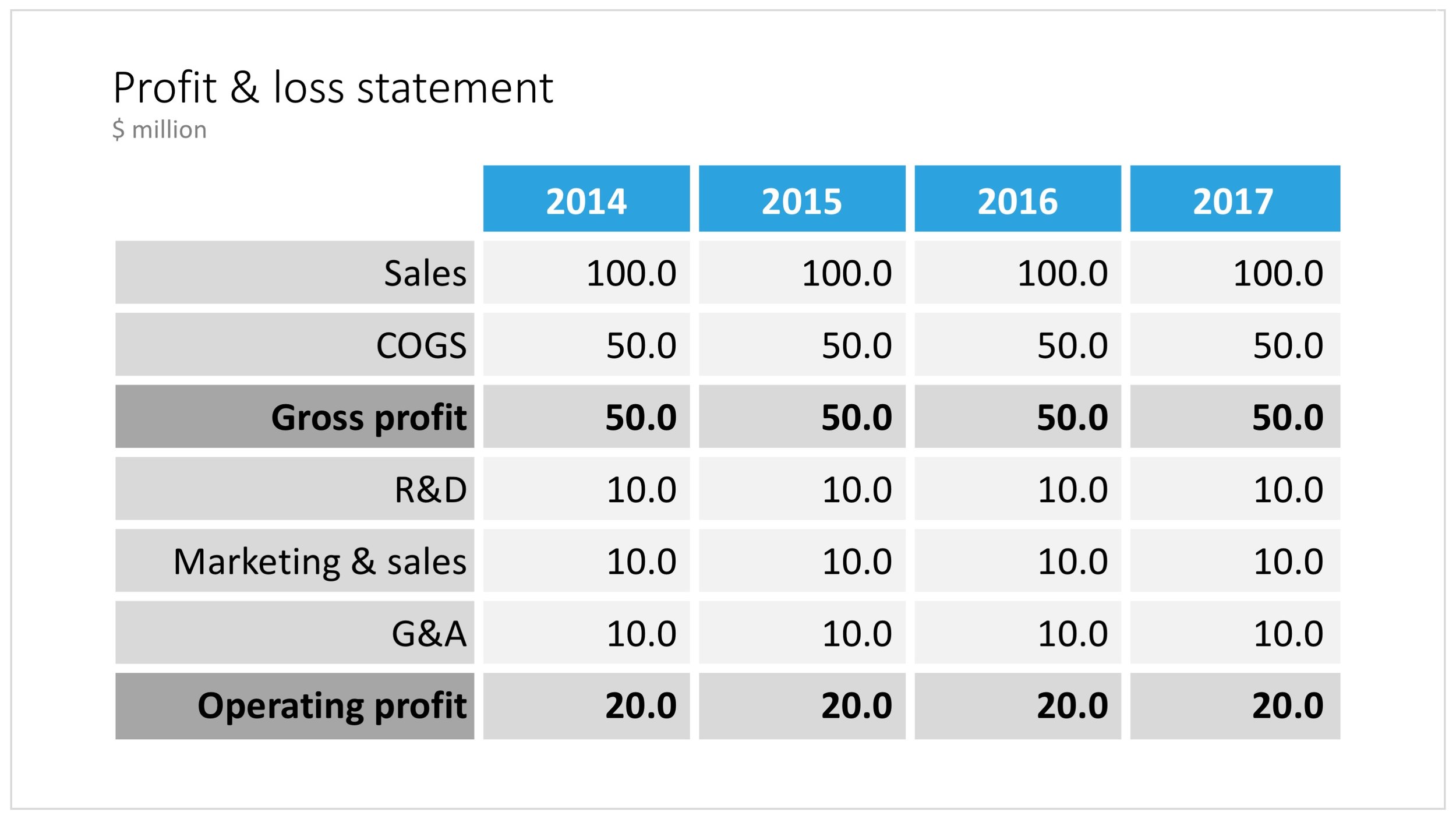
The way you format tables can make a huge difference in how your chart looks. When done well, a table can actually be an effective presentation slide. Have a look at the simple P&L table below.

A PowerPoint table to present a P&L

A PowerPoint table to present a P&L

This might look like a super simple slide design (it is), but a lot of thought and little tweaks have gone into its design. Let's take them one by one:

  • Colours have been adjusted to your own colour template, not the standard PowerPoint colours
  • Fonts have been matched to your current template (table can be stubborn sometimes and stick to Arial)
  • Instead of dark lines around boxes, I used lines that match the background colour, making cells a light colour of grey to stand out (or dark, black if you use that background)
  • Totals are bold, and a bit darker
  • The row labels are right aligned
  • The row labels are a bit darker than the cells
  • The data cells are right aligned
  • Numbers are rounded to the same amount of digits, so the dots line up
  • There are not too many digits in the table, enough to convey the data, but not too much to make it cluttered. If the numbers get too big, switch to thousands or millions.
  • There is a bit of inset in each cell, the text does not touch the edges
  • All the rows have the same height
  • All the data columns have the same width
  • The column headings are centered
  • The unit of measure is put at the top of the chart, not repeated inside the data values
  • The table covers the entire frame of the presentation template
  • Double check by hand/calculator: the numbers add up...

Excel can be an excellent starting point for a table. Pull the data values you want to show with the correct rounding into a new worksheet (tables for presenting are different from tables for analysing). Think hard about what rows you want show, consolidating/combining values that do not add to the overall message of your slide. Then copy-paste the whole thing into PowerPoint where it will show up as an ugly table. Go through the steps above to clean things up. Alternatively, you can apply a lot of similar formatting already in Excel, making your spreadsheet tables good enough to put straight on the projector. This is handy when your numbers update frequently.

Feel free to copy the design, or download this table from the template store. You search for more slides with tables as well.

SlideMagic: a platform for magical presentations. Free student plan available. LEARN MORE
Creating an infinity symbol in PowerPoint

Creating an infinity symbol in PowerPoint

It is tricky to create an infinity symbol (or lemniscate) in PowerPoint, it is a shape that needs to overlap with itself and requires Escher-style (impossible) layering of shapes. The only way to do it is cheat, and construct the final shape of many individual shapes that are grouped together cleverly.

I managed to get it done, and you can see the final result here (hmm, those arrows point the wrong way around though):

An infinity symbol in PowerPoint

An infinity symbol in PowerPoint

I don't have the exact workflow anymore that I used (I made some destructive edits), but below is a screenshot of the PowerPoint file in slide sorter mode that I used to create the shape, starting with 2 circles and a square.

How to create an infinity shape in PowerPoint

How to create an infinity shape in PowerPoint

This shape is useful to show concepts that keep on going, or loops that you can't get out of. You can download the infinity symbol here, or find other slides with loops. There are Apple Keynote versions available as well.

Cover image by Mark Asthoff on Unsplash

SlideMagic: a platform for magical presentations. Free student plan available. LEARN MORE
Puzzle pieces in PowerPoint

Puzzle pieces in PowerPoint

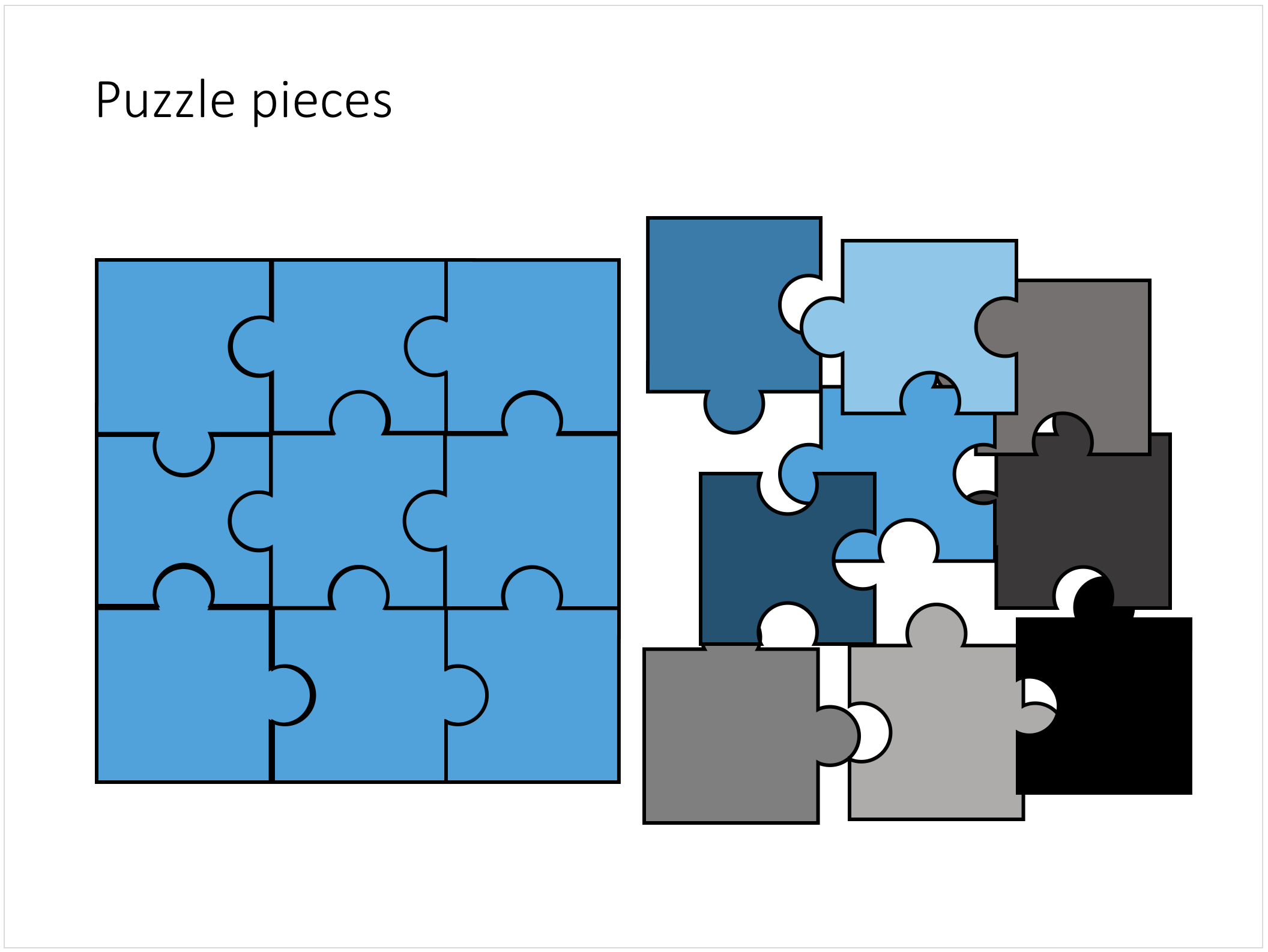
Although you could consider them a presentation cliché, puzzles can work really well in a presentation:

  • Show how things fit beautifully

  • Show how your are missing (hopefully just one) critical piece

  • Show that you finally managed to plug that last gap

Puzzle shapes can also work great when you use them in combination with images. You can go back to this blog post about making Photoshop-like image cut outs in PowerPoint.

Stock image sites are flooded with millions of puzzle piece designs, but they are not very practical for the average PowerPoint designer (especially late at night working for tomorrow's deadline). Almost all these puzzles pieces are vector objects or images that are impossible to edit in PowerPoint. Moreover, all these puzzle pieces have wildly irregular shapes that make them hard to fit in your slide composition that requires exactly nine of them.

This PowerPoint puzzle slide solves the problem for you. The pieces inside are fully editable PowerPoint shapes, you can change their colour, you can put text in them, you can reconfigure and piece them together as you see fit. Yo'u can download the finished slide by clicking the image (An Apple Keynote version is available as well).
You can try to create the pieces yourself if you want, I used simple square shapes and circles, either joining or subtracting the shapes. Circles and squares might not be the most realistic shapes, but they are very practical when have to piece things together. There is a little bit of math homework to do to determine which type of puzzle shapes you actually need, and which ones you can create by rotating existing pieces.

SlideMagic: a platform for magical presentations. Free student plan available. LEARN MORE
Concentric circles in PowerPoint

Concentric circles in PowerPoint

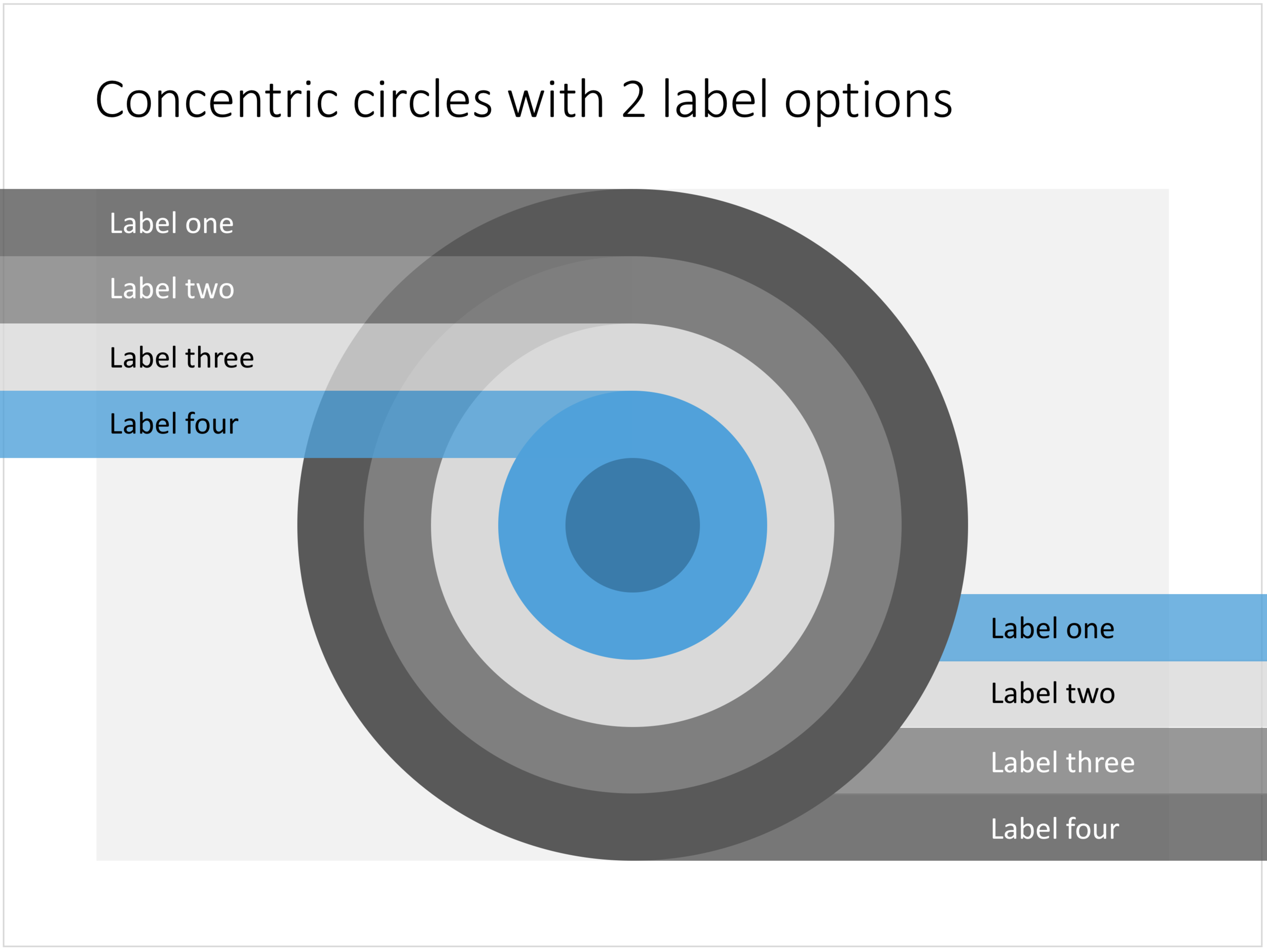
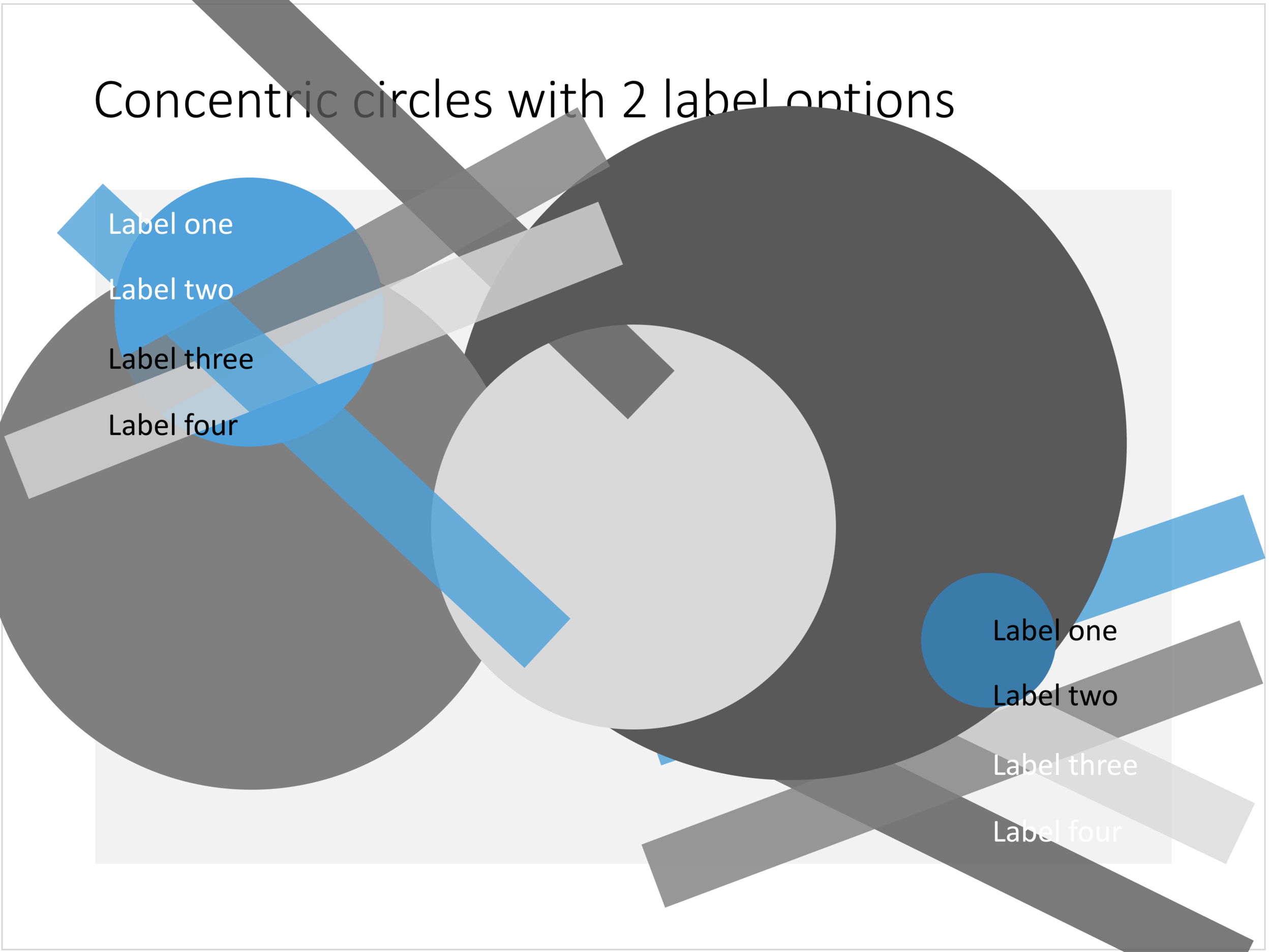
You can create very beautiful compositions by just using basic shapes and a few colours. Below is a presentation slide with concentric circles, and an image that shows how it is constructed. Feel free to borrow the design approach, or you can download the finished slide here.

This technique was often used by the Swiss graphics designers in the 1960s. You can use the slide concept below in a number of ways: show some sort of layering, show multiple layers of security or protection, show a whirl or rolling dynamic. You can take the labels of and just use the circles.

Concentric circles in PowerPoint

Concentric circles in PowerPoint

How to make concentric circles in PowerPoint

How to make concentric circles in PowerPoint

SlideMagic: a platform for magical presentations. Free student plan available. LEARN MORE